
| Product Documentation
ExSign
Managing ExSign Tenants
Tenants refer to Microsoft 365 organizations that have been registered in the ExSign Billing Portal. Before ExSign can apply signatures to users in a Microsoft 365 organization, the organization must first be registered as a tenant in the Billing Portal. You can add a tenant to the Billing Portal after signing in to it.
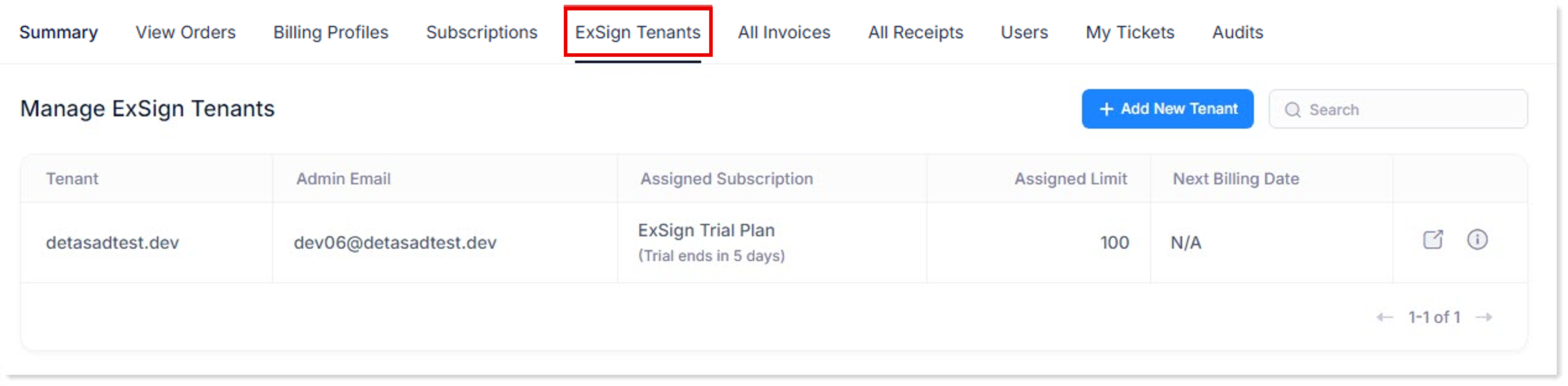
To manage tenants, click ExSign Tenants.
|
Manage ExSign Tenants page shows following information:
|
 allows you to log in to ExSign Portal (the signature management portal for the tenant). Clicking the
  allows you to view the tenant details.
Add New Tenant
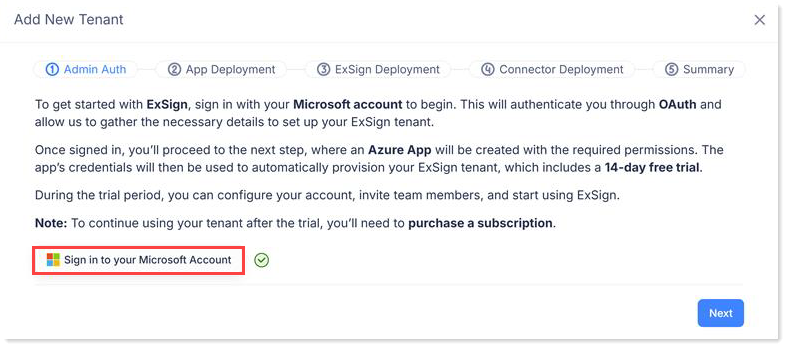
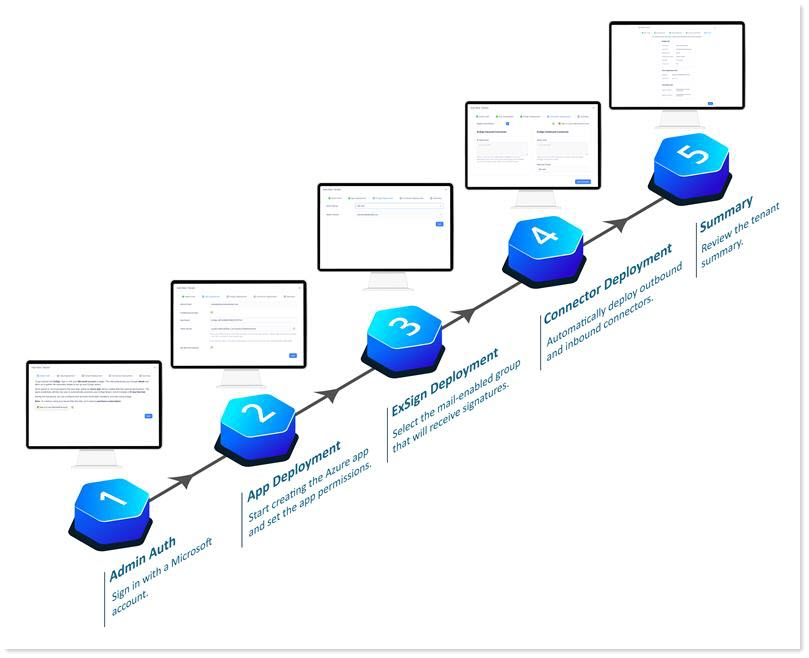
To register a Microsoft 365 tenant, you will first need to sign in with your Microsoft account. ExSign uses OAuth authentication to sign you in. This allows us to retrieve the necessary information to set up your tenant. After a successful signup, you’ll move to the next step, where you’ll provide your Azure App Configuration details. These details will be used to automatically create your ExSign tenant, which includes a 14-day free trial. During the trial, you can configure your account, invite users, and start using ExSign.
To register a tenant, click + Add New Tenant and sign in with your Microsoft account. This is the account that will manage the tenant in the ExSign Portal. It can only be the Microsoft 365 global administrator for the tenant.
Next, ExSign will automatically start creating the Azure App, and in the process will display the App Name and Client Secret. Next, you'll need to set the app permissions. To proceed, you'll be prompted to log in again to grant the necessary access. Since Microsoft hasn’t published the app, it will ask for the necessary permissions to access certain resources in your organization. Proceed by accepting the requested permissions.
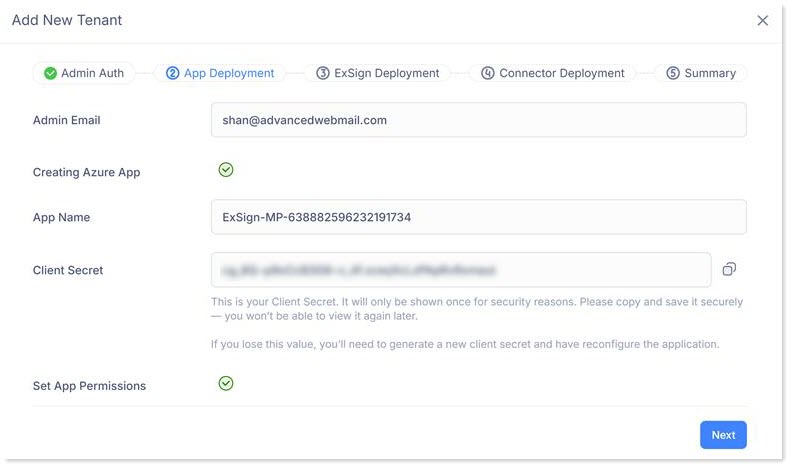
- Admin Email: It displays the email address of the user who will manage the tenant in the ExSign Portal. It should be a Microsoft 365 global administrator for the tenant (a user with the highest level of administrative privileges). ExSign Billing Portal requires you to sign in with this account before a tenant can be registered.
- App Name: This displays the name of the app registered in Azure.
- Client Secret: Specify the Client Secret. Client Secret or "App Secret” as it is sometimes called, refers to a confidential piece of information used to authenticate an application in the Azure Active Directory. When you register an application in Azure AD, you can create a secret for the app, which is used as a shared secret between the application and the authentication service. The application uses the secret to request access tokens and authenticate itself. Once you've saved the client secret, the value of the client secret is displayed. Copy this value because you won't be able to retrieve the key later. You'll provide the key value with the application ID (Client ID) to log in as the application.
Be sure to copy and securely save the client secret, as it’s displayed only once and won’t be visible again. - Set App Permissions: After accepting the requested permissions and logging in once again with the M365 global administrator of the tenant, ExSign will automatically set the permissions and mark them with a green tick.
ExSign will then begin fetching all mail-enabled groups in your organization and display them for selection. Select a group within the tenant that will receive the signatures. Signatures will only be stamped on the members of this group. They will not be stamped on any users outside the group. Then select the tenant suffix and hit the next button.
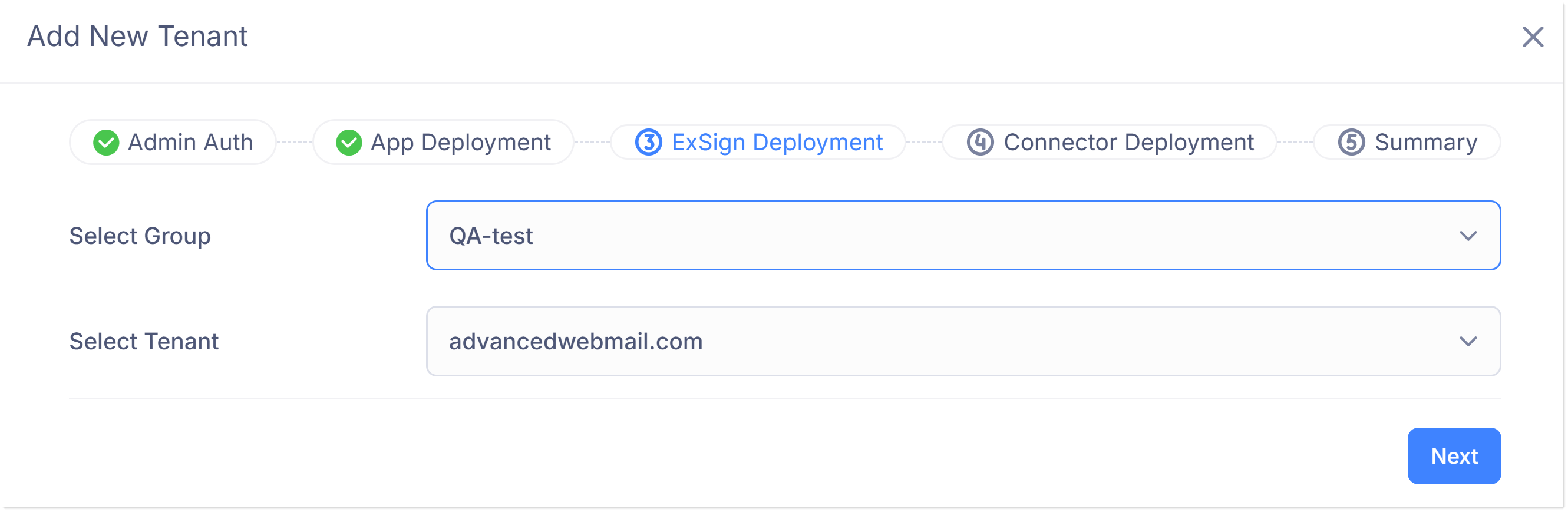
- Select Group: Select the mail-enabled group within the 365 tenant/organization on whose members' (mailboxes) signatures are to be stamped. Signatures will only be stamped on the members of this group. They will not be stamped on any users outside the group.
- Select Tenant: Select the Microsoft 365 tenant suffix.
The Next step in line is the connector deployment. ExSign requires you to create two connectors in your Microsoft 365 organization. One is an inbound connector, and the other is an outbound connector. Connectors reroute your email through ExSign and can be automatically deployed while onboarding an organization. Before deploying the connectors, you'll be prompted to sign in again with your Microsoft account—go ahead and complete the sign-in. ExSign will then display the previously selected mail-enabled group, whose members will receive the signatures. Click the Save and Review button.
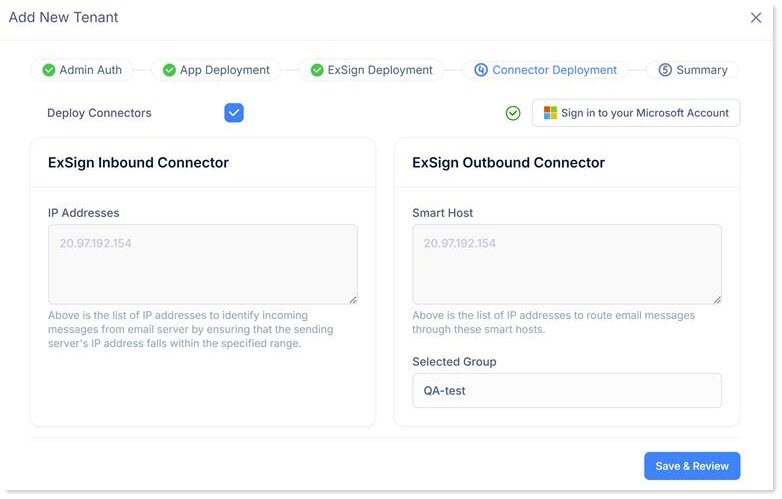
- ExSign Outbound Connector: The outbound connector routes your emails to the ExSign service.
- ExSign Inbound Connector: The ExSign service checks whether messages meet the centrally defined conditions set in the ExSign rules. If the conditions are met, the service stamps the appropriate signatures and returns the messages to the inbound connector (located inside Microsoft 365). These stamped emails then go to the final recipients.
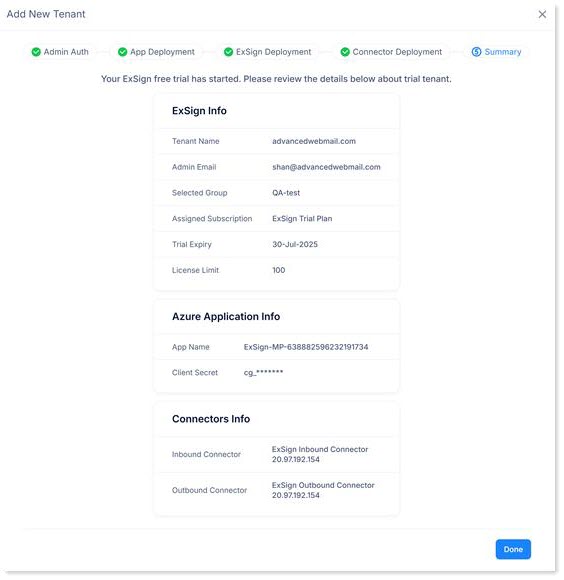
Finally, a summary of your tenant’s details will be displayed. Review the information carefully. The final step also initiates a free 14-day trial of the Microsoft 365 tenant.
View the video tutorial below to learn how to onboard your Microsoft 365 tenant to ExSign.
View Tenant Details
ExSign Billing Portal also allows you to view the tenant details. To view tenant details, click  icon.
icon.
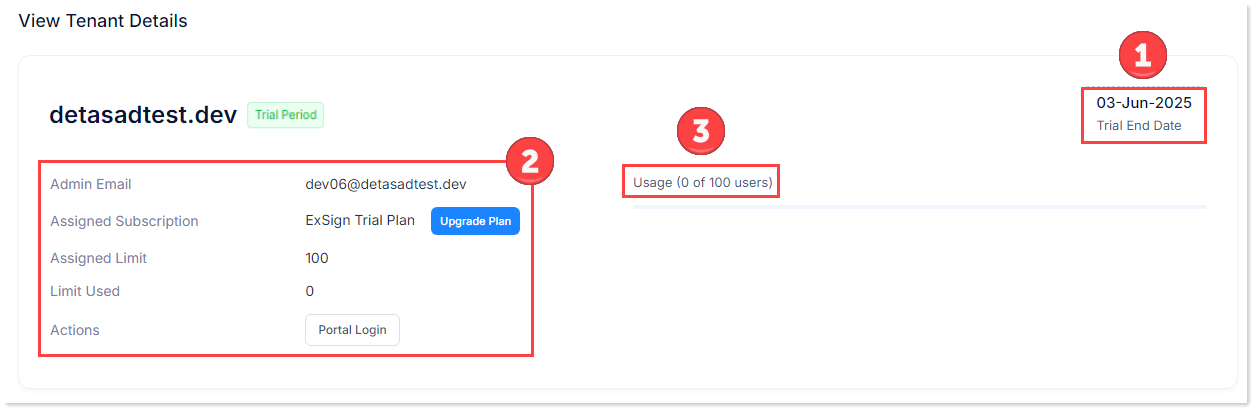
- Trial End Date: It shows the date when the trial period would expire.

- Tenant Details: It shows tenant details like concerned email, subscription trial details with an option to upgrade the plan, maximum number of users assigned, how much the limit has been used, and an option to login to the portal.

- Admin Email: It displays the email address of the user who will manage the tenant in the ExSign Portal. It should be a Microsoft 365 global administrator for the tenant (a user with the highest level of administrative privileges). ExSign Billing Portal requires you to sign in with this account before a tenant can be registered.
- Assigned Subscription: It displays the name of the subscription assigned to the tenant. If the tenant is currently on a trial period, it can switch to a purchased subscription once the trial ends. A tenant cannot subscribe to a subscription that provides fewer mailboxes than the number currently assigned to the tenant.
- Assigned Limit: It displays the number of mailboxes purchased in the subscription. The 14-day trial offers a total of 100 mailboxes.
- Limit Used: It shows the actual mailboxes consumed from the assigned limit.
- Actions: It allows you to log in to the ExSign Portal. ExSign uses Microsoft Authentication to sign you in to the interface.
- Usage Details: It displays the mailboxes (users) consumed out of the assigned limit. These are the mailboxes actively availing the stamping service.
