
| Product Documentation
ExSign
Configuring Your Environment M365
Set Your Basic Environment
Go to System >> General Settings. Portal URL, Company Name, Company Website, Hub Server Access, and Entity Custom Message are required fields. ExSign uses them in the ExSign email templates and login flow, so they can't be left blank.
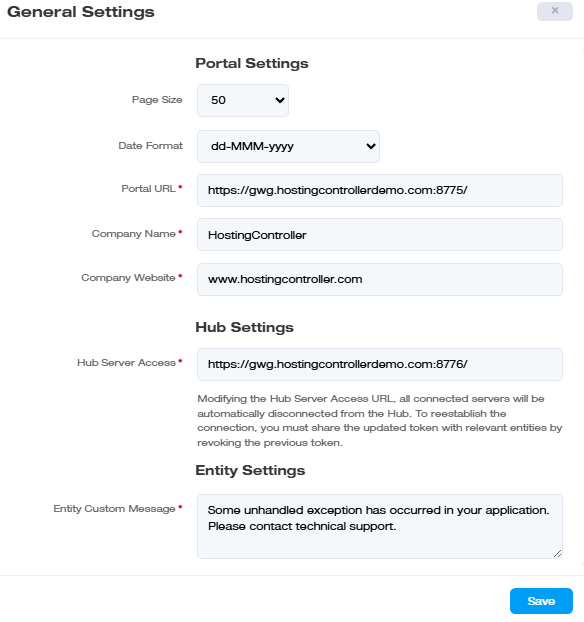
| Settings | What it Controls |
| Page Size | Number of rows shown per page in listing screens |
| Date Format | Date format used throughout the application |
| Portal URL |
The admin site address (e.g.https://yourdomain.com:8775) users log into |
| Company Name / Website |
Used in signature and disclaimer templates |
| Entity Custom Message |
A custom message shown to entities |
Configure the API Hub Connection
The Hub Server Access field is the URL your Agents use to reach the Portal; see Firewall Ports You'll Need Open (M365).
Image Upload Settings
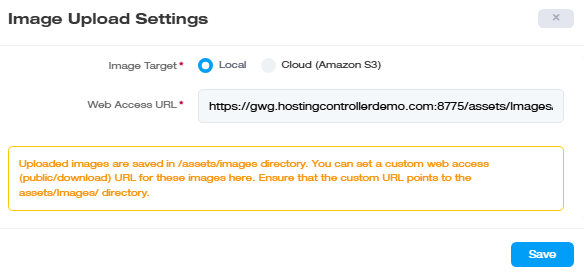
Navigate to System >> Image Upload Settings. You have two options:
- Local Storage: Simplest option; images are stored directly on the Portal server.
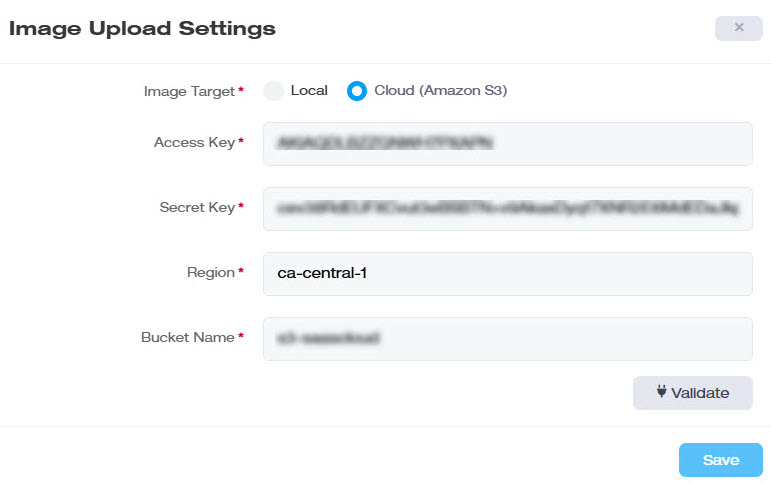
- Cloud Storage (Amazon S3): Better if you want images available independently of the Portal server, or if you already use AWS.
If You Choose Local:
Setting What It Controls
- Image Target: Stores images in the
assets/Imagesdirectory on the Portal server. - Web Access URL: A web-accessible URL pointing to that same directory, so admins can retrieve images.
If You Choose Cloud (Amazon S3):
Gather this from your AWS account first:
- Access Key and Secret Key (for authentication)
- Region your S3 (Simple Storage Service) bucket is hosted in (e.g., us-east-1). AWS S3 bucket regions are geographical areas that AWS designates for data storage, and you must select one when creating a bucket.
- Bucket Name, where the images will be stored.
Enter these, then click Validate to confirm ExSign can actually connect before saving.
Activate Your License
Go to System >>Activate License and enter your key.
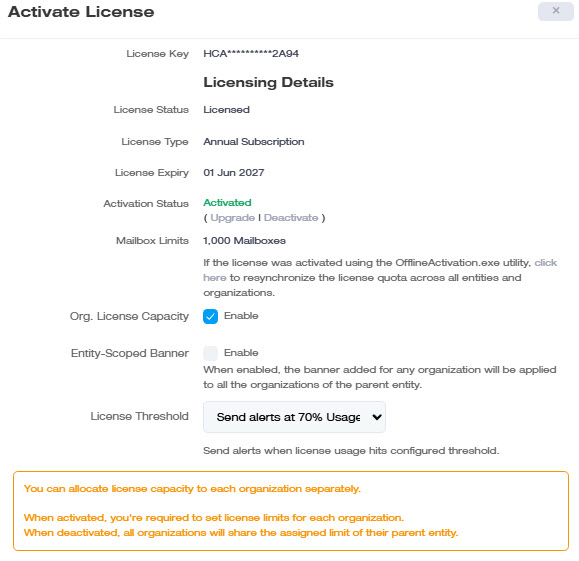
| Field | What it Shows |
| License Key | Your license key (shown partially masked, e.g. HCA**********2A94) |
| License Status | Whether the license is currently valid (e.g. "Licensed") |
| License Type | Monthly or Annual subscription |
| License Expiry | The date the license stops being valid |
| Activation Status | Activated / Deactivated, with Upgrade and Deactivate links available directly from here |
| Mailbox Limits |
Total mailboxes covered, the pool divided across entities |
Two decisions worth making deliberately here:
- Org. License Capacity: Turn this on if you want each organization to have its own hard mailbox limit (you'll then set a limit per organization on the organization listing page). Leave it off if organizations should freely share their parent entity's pool.
- Entity Scoped Banner: Turn this on if a banner added to any one organization in an entity should automatically apply to every organization in that entity. Example: an entity has 4 organizations; banners are configured for 2 of them. Enabling this applies those banners across all 4.
Set Up Usage Alerts
Configure email alerts at 70%, 80%, 90%, and/or 95% of your license usage, so you're notified before you run out rather than after. You can opt out entirely if you'd rather monitor manually. See License Threshold Configuration for details.
Decide on an Approval Workflow
Go to System >> Workflow Settings.
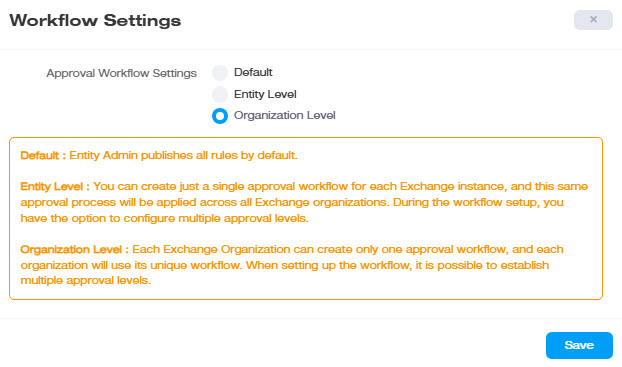
| Choose | If |
| Default | Admins should be able to publish rules directly, with no approval step. |
| Entity Level | You want one approval chain per entity, shared across all organizations under it. |
| Organization Level | Each organization should have its own independent approval chain and approvers. |
Both levels support multiple approval steps if a single sign-off isn't enough. Select an option and click Save.
Observability Metrics
Navigate to System >> Manage Observability Metrics to see and manage health metrics tracked across your environment:
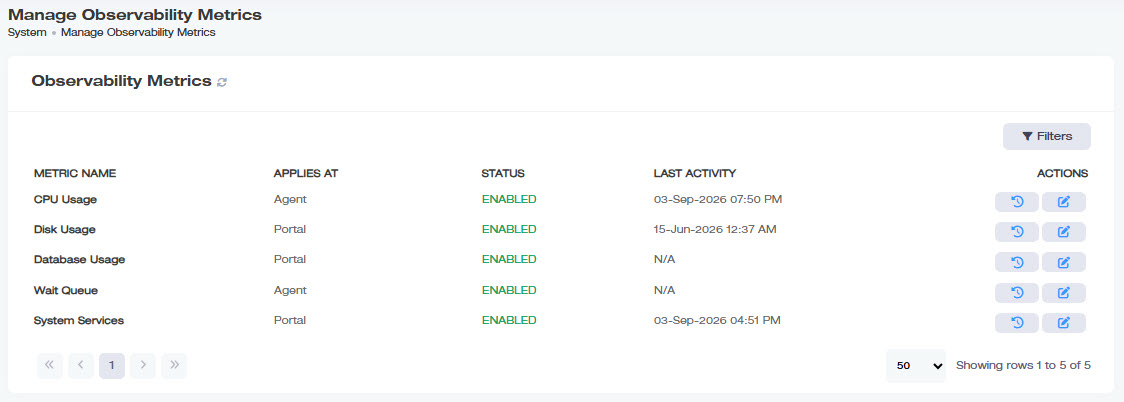
| Column | Shows |
| Metric Name | What's being tracked (e.g., CPU Usage, Disk Usage, Database Usage, Wait Queue, System Services). |
| Applies At | Whether this metric is tracked on the Agent or the Portal. |
| Status | Whether tracking is currently Enabled or disabled for this metric. |
| Last Activity |
When this metric last recorded activity (shows N/A if it hasn't yet) |
| Actions |
A reset icon and an edit icon per metric |
The Edit action opens a Metric Details dialog for that metric, confirming what Edit actually configures:
| Field | What it Controls |
| Metric Name / Applies At | Shown for reference, not editable |
| Alert Threshold | The value (e.g., 80%) that triggers alert monitoring, once the metric reaches or exceeds this, the system starts tracking how long it stays above it. |
| Check Interval | How long (e.g., 5 min) the metric must remain above the threshold before an alert actually fires, this prevents a brief spike from triggering a false alarm. |
| Status | Enable or disable tracking for this specific metric. |
Stamping Logs Retention
Go to System >> Stamping Logs Retention to control how long stamping logs are kept, and what happens to them afterward. This is the policy behind the Archived Logs screen (see Using Logs)
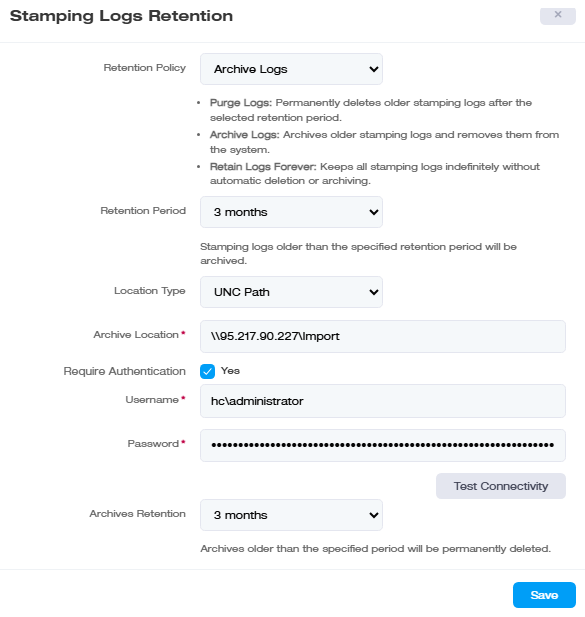
| Field | What it controls |
| Retention Policy | Purge Logs (permanently deletes older logs), Archive Logs (archives them and removes them from the active system), or Retain Logs Forever (no automatic deletion or archiving at all) |
| Retention Period | How old a stamping log must be before the policy above applies to it (e.g., 3 months) |
| Location Type | Where archives are stored, e.g., a UNC network path |
| Archive Location |
The actual path (e.g. |
| Require Authentication | Enable if the archive location needs credentials to write to |
| Username / Password |
Credentials for that location, if required |
| Archives Retention |
A separate retention period for the archives themselves, once an archive is older than this, it's permanently deleted |