
| Product Documentation
ExSign
Creating a Rule
A rule tells ExSign when to stamp a signature or disclaimer on an outgoing email, and what to stamp. Each rule is made up of conditions (when it applies) and an action (what gets applied); for example, "if the sender is in the Sales department, stamp this signature."
These are ExSign's own rules, separate from Exchange's native mail flow (transport) rules; the two don't interact. For how the Transport Agent actually applies published rules on each mailbox server, see How ExSign Works.
Viewing Rules
Go to the left menu, under View By Entities, and click Rules:
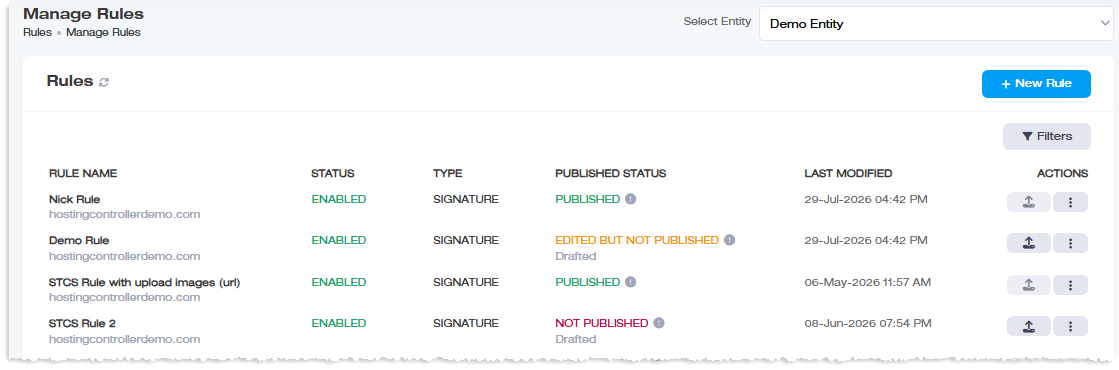
| Column | Shows |
| Rule Name | Name of the rule |
| Status | Enabled or disabled |
| Type | Signature or Disclaimer |
| Published Status | Published or unpublished, click through for details on exactly which servers it's published to, and whether each publish succeeded |
| Last Modified | When it was last changed |
| Actions |
Edit, delete, and the other actions covered in Publishing and Managing Rules |
Creating a New Rule
Click New Rule and choose a type:
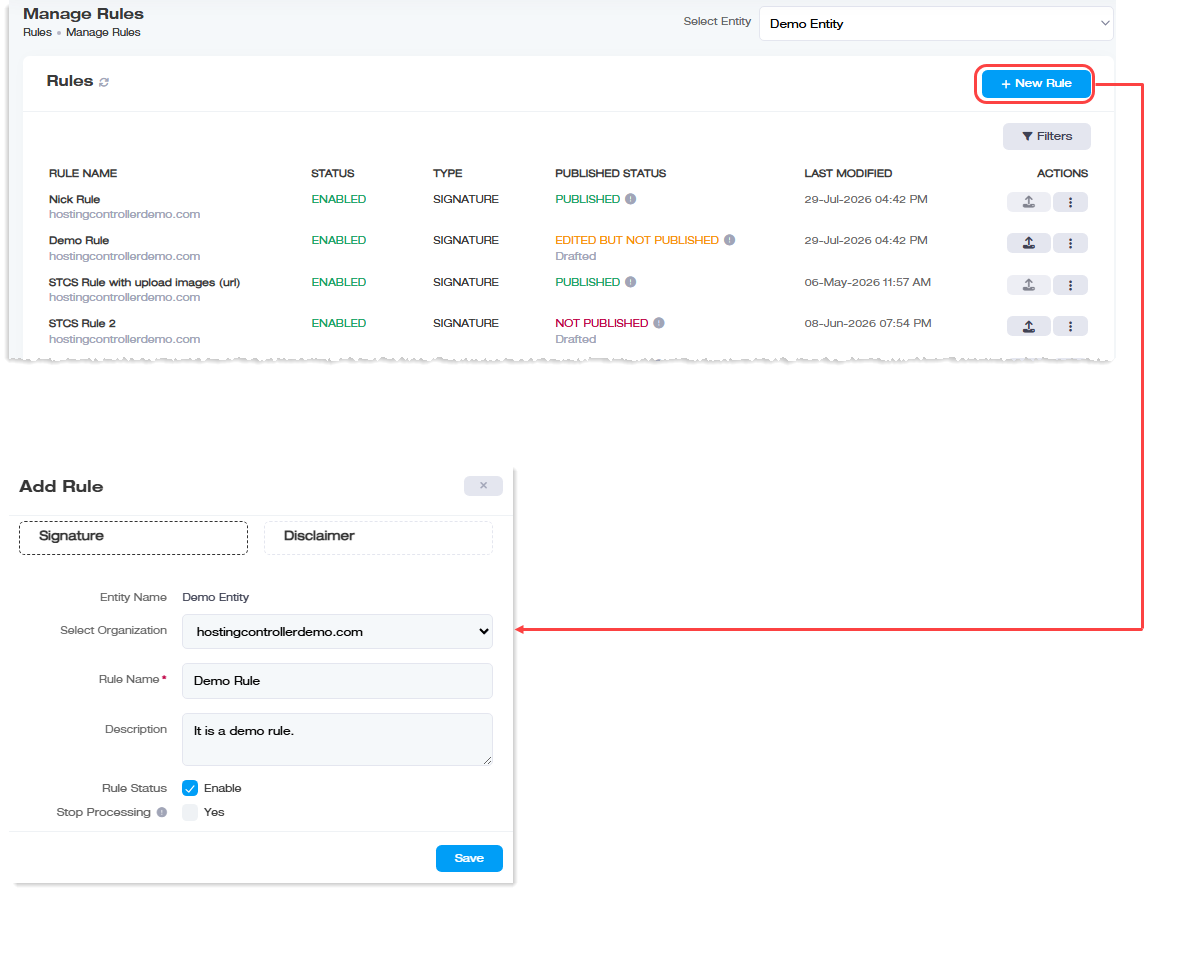
- Signature Rule: For email signatures (names, titles, contact info, branding).
- Disclaimer Rule: For legal/compliance text.
Both share the same basic fields:
| Field | What to Enter |
| Entity Name | Which entity this rule applies to |
| Select Organization | Which organization (OU) within that entity |
| Rule Name | Required cannot be left blank |
| Description | A brief note on what this rule is for |
| Rule Status | Enable or disable the rule |
| Stop Processing | Enable if no further rules should be evaluated once this one applies |
Editing a Rule
Click  under Actions column and then Edit. Everything above can be changed here, plus one more option only available once a rule exists:
- Apply on Top: enable this to insert the signature at the top of the email body instead of the bottom.
Conditions, Exceptions, and the actual signature content are edited from their own tabs, continue to Setting Conditions and Exceptions, then Designing Your Signature.