
| Product Documentation
ExSign
Managing Servers
This is the Portal's view of every mailbox server, across every entity, that's running the ExSign Transport Agent. Without a server showing up here and connected, its Agent has no way to receive signature and disclaimer rules from the Portal.
This page and Connecting the Transport Agent are two halves of the same task: you generate a server's connection token here, then enter it on the mailbox server itself.
Onboarding a New Server
Navigate to the left menu, under View by Entities, click Servers, then + New Server, and provide:
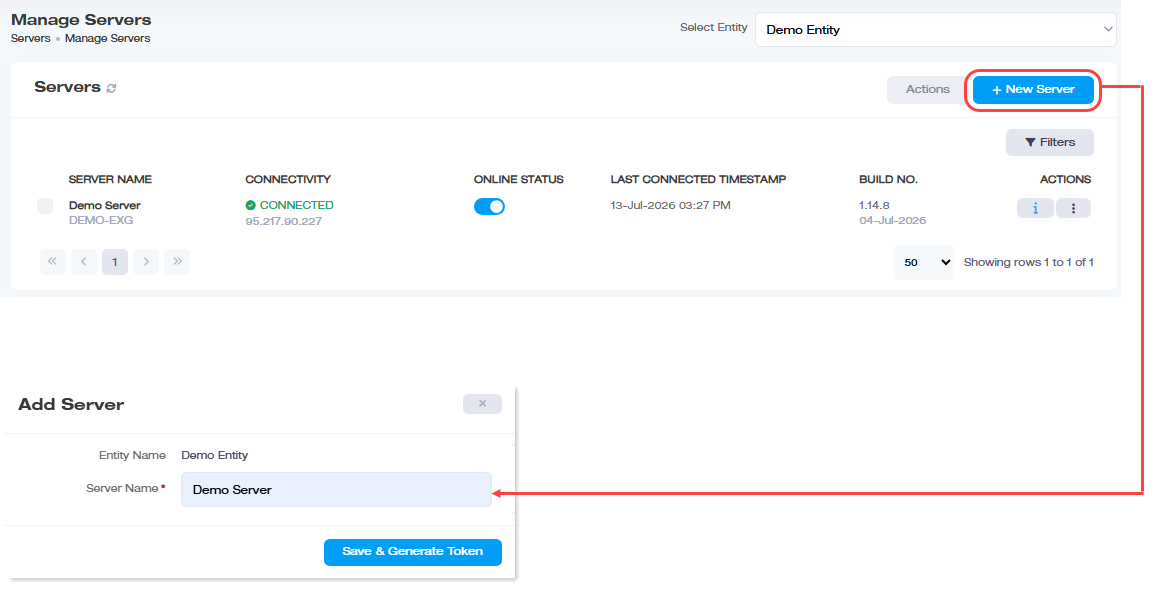
| Field | What to Enter |
| Entity Name | Which entity this mailbox server belongs to |
| Server Name | A friendly name for the server |
Click Save & Generate Token. This creates a one-time token, copy it, or send it directly to an email address, then go to the mailbox server and paste it into the Agent's Authentication Token field to complete the connection (see Connecting the Transport Agent).
Viewing Your Servers
The Servers list shows:
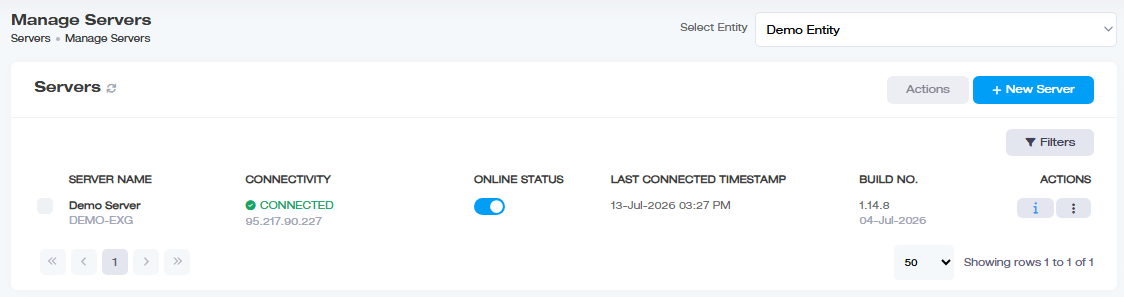
| Column | Shows |
| Server Name | Name of the server |
| Connectivity | Whether the server is currently connected or disconnected from the Portal |
| Online Status |
Whether the server is currently online or offline |
| Last Connected Timestamp |
When it last connected |
| Build No | The Agent's build number and release date |
Keeping a Server Healthy
- Verify DC Credentials: Confirms the server can still reach and authenticate against its entity's Domain Controller. Use this if you suspect a credentials or connectivity issue on a specific server. To check several servers at once, select them all, then use Actions >> Verify DC Credentials instead of checking them one at a time.
- Restart Service: Stops and restarts the ExSign Agent Service on that server. Useful if the Agent seems unresponsive, or after making configuration changes on the server that require a restart to take effect.
- Connection History: A log of connection/disconnection events between this server's Agent and the API Hub, with timestamps. Check this when a server's connection seems intermittent, to see the actual pattern of drops and reconnects rather than just its current status.
Disconnecting or Removing a Server
These two actions have a required order; you can't skip straight to deleting a server:
- Revoke Token first. This disconnects the mailbox server from the Portal. You'll be asked to confirm before it takes effect.
- Then Delete. If you try to delete a server whose token hasn't been revoked yet, ExSign will stop you and prompt you to revoke it first.