
| Product Documentation
ExSign
Rules for Microsoft 365
Rules allow ExSign to act on email messages that flow through Exchange Online in Microsoft 365. Based on conditions, certain actions can be taken on emails and these conditions and actions make up rules. ExSign defines its own set of rules to dynamically stamp signatures and disclaimers on outgoing emails. For example, if the email contains a certain address in the from field or certain words in the subject line, ExSign stamps a certain signature on it. ExSign rules are different from the Exchange Online mail flow rules (also known as transport rules).
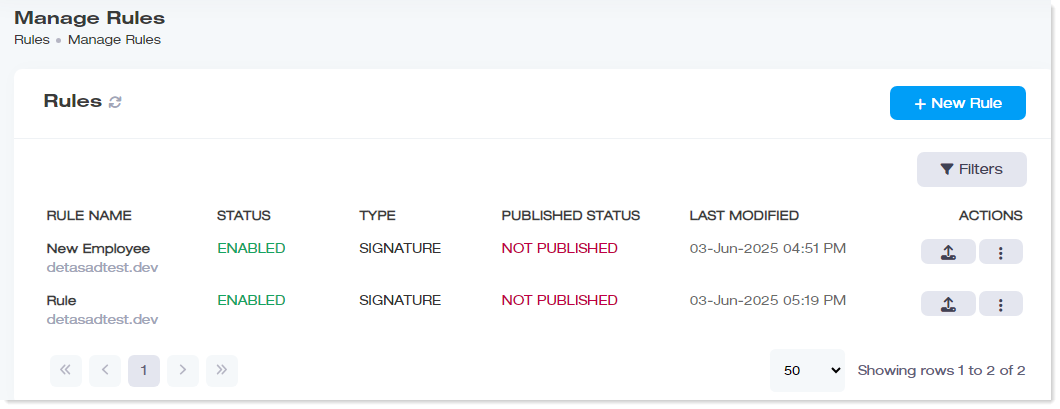
To manage rules, navigate to the left menu and click Rules under the Main section.
|
Manage Rules page shows the following information:
|
 icon. It displays the friendly name of the Exchange server on which the rule is published and whether the rule was published successfully once on the server.
Corporate offices have multiple departments. Depending on the setup, rules can be configured as per the requirements of different departments. Some basic rules settings are as follows:
Add New Rule
ExSign offers two types of rules to be added:
Signature Rules:
Signature rules are rules for email signatures. To add a signature rule, click the New Rule button and select the Signature tab.
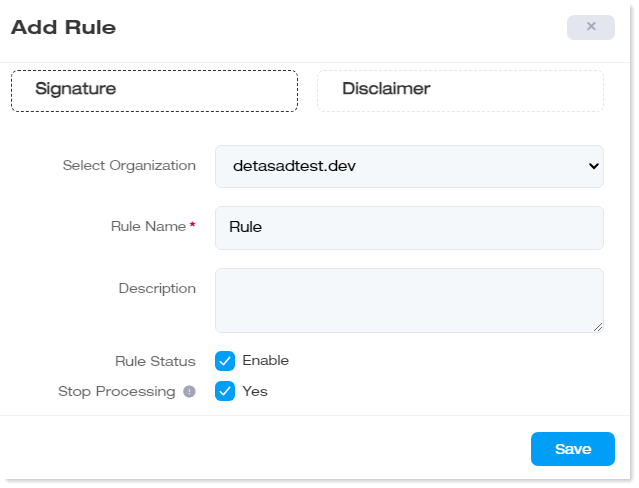
- Select Organization: This is the Microsoft 365 organization/tenant for which the rule is being commissioned.
- Rule Name: Type the name of the rule. The rule name is a required field and cannot be left empty.
- Description: Briefly describe the rule.
- Rule Status: The rule can remain enabled or disabled. Select the Enable check box to enable the rule.
- Stop Processing: If you want to stop the processing of further rules once this rule is applied, select the Yes check box.
Disclaimer Rules:
Like signatures, rules can also be defined for disclaimers. To add a disclaimer rule, click the New Rule button and select the Disclaimer tab.
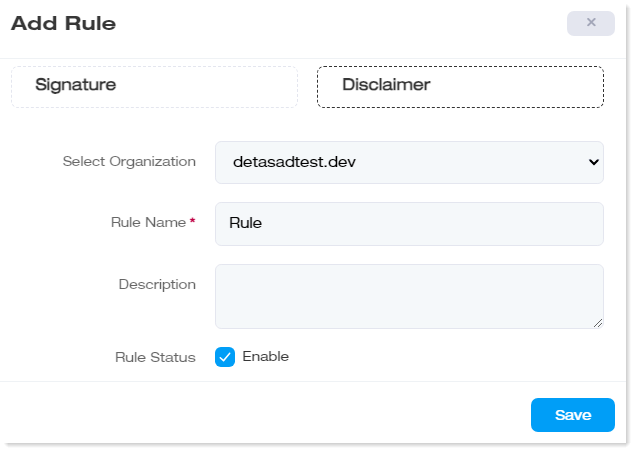
- Select Organization: This is the Microsoft 365 organization/tenant for which the disclaimer rule is being commissioned.
- Rule Name: Type the name of the rule. The rule name is a required field and cannot be left empty.
- Description: Briefly describe the rule.
- Rule Status: The rule can remain enabled or disabled. Select the Enable check box to enable the rule.
Edit New Rule
To modify any rule, click  and then Edit under the Actions column. The following information can be modified under the Edit section:
General
The General tab contains general information for the rule. It allows Exchange Admins and OU Admins to name a rule, provide its description, enable/disable the rule and stop processing more rules once it is applied.
- Organization Name: This is the Microsoft 365 organization/tenant for which the rule is being commissioned.
- Rule Name: Type the name of the rule. Rule name is a required field and cannot be left empty.
- Description: Briefly describe the rule.
- Rule Status: The rule can remain enabled or disabled. Select the Enable check box to enable the rule.
- Stop Processing: If you want to stop the processing of further rules once this rule is applied, select the Yes check box.
Conditions
The Conditions tab defines the conditions, based on which certain actions are taken by ExSign. Conditions can be the message header fields such as to and from fields, they can be the message properties fields such as the subject and body fields or they can be other fields such as message type and message direction fields. Based on these conditions, certain signatures are stamped on outgoing messages.
For a signature to be successfully stamped on an email, all configured conditions within a rule must be satisfied. If even one condition is not met, the signature will not be applied. When multiple conditions are configured in a rule, they work together using a logical AND relationship. This means:
- Every condition must evaluate to true.
- If any single condition fails, the rule will not execute.
- As a result, the email signature will not be stamped.
This is the most common reason why signatures may not appear as expected. For more details, see Understanding the importance of conditions.
- Field: Select the required field from the drop-down list box. Fields can be the message header fields such as to and from fields, they can be the message properties fields such as the subject and body fields or they can be other fields such as message type, message direction, or message timing. Based on these fields certain conditional operators can be selected.
- Operator: Select the required conditional operator from the drop-down list box. Most conditions require the admin to specify comparison operators such as is equal to/contains/not equal to. Based on these comparison operators a value to match is given.
- Value: Specify a value to match the condition such as email address, text, date, or time. For example for a condition that examines the sender's email address, email signatures are applied if mail is sent from a specific email address and the value of the email address matches a certain value such as john@example.com.
The following table details all the conditions and the underlying operators presented by ExSign:
| Field | Operator | Value | Condition |
| Sender | Is Equal To | john@example.com | Apply signature if mail is sent from this specific email address. The sender email should be an exact match to the value |
| Contains | john | Apply signature if email address in ‘from’ field contains the specified characters. | |
| Not Equal To | john@example.com | Apply signature to emails from all email addresses except this one. | |
| In Department | Accounts (name of department) | Apply signature to mails from all senders existing in the specified department. | |
| Not in Department | Accounts (name of department) | Apply signature to mails from all senders except the ones existing in the specified department. | |
| Exists in Group |
Technical (name of distribution/security group) |
Apply signature to mails from all senders existing in the specified distribution/security group. | |
| Not Exists in Group | Technical (name of distribution/security group) | Apply signature to mails from all senders except the ones existing in the specified distribution/security group. | |
| Recipient | Is Equal To | mark@example.com | Apply signature if mail is directed to this specific email address. The recipient email should be an exact match to the value. |
| Contains | mark | Apply signature if email address in ‘to’ field contains the specified characters. | |
| Not Equal To | mark@example.com | Apply signature to emails directed to all email addresses except this one. | |
| Subject | Is Equal To | sales | Apply signature if subject of the email exactly matches the text in the value. |
| Contains | sales | Apply signature if subject of the email contains the specified text. | |
| Not Equal To | sales | Apply signature if the subject text is not equal to the specified text. | |
| Body | Contains | promotion | Apply signature if the body of the message contains the specified text. |
| Message Direction | Within Organization | N/A | Apply signature if email is being sent to accepted domains within the organization. |
| Outside Organization | N/A | Apply signature if email is being sent to accepted domains outside the organization. | |
| Timings | Days | Monday | Apply signature if email is being sent on the specified day. |
| Active Hours |
From: 10:00 AM To: 10:00 PM |
Apply signature if email is being sent between the specified time range. | |
| Date Range |
From: 20th Jan 2020 To: 22nd Jan 2020 |
Apply signature if email is being sent between the specified date range. | |
| Message Type | New Email | N/A | Apply signature if the message is a new email. |
| Forward/Reply |
N/A |
Apply signature if the message is a reply to a previous message or is being forwarded to someone else. | |
| Out of Office |
N/A |
Apply signature if the email is an auto generated message, in response to an email. |
Exceptions
Exceptions allow you to specify when a rule should not be applied. They are special conditions that bypass the general rule. Exceptions are defined in the same way as conditions except they do not follow the rule. They override conditions and prevent the rule actions from being applied to an email message, even if the message matches all the configured conditions.
- Field: Select the required field from the drop-down list box. Exception fields use the same settings and syntax as condition fields except they exclude messages rather than including them. Some exceptions examine message header fields such as to and from fields, others examine message properties such as subject and body fields while still others examine message type and direction fields.
- Operator: Select the required conditional operator from the drop-down list box. Most exceptions require the admin to specify comparison operators such as is equal to/contains/not equal to. Based on these comparison operators a value to match is given.
- Value: Specify a value to match the exception such as email address, text, date, or time. For example, for an exception that examines the sender's email address, email signatures are NOT applied if mail is sent from a specific email address and the value of the email address matches a certain value such as mike@example.com.
Signature
The tab gives the resulting signatures that would be stamped on the outgoing email if the above conditions are met. Signatures can be stamped in HTML, Rich Text Format (RTF), or plain text. You may also preview the signatures and see how they look before they are saved.
ExSign presents an elaborate editor for styling signatures.
- Templates: The ExSign admins can also take advantage of a number of built-in templates for signatures. These templates make available ready-made styles that admins can use for defining signatures. They are especially handy for those admins who do not want to build signatures from scratch.
Custom fonts can be added to ExSign. To learn how to add custom fonts, see Adding Custom Fonts to ExSign. - Special Character: Special character can be inserted into signatures.
- Validate: This option allows you to verify that signatures render correctly across different platforms, including Chrome, Outlook (Classic), Firefox, and Safari. The system automatically detects potential HTML and CSS compatibility issues that may affect signature rendering and provides platform-specific warnings to help you address them proactively.
- Preview: ExSign enables you to preview your email signatures in real time across different browsers and screen sizes. This allows you to see exactly how your signature will appear on various devices before it is published. Every mailbox in the organization can be previewed for its look and feel.
- Thumbnail Photo: It enables you to retrieve user photos from Microsoft 365 and insert them into the editor. These photos then appear in email signatures.
- QR Code: It allows you to insert a QR code into the editor. It will insert the QR code defined for the organization. To learn how to define QR codes for organizations, see QR Code.
- Placeholder: Admins can insert Microsoft 365 attributes to signatures, anywhere they want. These attributes can be inserted in the form of placeholders. The placeholders are substituted for actual values of the respective profiles when the messages are sent out.
- Source Code: The source code of the signatures can be viewed and edited directly in HTML.
- Remove Text (RT): When creating an email signature in ExSign, you can insert placeholders that are dynamically populated with attribute values from Active Directory. If a particular attribute is not available for a user, the corresponding placeholder may leave an empty space in the final signature. To ensure signatures remain clean and professional, ExSign provides a built-in feature called Remove Text (RT). By enclosing placeholders within RT tags, the system automatically removes the placeholder along with its surrounding text whenever the associated attribute is missing—preventing unwanted gaps and maintaining a polished final appearance. To learn more about removing blank placeholders, see How to Automatically Remove Blank Placeholders.
- Text Transformation: Placeholders are automatically populated with Active Directory data when a signature is applied. In some cases, user attributes in Active Directory may not be properly formatted; for example, names may begin with lowercase letters or have inconsistent capitalization. ExSign allows you to transform placeholder text according to your requirements. You can convert text to uppercase or lowercase, capitalize initial letters, or insert spaces to improve readability and maintain a consistent professional appearance.
- Upper: It transforms the text to upper-case letters.
- Lower: It transforms the text to lower-case letters.
- Title: It capitalizes the initial letters of the words.
- Space: It inserts spaces in the text.
For text transformation to work correctly, the placeholder enclosed within the {{ }} tags must first be selected. For example, to transform the {{LastName}} placeholder, select the entire placeholder text before applying the transformation.
- Image Gallery: It enables you to select images from a collection of previously uploaded files and insert them directly into the editor. When Image Upload Settings are configured to Local, uploaded images are stored in the /assets/images directory on the web portal server. If the setting is configured to Cloud (Amazon S3), images are retrieved from the Amazon S3 service within Amazon Web Services (AWS).
- Convert to Embedded Image: Typically, images used in email signatures are not embedded directly within the email itself but are hosted externally on the Internet. To include such images in a signature, you must provide the URL of their hosted location. When an email is sent, these images are delivered as linked resources rather than embedded content. As a result, recipients must download the images when opening the email in order to view them. If image downloading is disabled or blocked in the recipient’s email client, the images will not be displayed.
ExSign allows you to embed images directly into the email body instead of linking them from an external source. With embedded images, the image becomes an integral part of the email content, ensuring recipients can view it without downloading external resources or having internet access to load the images. To embed an image, select the image in the editor and click the ‘Convert to Embedded Image’ button. It will automatically convert the image to an embedded image. To learn more, see How Embedded Images Work in ExSign.
-
Full View: ExSign also provides a full view of the editor that offers a visual interface with access to all editing tools and features. It also displays a full view of signature templates and social media icons, allowing you to easily drag and drop icons directly into the editor.
- Main: This gives a full graphic view of all the editing features and tools.
- Templates: This allows you to select, edit, and preview signature templates in full view.
- Social Media: This provides you with a repository of ready-made social media icons to choose from and allows you to drag and drop these icons directly into the editor. It also allows you to insert links and titles to the icons.
Publish Rules
The publish rules feature in ExSign is a control mechanism for controlling the stamping of signatures and disclaimers. Without a rule being published, it will not go into effect, and stamping of signatures will not occur.
To publish rules directly, click  under Actions column.
Make a Copy
ExSign allows you to clone signature rules. Cloning rules allows you to make minor adjustments to an existing rule and apply it to a different department, without creating similar rules from scratch. It basically enables you to reuse an existing rule with minor changes.
To create a copy of the same rule, click  under Actions column and then Make a Copy and modify information as required, then click Save.