
| Product Documentation
ExSign
Designing Your Signature
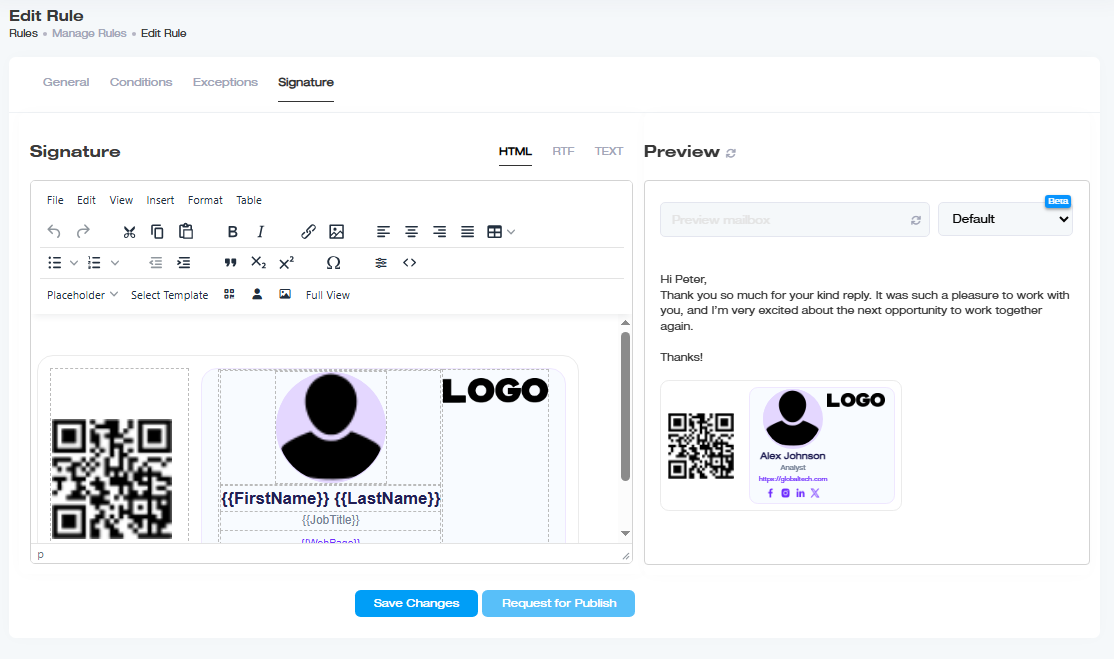
The Signature tab is where you build what actually gets stamped on the email, in HTML, Rich Text Format, or plain text, with a full editor and live preview before you save. See ExSign HTML Signature Editor to see it in action.
If you don't want to start from scratch, use one of the built-in Templates, ready-made styles you can drop in and adjust rather than building a signature from nothing. You can also add your own fonts; see Adding Custom Fonts to ExSign.
To design your signature, navigate to  under the Actions column and then Edit. Click Signature tab to proceed.
Personalizing Content with Placeholders
Placeholders insert Active Directory attribute values automatically, write {{LastName}} once in a template, and every user's actual last name appears when their signature is sent.
Available placeholders, grouped by type:
| Category | Placeholders |
| Identity | First Name, Last Name, Display Name, Initials, Job Title, Department, Company |
| Contact | E-mail, Telephone Work, Telephone Home, Mobile, Fax, IP Phone, Pager, Web Page |
| Location |
Office, Street, P.O. Box, City, State, Postal Code, Country |
| Other |
Description, Notes |
| Custom Attributes | extensionAttribute1 through extensionAttribute15 |
Handling Missing Attributes
If a user doesn't have a value for a given attribute, the placeholder can leave an awkward blank gap. Wrap a placeholder in Remove Text (RT) tags to have ExSign automatically remove the placeholder and its surrounding text whenever that attribute is missing, instead of leaving a gap. See How to Automatically Remove Blank Placeholders.
Fixing Inconsistent Formatting
Active Directory data isn't always formatted the way you want (inconsistent capitalization, for example). Select a placeholder's full {{ }} text and apply a Text Transformation:
| Option | Effect |
| Upper | Converts to uppercase |
| Lower | Converts to lowercase |
| Title | Capitalizes the first letter of each word |
| Space | Inserts spacing for readability |
You must select the entire placeholder (e.g., all of {{LastName}}) before applying a transformation, it won't work on partial text.
Special Characters can also be inserted directly where needed.
Adding Visual Elements
- Thumbnail Photo: Pulls a user's photo from Active Directory's thumbnailPhoto attribute and inserts it wherever your cursor is. See Active Directory User Photos in Signatures.
- QR Code: inserts the QR code already defined for the organization (see Adding Entities and Organizations >> QR codes and vCards). Some templates include a QR code by default; others need it added manually, check before assuming one is already there.
- Logos, icons, and other images: for adding a company logo, social media icons, or any other image, including how to make sure they reliably display for every recipient, see Adding Logos and Social Icons. That page also covers Convert to Embedded Image, which ensures a logo or icon reliably displays for every recipient rather than depending on their email client downloading it.
Verifying Before You Publish
- Validate: Checks how the signature will render across Chrome, Outlook (Classic), Firefox, and Safari, and flags platform-specific HTML/CSS compatibility issues before they become a problem in production.
- Preview: see the signature in real time, across different browsers and screen sizes, including per-mailbox previews for individual users.
- Source Code: view or edit the underlying HTML directly, for advanced customization.
Full View Mode
For a larger, more visual editing surface, switch to Full View, which gives you:
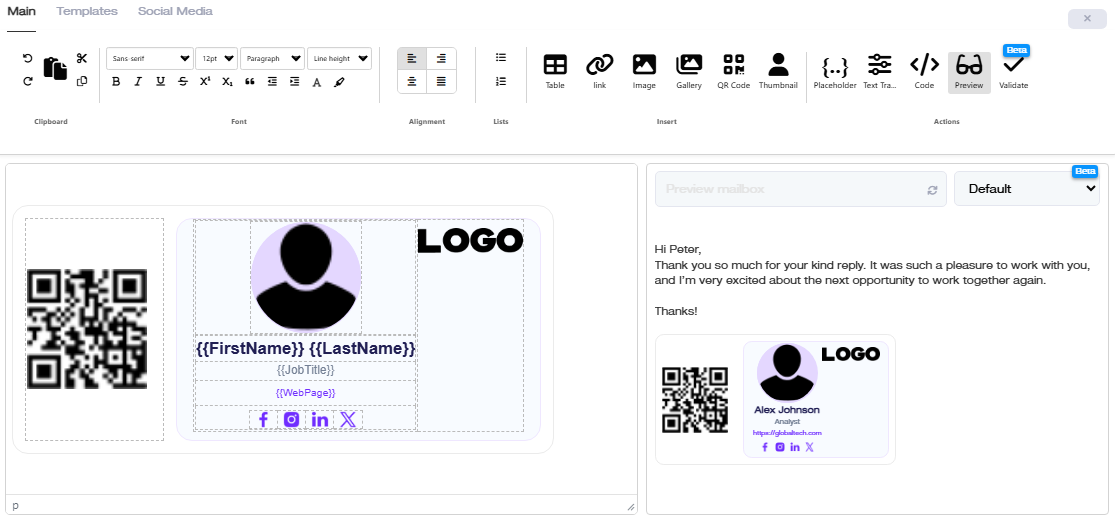
- Main: the full graphic editing interface
- Templates: browse, edit, and preview templates at full size
- Social Media: a library of ready-made icons you can drag and drop into the signature, with your own links and titles attached
Signature Editor Walkthrough
Watch this video for a full walkthrough of the ExSign HTML signature editor.