
| Product Documentation
ExSign
Managing Users and Roles M365
ExSign for Microsoft 365 presents three types of administrative users. The three types of administrative users are ExSign Admin, Entity Admin, and OU Admin. A fourth type of user is also available, but this user can only approve publishing rules. It is known as the Approval Manager. An Approval Manager is not exactly an administrative user and can only approve rules and banners.
If You Have No Local Active Directory
This is the common case for M365-only environments. All the admins authenticate through Azure, as there is no local Active Directory.
If You Do Have a Local Active Directory
If you do have a local Active Directory and want ExSign admins to authenticate against it, they are authenticated against the AD. They are created as security groups in Active Directory, and members of these groups can log in to ExSign with their credentials (UPN and password).
Choosing the Right Role
There are four roles in ExSign.
| Role | Can Do | Cannot Do |
| ExSign Admin | Most tasks: create and publish central rules, plus top-level settings (Portal URL, license activation, security config). Sort of a global admin. | Highest privilege level. |
| Entity Admin | Publish, unpublish, edit, and delete rules; view, edit, delete, publish, and unpublish banners across the entity. | Configure top-level system settings. |
| OU Admin | Add and edit rules and banners for their own organization only. | Add further admins |
| Approval Manager | Approve or reject rule-publishing requests, if approval workflows are enabled (see Decide on an approval workflow) | Create, edit, or publish rules directly |
If you're not sure which role someone needs, give OU Admin to anyone who should only manage their own organization's signatures, Entity Admin to anyone managing an entire entity, ExSign Admin only to the small group who should control system-wide settings, and Approval Manager to whoever should sign off on rule changes before they go live.
How Login Works
Most M365 environments have no local Active Directory at all. If that's your situation, AD Group Auth isn't actually available to you, as it depends on a local AD existing, so Azure Auth is the only real choice. In the case of Azure Auth, the group/user must exist in Azure. On clicking “Sign in with Azure,” the Microsoft sign-in pop-up will appear. Log in with your Azure credentials.
Setting Up ExSign Admin Role
Set up the ExSign Admin role as part of the Portal installation. The Admin User you designate (for Azure Auth) during setup is where this group/user is established. This user will then be assigned the role of ExSign Admin.
Setting Up Entity Admin Role
Create a new user in ExSign with the Entity Admin user role. In the case of Microsoft 365, an entity is just a logical name for the collection of Microsoft 365 organizations to be stamped. It has no physical existence. There can be many organizations under a single entity. To create an Entity Admin through ExSign, the user must already exist in Azure. When an Entity Admin is created through ExSign, it maps to the same user in Azure. It can then authenticate each time with its Azure credentials and log in to the system.
Setting Up OU Admin Role
OU Admin is the admin of an M365 organization. Like the Entity Admin, the OU Admin must also exist in Azure before it can be created through ExSign. When the OU Admin is created through ExSign, it maps to its corresponding user in Azure. It can then authenticate each time with its Azure credentials and log in to the system.
Viewing All Users
Go to the left menu, under Main, and click Users to see everyone with ExSign access:
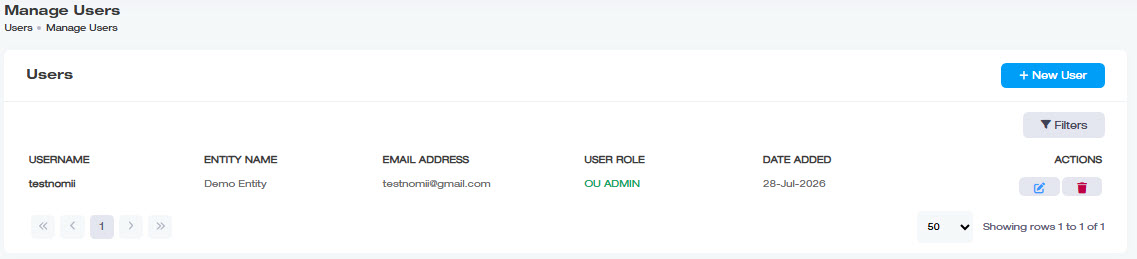
| Column | Shows |
| Username | The user's name |
| Entity Name | Which entity they belong to |
| Email Address | Their email address |
| User Role | Their assigned role (e.g., Entity Admin, OU Admin) |
| Date Added |
When they were added |
| Actions |
Available actions for that user |