
| Product Documentation
ExSign
Reusing an Existing Rule
ExSign allows you to clone signature rules. Cloning rules enable you to make minor adjustments to an existing rule and apply it to a different department, without creating similar rules from scratch. It basically allows you to reuse an existing rule with minor changes.
Scenario
Suppose there are two departments, Customer Support and Marketing.
Email signatures from the Customer Support department must include a mobile number, while signatures from the Marketing department must include a Fax number in addition to the mobile number.
Therefore, essentially, the signature layout must remain similar for both departments, except for the minor addition of the Fax number for the Marketing department.
How to Achieve This with ExSign
To achieve this with ExSign, first create a rule for the Customer Support department that includes the mobile number. Next, duplicate this rule for the Marketing department and update it with the additional Fax number. This approach ensures a consistent signature layout across both departments, with only the Fax number as an addition for the Marketing department.
Follow the steps below to practically achieve this with ExSign:
- Create a new rule and call it “Mobile Number for Customer Support”.
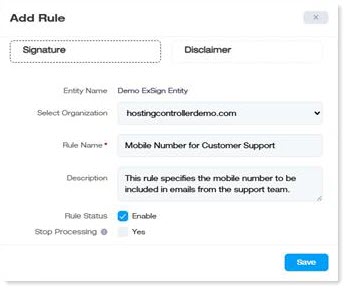
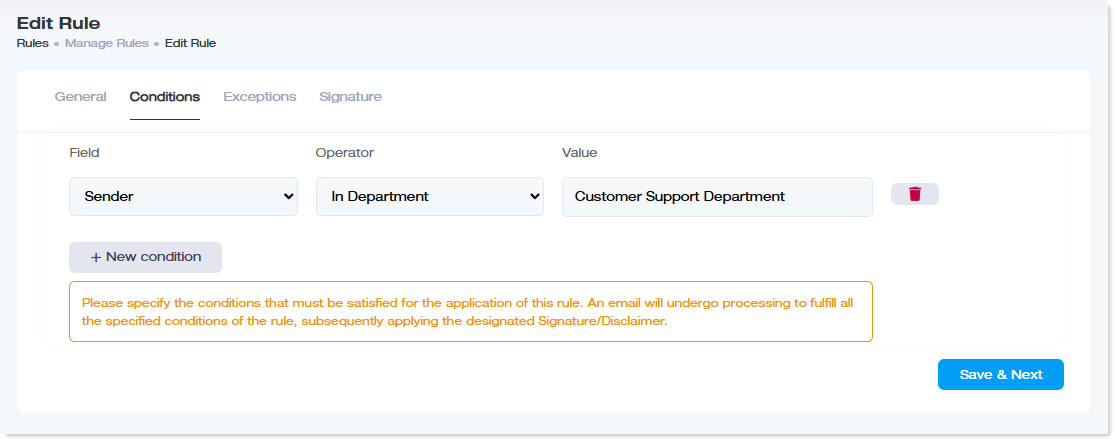
- In the “Conditions” tab, add a new condition where “Sender” is “In Department” “Customer Support Department”. Then click “Save & Next”.
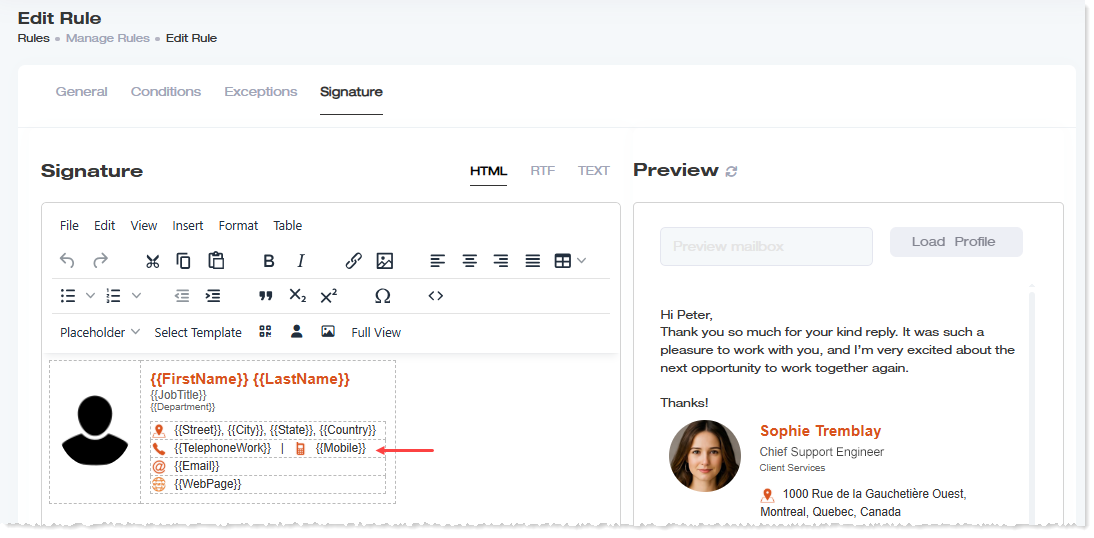
- In the Signature tab, either create your signature from scratch or choose a predefined template. Insert a mobile number placeholder to provide a common number for all members of the support team.
- Now, to create a similar rule with only the addition of a Fax number for the Marketing team, click Make a Copy under the Actions column.
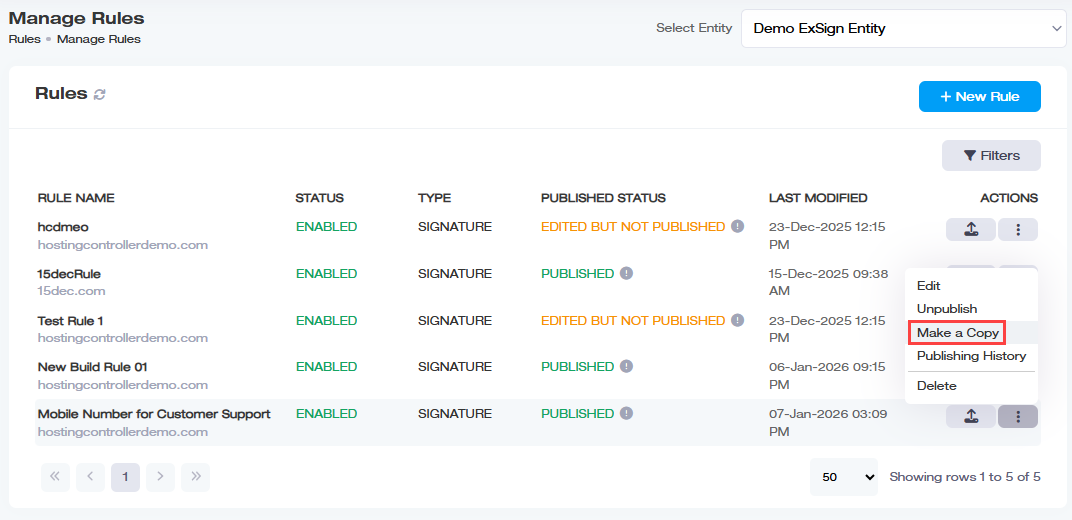
- This will duplicate the rule.
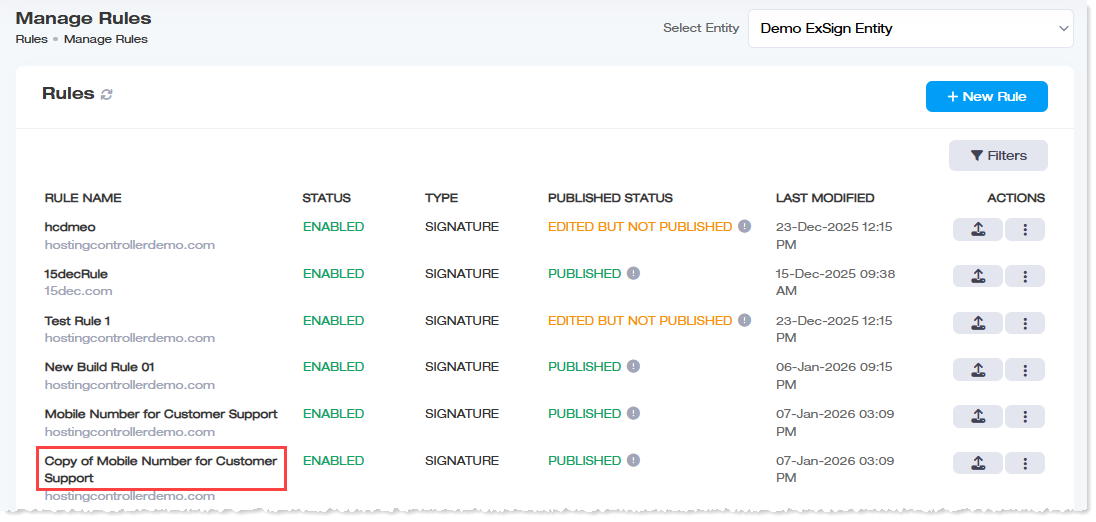
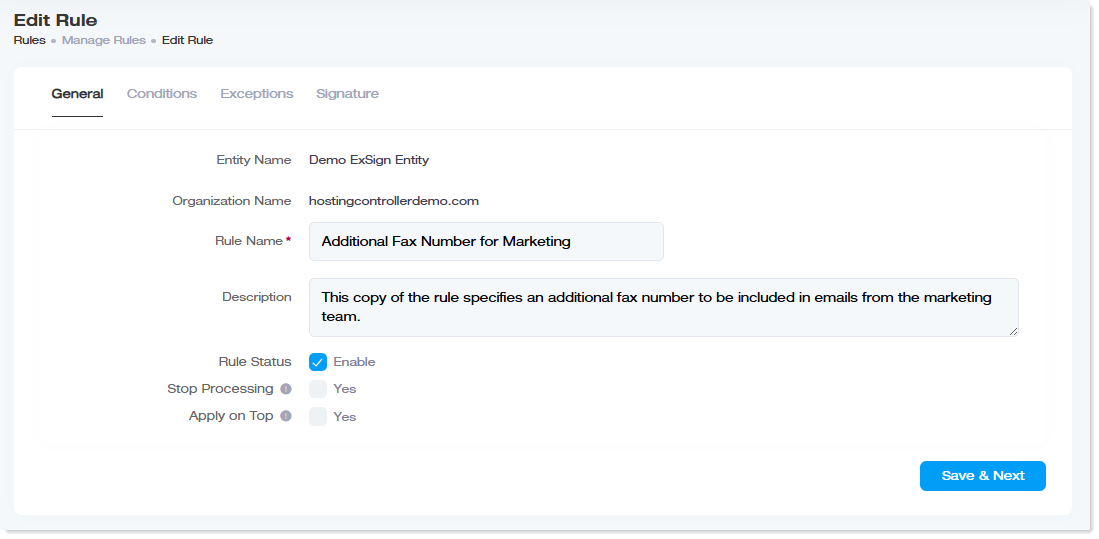
- Next, edit the newly created copy and rename it to “Additional Fax Number for Marketing”. Then click Save & Next.
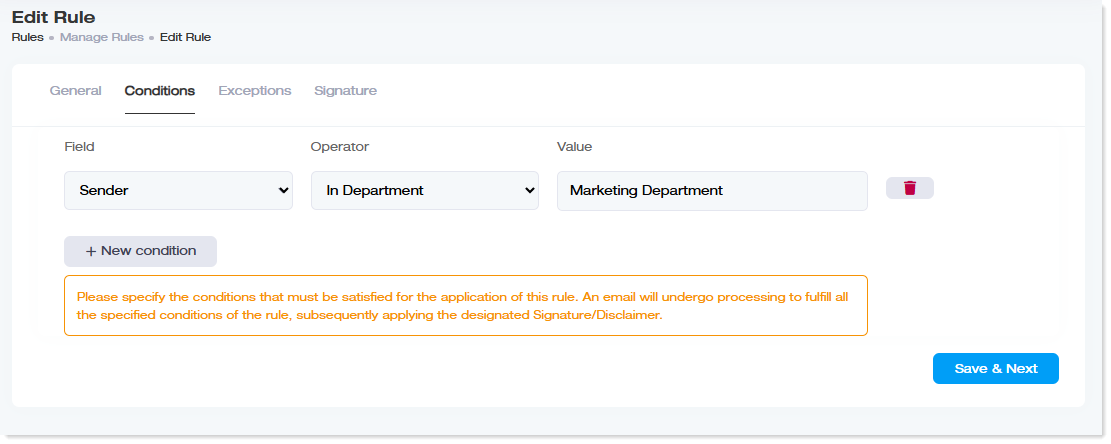
- Under its “Conditions” tab, adjust its condition to make the Sender a member of the “Marketing Department”. Then click Save & Next.
- Now, under the Signature tab, add the additional fax number placeholder to ensure that the fax number is also included in emails sent by members of the Marketing team.
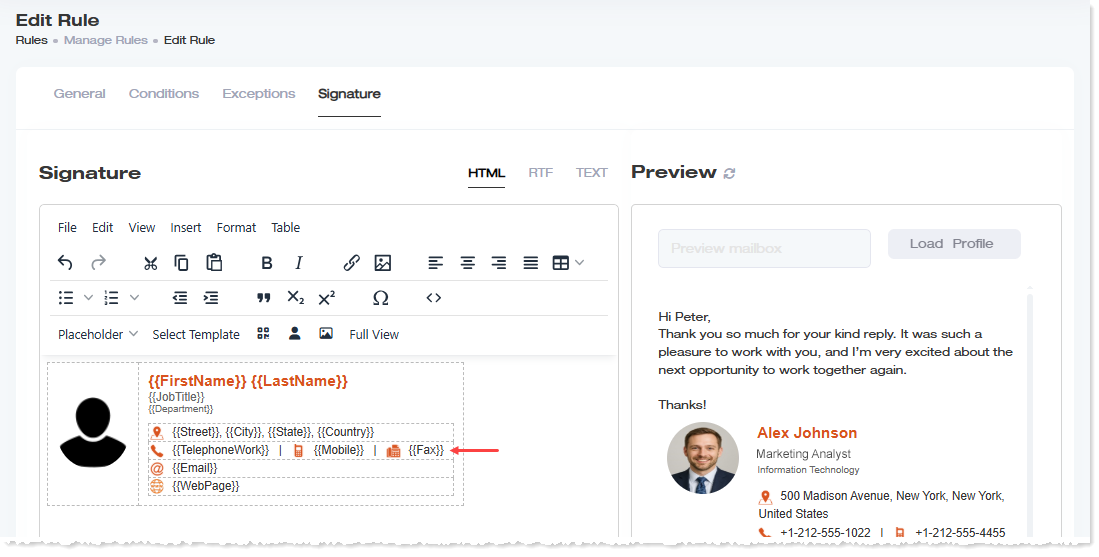
- That's it! Now, only the mobile number will be included in the signatures if the sender is a member of the support team. However, if the sender is from the marketing team, the fax number will also be included.