| Product Documentation
ExSign
How ExSign for M365 Works
ExSign for Microsoft 365 enables administrators to centrally create and manage email signature and disclaimer rules and apply them automatically and consistently to outgoing emails. This eliminates the need for employees to manually add and maintain their own signatures. Unlike client-side signatures, which can vary or break across different devices and email clients, ExSign for Microsoft 365 ensures that professional signatures and legal disclaimers are applied consistently to emails sent from any device, including mobile phones and tablets.
Components
- ExSign Web Portal: where rules, signatures, and disclaimers are centrally managed.
- Microsoft 365 Agent: Connects outward to your M365 tenant and does the actual stamping. It can be a standalone Windows machine on your own premises, or a VM in any cloud (AWS, Azure, etc.).
- M365 Sent Items Update Agent: Updates a sender's Sent Items folder to show the stamped version of what was actually sent.
Email Journey
- An admin defines the rules in the ExSign Web Portal.
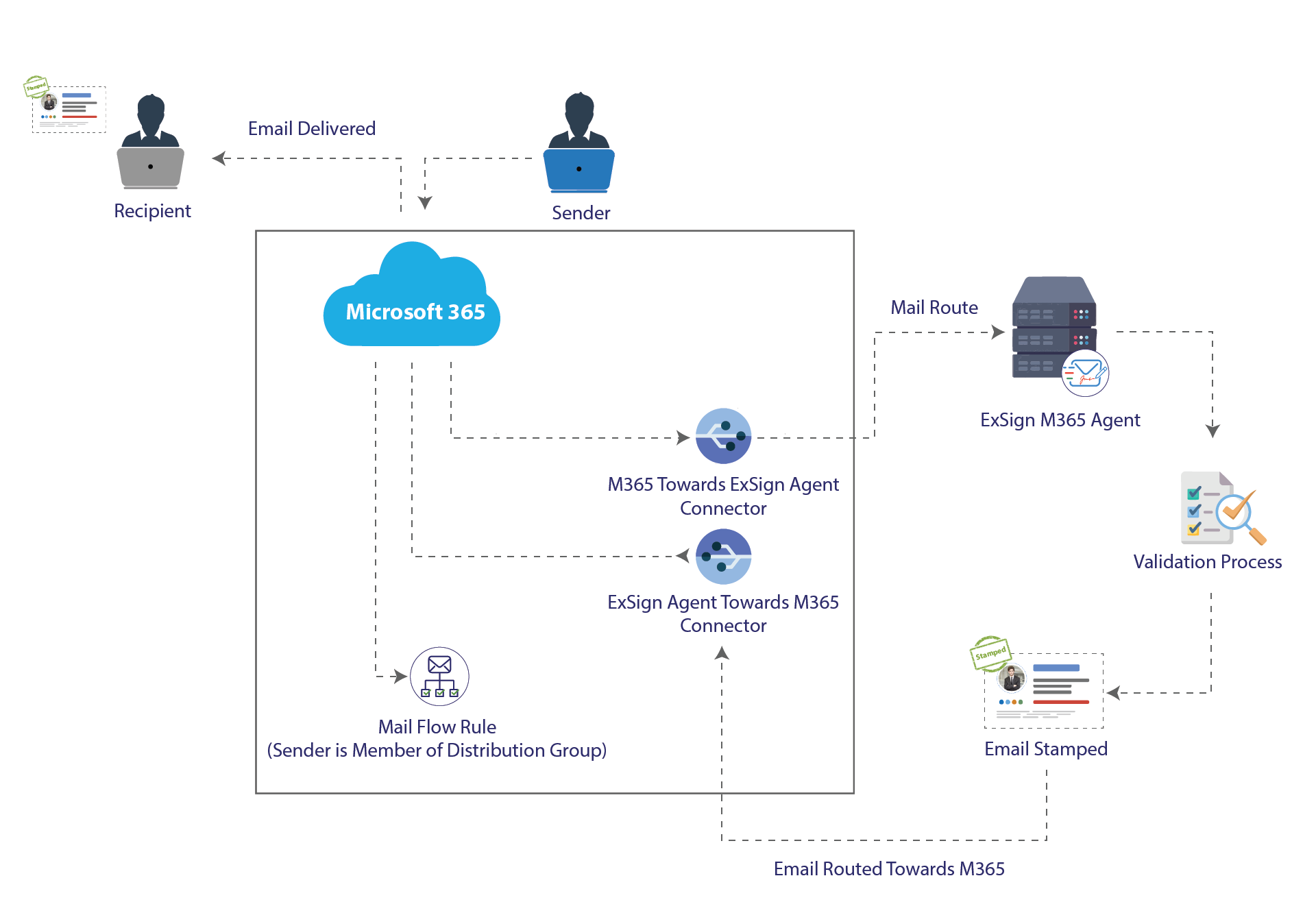
- Microsoft 365 itself must be configured to route matching mail out to ExSign. This requires two separate transport rules plus two connectors, all set up directly in Microsoft 365.
- Rule 1 prevents Out-of-Office auto-replies from being sent to the Agent at all; these shouldn't be intercepted and stamped the same way as regular outgoing mail.
- Rule 2 identifies which messages should actually be sent to the Agent; the sender must belong to a mail-enabled security group in the tenant and be located "InOrganization."
- The two connectors, "365 to Agent" and "Agent to 365", handle the actual routing once a message matches Rule 2.
- Matching mail is routed to the Microsoft 365 Agent via the "365 to Agent" connector.
- The Agent checks the mail against the rules published from the Portal and stamps a signature or disclaimer if the conditions are met.
- The mail routes back into Microsoft 365 via the "Agent to 365" connector, and on to the recipient as normal.
- If deployed, the Sent Items Update Agent separately updates the sender's Sent Items folder afterward, so what they see in their own mailbox matches what was actually sent.
Installations
This flow maps directly to the deployment decision from the Prerequisites page:
|
Component |
Where It Goes |
Why |
| Web Portal | One server (or two, behind a load balancer for HA), standalone or domain-joined | Central control point; same HA pattern as ExSign's other products |
| Microsoft 365 Agent | Anywhere, on-prem or a cloud VM (AWS, Azure, etc.) | It connects outward to your tenant using a Client ID (Application) and Tenant ID (Directory), so it has no dependency on being physically close to any particular server. |
| Sent Items Update Agent | The Portal's control server, or its own standalone server. | Connects to Microsoft 365 using EWS and tenant credentials to update Sent Items after the fact. |
| Database | A dedicated SQL Server (recommended), or your own existing instance. | Same as ExSign's other products. |
ExSign Web Portal
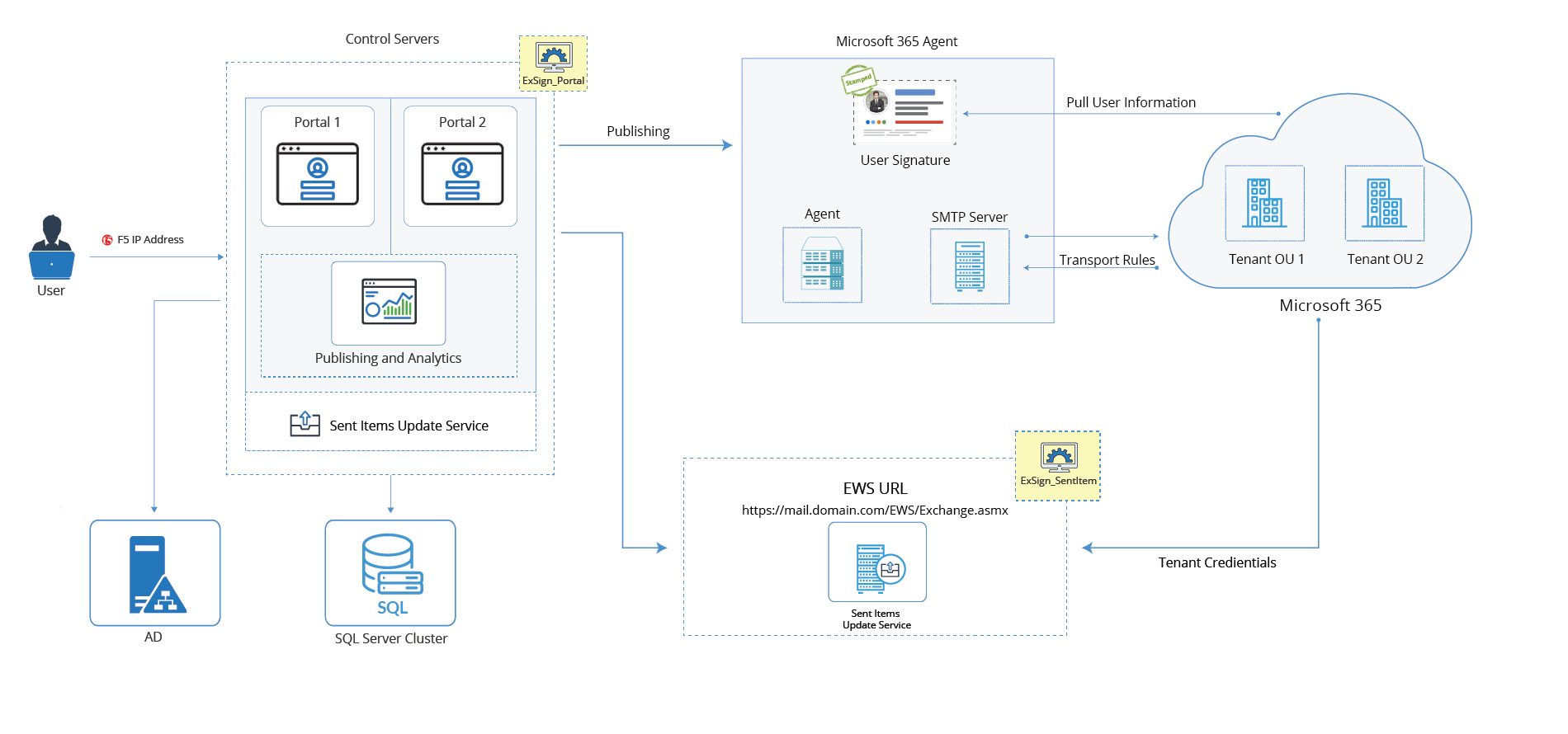
The ExSign M365 Web Portal contains the following services and install paths:
ExSign Portal Services
- ExSign Email Service:This service is responsible for sending all the scheduled emails. Its Startup is Automatic.
- ExSign Publishing and Analytics Service:This service serves as a connection hub for the ExSign Publishing and Analytics data.
ExSign Portal Physical Directories
By default, ExSign Portal installs in the physical drive C:\Program Files\ExSign Portal.
Microsoft 365 Agent
The ExSign Microsoft 365 Agent contains the following installation path:
ExSign M365 Agent Physical Directories
By default, ExSign Agent installs in the physical drive C:\Program Files\ExSign M365 Agent.
M365 Sent Items Update Agent
The ExSign Sent Items Update Agent contains the following services and install paths:
Sent Items Update Service
- Sent Items Update Service:This service is responsible for updating the sent items folder with the appropriate signatures and disclaimers.
ExSign M365 Sent Items Agent Physical Directories
By default, ExSign Sent Items Agent installs in the physical drive C:\Program Files\ExSign M365 Sent Items.
ExSign System Database Server
ExSign supports any edition of SQL Server 2014 or above. SQL Server Collation must be SQL_Latin1_General_CP1_CI_AS.
Installation Logical Diagram
The diagram is the logical installation diagram for ExSign for Microsoft 365.