
| Product Documentation
ExSign
Custom Delimiters
A delimiter is a marker, a symbol, line, or sequence of characters that separates a signature from the rest of an email's content. ExSign lets you define custom delimiters so it can more reliably tell where a message ends and where a signature block belongs. Delimiters make it easier for email clients, parsers, and recipients to identify and handle the signature separately from the email body.
This probably matters most in reply/forward chains, where ExSign needs to tell your original message apart from quoted history to place a signature correctly.
Viewing Your Delimiters
Navigate to the left menu, under Advanced Options, and click Custom Delimiters:
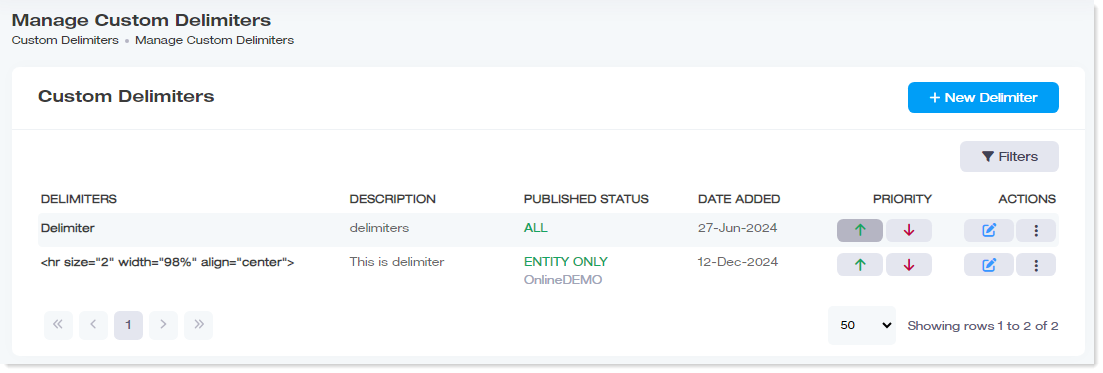
| Column | Shows |
| Delimiters | Name of the delimiter |
| Description | A brief description |
| Published Status | Whether it's published for all entities, or only a specific one |
| Date Added | When it was created |
| Priority |
Its priority relative to other delimiters |
| Actions |
Edit or delete |
Adding a Delimiter
Click + New Delimiter and provide:
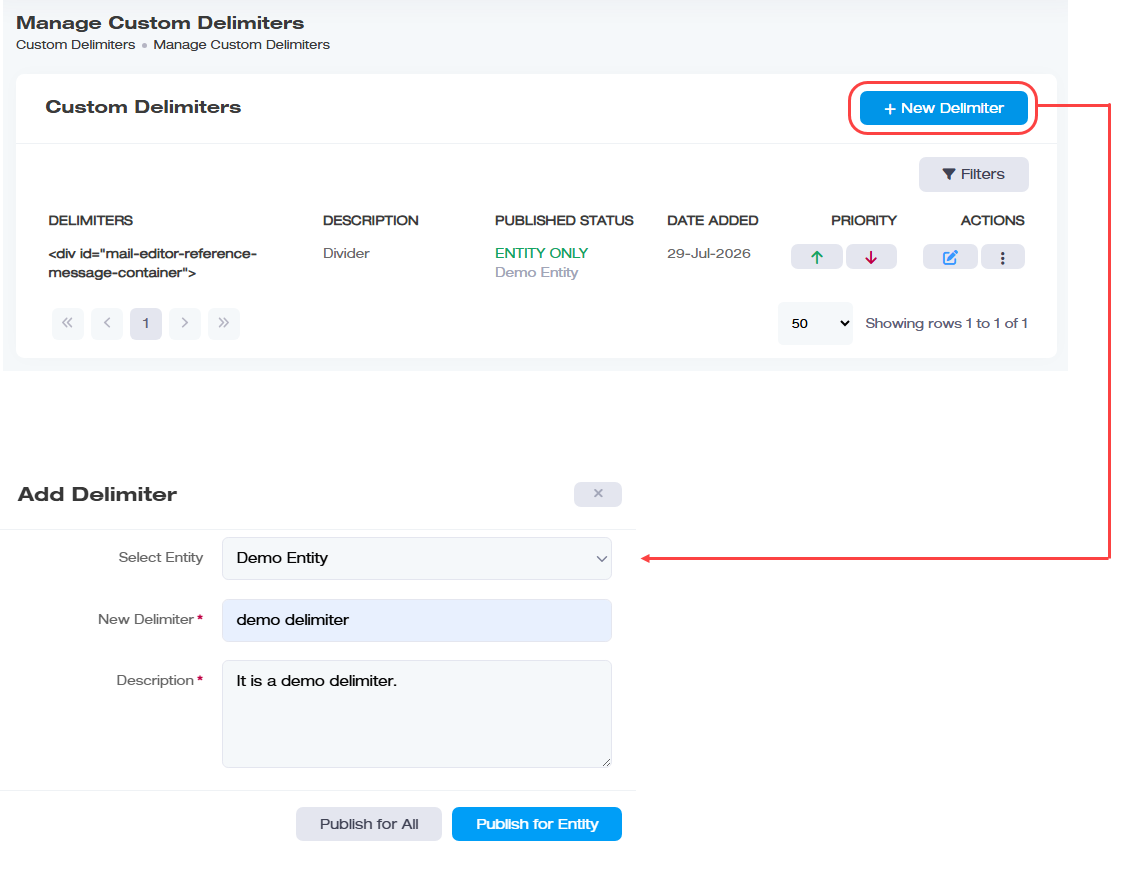
| Field | What to Enter |
| Select Entity | Which entity this delimiter belongs to |
| New Delimiter (required) | The actual delimiter itself, the character sequence ExSign will use to identify where a signature belongs |
| Description (required) | What this delimiter is for |
Then choose how to publish it:
- Publish for All: makes it available across every entity.
- Publish for Entity: scopes it to just the entity you selected above.
Finding a Delimiter
Click Filters and provide either or both:
| Field | What it Does |
| Search by Delimiters | Search by the delimiter's text/name |
| Filter by Entity | Narrow results to one entity, or leave set to All |
Click Apply to run the search or Reset to clear both fields.
Editing a Delimiter
Under Actions, click  and update the delimiter's details as needed.
Deleting a delimiter
Under Actions, click  and then confirm.