| Product Documentation
ExSign
Get Started in Few Steps
New to ExSign Cloud Signatures? See how to begin in a few simple steps:
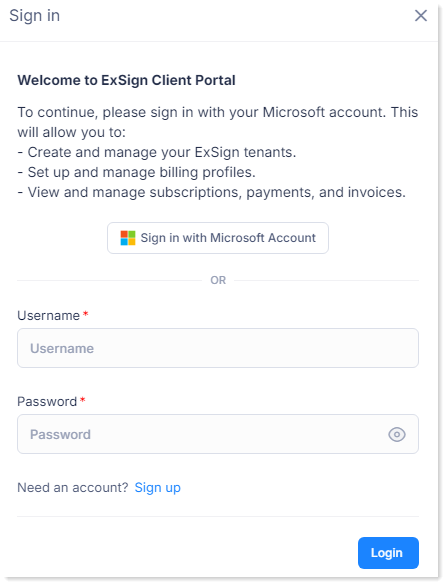
1) Sign in to the Billing Portal with a Microsoft Account
The ExSign Billing Portal is your centralized interface for adding Microsoft 365 tenants and managing their subscriptions and billing. To sign up for this portal, simply visit https://lms.hostingcontroller.com/mp and click the Free 14-day Trial button. This will redirect you to Microsoft's sign-in page. Sign up to the portal with your work or school Microsoft account credentials. You may sign up with any Microsoft 365 user, whether linked to a tenant or not, including a personal Microsoft 365 account.
When signing up for the ExSign Billing Portal for the first time, you will receive a fully functional 14-day free trial of the service. To learn more about the 14-day free trial, see our FAQs.
2) Add Microsoft 365 Tenant
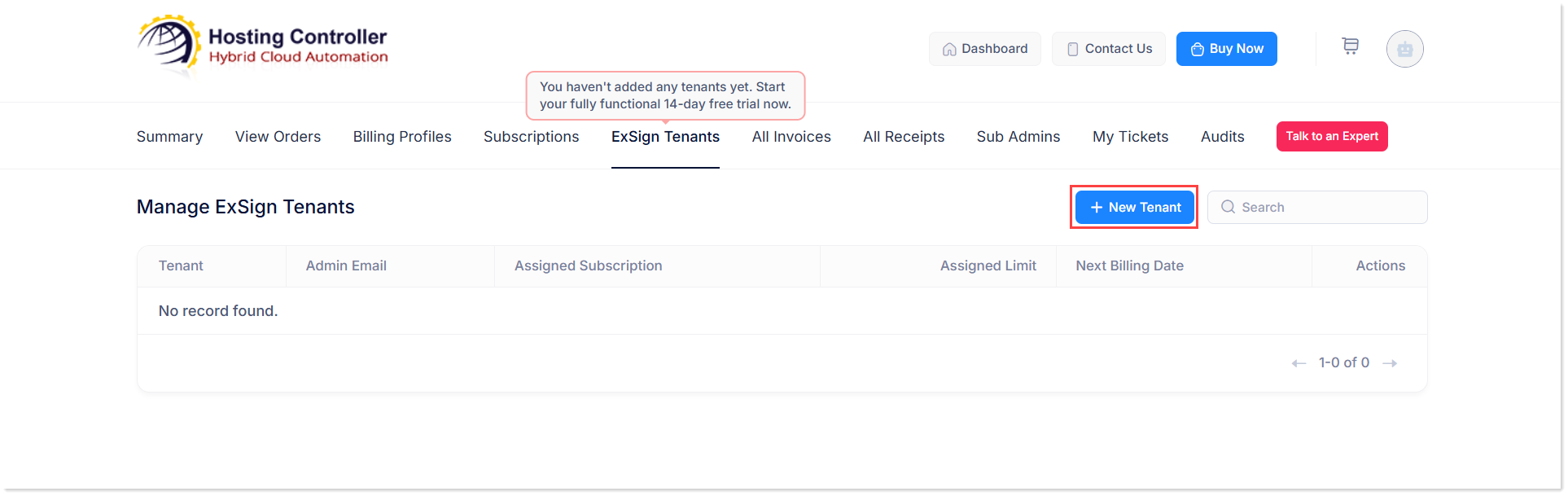
After you have signed up to the ExSign Billing Portal, you need to add your Microsoft 365 tenant to it. To add a tenant, click ExSign Tenants on the Dashboard. Then click + New Tenant button. This will require you to sign in with your Microsoft account and allow us to retrieve the necessary information to set up your ExSign tenant. This time, sign up with a Microsoft 365 global administrator, as this user has the highest level of administrative privileges and is required for onboarding a new Microsoft 365 tenant.
After signing in, ExSign will launch a setup wizard that will guide you through the entire configuration process. After completing each step, click Next to proceed to the next stage of the setup. The new tenant will include a 14-day free trial. During the trial, you can configure your account, invite users, and start using ExSign. To learn how to onboard a new tenant, see Onboarding to ExSign for Microsoft 365.
3) Sign in to ExSign Portal
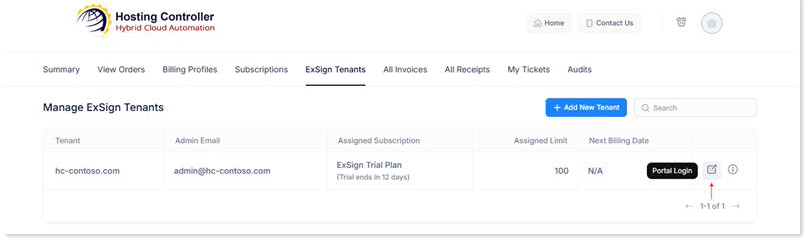
The ExSign Portal is the signature management interface where you create and manage your email signatures and rules. Once you've added your M365 tenant in the Billing Portal, click the Portal Login button to access the ExSign Portal.
Sign in to the ExSign Portal with your Microsoft account.
4) Download the Outlook Add-in (Optional)
Click the Organizations button in the left menu to proceed to organizations. If you're using client-side signatures or hybrid mode, download the Outlook add-in and add it to your Microsoft 365 organization. To learn how ExSign works in hybrid mode, see Hybrid Mode.
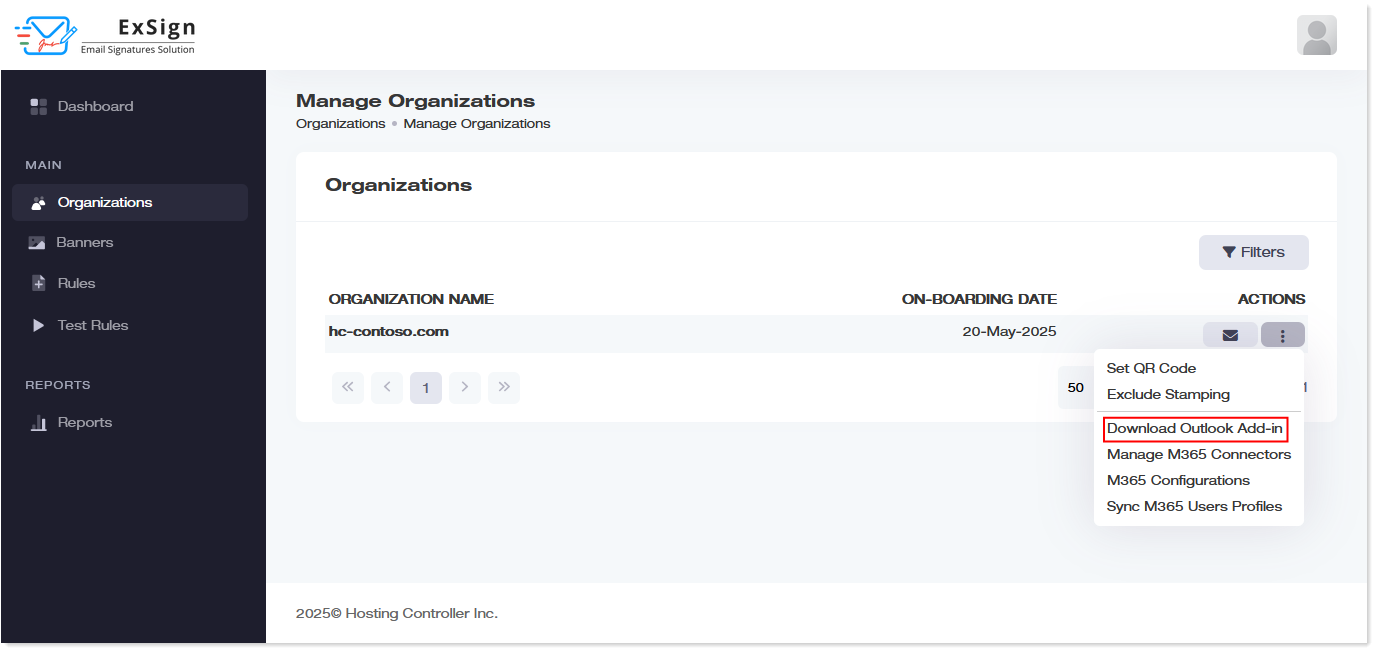
5) Add Microsoft 365 Connectors
To add signatures after an email is sent (server-side signatures), set up Microsoft 365 connectors. You can deploy these inbound and outbound connectors either automatically or manually.
Connectors can be deployed automatically through the setup wizard, during tenant setup in Step 2. However, if you prefer to deploy them manually, you may do so here.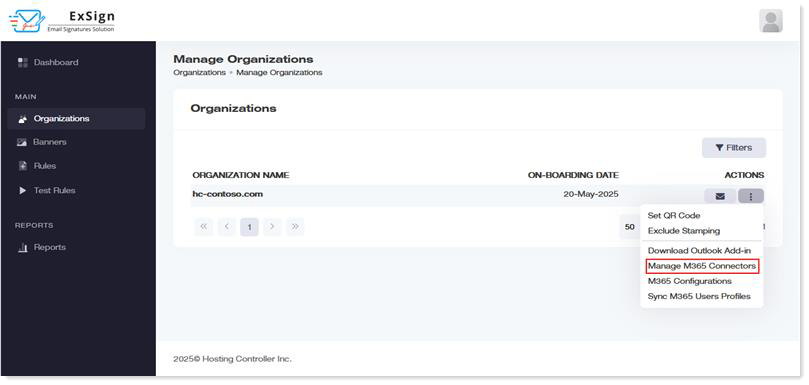
6) Add Rule
Next, add a signature rule. To add a rule, click the Rules button in the left menu to proceed to rules, and there click the + New Rule button. Type a Rule Name and specify a brief description.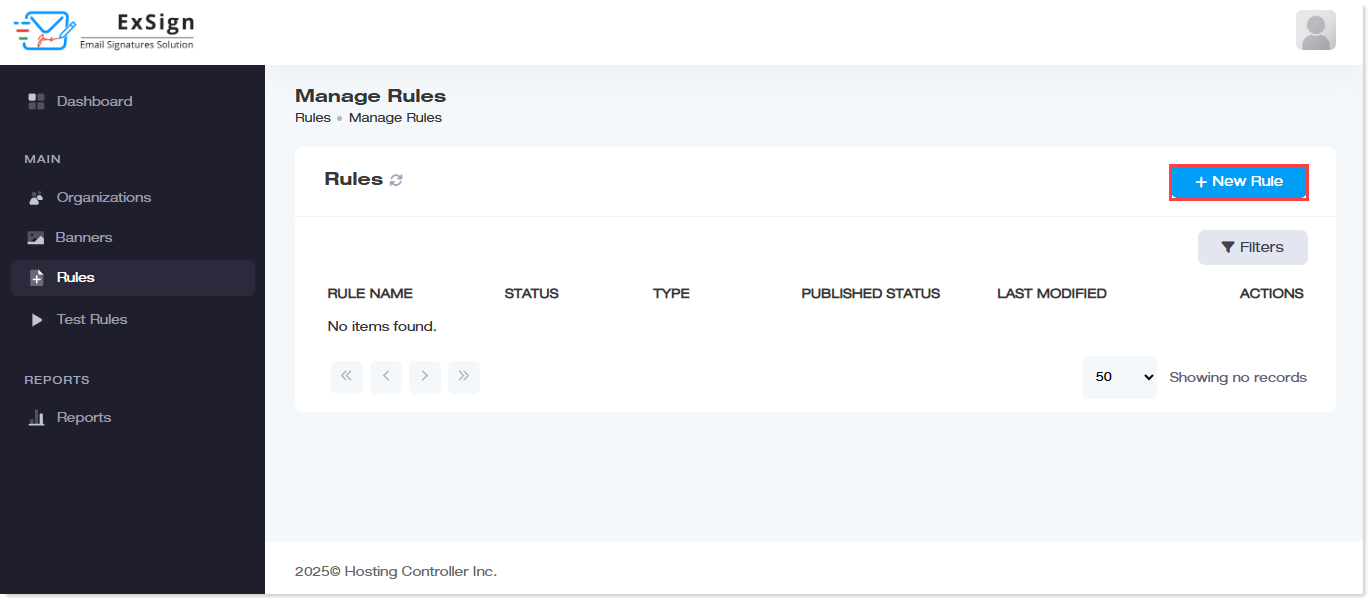
7) Test Rule
You may also test the signature rule.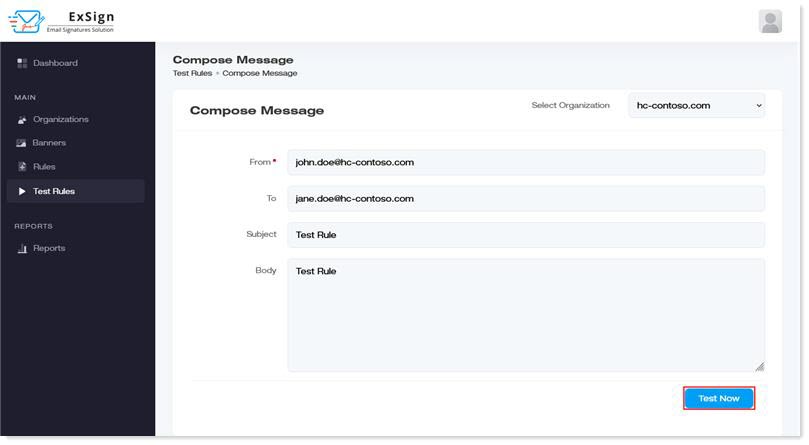
8) Add Banner
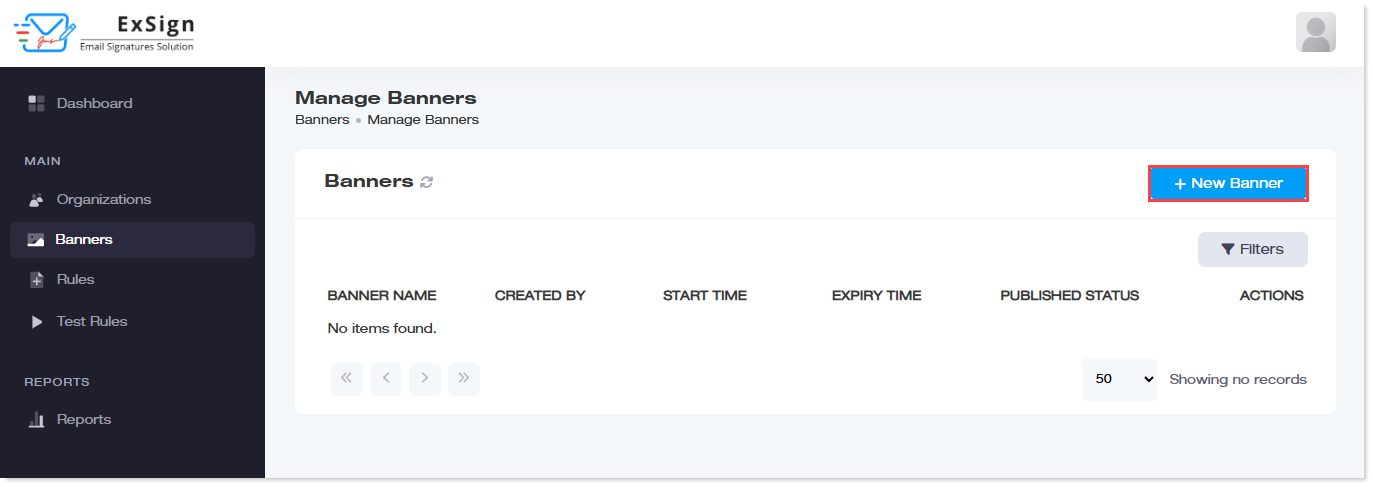
Banners can also be displayed below your signatures. To add a new banner, click + New Banner and specify information.