| Product Documentation
ExSign
Managing Tickets
As a client, you can raise support tickets if you encounter any issues with our services. This applies to issues concerning both the Billing Portal (for subscription and billing management) and the ExSign Portal (for signature management). When submitting a ticket, you can specify the priority level as High, Medium, or Low based on the urgency of the issue.
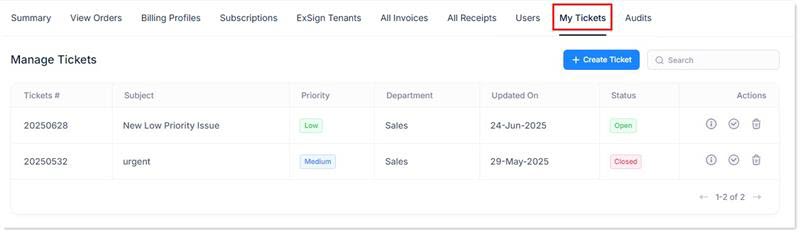
To manage tickets, click My Tickets.
|
Manage Tickets page shows following information:
|
Create New Ticket
To create a new ticket, click + Create Ticket and specify required information:
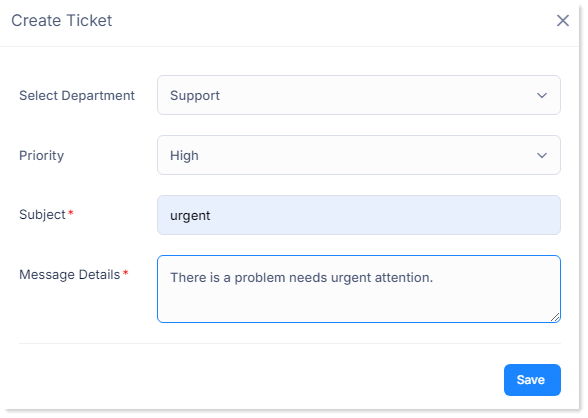
- Select Department: Select department to initiate a complaint regarding sale/suppport.
- Priority: Select level of priority as high/normal/low.
- Subject: Type subject of the complaint.
- Message Details: Type details of the complaint.
View Ticket Details
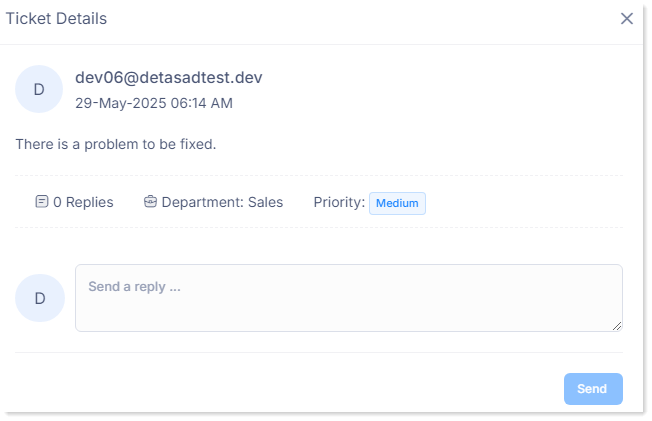
To view ticket details, click  icon.
icon.
Close a Ticket
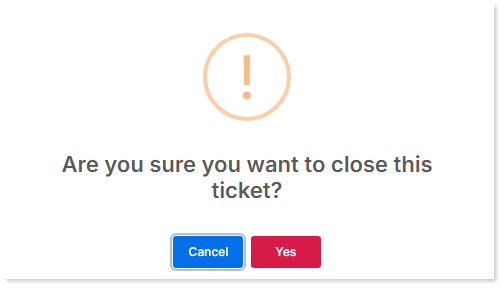
To close a ticket, click  icon and then Yes.
Delete a Ticket
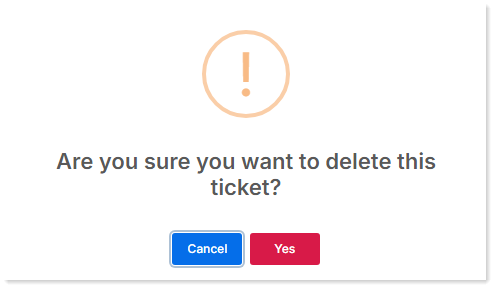
To delete a ticket, click  and then Yes.