
| Product Documentation
ExSign
Configuring Approval Workflows
A workflow is made up of one or more levels; approval stages a rule-publishing request must pass through before it actually goes live. This is what puts a rule into the In Process status you'd see on Publishing and Managing Rules: if a level's approvers withhold consent, the request doesn't move forward and stays pending.
Viewing Workflows
Navigate to the left menu, under Advanced Options, and click Workflows, then select an Entity from the list to see its workflow(s).
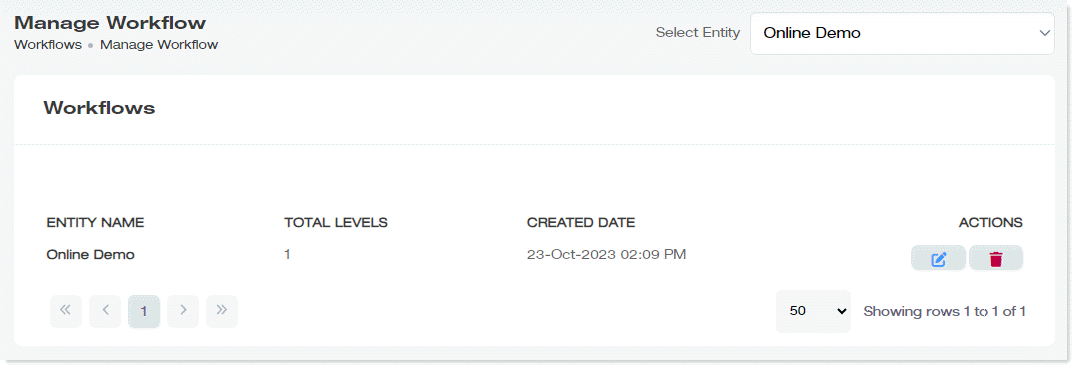
| Column | Shows |
| Entity Name | Which Exchange environment this workflow applies to |
| Total Levels | How many approval stages this workflow has |
| Created Date | When the workflow was created |
| Actions |
Edit or delete |
Creating a Workflow
Click + New Workflow. This single form covers both the workflow itself and its approval levels; you don't create the workflow, then separately add a level; it's all one flow.
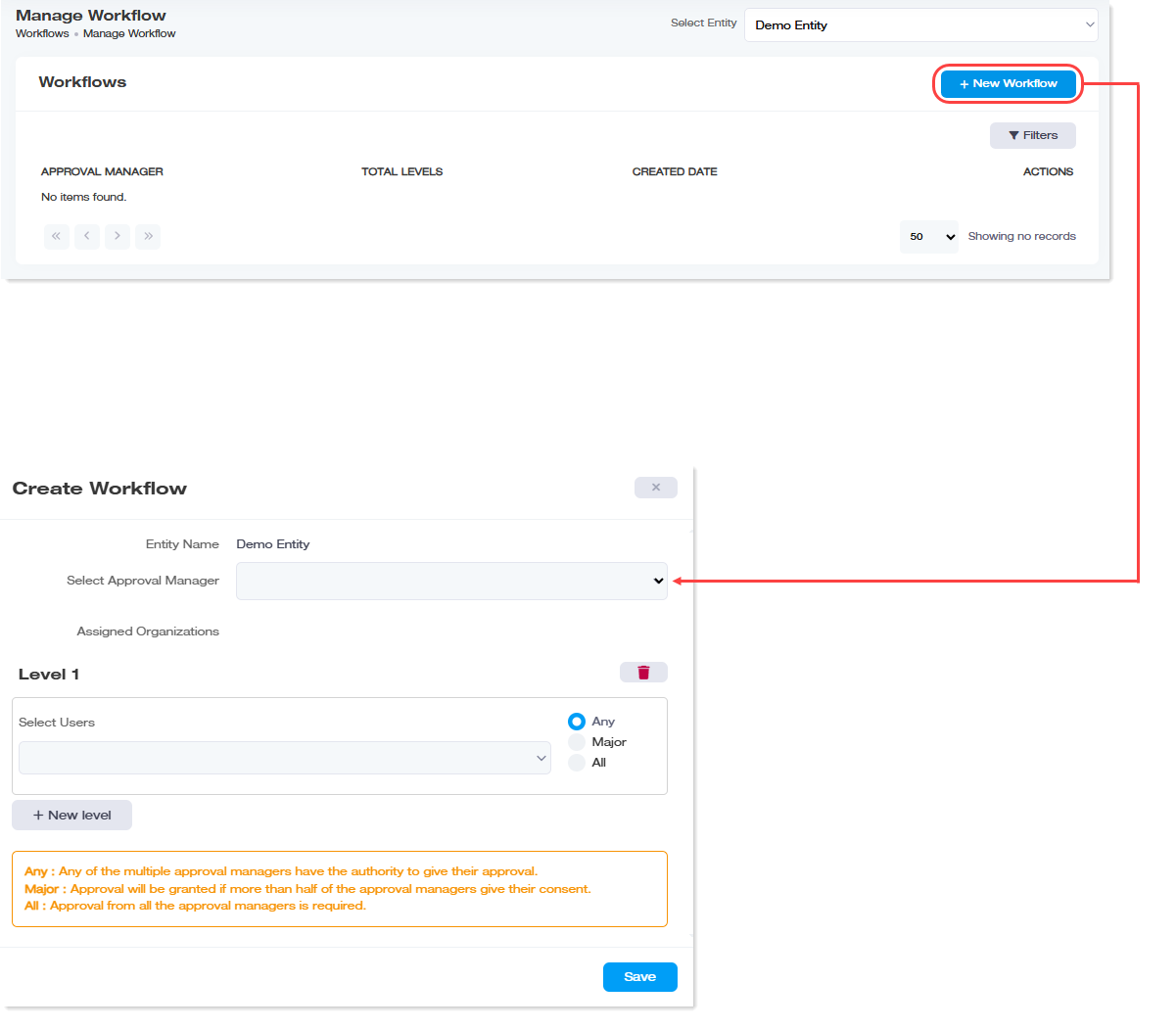
| Field | What it is |
| Entity Name | Shown automatically, based on the entity you selected before clicking New Workflow |
| Select Approval Manager | The Approval Manager group (created on Managing Users & Roles) backing this workflow, this is the pool each level's approvers are chosen from. |
| Assigned Organizations | Choose which organizations under this entity this workflow covers |
Then configure Level 1 (and add more levels as needed):
- Select Users: choose one or more members from that same Approval Manager group. act as approvers specifically at this level. Different levels can use different members of the group.
- Approval condition: pick one:
| Option | The Request Advances to the Next Level When |
| Any | Any one member at this level approves |
| Major | More than half of the members at this level approve |
| All | Every member at this level approves |
Click + New Level to add another stage, each additional level gets its own Select Users and Any/Major/All setting. Click  to remove that level before saving.
Click Save once your levels are set up.
Choosing how many levels to use: a single level works for straightforward one-tier sign-off. Use multiple levels if you want sequential escalation, for example, a team lead approves first, then compliance signs off afterward.
Removing a Level
Click  on the level you want to remove.
Editing a Workflow
Under Actions, click  and modify the workflow as needed.