
| Product Documentation
ExSign
Security Settings M365
These settings are only visible to the ExSign Admin (global admin). Most are one-time setup tasks.
Two-Factor Authentication (2FA)
Go to Security >> Two-Factor Authentication.
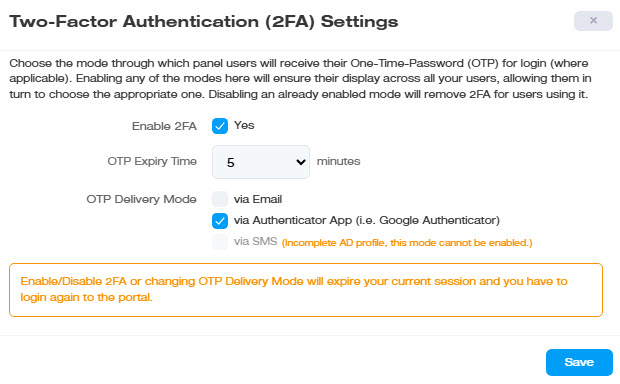
| Settings | What it Does |
| Enable 2FA | Turns two-factor authentication on for the Portal. |
| OTP Expiry Time | How many minutes a one-time password stays valid before it expires. |
| OTP Delivery Mode | Choose which method(s) users can receive their OTP through; more than one can be enabled at once, letting each user pick whichever suits them. |
Delivery Modes
- Email: sent to the address on the user's Active Directory profile. Can't be enabled if that profile is incomplete.
- Google Authenticator: via the Google Authenticator mobile app.
- SMS: sent to the phone number on the user's AD profile. Same AD-completeness requirement as Email.
Think before disabling a mode that's already in use. Turning off a delivery mode doesn't just remove it as an option, it removes 2FA entirely for any user currently relying on it, rather than prompting them to switch to another mode. Confirm that nobody actively depends on a mode before disabling it.
System Auth Settings
Go to Security >> System Auth Settings.
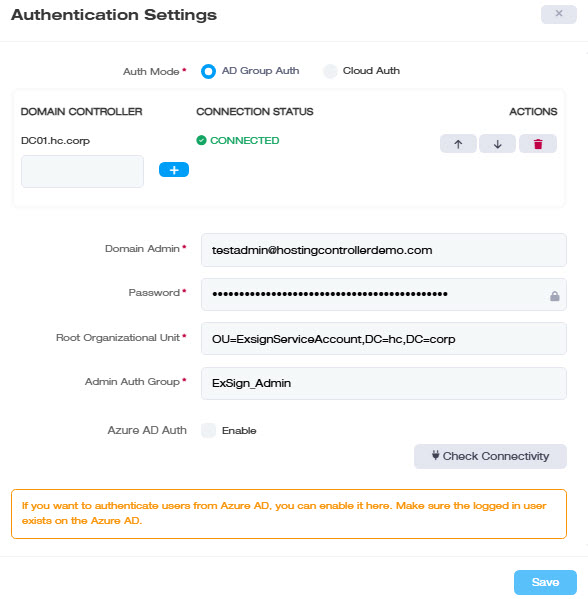
If You Have No Local Active Directory
M365-only environments usually do not have local Active Directory to authenticate against. In such cases, ExSign Admins authenticate through Azure instead. If your Portal was set up to authenticate through Cloud Auth, choose Azure Auth here.
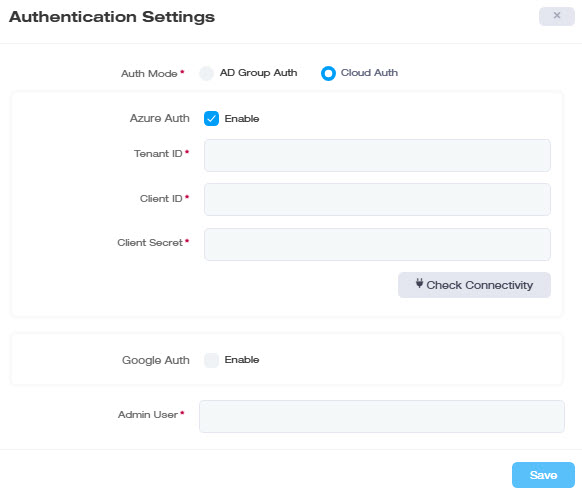
| Field | What it is |
| Azure Auth; Enable | Turns on Azure AD as an identity provider. |
| Tenant ID (required) | Your Azure AD directory's unique identifier. |
| Client ID (required) | The registered application's unique identifier in Azure AD. |
| Client Secret (required) |
The application's authentication secret. |
Before saving, click Check Connectivity to confirm your Azure AD details actually work.