
| Product Documentation
ExSign
Installing ExSign Agent
The Transport Agent is what actually stamps signatures onto outgoing email; it needs to be installed on every Exchange Mailbox Server in the entity, not just one.
The steps are the same each time; you'll repeat them per server.
Before You Begin
Before installing the ExSign Agent, ensure that:
- This will restart the Exchange Transport Service as part of the installation, and the server will need a reboot afterward.
Plan to install during a maintenance window, not in the middle of business hours. - Make sure the server meets the requirements listed in Prerequisites (.NET 4.8 Framework, .NET Desktop Runtime 8, .NET Runtime 8) before you start.
Installation Process
To install the ExSign Agent, download ExSign and follow the steps as stated:
- Run the ExSign Agent installer.
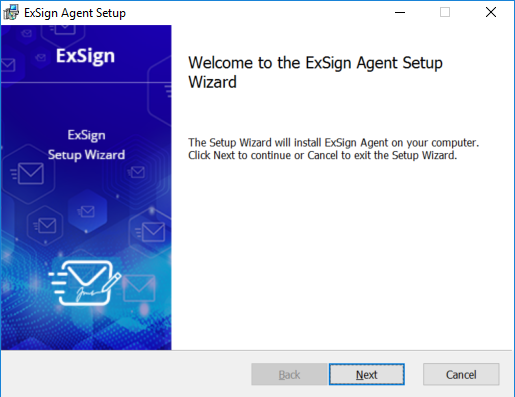
- On the Welcome screen, click Next.
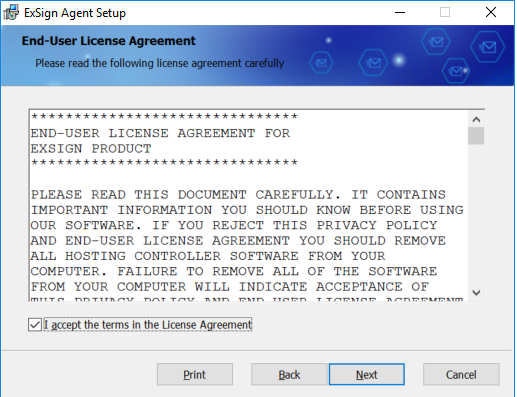
- Read and accept the License Agreement, then click Next.
-
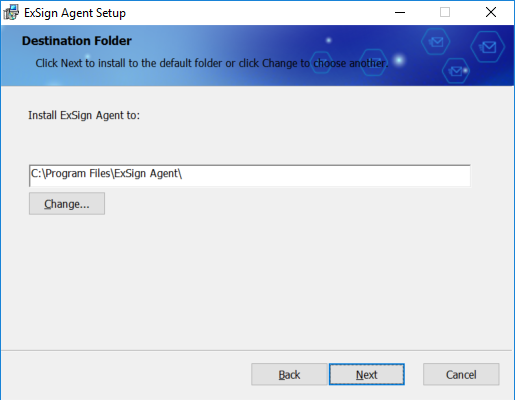
Choose the installation directory.
By default, ExSign installs to:
C:\Program Files\ExSign AgentChange the installation path only if required by your organization's policies.
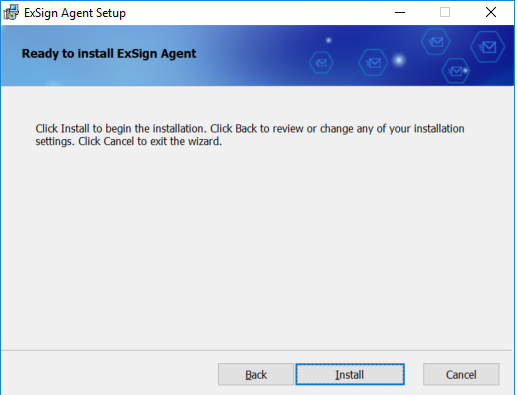
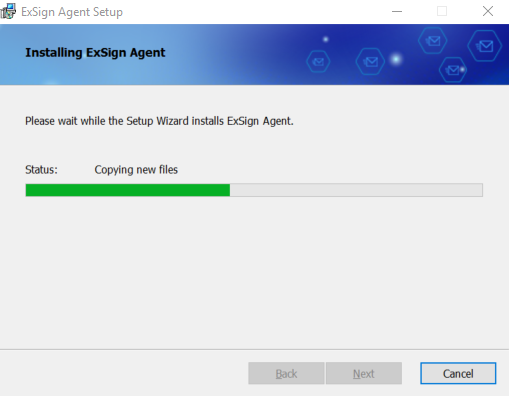
- Click Install to begin the installation.
- Wait while the installation completes.
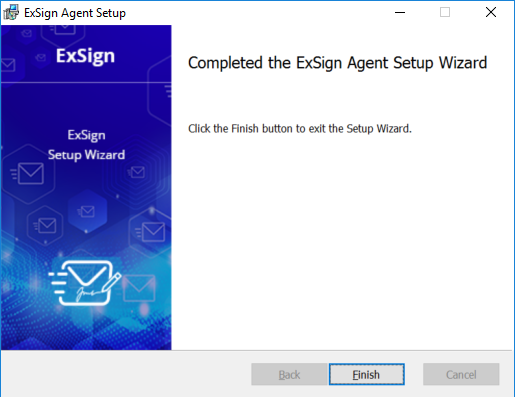
- Click Finish to close the installer.
Confirm Its Working
After installation and reboot, you should find:
- The agent registered as ExSign Transport Agent on the mailbox server, running at priority 10. (This low priority is intentional; it prevents ExSign from interfering with Exchange's built-in transport agents, which run at a higher priority.)
- A Windows service named ExSign Agent Service, installed on the mailbox server.
- A local SQLite database created on the server for the agent's own use.