
| Product Documentation
ExSign
High Availability
High Availability (HA) helps ensure that ExSign for Exchange Server remains available even if a server becomes unavailable due to planned maintenance, hardware failure, or unexpected outages.
By deploying redundant ExSign Portal servers behind a load balancer, administrators can minimize downtime and provide continuous access to the ExSign Administration Portal and API services.
This section explains how to configure High Availability for the ExSign Portal and the API Hub used by the ExSign Agent.
Before You Begin
Before configuring High Availability, ensure that:
- At least two ExSign Portal servers are installed and operational.
- A supported load balancer (such as F5 BIG-IP) is available and configured.
- Both portal servers can communicate with the ExSign database.
- SSL certificates have been configured for secure communication.
- DNS records are available for the Portal URL and API Hub URL.
High Availability Architecture
A High Availability deployment consists of two primary communication paths:
- User to ExSign Portal
- ExSign Agent to ExSign Portal (API Hub)
Both communication paths should be configured to use the load balancer so that requests are automatically redirected if a portal server becomes unavailable.
Configure High Availability for the ExSign Portal
To provide uninterrupted access to the ExSign Administration Portal, deploy multiple ExSign Portal servers behind a load balancer.
When users browse to the ExSign Portal URL (for example,https://portal.company.com), the request is first received by the load balancer. The load balancer automatically forwards the request to one of the available ExSign Portal servers.
If the active portal server becomes unavailable, the load balancer redirects new requests to another healthy server without requiring users to change the portal URL.
Prerequisites
Before configuring the portal for High Availability:
- Deploy a minimum of two ExSign Portal servers.
- Configure the load balancer with health monitoring for each portal server.
- Verify that both servers are accessible and operating correctly.
Configure the Portal URL
To ensure users always connect through the load balancer:
- Sign in to the ExSign Administration Portal as the ExSign Admin.
- Navigate to System >> General Settings.
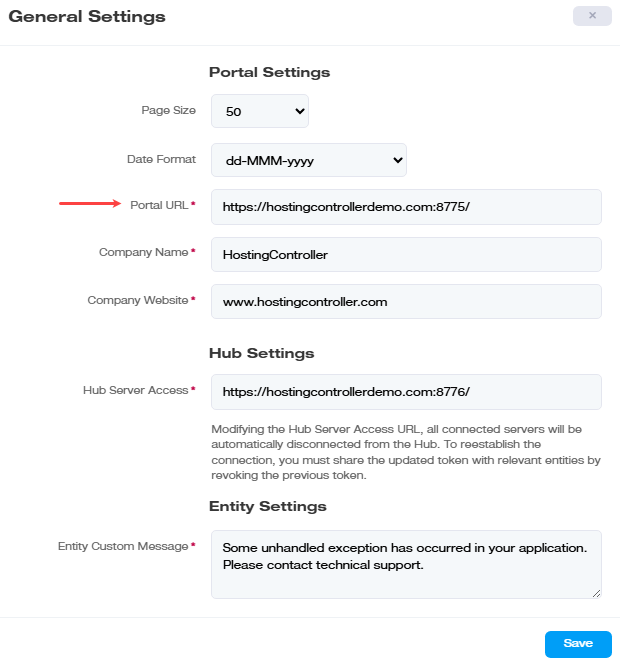
- Update the Portal URL to use the virtual URL provided by the load balancer (HTTPS on port 443).
- Save the configuration.
Example:
https://portal.company.comUsing the load balancer's virtual URL ensures that users always connect to an available portal server without knowing which physical server is processing the request.
Configure High Availability for the API Hub
The ExSign Agent communicates with the ExSign Portal through the API Hub. To maintain uninterrupted communication, configure the API Hub to use the load balancer instead of pointing directly to an individual portal server.
When the ExSign Agent sends requests, the load balancer automatically routes them to an available ExSign Portal server. If one server becomes unavailable, communication continues through another healthy server.
Configure the Hub Server Access URL
To configure the API Hub:
- Sign in to the ExSign Administration Portal.
- Navigate to System >> General Settings.
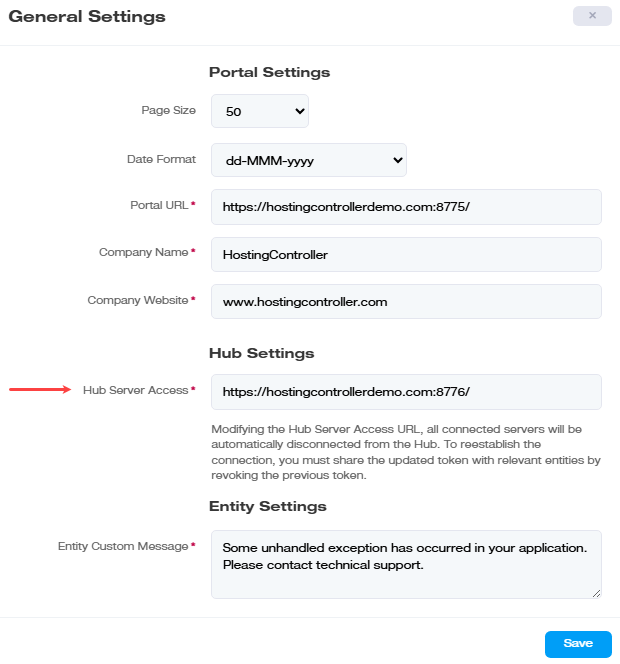
- Update the Hub Server Access URL to the load balancer's virtual HTTPS address.
- Save the changes.
Example:
https://api.company.com
Changing the Hub Server Access URL disconnects existing Agent connections. After updating the URL, regenerate and distribute new connection tokens to reconnect the Agents.Configure Portal Servers
Each ExSign Portal server must be configured with its own local communication settings. On every portal server:
- Open the following directory:
C:\Program Files\ExSign Portal\Configs- Open ConfigHub.xml.
- Locate the
<uri>element.- Update the IP address to match the local portal server. Leave the configured port number unchanged.
- Save the file.
Repeat these steps for every ExSign Portal server participating in the High Availability deployment.
Verify the Configuration
After completing the configuration:
- Confirm that users can access the ExSign Portal using the load balancer URL.
- Verify that the ExSign Agent successfully communicates with the API Hub.
- Stop one portal server temporarily to confirm that traffic automatically switches to the remaining server.
- Review the Portal and Agent Audit Logs to verify successful communication.
- Confirm that administrators can continue signing in and managing ExSign without interruption.
Best Practices
- Deploy at least two ExSign Portal servers in production environments.
- Use HTTPS for all portal and API communication.
- Configure regular health checks on the load balancer.
- Ensure all portal servers use the same ExSign application version.
- Synchronize server time across all systems.
- Back up configuration files before making changes.
- Test failover after every infrastructure change.