
| Product Documentation
ExSign
Viewing Reports M365
Reports give you visibility into stamping activity across your environment, including how many signatures, disclaimers, and banners have actually been applied, and where. All reports can be downloaded as CSV and filtered by date range.
Viewing Message Tracking Report
Go to Reports and click View under Message Tracking Report.
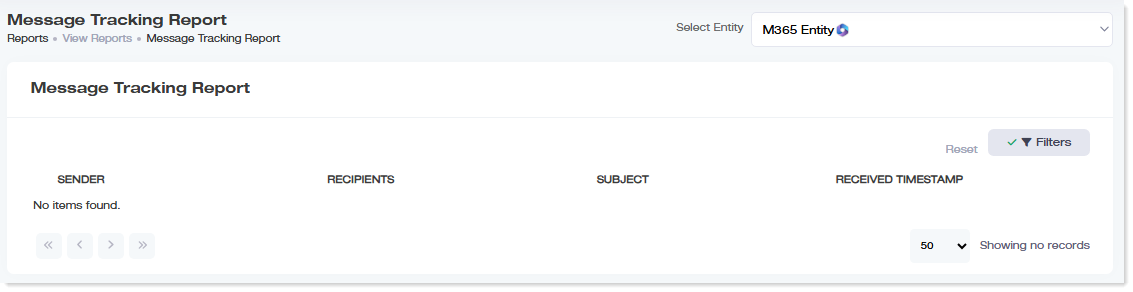
This report shows every email the Microsoft 365 Agent has processed for stamping, useful for confirming whether a specific message actually got the right signature or disclaimer, and for monitoring overall email flow through the Agent rather than just aggregate counts.
| Column | Shows |
| Sender | The email sender's username |
| Recipients | The email recipient(s) |
| Subject | The email's subject line |
| Received Timestamp | When the email was received |
If a report elsewhere shows a stamping count that looks wrong, or someone reports a specific email that didn't get stamped correctly, this is the place to look up that exact message and see what the Agent actually did with it; it's more granular than the aggregate Stamping Reports.
Viewing Wait Queue Report
Go to Reports and click View under Wait Queue Report.
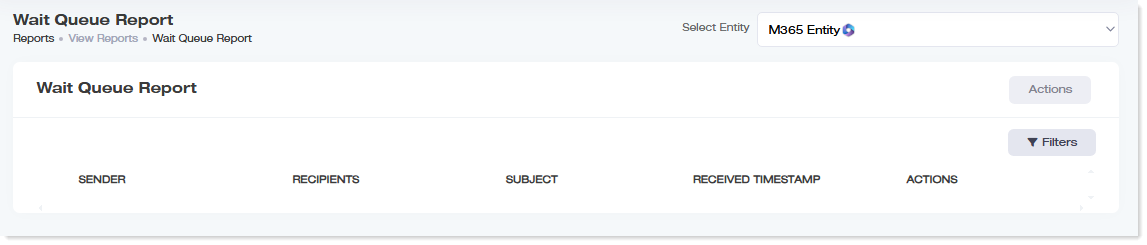
This report shows emails that remain undelivered or have failed processing more than three times. Rather than being dropped, these are automatically placed into a recovery queue and rescheduled, this report is how you'd actually see what's stuck and being retried, rather than silently lost.
| Column | Shows |
| Sender | The email sender's username |
| Recipients | The email recipient(s) |
| Subject | The email's subject line |
| Received Timestamp | When the email was received |
| Actions |
Available follow-up actions on a stuck message, exact behavior not confirmed, but plausibly includes something like retrying immediately or viewing failure details, given the recovery-queue context |