
| Product Documentation
ExSign
Connecting the M365 Sent Items Update Agent
Where this Agent's Connections are Actually Configured
This Agent has two separate configuration surfaces:
- Connecting to the Portal: Its own desktop utility, titled ExSign M365 Sent Items Update Utility.
- Connecting to your Microsoft 365 tenant: The organization-level M365 Sent Items Configurations screen in the Portal (see Adding Entities and Organizations (M365)): Client ID, Tenant ID, Client Secret (same Azure app registration used elsewhere), the EWS URL flagged above, a Create Copy option, and a Test Mailbox for verifying impersonation rights.
Rather than a single Auth Token field, the local utility shows an Entities table, one row per entity this Agent instance serves:
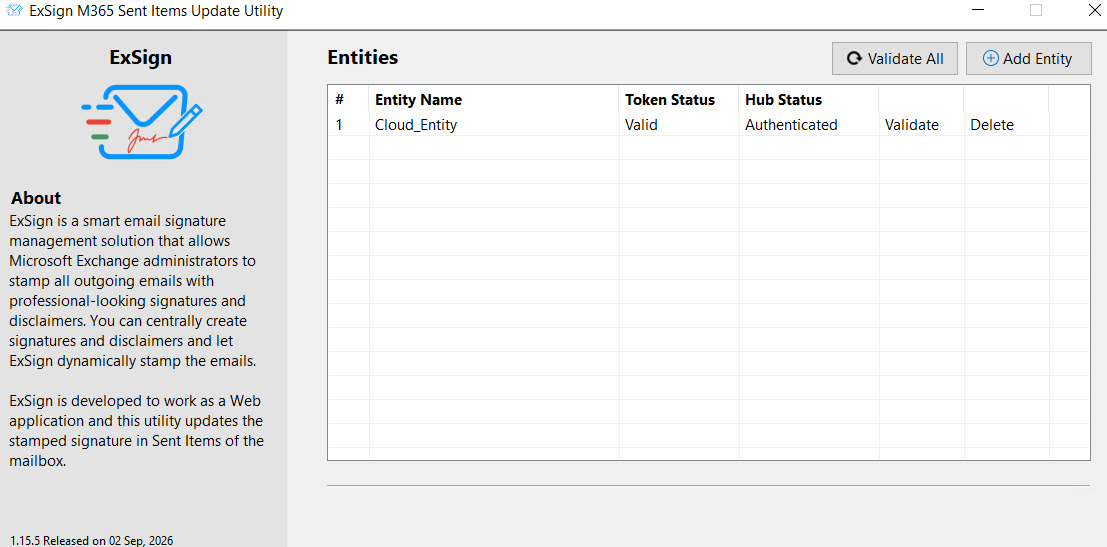
| Column | Shows |
| Entity Name | Which entity this row connects |
| Token Status | Whether that entity's token is currently valid |
| Hub Status | Whether the Hub connection is authenticated |
| Actions | Validate and Delete, per entity |
Add Entity lets you connect an additional entity to this same utility instance, and Validate All re-checks every entity at once rather than one at a time. A green All entities validated successfully message appears once it completes, giving you a clear, single confirmation instead of needing to check each row individually.
Before You Begin
- Have your Azure app details ready: Client ID, Tenant ID, and Client Secret from Registering an Azure AD Application for ExSign, the same values used for the main Microsoft 365 Agent's organization configuration.
- Decide on a Test Mailbox that is not the mailbox used to register the Azure app: That mailbox has impersonation rights by default, so testing against it won't actually validate anything.
Setting it Up
Connect this Agent to the Portal
- Open the ExSign M365 Sent Items Update Utility on the Agent's machine.
- Click + Add Entity. A single Authentication Token dialog opens, paste the token generated for this entity in the Portal (see Managing Servers (M365) for how tokens are generated elsewhere in ExSign; the same underlying pattern applies here), then click Validate.
- Confirm the new row shows Token Status: Valid and Hub Status: Authenticated. Repeat Add Entity for each additional entity this Agent instance should serve, or use Validate All to recheck every entity at once later.
Connect this Entity's Organization to Your Microsoft 365 Tenant
- In the Portal, go to the relevant organization's Actions menu and select M365 Sent Items Configurations.
- Enter your Client ID, Tenant ID, and Client Secret.
- The EWS URL is fetched automatically
- Decide whether to enable Create Copy, to preserve the original unstamped message alongside the updated one.
- Set your Test Mailbox (not the app registration mailbox).
- Click Save.
Both steps are required, Step 1 alone connects the Agent to the Portal but doesn't tell it how to reach Microsoft 365; Step 2 alone configures the tenant connection but won't run without the Agent actually being connected.