
| Product Documentation
ExSign
Installing Sent Items Update Agent
Signatures added by the Transport Agent happen server-side, so senders normally can't see them, not even in their own Sent Items folder. If you want employees to see the exact signature that went out on their emails, install this agent to update their Sent Items automatically.
This is optional. Skip this page entirely if that visibility isn't something you need.
Before You Begin
Decide where to install the Sent Items Update Agent. It can go on:
- The ExSign Portal server, or
- Its own standalone server.
Either of the options works; there's no functional difference, so this usually comes down to available resources on your ExSign Portal machine.
Installation Process
To install the ExSign Sent Items Update Agent, download ExSign and follow the steps as stated:
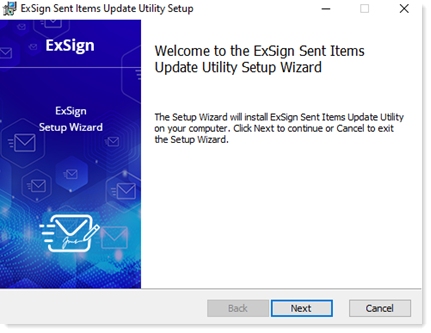
- Run the ExSign Sent Items Update Agent installer.
- On the Welcome screen, click Next.
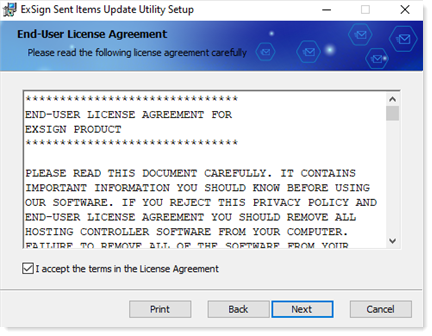
- Read and accept the License Agreement, then click Next.
-
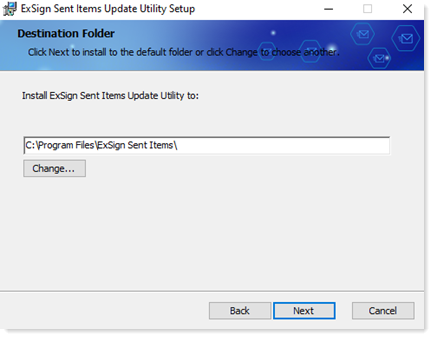
Select the installation directory.
By default, ExSign installs to:
C:\Program Files\ExSign Sent ItemsChange the installation path only if required by your organization's policies.
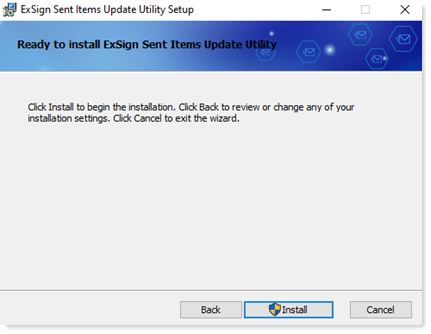
- Click Install to begin the installation.
- Wait while the installation completes.
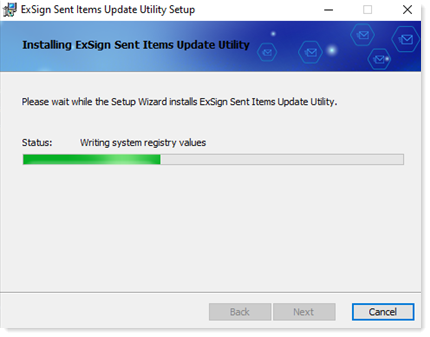
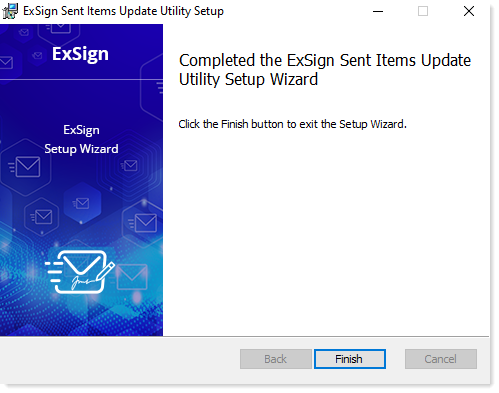
- Click Finish to close the installer.
Confirm Its Working
After installation, you should find:
- A Windows service named Sent Items Update Service on the server.
- A local SQLite database created on the server for the agent's own use.