
| Product Documentation
ExSign
Setting Conditions and Exceptions for Google Workspace
Conditions
Each condition has three parts: a Field, what to check (sender, recipient, subject, body, direction, timing, message type, and so on), an Operator, how to compare (is equal to, contains, not equal to, and field-specific operators), and a Value, what to match against (email address, text, department name, day, time range, and so on). Some operators do not need a value.
To add/set conditions, navigate to  under the Actions column and then Edit.
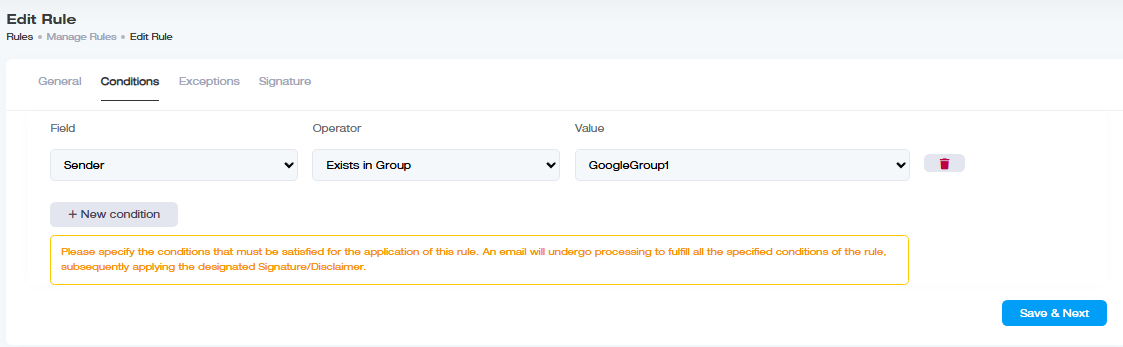
When a rule has more than one condition, all of them must be true. Conditions are combined with AND, not OR. If any one condition fails, the signature or disclaimer is not stamped. That mismatch is the most common reason a stamp does not appear when someone expects it. For more detail, see Understanding the Importance of Conditions?.
If you need the rule to fire when condition A or condition B is true (rather than both), create two separate rules. One rule cannot express OR across its conditions.
Available Conditions
The following table details all the conditions and the underlying operators presented by ExSign?for Google Workspace:
| Field | Operator | Value | Condition |
| Sender | Is Equal To | john@example.com |
Apply signature if mail is sent from this specific email address. The sender email should be an exact match to the value. |
| Contains | john | Apply signature if email address in ‘from’ field contains the specified characters. | |
| Not Equal To | john@example.com |
Apply signature to emails from all email addresses except this one. | |
| In Department | Accounts (name of department) | Apply signature to mails from all senders existing in the specified department. | |
| Not in Department | Accounts (name of department) | Apply signature to mails from all senders except the ones existing in the specified department. | |
| Exists in Group | Technical (name of distribution/security group) | Apply signature to mails from all senders existing in the specified distribution/security group. | |
| Not Exists in Group | Technical (name of distribution/security group) | Apply signature to mails from all senders except the ones existing in the specified distribution/security group. | |
| Recipient | Is Equal To | mark@example.com |
Apply signature if mail is directed to this specific email address. The recipient email should be an exact match to the value. |
| Contains | mark | Apply signature if email address in ‘to’ field contains the specified characters. | |
| Not Equal To | mark@example.com |
Apply signature to emails directed to all email addresses except this one. | |
| Subject | Is Equal To | sales | Apply signature if subject of the email exactly matches the text in the value. |
| Contains | sales | Apply signature if subject of the email contains the specified text. | |
| Not Equal To | sales | Apply signature if the subject text is not equal to the specified text. | |
| Body | Contains | promotion | Apply signature if the body of the message contains the specified text. |
| Message Direction | Within Organization | N/A | Apply signature if email is being sent to accepted domains within the organization. |
| Outside Organization | N/A | Apply signature if email is being sent to accepted domains outside the organization. | |
| Timings | Days | Monday | Apply signature if email is being sent on the specified day. To understand this with the help of a real-world example, see Signatures Based on Timings. |
| Active Hours |
From: 10:00 AM To: 10:00 PM |
Apply signature if email is being sent between the specified time range. | |
| Date Range |
From: 20th Jan 2020 To: 22nd Jan 2020 |
Apply signature if email is being sent between the specified date range. | |
| Message Type | New Email | N/A | Apply signature if the message is a new email. |
| Forward/Reply | N/A | Apply signature if the message is a reply to a previous message or is being forwarded to someone else. | |
| Out of Office | N/A | Apply signature if the email is an auto generated message, in response to an email. To understand this with the help of a real-world example, see Signatures for Out-of-Office Replies. |
Exceptions
Exceptions override conditions, if a message matches an exception, the rule won't apply even if every condition was satisfied. They use the same Field / Operator / Value structure as conditions, but to exclude rather than include (e.g., an exception on Sender mike@example.com means that sender never gets this signature, even if they match everything else).
To add/set exceptions, navigate to under the Actions column and then Edit.
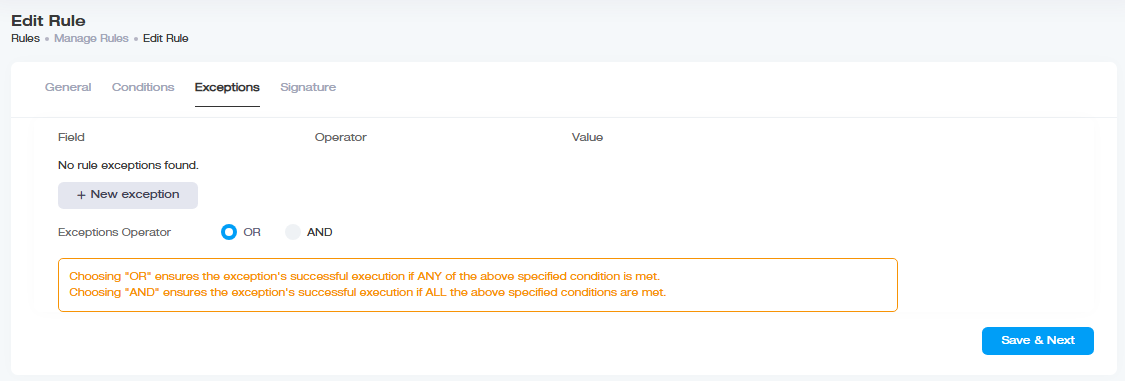
If you add more than one exception, you choose how they combine:
| Exceptions Operator | Behavior |
| OR | The exception triggers (and blocks the rule) if any one of the exception conditions is met, broader exclusion |
| AND | The exception triggers only if all of the exception conditions are met narrower, more specific exclusion |
Do not assume exceptions behave like conditions. Conditions are always AND. Exceptions let you pick OR or AND.