
| Product Documentation
ExSign
Different Signatures for New and Forwarded Messages
You can configure different signatures for new emails and for replies or forwarded messages. First-time emails typically require a more detailed signature, while ongoing correspondence is usually best served with a shorter, more concise signature.
ExSign enables you to include detailed signatures, such as your name, designation, phone numbers, website, address, and social media icons, in first-time emails, while using simplified signatures, such as only your name and designation, for subsequent replies and forwarded messages.
Scenario
For example, you may want users to include a detailed signature, featuring their name, designation, phone numbers, website, address, and social media icons, in the first email of a conversation. For all subsequent replies and forwarded messages within the same thread, a simplified signature containing only the user’s name and job title can be used.
How to Achieve This with ExSign
To achieve this with ExSign, you need to create two signature rules. Configure the first rule with the Message Type set to New Email and assign it a full, detailed signature. Configure the second rule with the Message Type set to Reply/Forward and assign it a shorter, simplified signature.
When users initiate a conversation by sending the first email, ExSign applies the full signature based on the New Email message type. For all subsequent replies or forwarded messages within the same conversation thread, ExSign automatically applies the shorter, more concise signature.
Follow the steps below to implement this through ExSign:
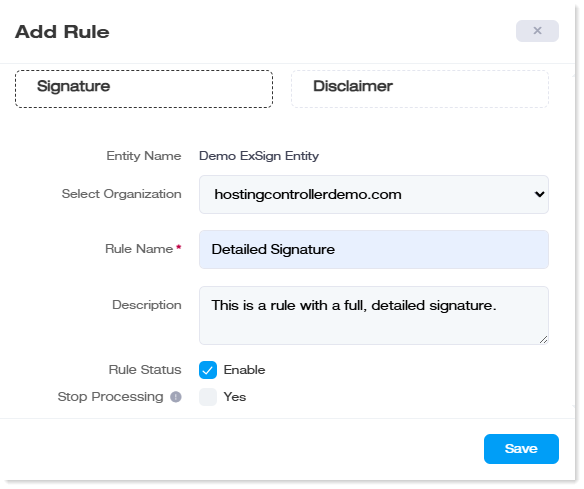
- Create the first rule and call it “Detailed Signature”.
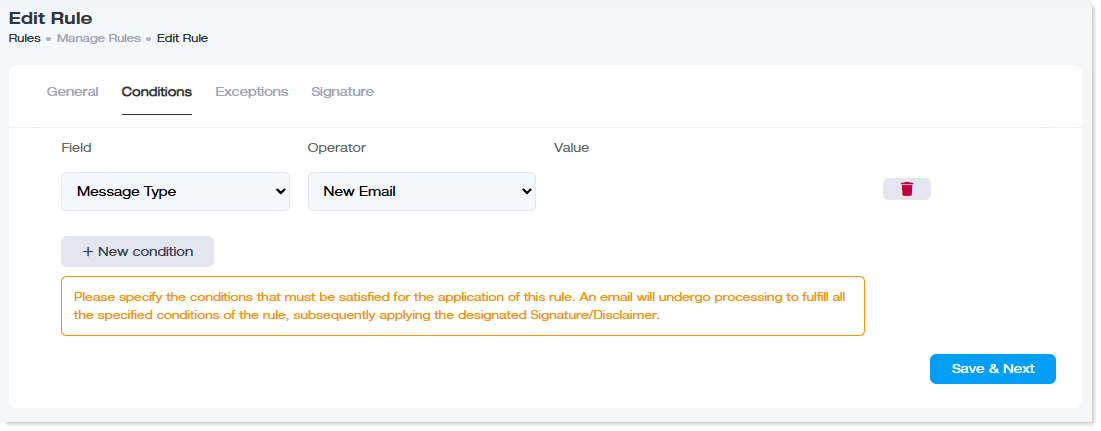
- In the Conditions tab, add a new condition where the field Message Type is set to ‘New Email’. Then click Save & Next.
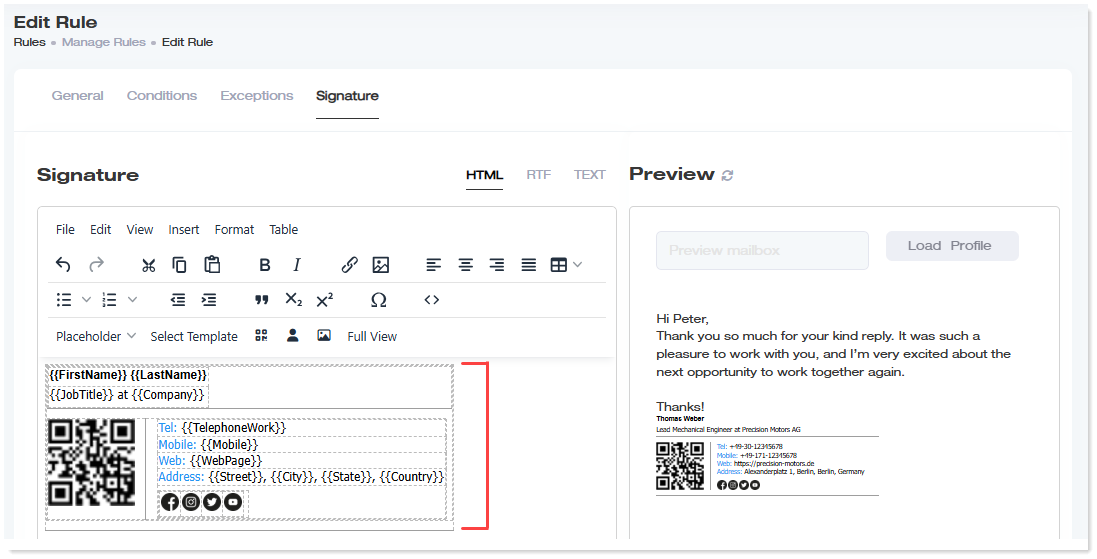
- In the Signature tab, either create your signature from scratch or choose a predefined template. Choose a detailed signature, possibly with full name, designation, phone numbers, website, address, and social media icons.
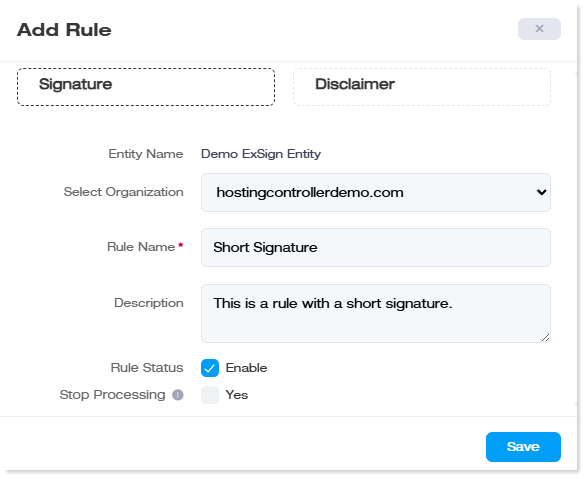
- Then create the second rule and call it Short Signature.
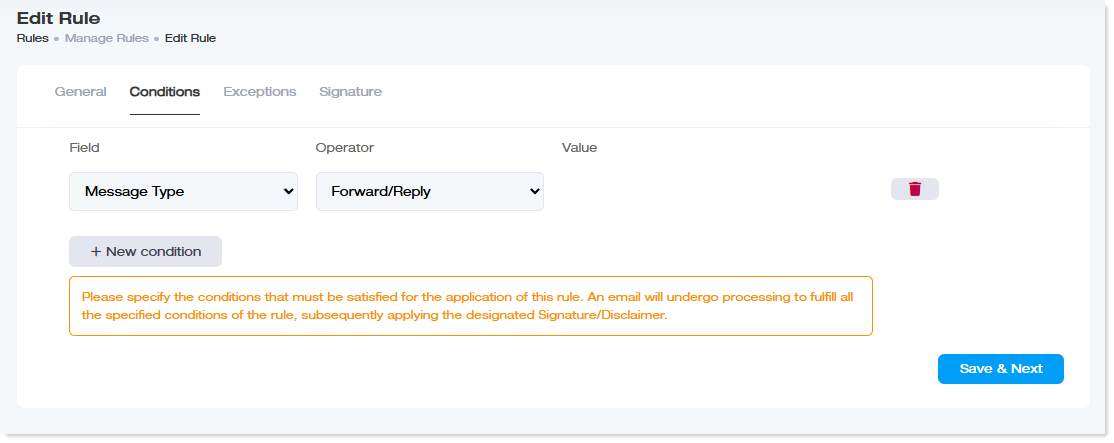
- Under its Conditions tab, add a new condition where the field Message Type is set to ‘Forward/Reply’. Then click Save & Next.
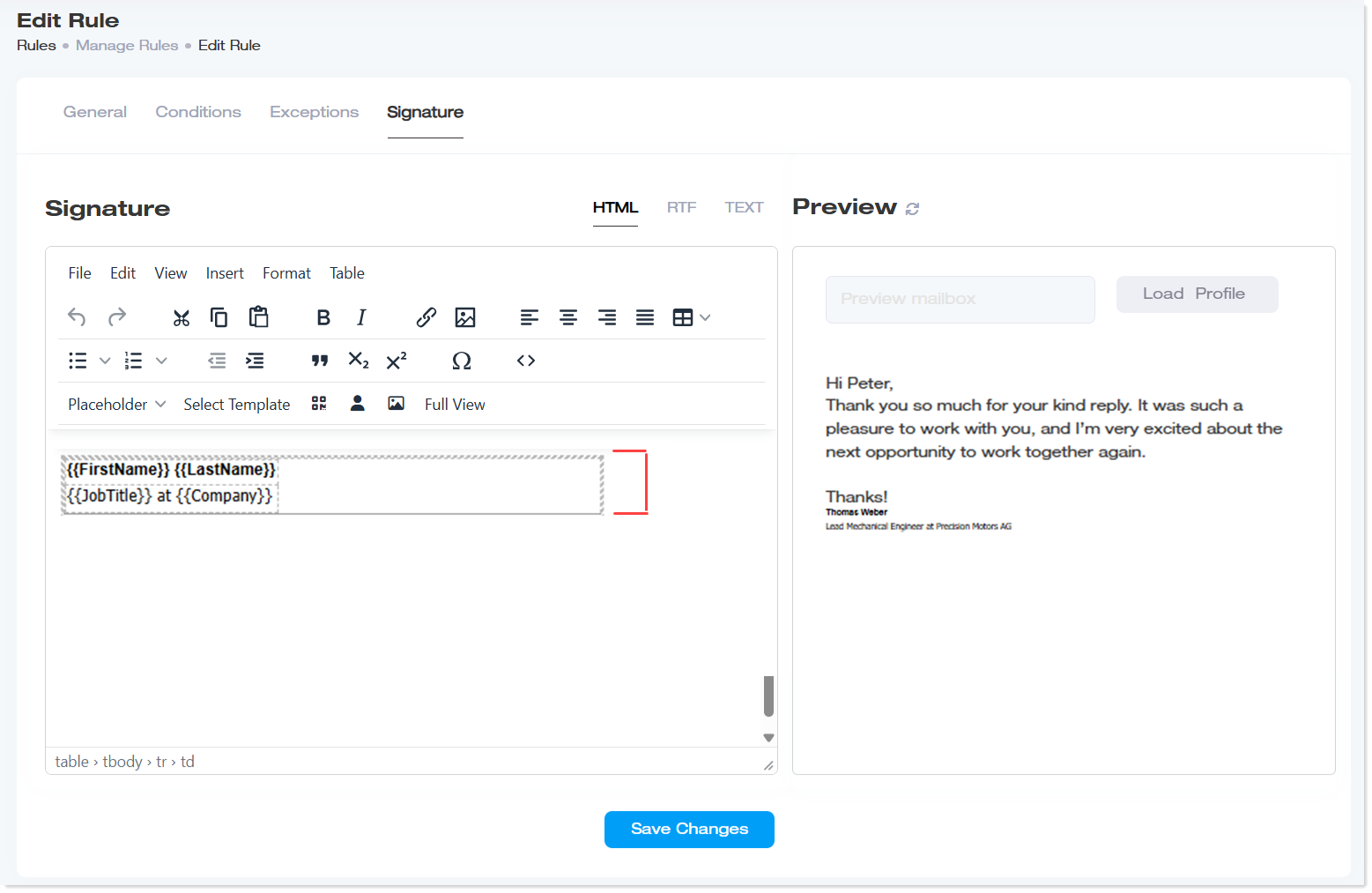
- In the Signature tab, prepare a shorter version of the signature that may include only the full name and designation.
- That's it! Now, whenever users initiate a conversation by sending the first email, ExSign applies a detailed signature that provides complete user information. For all subsequent replies or forwarded messages within the same conversation, ExSign automatically applies a shorter, simplified version of the signature.