
| Product Documentation
ExSign
Installing ExSign Web Portal
The Portal is your control server, where rules, signatures, and disclaimers are managed. It can go on a standalone server or a domain-joined machine, and if you're setting up high availability, you'll run this installer a second time on a second machine.
Before You Begin
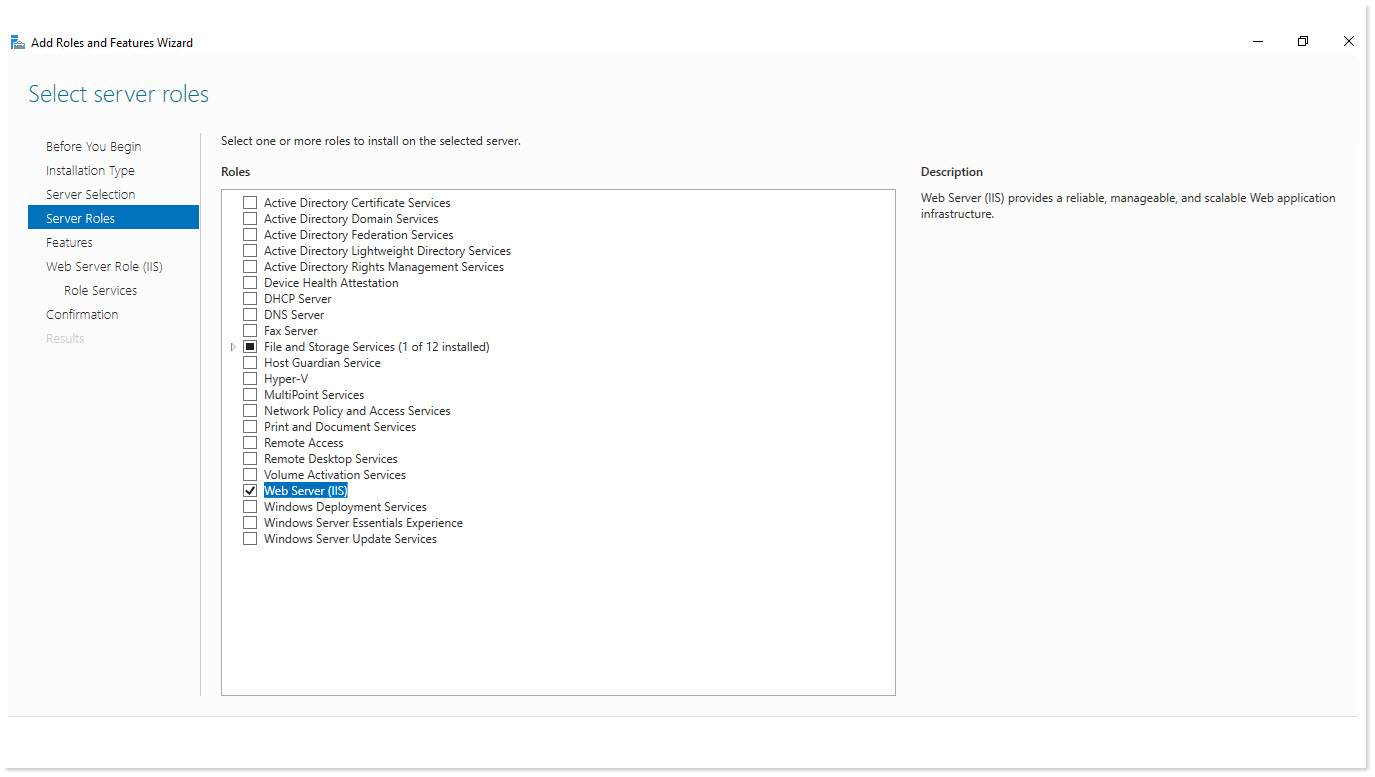
- Before installing ExSignPortal on your system, you should install IIS with a minimum feature set. ExSign supports IIS7 and above. After installing IIS, you should enable the Web Server (IIS) role to run ExSign successfully on your system.
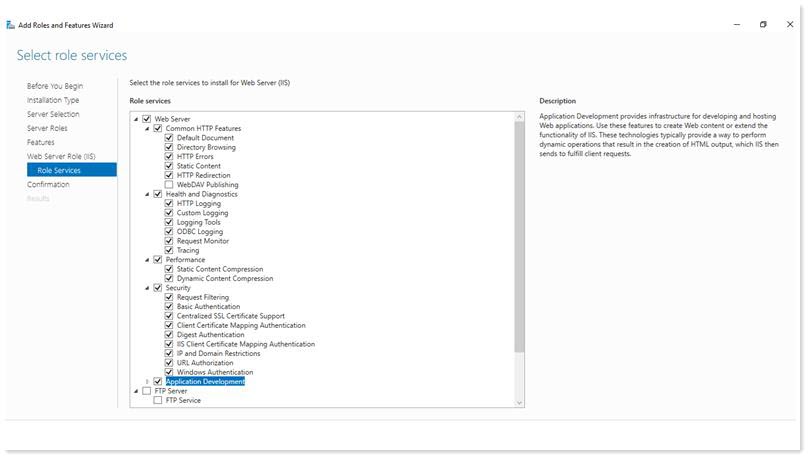
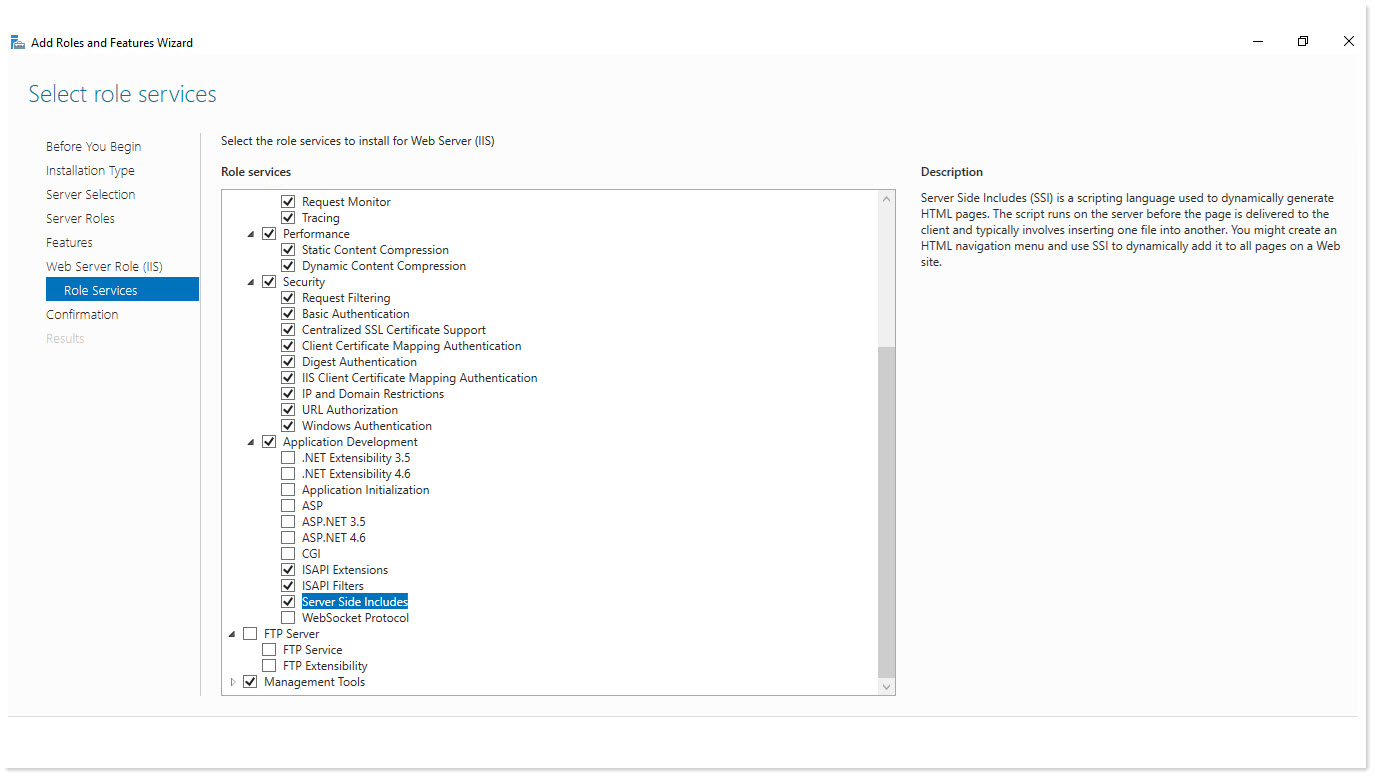
The following role services should also be enabled:- Application Development
- Server Side Includes
- Haveyour database details ready. You'll need either:
- Connection details for a new database, or
- The server name, database name, and credentials for an existing blank database you've already created in SQL Server.
- Decide how you'll authenticate admins and gather the details. ExSign supports two methods; pick one before you start:
If You Are Using Have This Ready Local Active Directory Domain controller IP or FQDN, a Domain Admin account, and the Root OU where ExSign will create its Admin/Exchange Admin security groups. Azure AD Client ID, Tenant ID, Client Secret (from your app registration), and the user you want to designate as ExSign Admin. - If this is a second Portal for high availability, have the connection details for your existing cluster ready instead; you won't need to re-enter database credentials in this case.
Installation Process
To install ExSign Portal, download ExSign and follow the steps as stated.
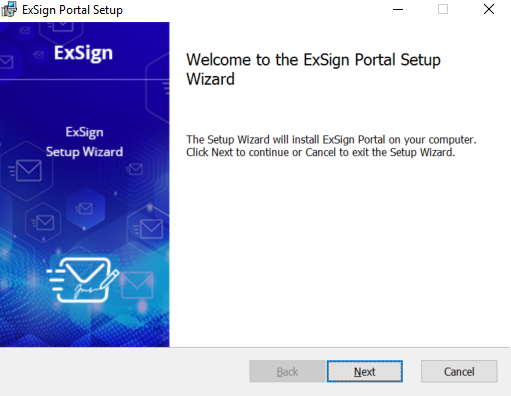
- Execute the installer and click Next on the welcome screen.
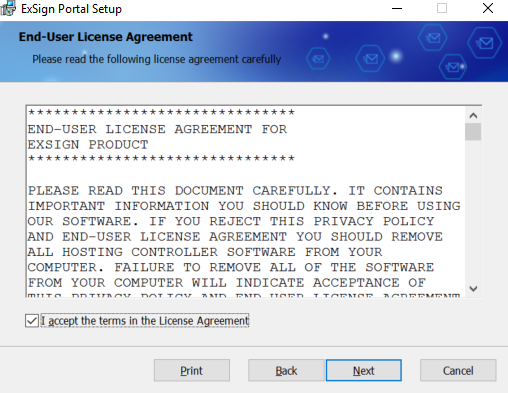
- Read and accept the license agreement to proceed.
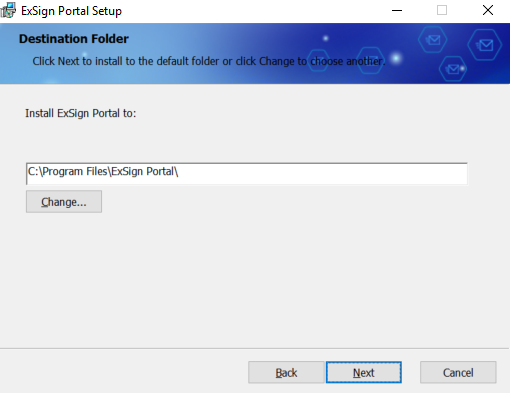
- Select destination folder to install ExSign Portal.
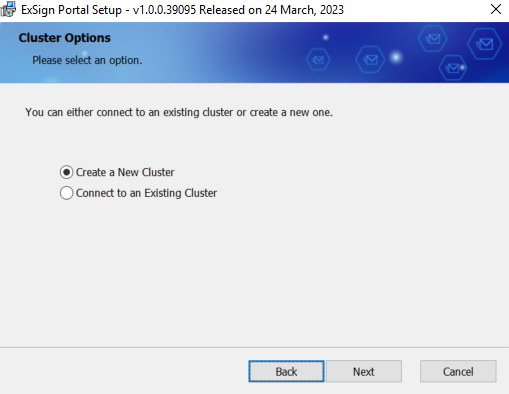
- Specify cluster type, either New or Existing one and then click Next to proceed. Choose the option “Connect to an Existing Cluster” only if you are installing on a second Portal machine for High Availability purposes.
- Select database as New or Existing (already existing blank database) and then select Next to proceed. Select the option “Use a Blank Database” if you have manually added a database in SQL Server.
ExSign Portal hosts its database in Microsoft SQL Server.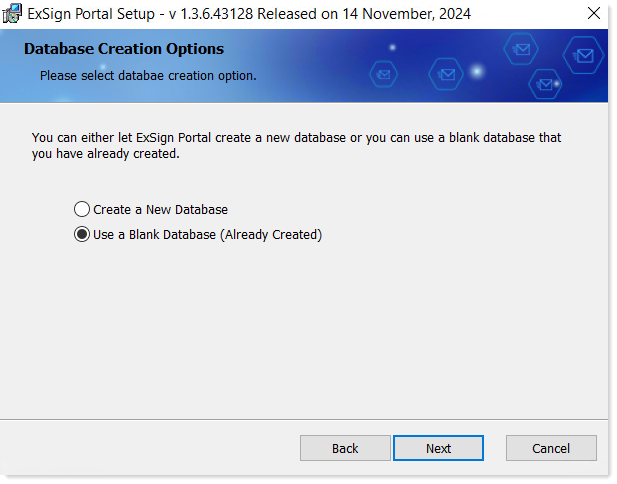
- Type database server connectivity details and click Next to proceed. Specify the Database Server Name or IP, Database Name, DB Admin User (username) and Password.
Database credentials are not required if you are connecting to an existing cluster.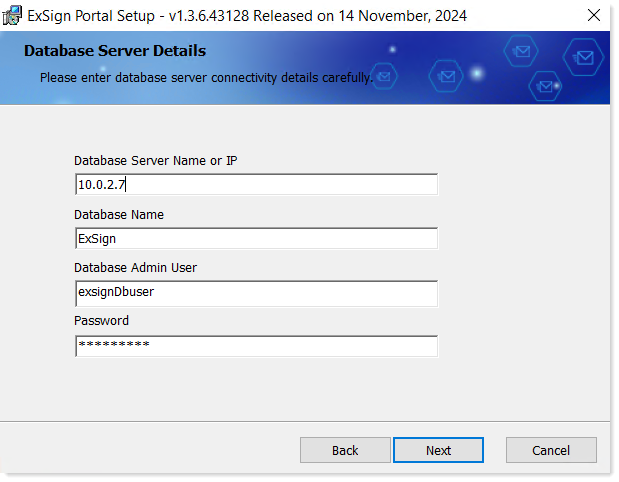
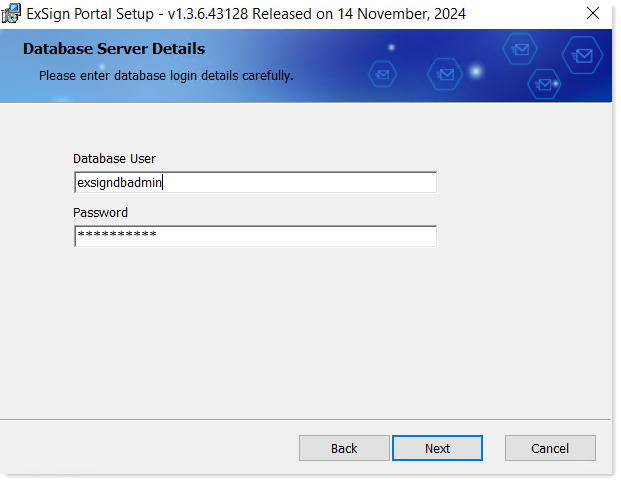
- Type database login details like username and password. Click Next to proceed.
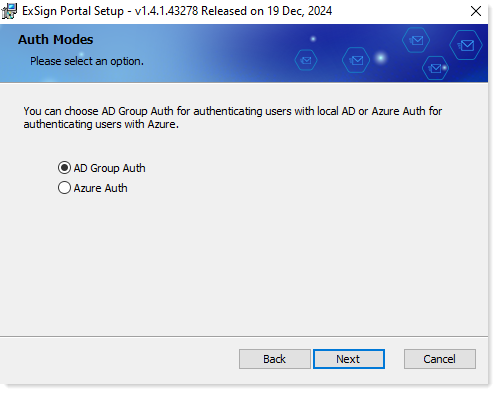
- Select an authentication mode. Choose AD Group Auth for authenticating users with local AD or Azure Auth for authenticating with Azure. Click Next to proceed.
In case of authentication through local AD provide domain controller and connectivity details. Click Next to proceed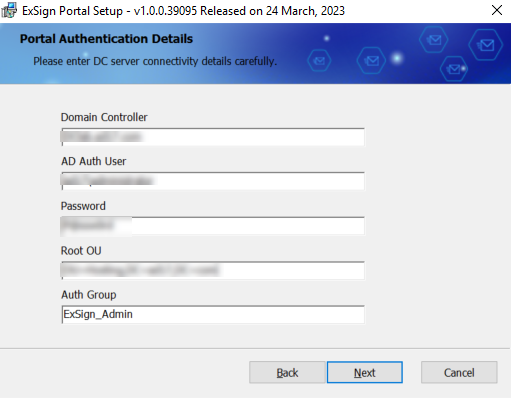
- Domain Controller: Type either IP address or FQDN of the DC.
- AD Auth User: Type Domain Admin account credentials.
- Root OU: Specify location where ExSign Admin & Exchange Admin CP Auth Groups (Security Groups) will be created by ExSign Portal.
In the case of Azure Auth, provide Microsoft Azure connectivity details.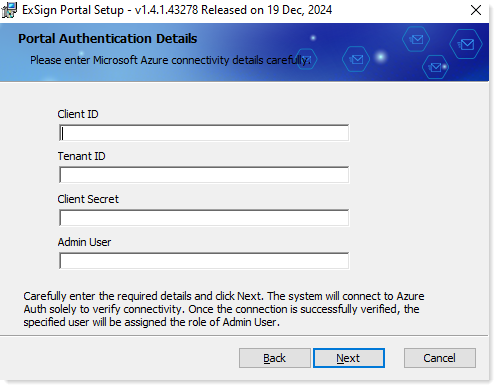
- Client ID: Specify a Client ID. This is the unique application ID of this application in your directory. You can use this ID if you ever need help from Microsoft Support, or if you want to perform operations against this specific instance of the application using the Azure Active Directory Graph or PowerShell APIs.
- Tenant ID: Specify a Tenant ID. This is the Azure Active Directory’s global unique identifier (GUID).
- Client Secret: Specify the Client Secret. Client Secret or "App Secret” as it is sometimes called, refers to a confidential piece of information used to authenticate an application in the Azure Active Directory. When you register an application in Azure AD, you can create a secret for the app, which is used as a shared secret between the application and the authentication service. The application uses the secret to request access tokens and authenticate itself. Once you've saved the client secret, the value of the client secret is displayed. Copy this value because you won't be able to retrieve the key later. You'll provide the key value with the application ID (Client ID) to log in as the application.
- Admin User: Specify a user that will be assigned the role of ExSign Admin. This user must exist in Azure. On clicking Next, the Microsoft sign-in pop-up will appear. Login to Azure with this user and it will be authenticated.
- After completing the previous steps of the setup wizard, click Install to start installation process of ExSign Portal on the server.
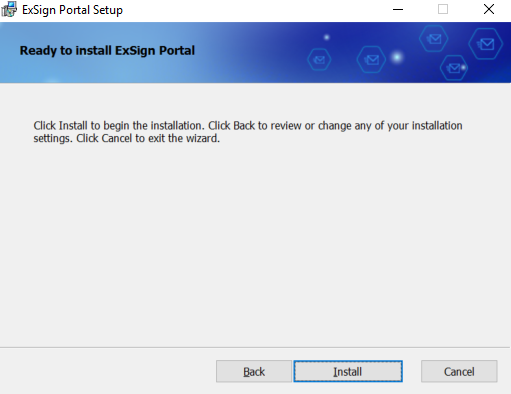
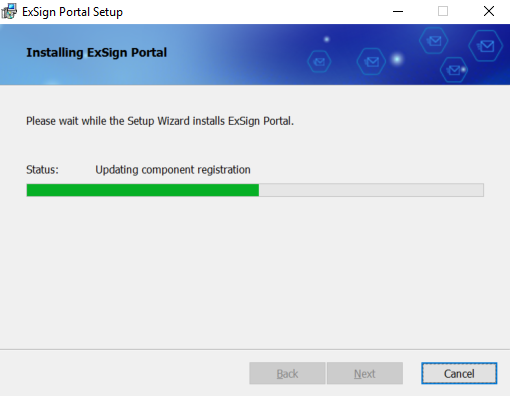
- The installation process takes a few minutes.
- Click Finish to complete the installation process.
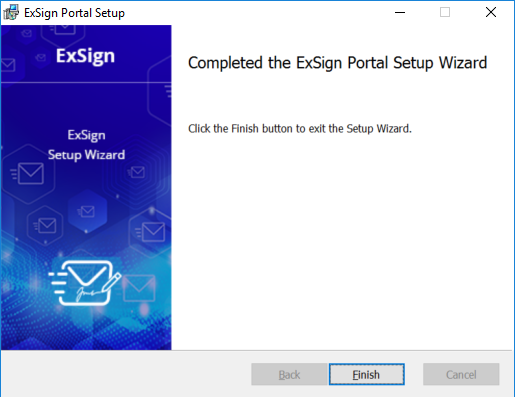
Upon successful installation, ExSign Portal website will be created in IIS. Backend database is created in Microsoft SQL Server and Windows services ExSign Email Service and ExSign Publishing and Analytics Service (also known as ExSign Hub Service) are installed on the system.
Working Confirmation
After installation, you should find:
- An ExSign Portal website was created in IIS. The website should look something like
https://yourdomain.com:8775. You should be able to log in with your credentials. To log in for the first time. - A backend database created in your SQL Server
- Two Windows services running: ExSign Email Service and ExSign Publishing and Analytics Service (also called ExSign Hub Service).