
| Product Documentation
ExSign
Creating a Rule for Cloud Signatures
A rule tells ExSign when to stamp a signature or disclaimer, and what to stamp. ExSign rules are separate from Microsoft 365 mail flow (transport) rules and from Google Workspace routing rules.
Use rules for both Microsoft 365 and Google Workspace organizations in the ExSign Portal.
Open Rules
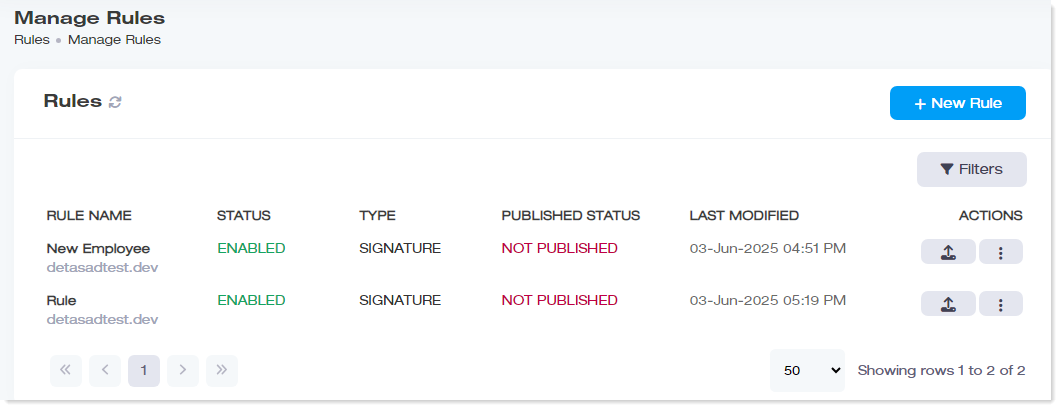
- Sign in to the ExSign Portal.
- In the left menu, under Main, click Rules.
What the Rules List Shows
| Field | Meaning |
| Rule Name | Name of the rule |
| Status | Enabled or disabled |
| Type | Signature or Disclaimer |
| Published Status | Published or unpublished (open publishing details when available) |
| Last Modified | When the rule was last changed |
| Actions | Edit, publish, copy, delete, and related actions |
Create a Signature Rule
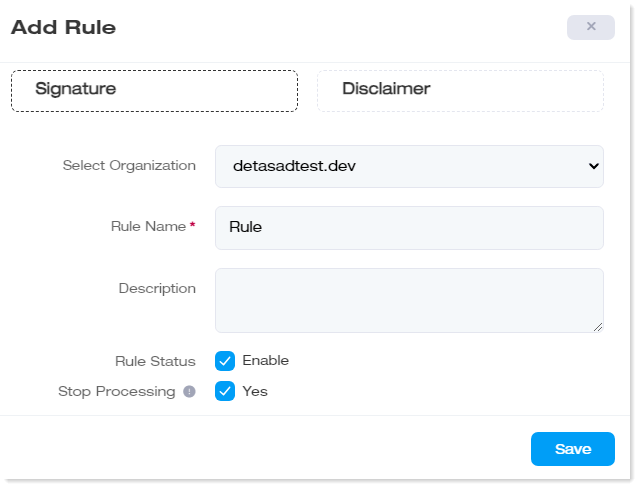
- Click New Rule.
- Select the Signature tab.
- Enter:
Field What to Enter Select Organization Microsoft 365 or Google Workspace organization for this rule Rule Name Required friendly name Description Short note about the rule purpose Rule Status Enable or leave disabled until you are ready Stop Processing Choose Yes if no later rules should run after this one applies - Save the rule, then continue with conditions, signature design, and publishing.
Create a Disclaimer Rule
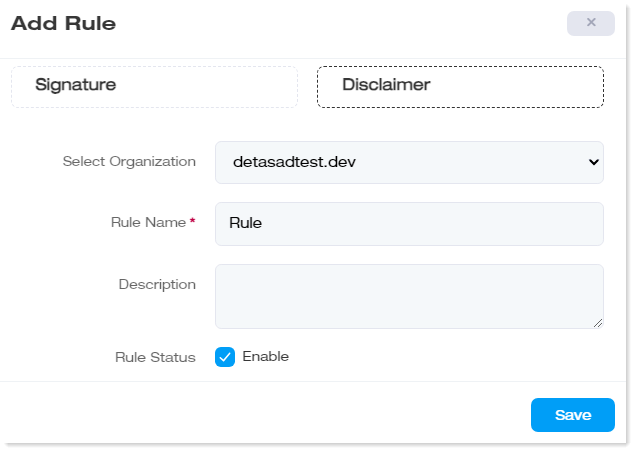
- Click New Rule.
- Select the Disclaimer tab.
- Enter the same basic fields as a signature rule (Select Organization, Rule Name, Description, Rule Status).
- Save, then design the disclaimer text and set conditions as needed.
Disclaimer rules are useful for legal or compliance text that should appear independently from (or in addition to) marketing signatures.
Edit a Rule
- Under Actions, click Edit.
- Update General settings (name, description, enable/disable, stop processing).
- Update Conditions, Exceptions, and Signature / disclaimer content as needed.
- Save your changes, then publish when ready.