
| Product Documentation
ExSign
Managing Billing Profiles for Cloud Signatures
Billing profiles store the payment and contact details used for ExSign Cloud subscriptions. You can add a profile during your first purchase, or create and maintain profiles anytime under Billing Profiles.
You can keep more than one billing profile (for example, more than one credit or debit card).
Open Billing Profiles
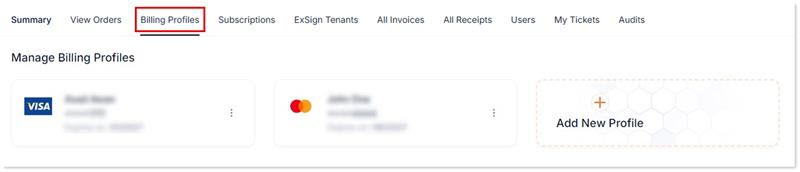
- Sign in to the Billing Portal
- Click Billing Profiles.
Add a Billing Profile
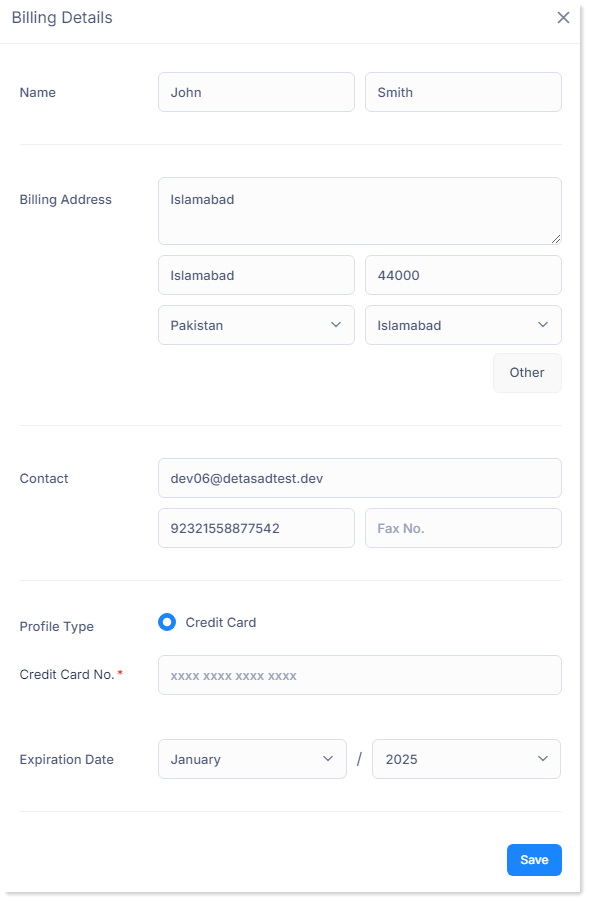
- Click + Add New Profile.
- Enter:
Field What to Enter Name First and last name Billing Address Full address, including city, ZIP/postal code, country, and state/province Contact Email, phone, and fax if required Profile Type Credit/debit card Credit Card Number Card number (required) Expiration Date Card expiry date - Click Save.
Edit Billing Details
To update address or contact details on an existing profile:
- Open the profile actions menu.
- Click Edit.
- Update the fields and save.
Change or Update a Payment Method
If a card expires or you need a different payment method, add a new billing profile with the new card details. Then use that profile for future payments.
Delete a Billing Profile
- Open the profile actions menu.
- Click Delete.
- Confirm the deletion.