
| Product Documentation
ExSign
Designing Your Signature for Cloud Signatures
Use the Signature tab in a rule to design what ExSign stamps on matching messages. You can build HTML, Rich Text Format (RTF), or plain text signatures with templates, placeholders, images, and live preview.
The same editor pattern is used for disclaimer content.
Open the Signature Editor
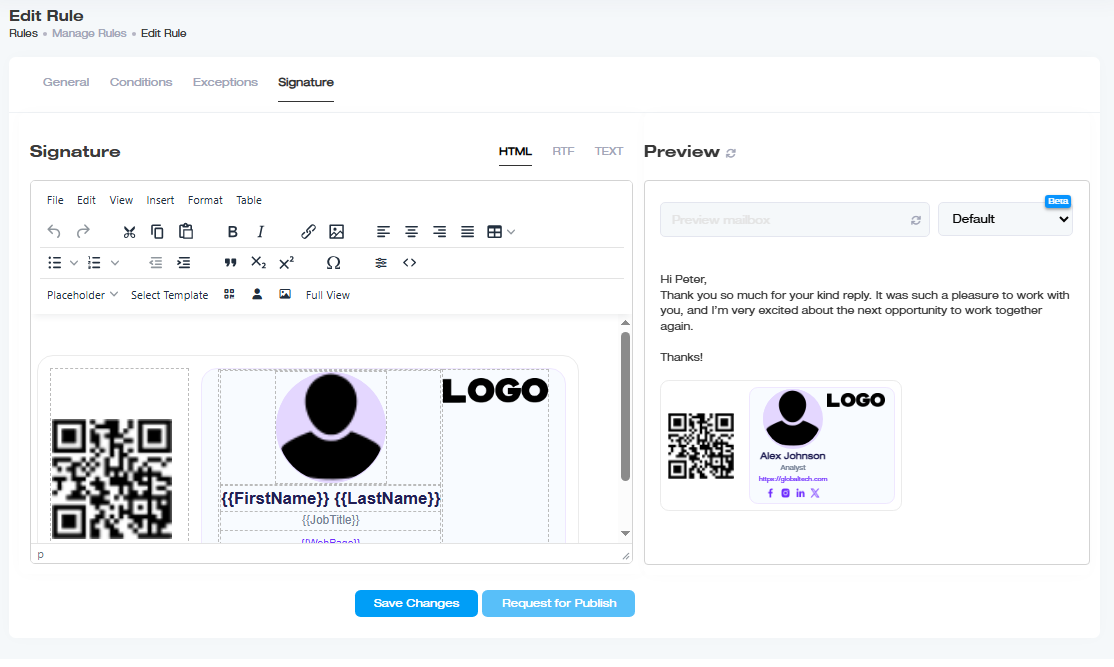
- Open Rules.
- Under Actions, click Edit on the rule.
- Open the Signature tab.
Start from a Template (Optional)
Use built-in templates when you do not want to design from scratch. Select a template, then customize text, placeholders, and branding.
Custom fonts can also be added for branding consistency.
Personalize With Placeholders
Placeholders insert directory attributes automatically. For example, {{LastName}} becomes each user's last name when the signature is stamped.
Attribute values come from Microsoft 365 or Google Workspace directory data for the selected organization.
Common placeholder categories include:
| Category | Examples |
| Identity | First Name, Last Name, Display Name, Initials, Job Title, Department, Company |
| Contact | E-mail, Telephone Work, Mobile, Fax, Web Page |
| Location | Office, Street, City, State, Postal Code, Country |
| Other / custom |
Description, Notes, custom attributes when available |
Remove Blank Placeholders
If a user is missing an attribute, a placeholder can leave a gap. Wrap placeholders in Remove Text (RT) tags so ExSign removes the placeholder and surrounding text when the value is empty.
Transform Placeholder Text
Select the full placeholder (including {{ }}) and apply a text transformation:
| Option | Effect |
| Upper | Uppercase |
| Lower | Lowercase |
| Title | Capitalize each word |
| Space | Insert spacing for readability |
Add Visual Elements
- Thumbnail Photo - insert the user's directory photo into the signature
- QR Code - insert the organization QR code (configure it under Managing Organizations)
- Image Gallery - insert previously uploaded images
- Convert to Embedded Image - embed an image in the message so recipients do not need to download external image links
- Special Character - insert special characters
- Social Media (Full View) - drag ready-made icons into the signature and set links/titles
Validate and Preview
| Tool | Purpose |
| Validate | Checks rendering across Chrome, Outlook (Classic), Firefox, and Safari; flags HTML/CSS compatibility issues |
| Preview | Live preview across browsers/screen sizes, including per-mailbox previews |
| Source Code | View or edit the underlying HTML |
Use Full View
Full View gives a larger editing surface with:
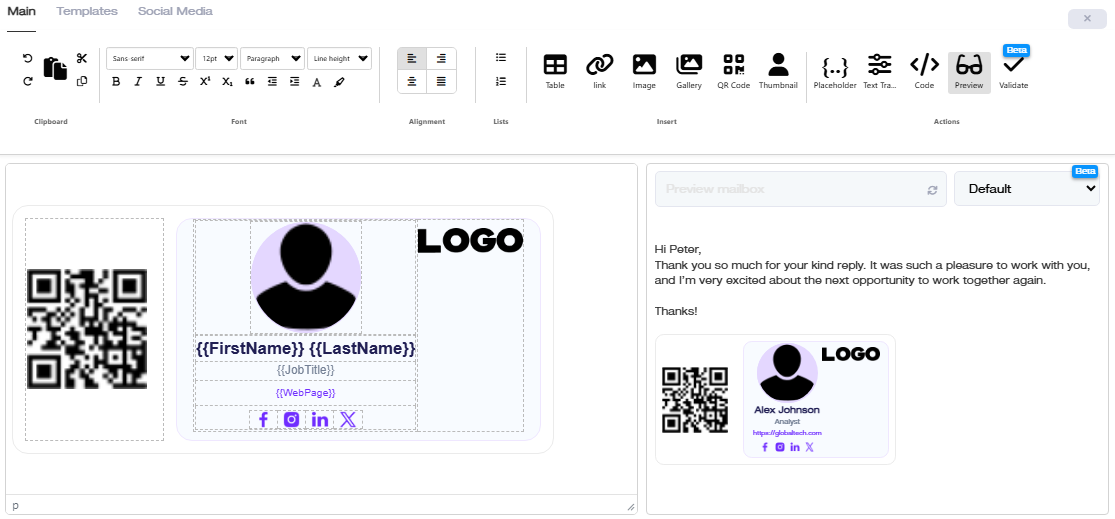
- Main - full graphic editing tools
- Templates - browse and preview templates
- Social Media - icon library with drag and drop