
| Product Documentation
ExSign
Quick Start Guide for Microsoft 365
This quick start guide enables you to get started with ExSign for Microsoft 365 in as few steps as possible and walks you through all the essentials of email signatures for M365 at a go.
1) Transport Rules
Two mail flow rules must be created in Microsoft 365 before signatures can be stamped for Microsoft 365 mailboxes. These rules are:
- Rule 1: Prevent Out of Office messages from being sent to ExSign Agent.
- Rule 2: Identify messages to send to ExSign Agent.
For details, see Rules in Microsoft 365.
2) Connectors
Two connectors must be created in Microsoft 365 before signatures can be stamped. These connectors include:
- Microsoft 365 to ExSign Agent connector.
- ExSign Agent to Microsoft 365 connector.
For details, see ExSign Connectors for Microsoft 365.
3) Whitelist IP
When a new tenant/organization is added to Microsoft 365, mailboxes may encounter this error while sending emails “Can't send email - NDR 5.7.708 Access Denied, traffic not accepted from this IP.” This may occur due to the tenant's IP being blocked. To resolve the issue a request must be lodged with Microsoft (through email) to get the IP address whitelisted. For details, see Authorizing a New Tenant in Microsoft 365.
4) App Registration
An application should be registered in the Azure Portal before the ExSign Agent can connect to the Microsoft 365 tenant. For details, see Connecting ExSign 365 Agent.
5) Pre-requisites for ExSign M365 Agent
There are some prerequisites for installing the Microsoft 365 Agent. The following are the prerequisites:
- There are some system requirements for installing the Microsoft 365 Agent. For details, see System Requirements.
- The ExSign Microsoft 365 Agent cannot be installed on an on-premises Exchange Mailbox Server, that already has the ExSign Transport Agent.
- Outgoing SMTP port 25 should remain open in the firewall.
- The Microsoft 365 Sent Items Update Agent needs to be installed on the portal server and the EWS URL needs to be configured.
6) Install Microsoft 365 Agent
After completing the prerequisites, install the Microsoft 365 Agent. For installation, see M365 Agent Installation.
7) Login
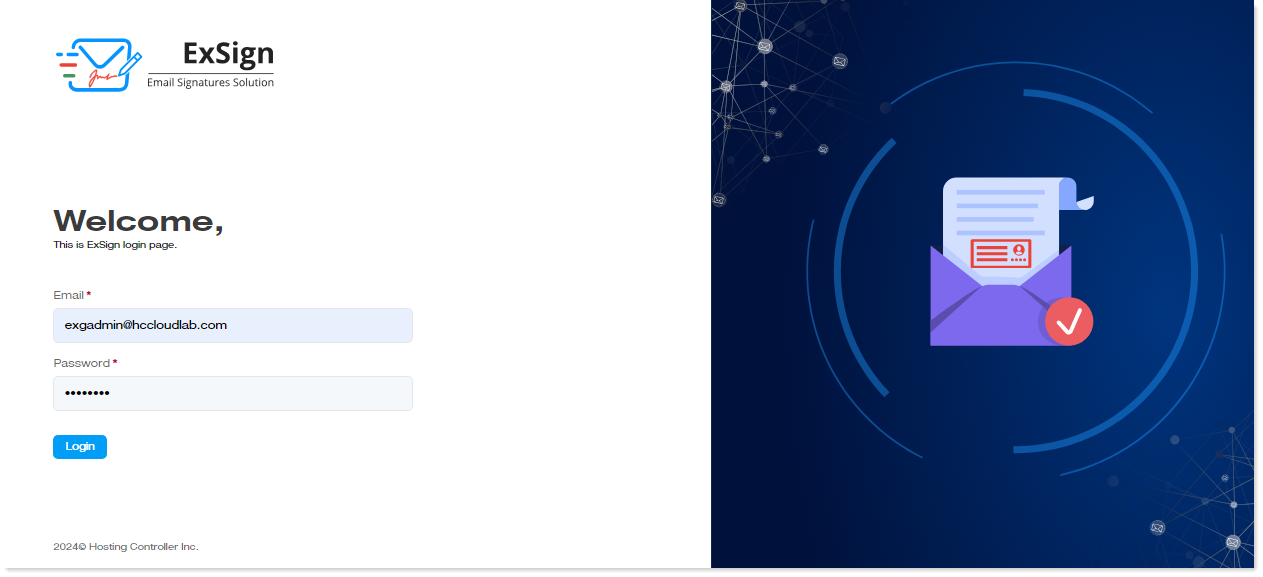
After installing the agent, log in to the central ExSign Portal with ExSign Admin (global admin) credentials. The credentials include the admin user's User Principal Name (UPN) and password.
8) Add M365 Entity
Then add a Microsoft 365 entity. An entity in this case will be a logical name for a collection of Microsoft 365 organizations to be stamped. It will not be anything with a physical existence.
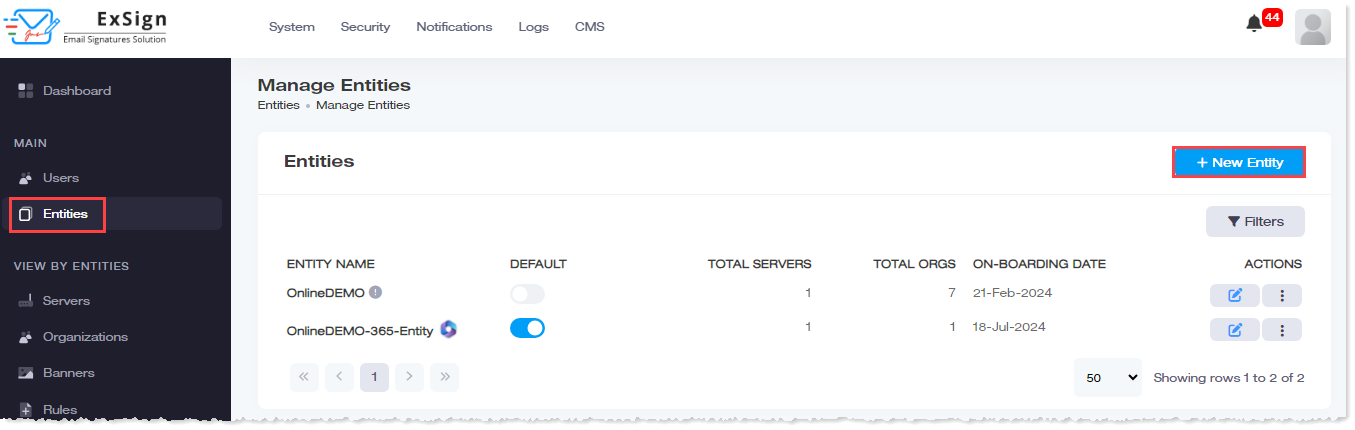
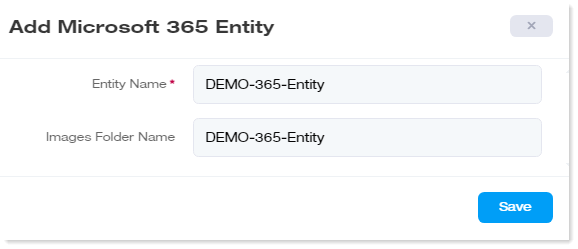
After hitting the + New Entity button, enter the required details for the entity, and click on the Save button.
9) Add Server
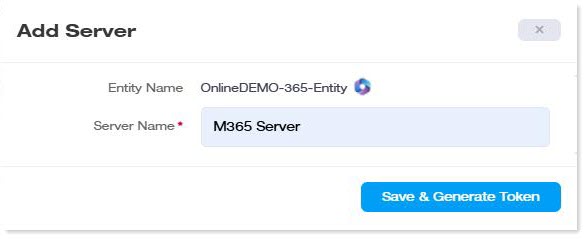
Then add a server. Select the desired entity before adding a new server. While adding the server, generate an authentication token to connect the agent with the central web portal.
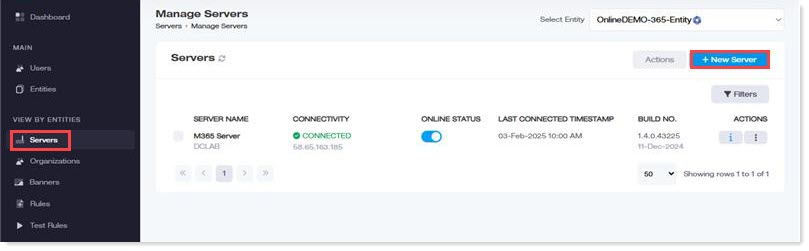
After hitting the + New Server button, enter the server’s name, and click on the Save button.
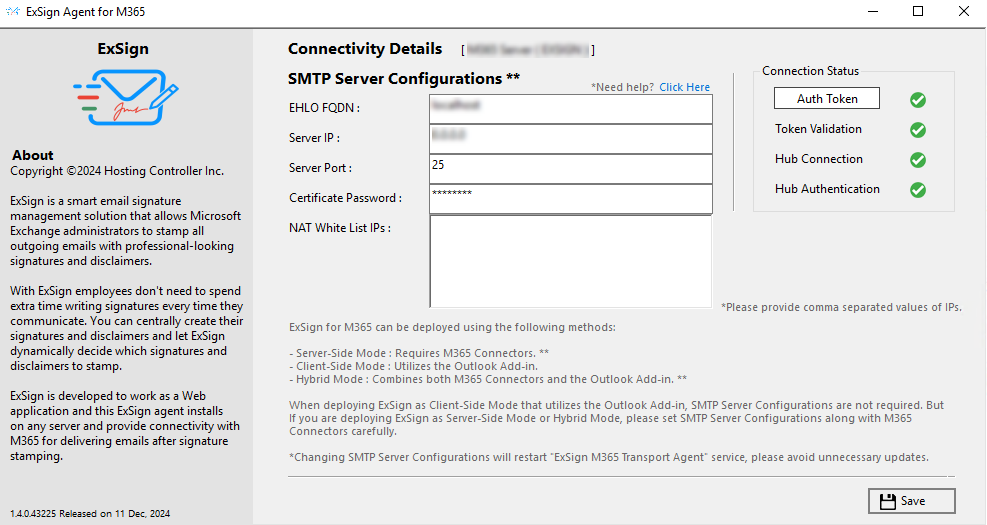
Open the agent desktop utility and enter the token there. After validation, the agent communicates with the web portal through a secure channel.
10) Add Organization
Then add an organization. In the case of Microsoft 365, ExSign selects a mail-enabled security group of the Microsoft 365 tenant/organization and allows signature stamping only on the users included in the group. Signatures are not stamped on any users outside the group.
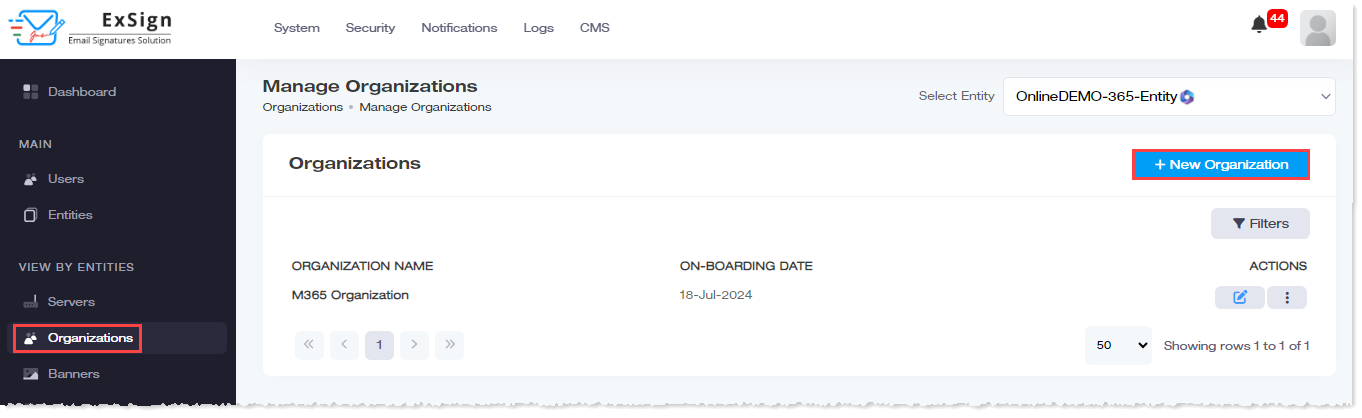
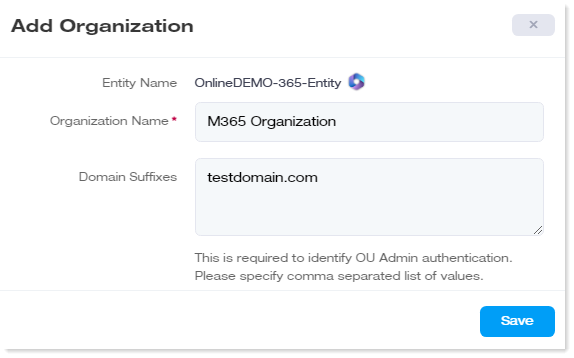
After hitting the + New Organization button, enter the Organization Name and Domain Suffixes.
11) Add Signature Rule
Then add a central signature rule.
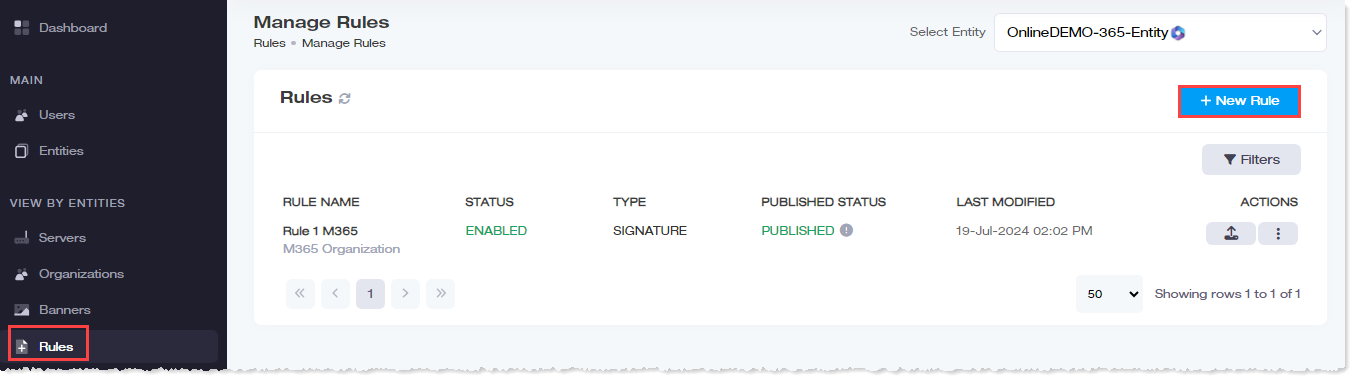
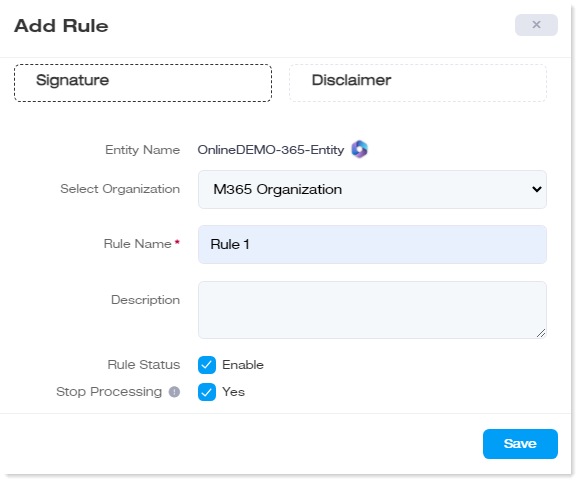
After hitting the + New Rule button, select the organization from the list, type Rule Name, specify brief description.
12) Test Rule
The final step is to test the rule and stamping.