
| Product Documentation
Hybrid Control Panel (v10)
Configuring Softaculous
Softaculous Auto Installer comes tightly coupled with Hosting Controller and allows website owners to add/remove applications easily on websites. A complete installation and configuration of Softaculous with Hosting Controller involves the following four steps:
- Installing Softaculous
Install Softaculous on a Hosting Controller Windows Web server with the help of the following link:
https://www.softaculous.com/docs/Installing_Softaculous_in_Hosting_Controller - Configuring Softaculous
After the installation of Softaculous on a Web server, assure the following:
- PHP single mapping should be enabled on Softaculous administration site on the Webserver.
- HCAPI URL should be accessible from the Webserver machine. Therefore change the API URL from localhost to publically accessible URL in config.xml file located at: C:\Program Files\Hosting Controller\Configs on HC Control Server.
- HCAPI must also be updated in index.php file located in C:\Program Files\Hosting Controller\Tools\Softaculous\auth.
- Enabling Softaculous Admin in HC
Enable Softaculous Admin in Hosting Controller. Softaculous Admin can be enabled while adding/editing a Web server in the control panel.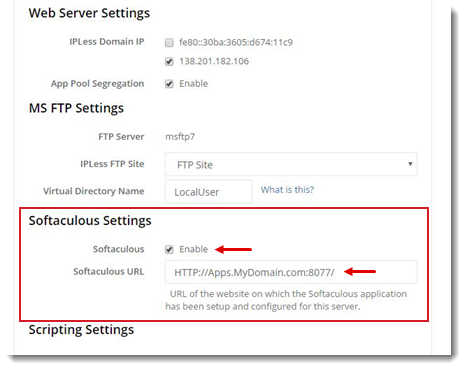
- Enabling Applications
To enable any individual application from within the panel, navigate to Provisioning >> Websites >> Select Website >> Click Dashboard >> Softaculous Apps Installer menu.