
| Product Documentation
Hybrid Control Panel (v10)
Configuring Click and Install Apps
To configure Click and Install Apps follow the steps as:
-
Login to the panel as the admin, from top right corner of your screen click
 and then go to Configurations >> Applications Configurations >> Click and Install Apps.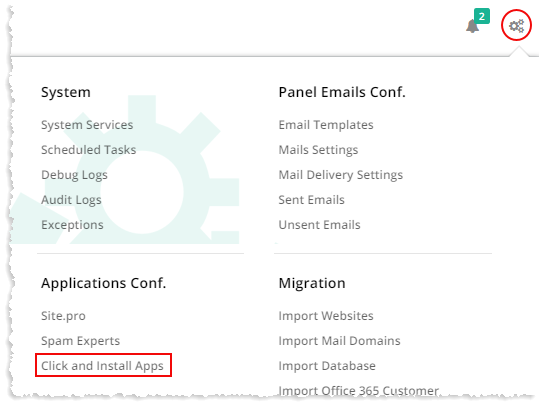
-
Select HCCandIApps as the App Type.
-
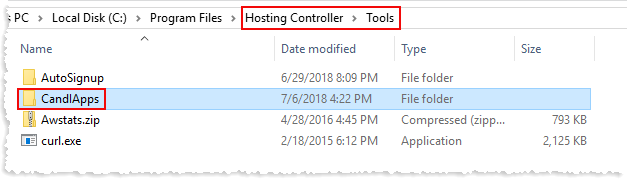
Download Click and Install setup folder from this link, extract the zip file and place folder CandIApps in HC installation folder at location C:\Program Files\Hosting Controller\Tools.
-
Click and Install Apps need an administration site in IIS to work. This site serves as a web application for installing various click apps on websites. The site can be a New or an Existing one.
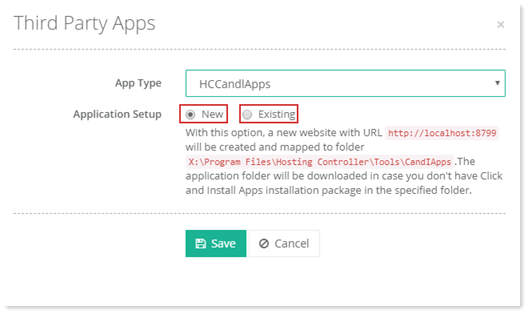
- New- This option, if selected, automatically creates a new site with the name HC Click and Install Apps in IIS and point its physical path to C:\Program Files\Hosting Controller\Tools\CandIApps. Later a host header may be set against this site in IIS to point it to any other desired URL.
- Existing - This option, if selected, allows to set administration URL on an existing site or its virtual directory. Provide the existing site and point its physical path to C:\Program File\Hosting Controller\Tools\CandIApps.
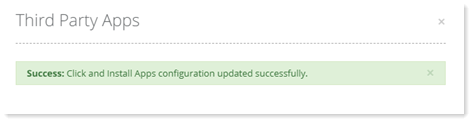
That’s it! You have configured Click and Install Apps Pack successfully. Now proceed to Enabling Click and Install Apps.