
| Product Documentation
Hybrid Control Panel (v10)
Creating a transport rule
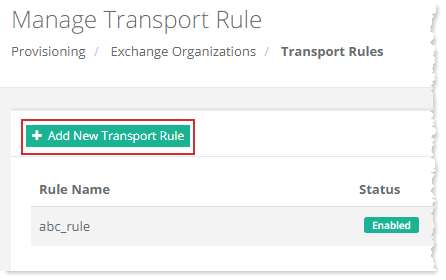
Mail flow rules (also known as transport rules) let you take action on Exchange messages, based on previously defined conditions. If a condition is met, a certain action is taken. Mail flow rules are like Inbox rules that are available in Outlook except they take action on messages while they're in transit, and not after they are delivered to the mailbox. Transport rules consist of conditions exceptions, and actions. To create a transport rule, click + Add New Transport Rule and specify information to proceed.
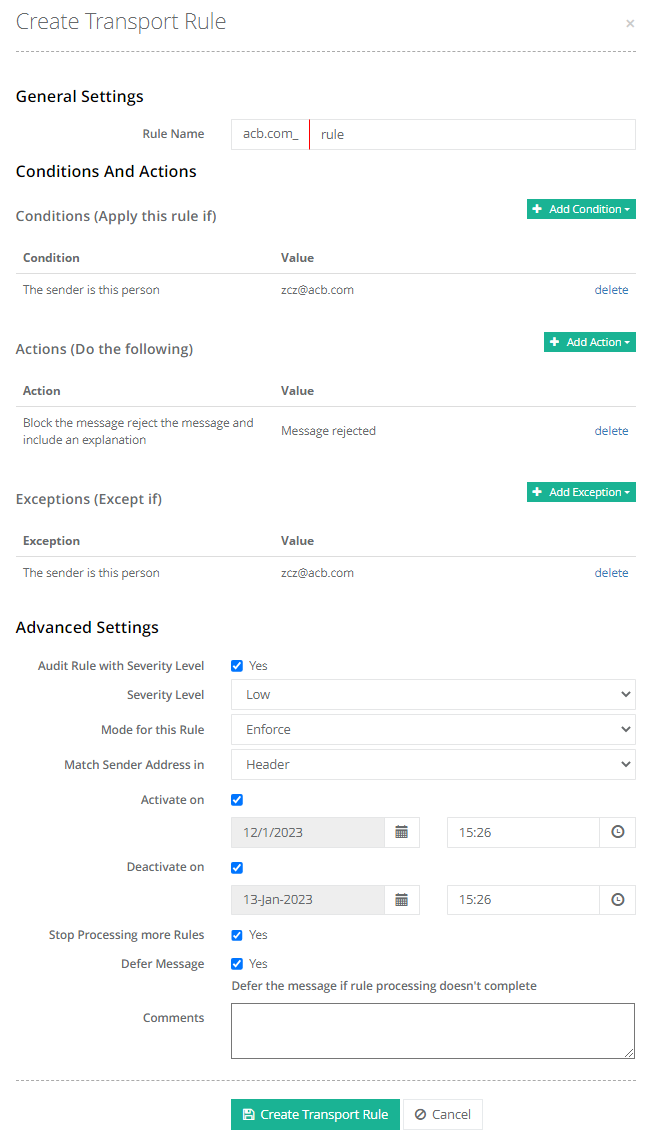
- Conditions (Apply this rule if): The conditions specify the conditions to be met for triggering a certain action. For example “if the sender is” or “the subject includes any of these words” etc. There can be multiple conditions in a single rule.
- Actions (Do the following): The actions are the tasks to be performed on the messages such as “redirect the messages to” or “delete the messages without notifying anyone” etc. There can be multiple actions in a single rule and all actions are applied if conditions are met.
- Exceptions (Except If): Exceptions override conditions and prevent the rule actions from being applied to the message, even if the message matches all of the configured conditions. For example except if “the sender is this person”. Just like conditions there can be multiple exceptions in a single rule.
- Audit Rule with Severity Level: If the checkbox is enabled the rule will appear in reports and message traces. If the box is unchecked, there will be no trace of the rule triggering, in reports or message traces.
- Severity Level: These levels impact how the rule will show up in reports. Valid values for the severity level are Low, Medium, High, and Not Specified.
- Mode for this Rule: Mode specifies whether you want the rule to start processing messages immediately, or whether you want to test rules without affecting the delivery of the message. Valid values for mode are Enforce, Test with Policy Tips and Test without Policy Tips.
- Match Sender Address in: If the rule uses conditions or exceptions that examine the sender's email address, you can look for the value in the message header, the message envelope, or both.
- Activate on: Specifies the date range when the rule is active. Click Activate to make the rule active after the specified date.
- Deactivate on: Click Deactivate to stop processing the rule on the specified date.
- Stop Processing more Rules: If the checkbox is enabled it stops applying additional rules to the message after the rule processes the message.
- Defer Message: Specifies how the message should be handled if the rule processing can't be completed. By default, the rule will be ignored and the message will be processed regularly, but you can choose to resubmit the message for processing. To do so check the Defer Message check box.
- Comments: The text box allows you to provide comments.
After creation, the transport rule can also be edited, disabled, or deleted. Disabling a transport rule through Hosting Controller, will disable the rule under Mail Flow, Rules section in the ECP while deleting it will remove it completely from the ECP.