
| Product Documentation
Hybrid Control Panel (v10)
Managing Control Panel Access
Computers can be granted or denied access to the panel, based on their IPs. This feature filters out unnecessary machines from gaining access to the panel. Login to the panel can also be blocked after a specified number of failed attempts. These security features help in fending off cyber attacks.
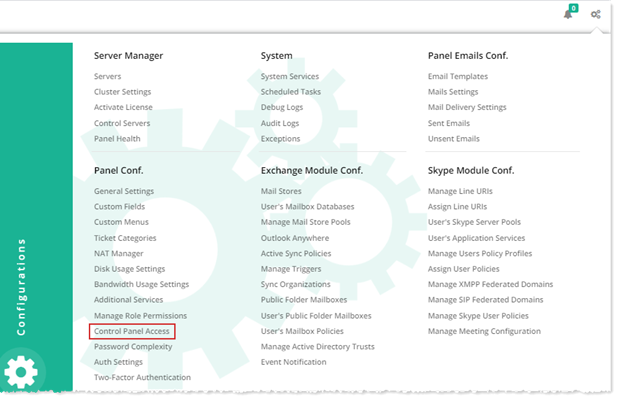
To manage control panel access, from top right corner of your screen, click  and then go to Panel Configuration >> Control Panel Access. You can either grant or deny access to any IP address or a complete range of specified IPs.
Login LockDown Configuration option allows you to block login after a specified number of failed attempts. Any user attempting to login with wrong credentials will have its IP blocked.
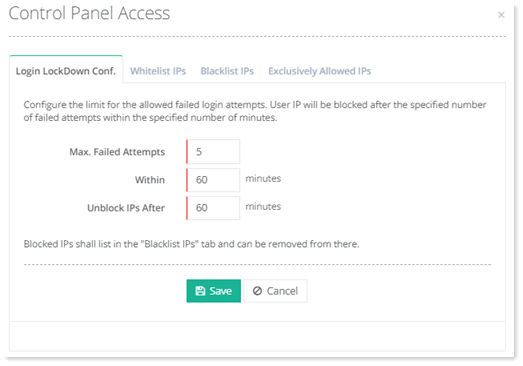
- Max. Failed Attempt: This option allows you to specify maximum number of failed login attempts. After the specified failed attempts the IP access is denied. For instance maximum 3 failed attempts within 60 minutes mean user can make a maximum of three failed attempts within an hour before its login is blocked. Consider a user makes the first attempt at 10:30 a.m. the second attempt at 10:35 a.m. and the third and the final attempt at 11:25 a.m., all within a timeframe of one hour. Its access will be blocked on the fourth attempt and will be prevented from logging in. However as an example, if it makes only a single failed attempt at 10:30 a.m. and then does not attempt further for an hour, the lockdown restraint will be lifted after an hour and the user again will be able to login if has the right credentials this time. IP once blocked can be removed manually. Blocked IPs will list in the "Blacklist IPs" tab and can be removed from there.
- Within: This option allows you to specify the time period within which the failed logins should lie, before the access is blocked. Like in the example above you can have a maximum of 3 failed login attempts within 60 minutes and not more than that.
- Unblock IPs After: Once the login is blocked, you can define the time till when the IPs will remain blocked. They will be automatically released from the Blacklist after that time and the user will once more be able to login.
In case of a failed login attempt, HC will also send a mail to the owner, as a security measure. This mail can always be customized to match the requirements of the owner. To learn more, see Failed login attempt.
Whitelist IPs are IP addresses that will always be granted access to the control panel. They will never be blocked.
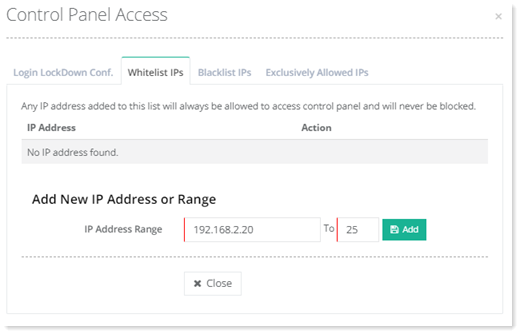
- IP Address Range: This option allows you to specify range of allowed IP addresses. Allowed IPs are IPs that are granted access to the panel.
Blacklist IPs are IP addresses that will always be denied access to the control panel. They will never be allowed.
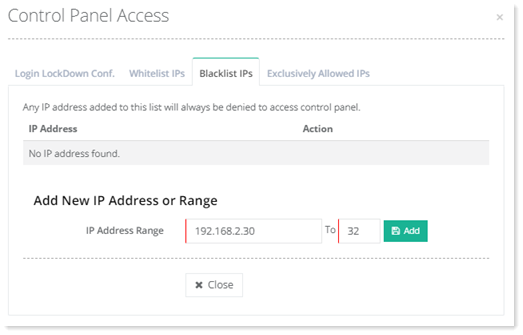
- IP Address Range: This option allows you to specify range of denied IP addresses. Denied IPs are IPs that are denied access to the panel.
Exclusively Allowed IPs are IP addresses that will have exclusive access to the control panel. No other IP will be able to access the control panel.
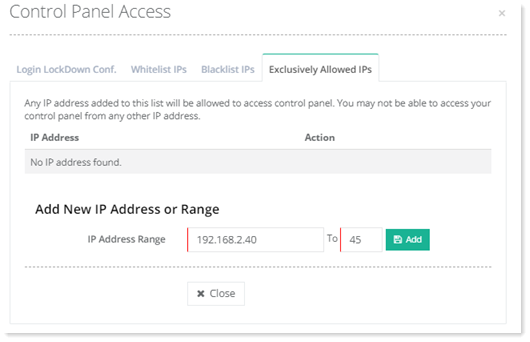
- IP Address Range: This option allows you to specify range of exclusive IP addresses. Exclusive IPs are IPs that have exclusive access to the panel. No other IP, other than these, will be able to access the panel.