
| Product Documentation
Hybrid Control Panel (v10)
Configuring Outlook Anywhere
Normally within a LAN, Microsoft Outlook communicates with Exchange by using remote procedure call (RPC) with TCP/IP. However when you are outside the corporate network such as at home or on the move, the most common way to connect to Exchange mailboxes is through Outlook Anywhere that allows connection through the Internet by using remote procedure call (RPC) over HTTP. This provides an easy alternative to VPN connections and allows you to use Outlook just as you normally do within your corporate LAN. HC10 provides an intuitive interface for enabling Outlook Anywhere at the backend in the ECP.
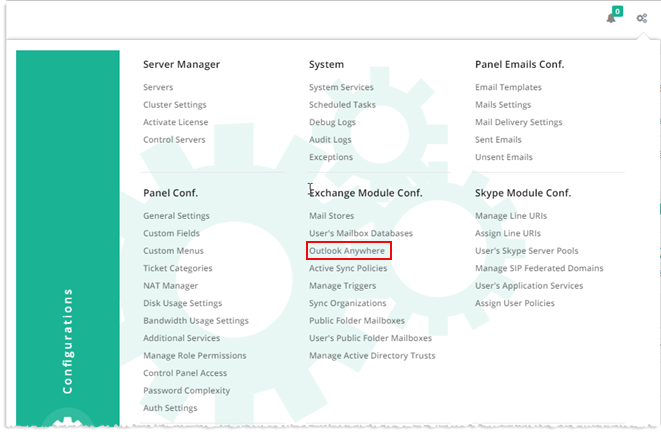
To configure outlook anywhere, from top right corner of your screen, click  and then go to Exchange Module Configuration >> Outlook Anywhere.
|
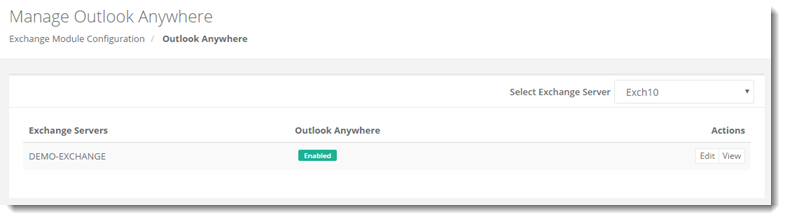
Outlook Anywhere page shows list of existing Exchange servers with additional information as:
|
Editing Outlook Anywhere
To modify information, click Edit under Actions column. Modify details as required.
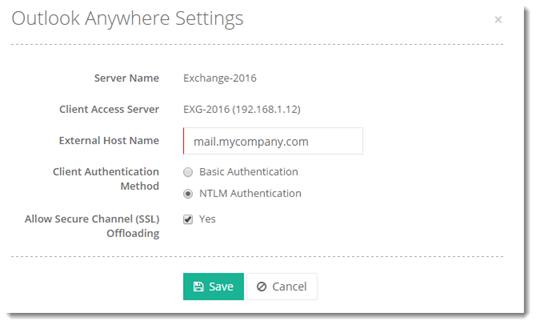
- Server Name: It is the friendly name of the server added with mail role in HC10
- Exchange Server: It is the actual Exchange server.
- External Host Name: It is the external hostname, resolvable on the internet, for the Exchange server like mail.mycompany.com
- Client Authentication Method: It is the authentication method for Microsoft Outlook clients.
- Basic Authentication - It requires that Outlook users enter their username and password each time they connect to Outlook Anywhere. The credentials are sent in clear text so therefore it is critical that Outlook Anywhere connections only occur over SSL/HTTPS.
- NTLM Authentication – this is ideal for connecting clients that are domain members because the username and password will not need to be entered by the user each time they connect.
- Allow Secure Channel (SSL) Offloading: If you have a hardware solution such as a load balancer for offloading the SSL encryption for traffic that's destined for your Exchange server, you must configure SSL offloading for Outlook Anywhere.
Viewing Outlook Anywhere
To view Outlook Anywhere settings, click View under Actions column.
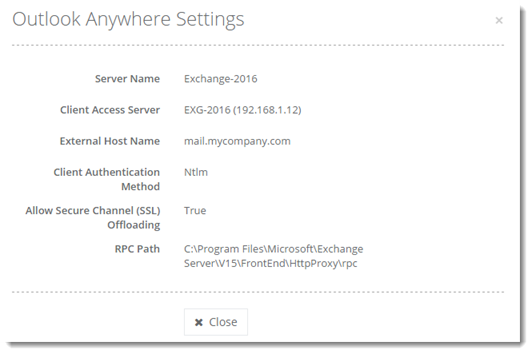
RPC Path: X:\Program Files\Microsoft\Exchange Server\V15\FrontEnd\HttpProxy\rpc