
| Product Documentation
Hybrid Control Panel (v10)
Adding a Microsoft Exchange Server
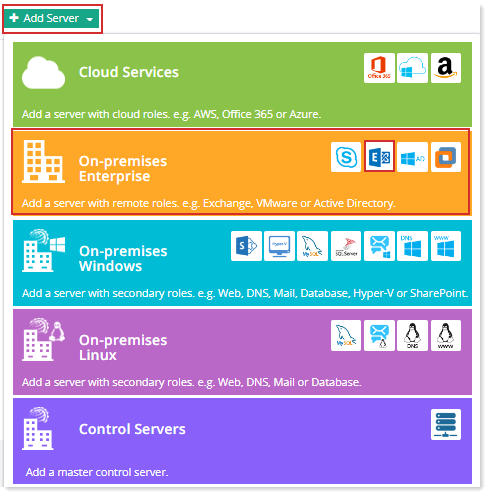
Prior to add a Microsoft Exchange server, make sure you have enabled the server roles under Cluster Settings. If you have not configured it yet, please configure it now to proceed further.
To add an Exchange server, specify General Information and click Check Connectivity. Once you are connected successfully, only then you can add an Exchange server. For more information about how to configure Exchange with HC, see Configuring HC10 with Exchange.
Fields marked in red are required fields and cannot be left empty.
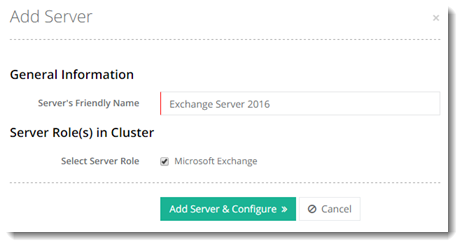
- Server Friendly Name: It is a friendly name of the server being added for your convenience.
- Server Role: Select server role. In Hosting Controller, each server added to the cluster has to have a role assigned to it. The role assigned to the server determines the purpose of the server in the cluster. This server will have an Exchange role.
This is a hypothetical server with a Friendly Name, without any physical existence. It only serves as an identifier in the panel. In reality the Control Server communicates with the actual Exchange server directly via Remote PowerShell.
See how you can Assign a Role to a Server.
If Hosting Controller is installed on Windows Server 2019 or later, then HC Provisioning Service must run under the local Administrator account. To learn how to run the service under an Administrator account, see How to Enable Remote PowerShell for HC.
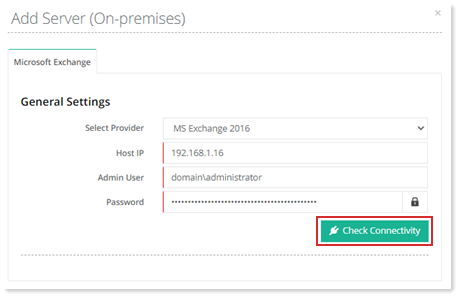
- Select Provider: Select an appropriate version of Exchange, in case more than one versions have been defined in the Cluster Settings.
- Host IP: Specify IP of the actual Exchange server.
- Admin User: Credentials for a domain\administrator user on Exchange server.
- Password: Password for the user.
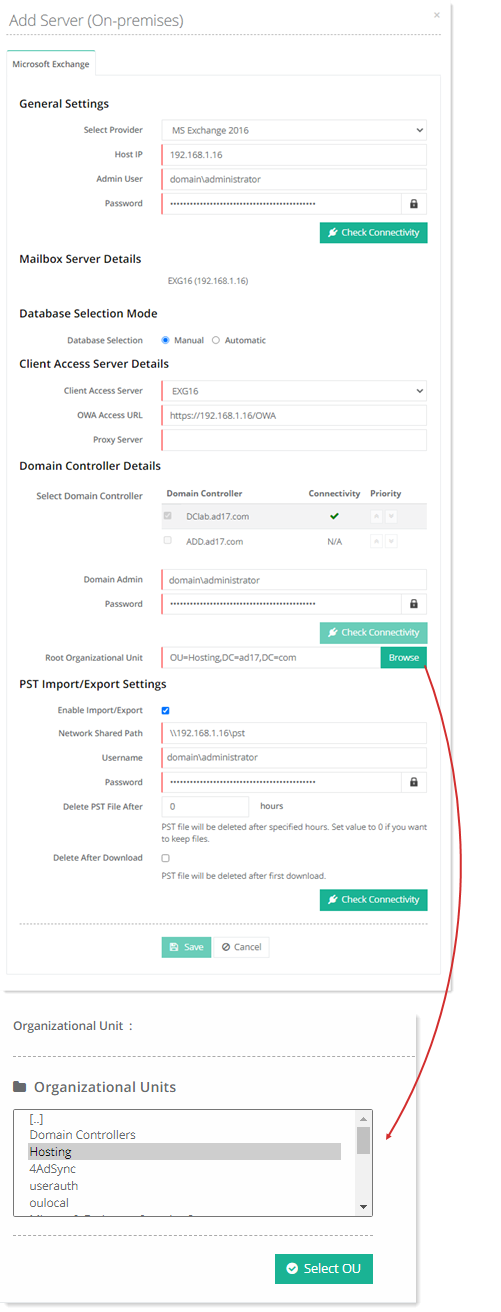
- Mailbox Server Details: MBX server details.
- Database Selection: Exchange mailbox databases can either be selected manually at the time of provisioning of OUs or the assignment decision can be left entirely to Exchange.
Available Options:
- Manual - This option, if selected, allows Customers to select a mailbox database manually at the time of creation of an OU and Mail Domain. That mailbox database, with its default user, serves as the default mailbox database and all new mailboxes go under it.
- Automatic - This option, if selected, permits intelligent assignment of mailboxes to databases. The assignment decision is taken by Exchange. If this option is selected, customers will not be displayed databases at the time of OU and mail domain creation. Exchange will decide itself which database to assign.
To learn more about the automatic mailbox distribution feature of Exchange and how it's used in Hosting Controller, see Builtin Automatic Mailbox Distribution Mechanism. - Client Access Server: Select a CAS server from the drop down.
- OWA Access URL: Type URL to access Outlook Web Access (OWA). The OWA URL set by HC is in the format https://domain.com/OWA.
- Domain Controller: The Domain Controller associated with Exchange server. This information is fetched automatically. There can be more than one Domain Controllers for high availability. If one of the Domain Controllers goes down due to a disaster, HC automatically fails over to the second Domain Controller, ensuring constant uptime.
- Domain Admin: The Domain\Administrator account for the Domain associated with Exchange server.
- Password: Password for the domain\admin.
- Root Organizational Unit: The root OU under which the Tenant OUs would lie.
- Content Filtering: In Microsoft Exchange, content filtering evaluates incoming emails to determine if they are legitimate or spam, using characteristics from legitimate and spam samples. The primary goal of content filtering is to identify and potentially block or flag emails that are likely spam or contain malicious content. Enable the Yes check box to enable content filtering. Enabling content filtering here will allow individual mailboxes to enable content filtering through their dashboards. If content filtering is not enabled here, it will not be visible on their dashboards, and they cannot enable it individually.