
| Product Documentation
Hybrid Control Panel (v10)
Configuring Two-Factor Authentication
Two-factor authentication (2FA) or multi-factor authentication (MFA) as it’s sometimes called, is an additional layer of security for your login. Against the backdrop of an ever changing security situation, securing login only through passwords is not enough. With 2FA users provide two different authentication factors to verify themselves. Besides the first typical factor i.e. the password, users can provide a second factor such as a one-time-password (OTP) to login to their panel. HC supports 2FA and allows the panel users to receive their OTP through Email, Google Authenticator or SMS. To learn more about obtaining your OTP, see How to achieve 2FA.
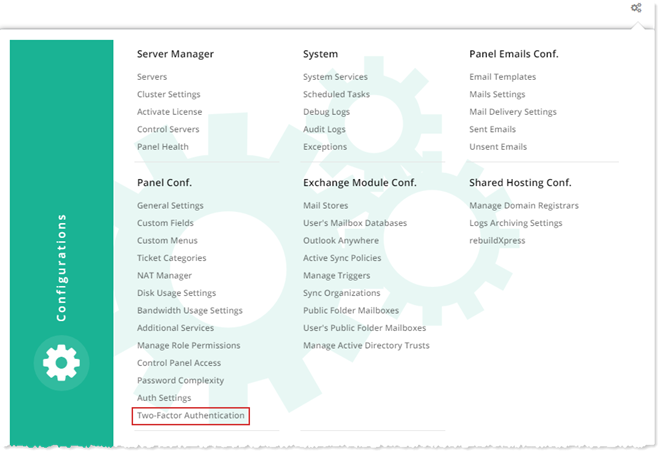
To configure Two-Factor Authentication settings, from top right corner of your screen, click  and then go to Panel Configuration >> Two-Factor Authentication. Specify settings as required and click Save.
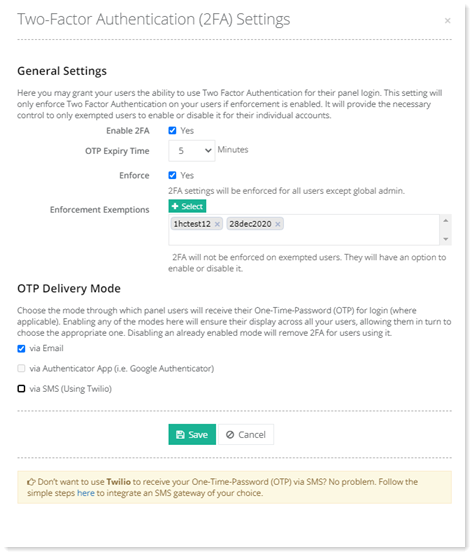
- General Settings: Here you may grant your users the ability to use 2FA for their panel login. This setting will not actually enforce 2FA on your users. Instead it will only provide them the necessary control to enable or disable it for their individual accounts. If you enable 2FA here, your users will be able to enable it for their individual accounts.
- OTP Expiry Time: If 2FA is enabled, users will not be able to login without a valid OTP. After it is received, it remains valid for a certain time. If it is not used within that time, it expires. Here you may specify the time limit to its expiry.
- Enforce: 2FA can also be enforced on users. This setting will enforce 2FA on all users except Global Admin.
-
2FA is not enforced for Global Admin by default even when enforcement is enabled. If Global Admin wants to use 2FA for itself, it will have to enable it explicitly from its account settings (as normal users do). This has been designed intentionally so that the Global Admin can successfully verify the working of 2FA for its users and may not get locked out in case of non-delivery of OTP to itself.
-
If panel users have no “phone number” or “email address” set in their profile, they will not be able to login into the control panel if enforcement is enabled.
-
- Enforcement Exemptions: If 2FA is enforced on all users and you want to exempt some users from it, you may do so by specifying the users here. 2FA will not be enforced on those exempted users. They will only be able to enable or disable it for their accounts.
Basic Auth does not work when 2FA is enabled for an account. Therefore, in case of enforcement following user types must be added to the exception list, otherwise, authentication will fail.
- “APIAdmin” user which is used in scheduled tasks.
- Any other user account using “Basic Auth” for API access.
- OTP Delivery Mode: Panel users can receive their OTP through Email, Google Authenticator or SMS. Here you may choose the mode through which they will receive their OTP. Enabling any of the modes here will ensure their display across all your users, allowing them in turn to choose the appropriate one. Disabling an already enabled mode will remove 2FA for those users using it. The modes are discussed in detail below:
- Email - OTP can be received via Email. In case this option is selected, OTP will be received on the Email specified in the user's Personal Profile.
- Google Authenticator - Google Authenticator is a mobile app. OTP can be received on users Google Authenticator app.
Authenticator App option cannot be used when enforcement is enabled because enforcement takes away from users the ability to enable or disable 2FA for their individual accounts. As Authenticator App necessarily requires each individual user to manually configure Authenticator while enabling 2FA therefore it cannot work with enforcement. - SMS - OTP can be received via SMS. In case this option is selected, OTP will be received through an SMS sent on the phone number specified in the user's Personal Profile. Currently Twilio SMS Gateway is integrated with HC. If you wish to integrate your own SMS Gateway, consult the link.
See the process of enabling 2FA for individual users below:
-
- Enabling 2FA for your users
-
-
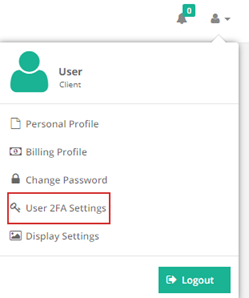
- If you choose to enable 2FA at the Global Admin level, the following setting will appear for your users under their Account Settings.
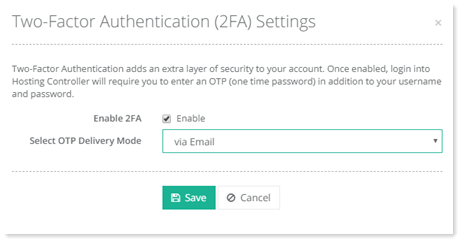
- Clicking 2FA settings produces the following screen.
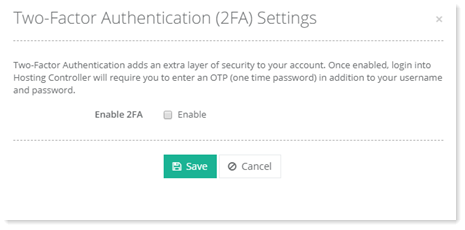
- Once the user enables 2FA by clicking the check box, he will be displayed the OTP delivery mode and a button for sending verification code. The user needs to send a verification code by clicking the “Send Verification Code” button. In case of email, the code will be sent to the user email address specified in its Personal Profile.
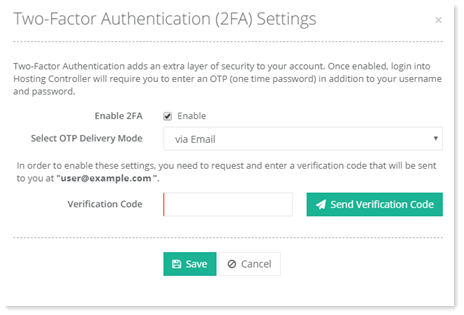
- The generated code needs to be entered in the “Verification Code” field.
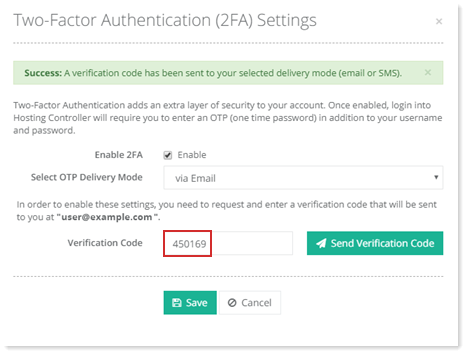
- After entering the verification code, the user needs to save the settings by clicking the “Save” button. 2FA settings will be saved.
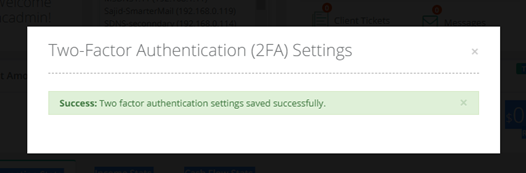
- Now whenever the user attempts to login, it will be asked for a valid OTP. At the same time a mail with the OTP, will be dispatched to the email address specified in the user Personal Profile.
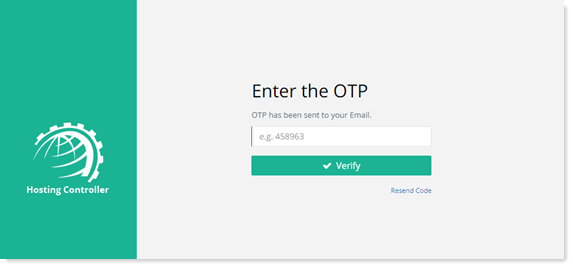
- Only after entering OTP, will the user be able to login.
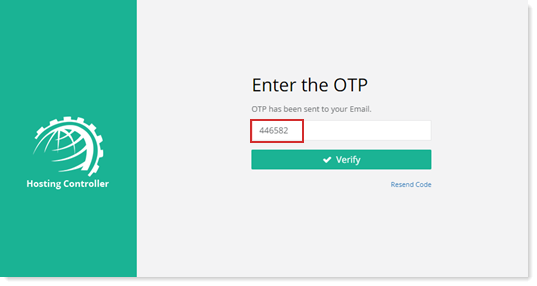
If a user enters a wrong OTP an email notification will be sent to the panel user. This feature can prove helpful in preventing brute-force attacks.
- If you choose to enable 2FA at the Global Admin level, the following setting will appear for your users under their Account Settings.
-