
| Product Documentation
Hybrid Control Panel (v10)
HC9 to HC10 Migration
The page is intended for users who want to follow an upgrade path from HC9 to HC10. The migration will take place on HC database only, hence no change will occur at the back end. Because the change being implemented is at the database level only, the users will experience no downtime during the entire length of the procedure. The whole procedure is comprehensively explained as follows:
Steps to upgrade from HC9 to HC10
1) HC 10 Installation Phase
HC10 installation should be carried out on all of the servers where HC9 is previously deployed. The download links for HC10 installers can be found here.
Installation of HC10 Primary installer must be carried out on HC9 Master Server.
Roles where HC10 Windows Agent installation is required are:
- IIS Web Server Role
- MYSQL/MSSQL Database Server role
- DNS Server role
- Mail Server role (Non-Exchange Mail Servers)
- Hyper-V Server role
- Skype for Business role
- SharePoint Server role
Roles where HC10 Agent Windows installation is not required are:
- Exchange Server
- VmWare
Roles where HC10 Linux Agent installation is required are:
- Apache Web Server Role
- Mysql Database Server role
- DNS Server role
- Mail Server
2. HC10 Configuration Phase
Once you have successfully installed HC10 Agent installer on all subsequent machines, configure all the servers in HC10 panel with same server name as added in HC9. Moreover, if you have configured SQL and MySQL instances in HC9 panel, then SQL and MySQL instances should be same in HC10. Instance names are case sensitive for example if the instance name is "LocalHost" then localhost will not work. Therefore ensure that you have copied the same instance name configured in HC9. To know more about configuring HC10 with different roles, you may refer to the link.
3. Testing
Once HC10 is installed and configured on all servers as explained, undergo testing for at least a week, in order to make sure that the configured services are working correctly and also to get familiar with the new HC10 features and UI.
4. HC10 Control Panel Migration
Migration is a few steps process described as follows:
- It is mandatory to apply the latest HC9 build on all the servers. Update the build by following the instructions mentioned here.
- Take backup of HC10 database using SQL Management Studio.
- Download the HC9toHC10 Migration tool from here and the HCUtil_Migration.exe at HC9 installation directory under Applications folder.
- Now run the utility as administrator. After accepting terms and conditions, you will need to map your existing HC9 Servers against your HC10 Servers. Please see below screenshots for clarity:
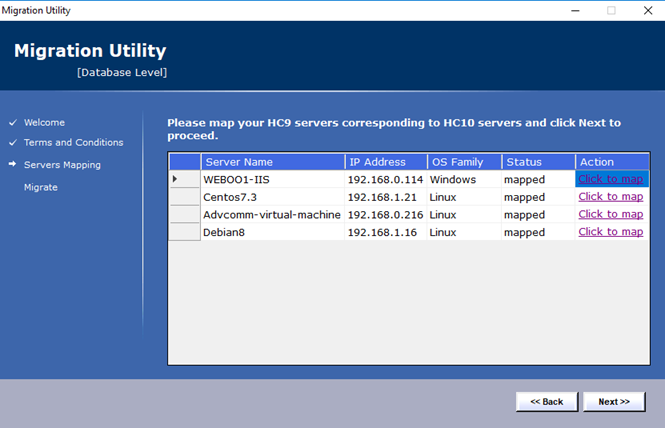
Click Next to proceed.
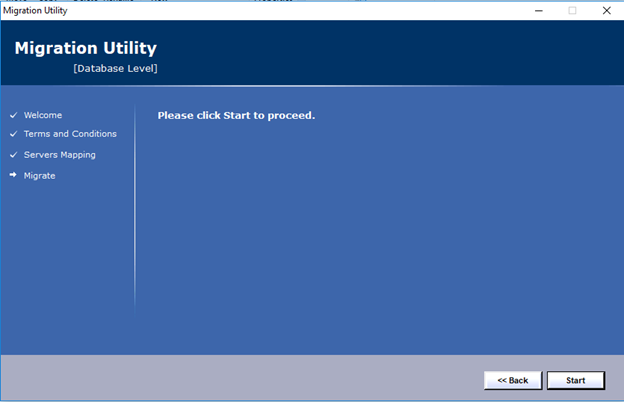
Click on Start button and it will then proceed with HC9 to HC10 migration. It will move all existing HC9 database records to HC10 database. This does not involve system level changes. The change applies only to the HC database.
5. Finalizing Setup
The setup is finalized with the following steps:
- Ascertain that all existing data has been moved successfully to HC10.
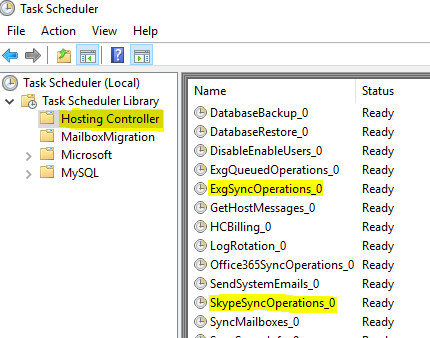
- Exchange Mailboxes, Skype for Business users and SharePoint users will sync in the HC10 Panel after executing following highlighted schedule in system Task Scheduler.
- Once user sync is complete, activate the HC Key back in HC9 panel. Once you verify that HC10 is working fine with new data then you can permanently activate HC key in the HC10 panel.
6.Decommissioning HC9
- It is quite safe to uninstall HC9 version, this process will not affect any running service in the system.
- You can remove HC9 setup from system Add and remove programs.
- HC9 billing invoices and payment records will not be displayed in HC10.
- Total Credits/Debits of a customer will display against his account in HC10.
- HC9 Click and Install Apps have been replaced with Softaculous Auto Installer. HC10 uses Softaculous for one click installs.
support@hostingcontroller.com.