| Product Documentation
Hybrid Control Panel (v10)
Managing Skype user policies
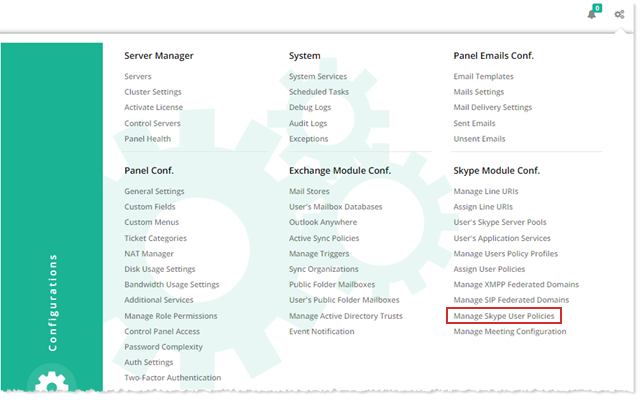
To manage Skype user policies, from top right corner of your screen, click  and then go to Skype Module Configuration >> Manage Skype User Policies.
Dial Plan Policies
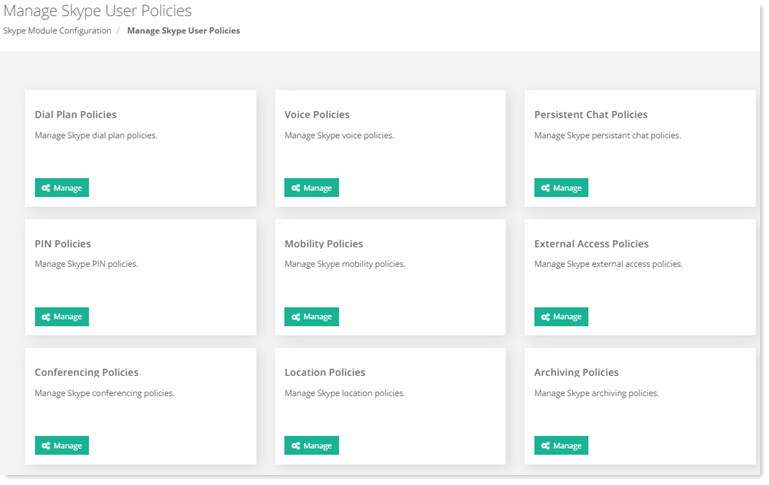
To manage policies related to dial plans, click Manage under Dial Plan Policies. You can create a new dial plan policy, modify any information of the existing policies and remove policy if required.
Creating a Dial Plan Policy
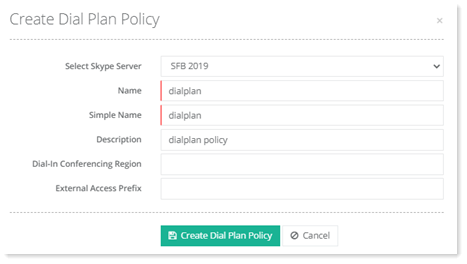
To create a dial plan policy, specify information as required.
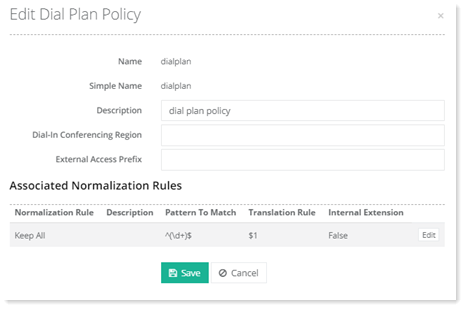
Editing a Dial Plan Policy
To modify information of any policy, click Edit under Actions column.
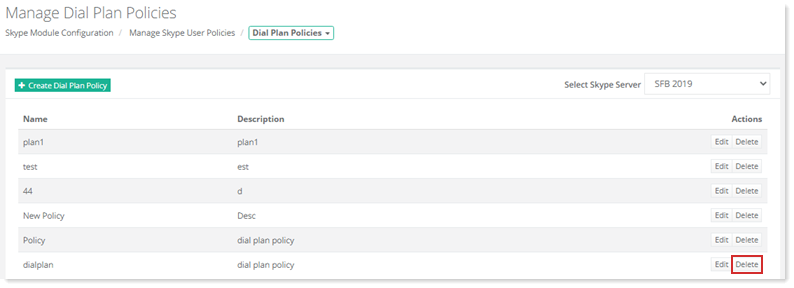
Deleting a Dial Plan Policy
To remove any policy, click Delete under Actions column.
Voice Policies
To manage policies related to voice, click Manage under Voice Policies. You can create a new policy, modify any information of the existing policies and remove policy if required.
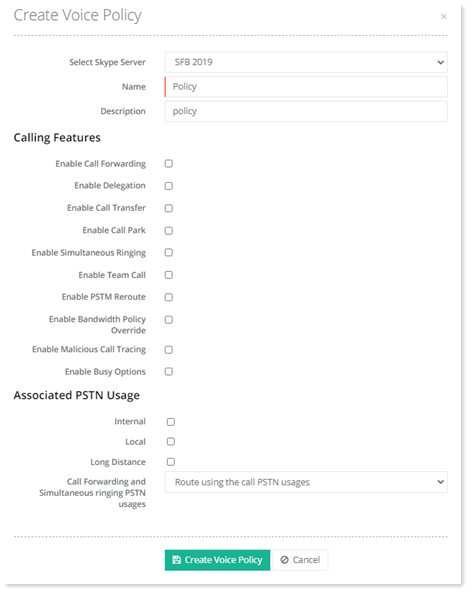
Creating a Voice Policy
To create a voice policy, specify information as required.
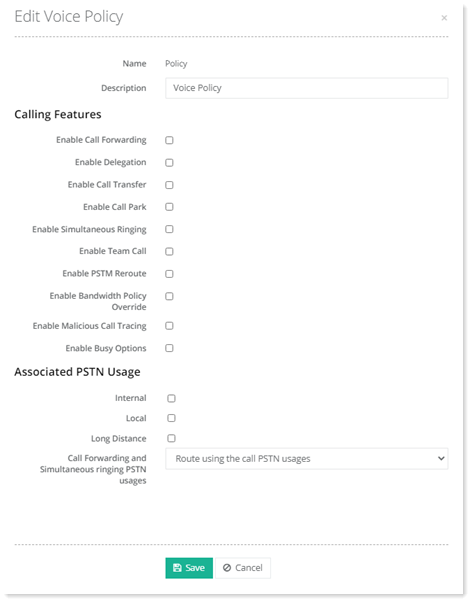
Editing a Voice Policy
To modify information of any policy, click Edit under Actions column.
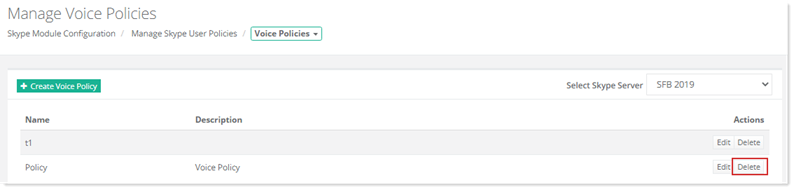
Deleting a Voice Policy
To remove any policy, click Delete under Actions column.
Persistent Chat Policies
To manage persistent chat policies, click Manage under Persistent Chat Policies. You can create a new policy, modify any information of the existing policies and remove policy if required.
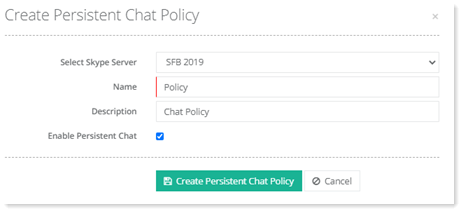
Creating a Persistent Chat Policy
To create a persistent chat policy, specify information as required.
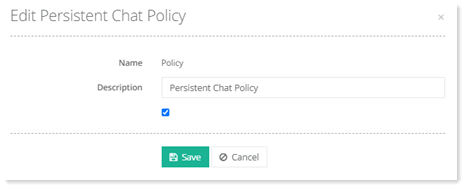
Editing a Persistent Chat Policy
To modify information of any policy, click Edit under Actions column.
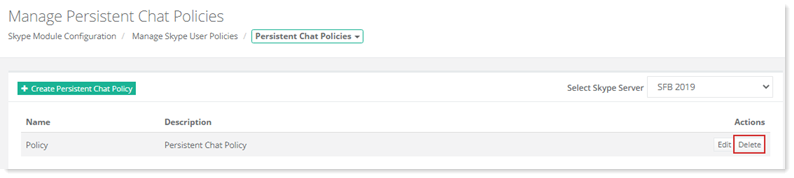
Deleting a Persistent Chat Policy
To remove any policy, click Delete under Actions column.
PIN Policies
To manage PIN policies, click Manage under PIN Policies. You can create a new policy, modify any information of the existing policies and remove policy if required.
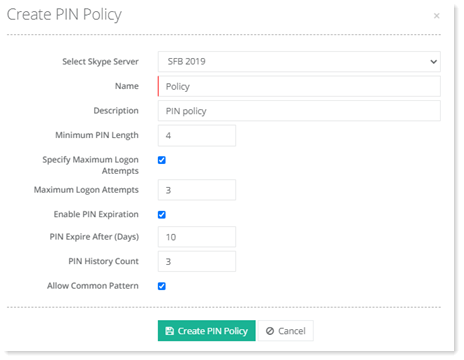
Creating a PIN Policy
To create a PIN policy, specify information as required.
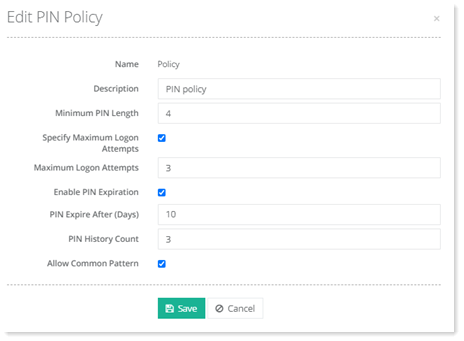
Editing a PIN Policy
To modify information of any policy, click Edit under Actions column.
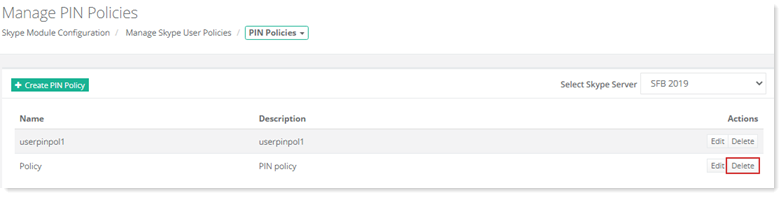
Deleting a PIN Policy
To remove any policy, click Delete under Actions column.
Mobility Policies
To manage mobility policies, click Manage under Mobility Policies. You can create a new policy, modify any information of the existing policies and remove policy if required.
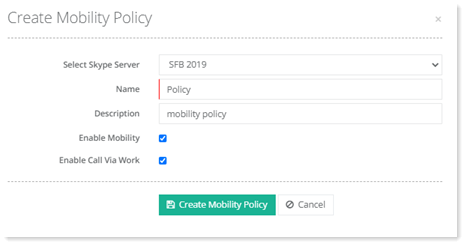
Creating a Mobility Policy
To create a mobility policy, specify information as required.
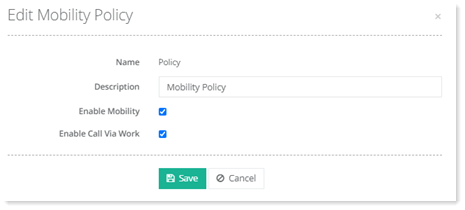
Editing a Mobility Policy
To modify information of any policy, click Edit under Actions column.
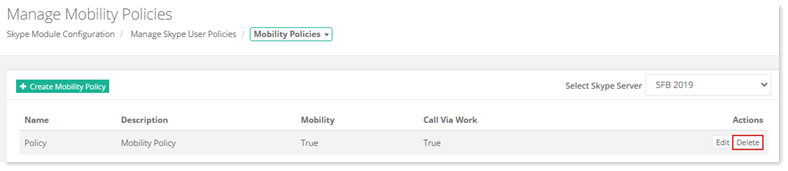
Deleting a Mobility Policy
To remove any policy, click Delete under Actions column.
External Access Policies
To manage external access policies, click Manage under External Access Policies. You can create a new policy, modify any information of the existing policies and remove policy if required.
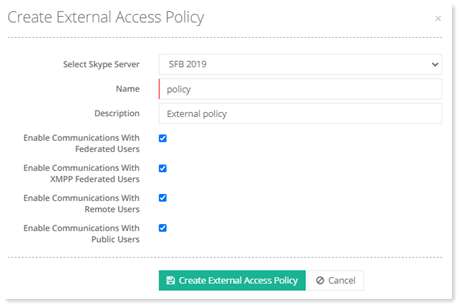
Creating an External Access Policy
To create an external access policy, specify information as required.
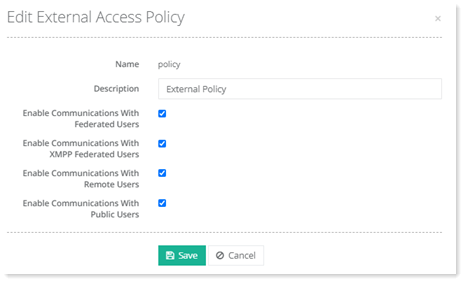
Editing an External Access Policy
To modify information of any policy, click Edit under Actions column.
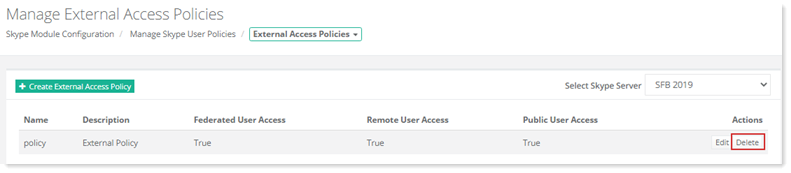
Deleting an External Access Policy
To remove any policy, click Delete under Actions column.
Conferencing Policies
To manage conferencing policies, click Manage under Conferencing Policies. You can create a new policy, modify any information of the existing policies and remove policy if required.
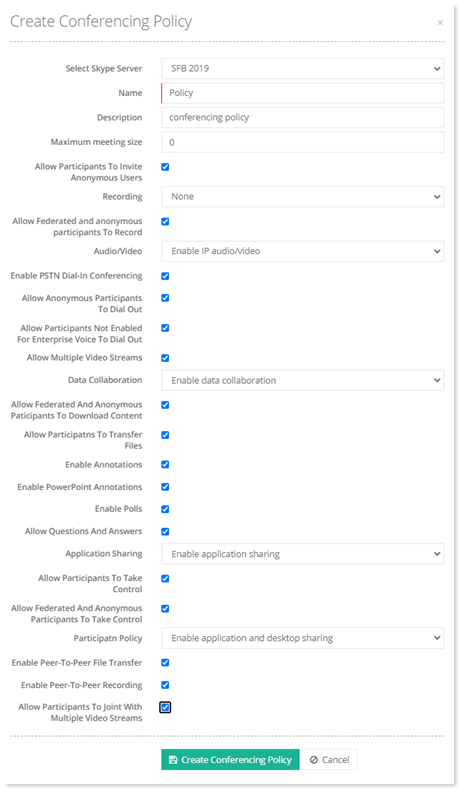
Creating a Conferencing Policy
To create a conferencing policy, specify information as required.
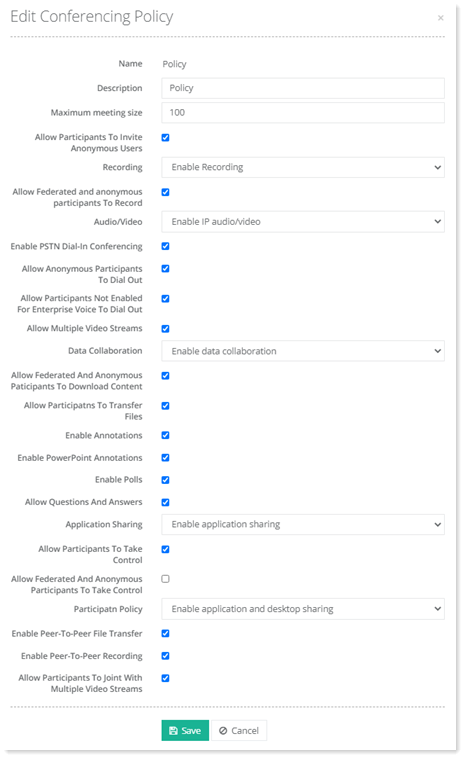
Editing a Conferencing Policy
To modify information of any policy, click Edit under Actions column.
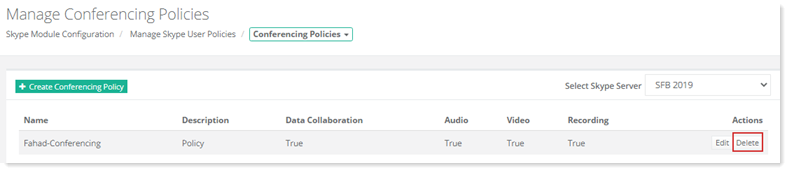
Deleting a Conferencing Policy
To remove any policy, click Delete under Actions column.
Location Policies
To manage location policies, click Manage under Location Policies. You can create a new policy, modify any information of the existing policies and remove policy if required.
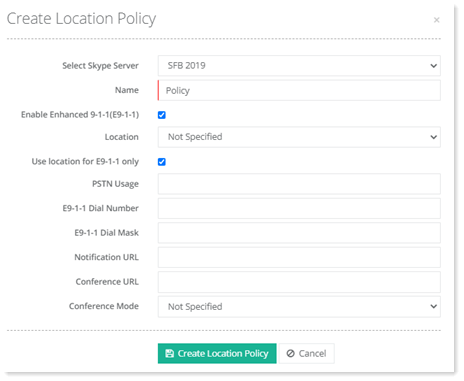
Creating a Location Policy
To create a location policy, specify information as required.
Editing a Location Policy
To modify information of any policy, click Edit under Actions column.
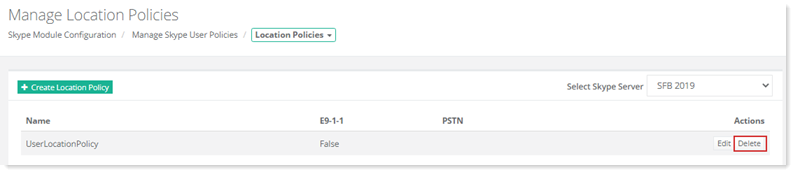
Deleting a Location Policy
To remove any policy, click Delete under Actions column.
Archiving Policies
To manage archiving policies, click Manage under Archiving Policies. You can create a new policy, modify any information of the existing policies and remove policy if required.
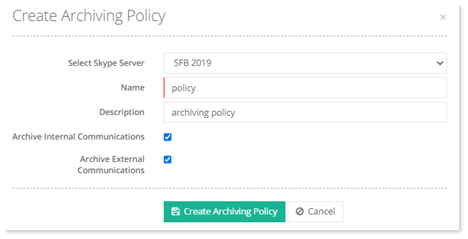
Creating an Archiving Policy
To create an archiving policy, specify information as required.
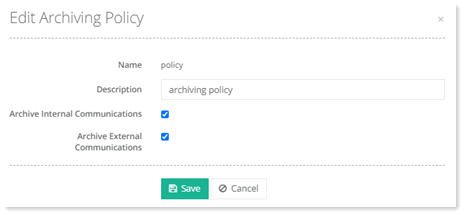
Editing an Archiving Policy
To modify information of any policy, click Edit under Actions column.
Deleting an Archiving Policy
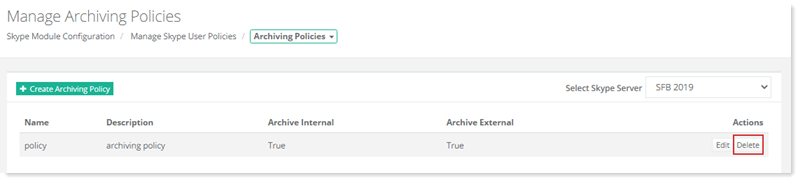
To remove any policy, click Delete under Actions column.