| Product Documentation
Hybrid Control Panel (v10)
Changing mailbox basic settings
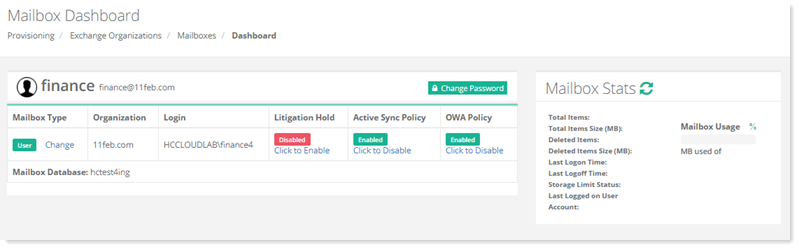
There are certain basic settings that can be changed for a mailbox. These settings appear on its dashboard on the front and can easily be changed here.
Profile Picture
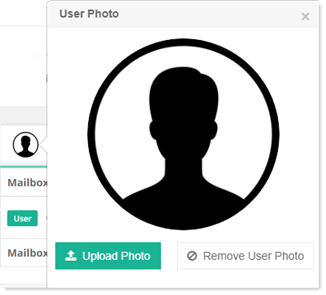
A profile picture can be uploaded to or removed from a mailbox. To select your profile picture, click Upload Photo.
Password
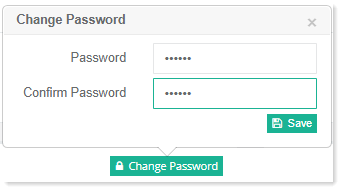
Password for the mailbox can be changed here.
To modify password, click Change Password. specify new password and click Save to proceed.
Mailbox Type
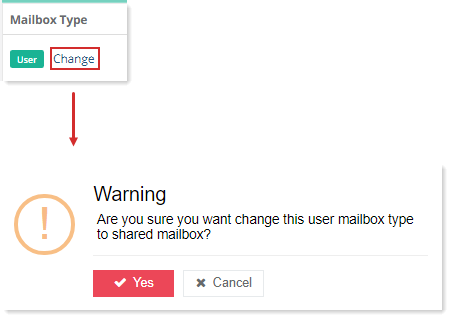
This column shows type of mailbox. HC enables user type to be changed to shared type and vice versa.
Click Change to modify mailbox type.
Litigation Hold
Litigation Hold in Exchange is designed to preserve all items in a mailbox, including deleted items, when a reasonable expectation of litigation exists. Mailboxes can be placed on Litigation Hold for an indefinite or a specified period. The hold duration is calculated from the date a mailbox item is received or created.
To enable Litigation Hold, click Click to Enable, specify Litigation Settings as required and click Save to proceed.
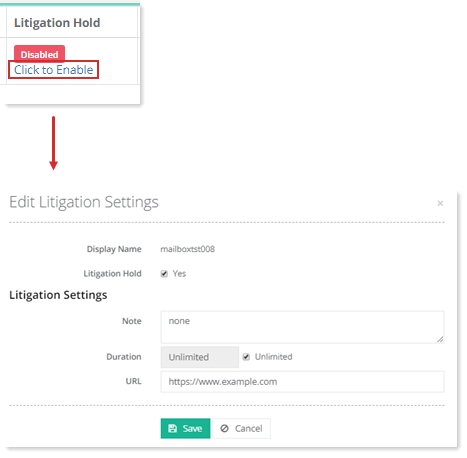
- Duration: The number of days the items will be held, from their received or created dates
- URL: Any website that provides more information about the litigation
Active Sync Policy
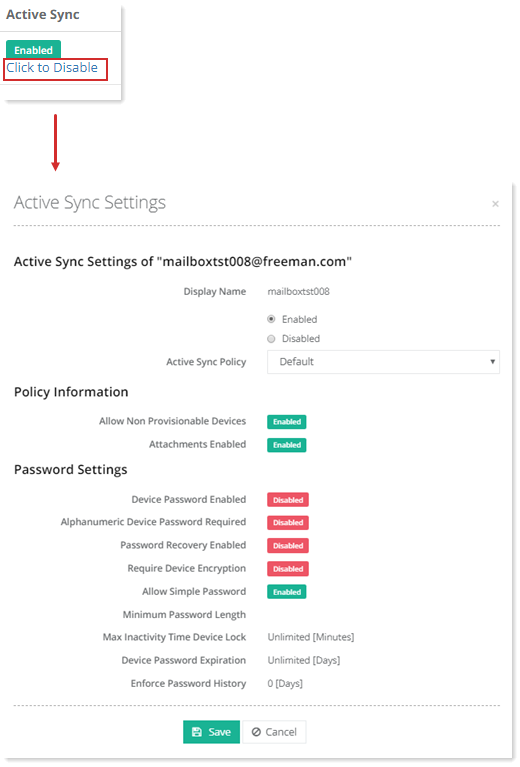
Active Sync can be enabled or disabled for an individual mailbox. A pre-defined Active Sync policy can also be assigned to the mailbox. To learn more about Active Sync Policies, see Managing Active Sync Policies.
To enable or disable Active Sync, click ?Click to Enable/Disable respectively.
OWA Policy
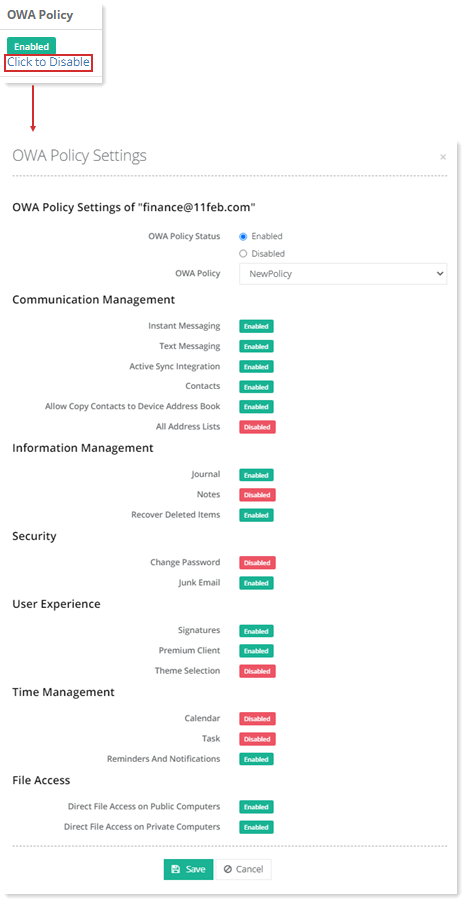
OWA policies (Outlook on the web mailbox policies) are a variety of options to control the features available to users in Outlook on the web. For example you can enable or disable journaling or password changes. HC allows users to enable or disable OWA policy for their individual mailboxes. To enable or disable OWA Policy, click ?Click to Enable/Disable respectively.