| Product Documentation
Hybrid Control Panel (v10)
Viewing resource mailbox dashboard
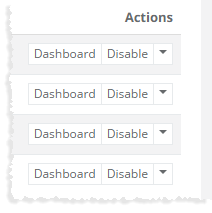
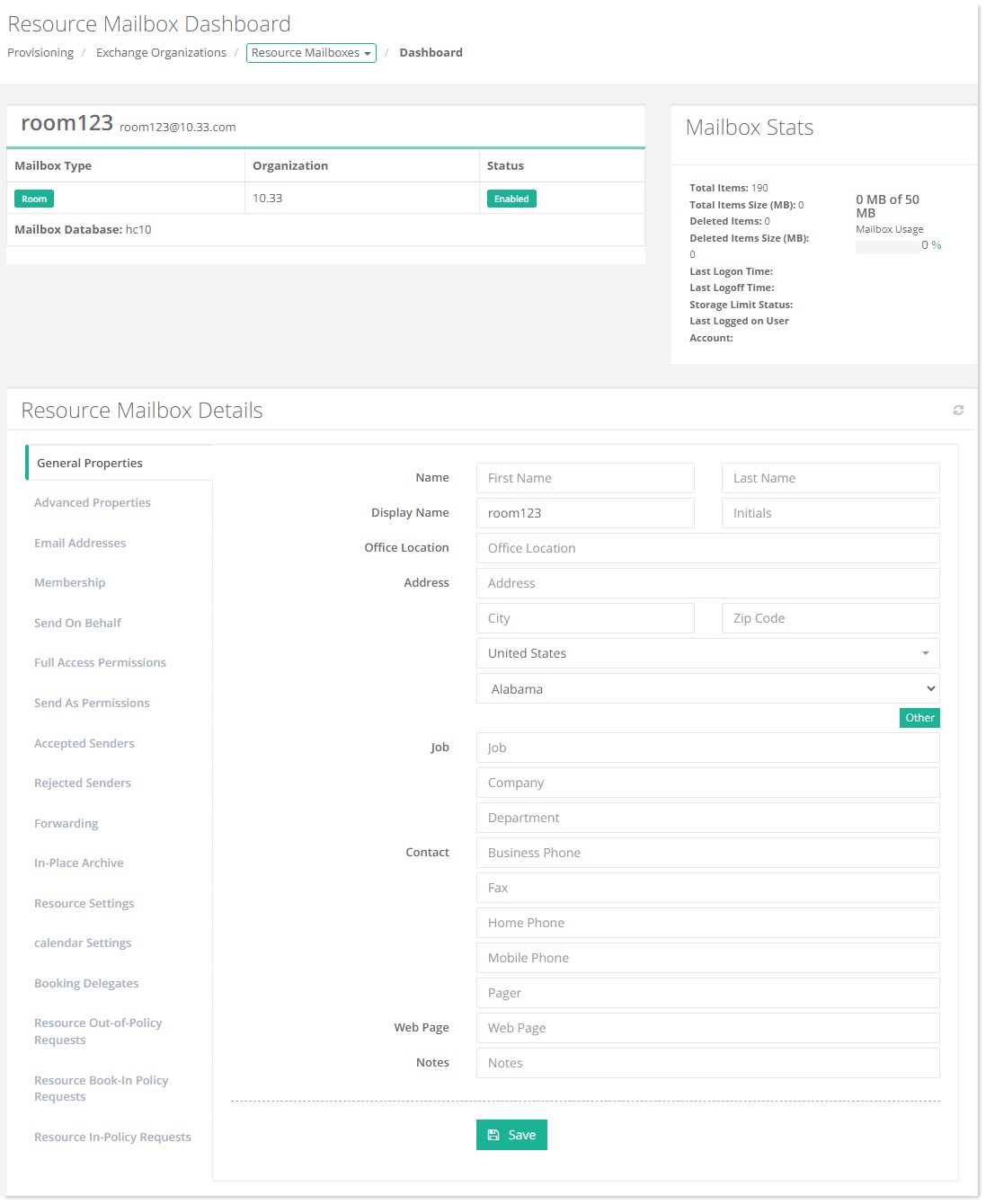
To view resource mailbox dashboard, click Dashboard under Actions column.
General Properties
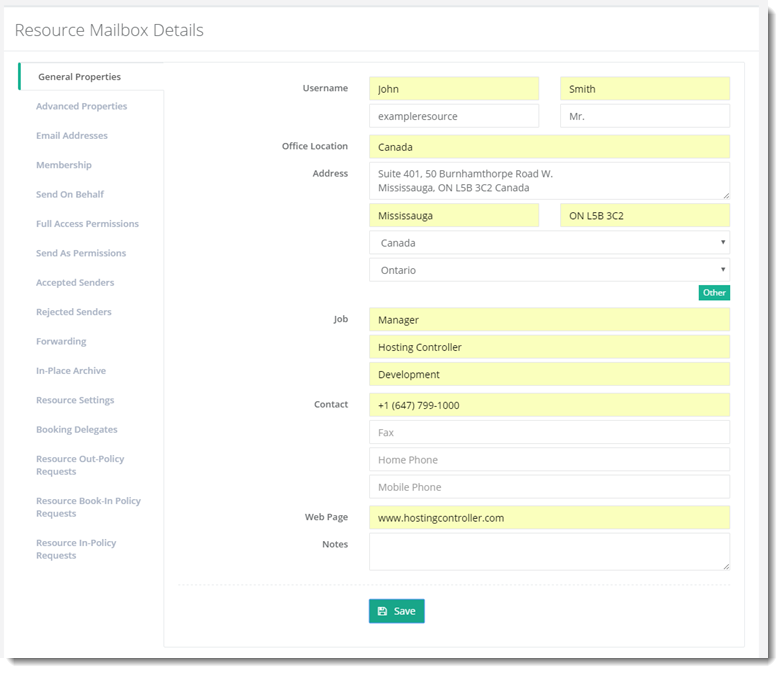
These are the general settings for the resource mailbox.
To view/modify general settings, click General Properties.
Advanced Properties
These specify some advanced settings for the resource mailbox such as the resource mailbox size.
To view/modify storage related configurations, click Advanced Properties.
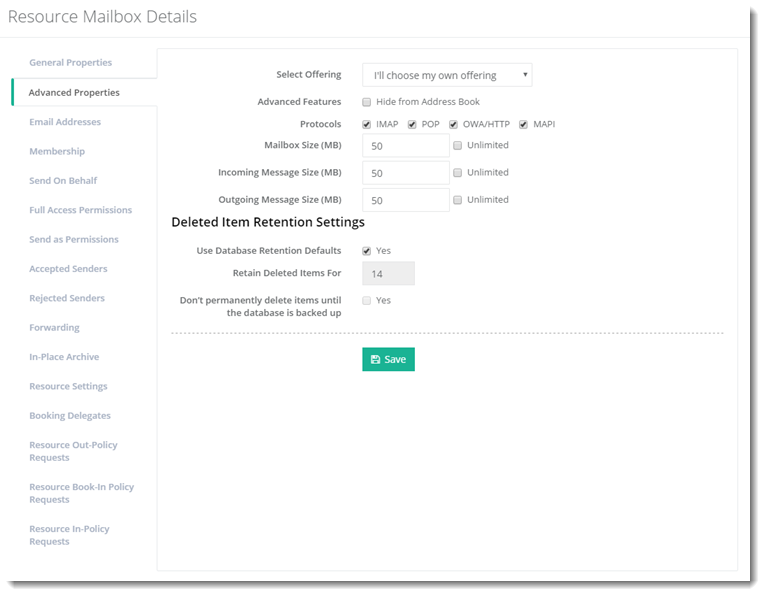
- Advanced Features:
- Hide from Address Book: This option allows the resource mailbox to be hidden from the GAL.
- Protocols: These specify the protocols enabled on the resource mailbox.
- Mailbox Size: This parameter specifies the size limit for the resource mailbox. If the mailbox reaches or exceeds this size, the mailbox can't send or receive new messages. Messages sent to the mailbox are returned to the sender with a descriptive error message. This value effectively determines the maximum size of the resource mailbox.
- Incoming Message Size: This defines the maximum size for a message that the resource mailbox can receive.
- Outgoing Message Size: This defines the maximum size for a message that the resource mailbox can send.
Email Addresses
To view/add email addresses for the resource mailbox, click Email Addresses.
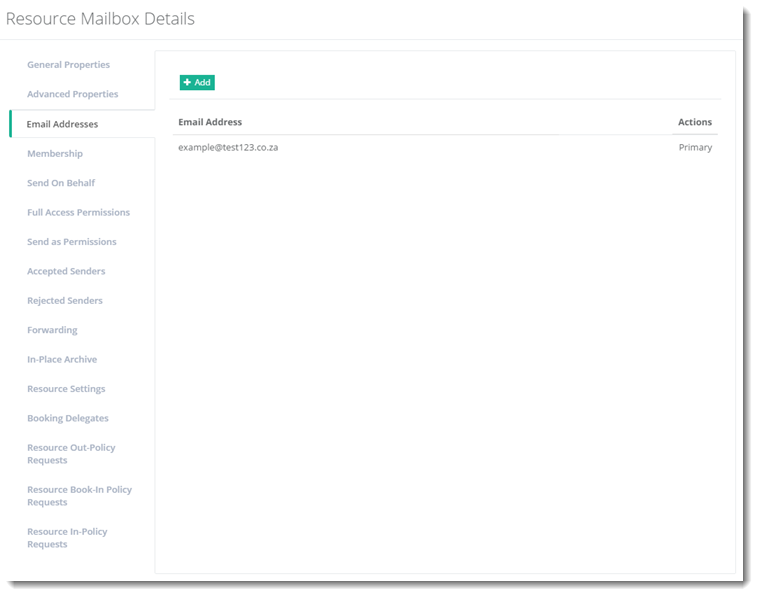
- Email: The email aliases of the room or equipment mailboxes.
Membership
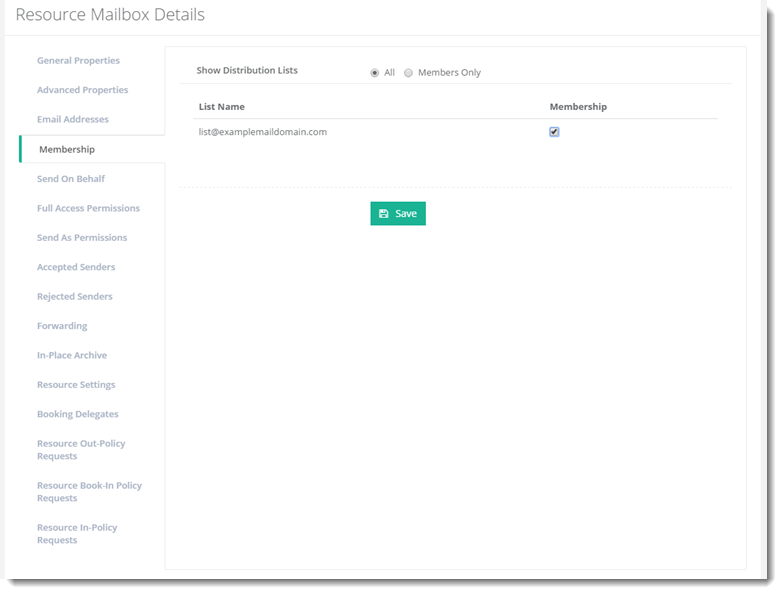
A resource mailbox can include itself in any distribution group. To view/modify members related information, click Membership.
Send On Behalf
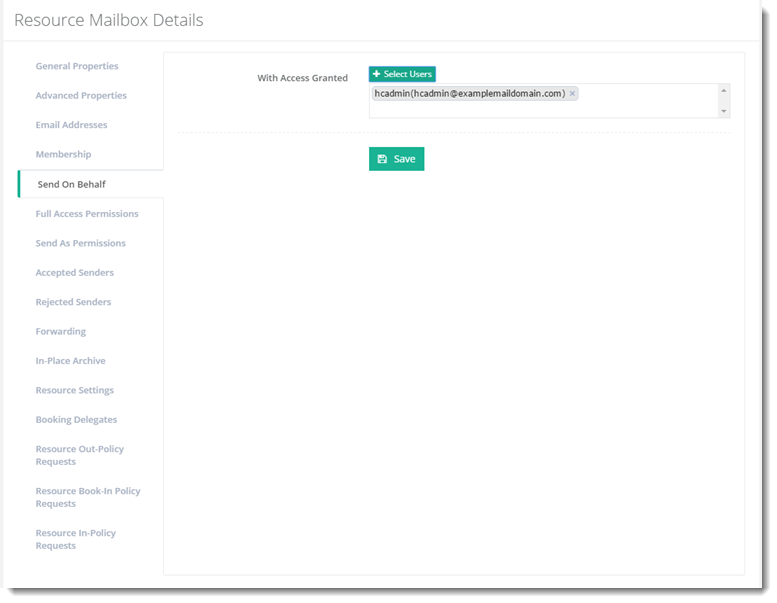
To view/modify send on behalf information, click Send On Behalf.
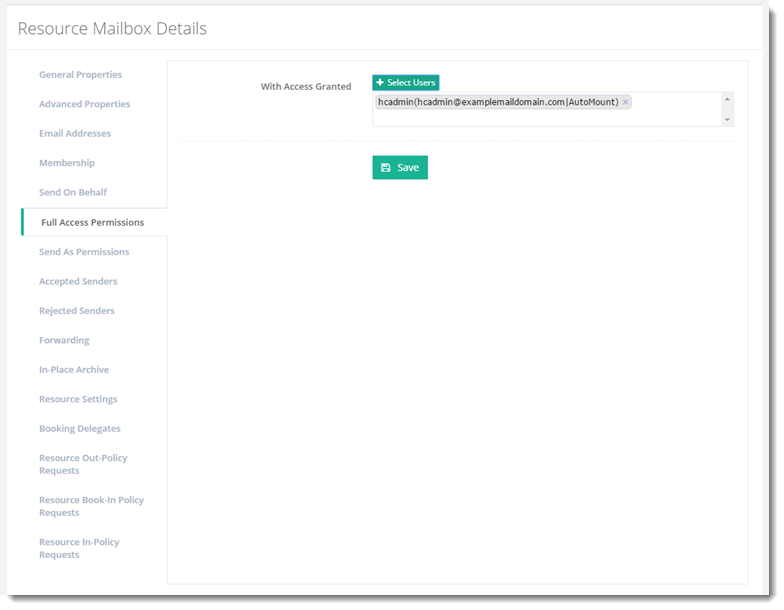
Full Access Permissions
To view/modify access related information, click Full Access Permissions.
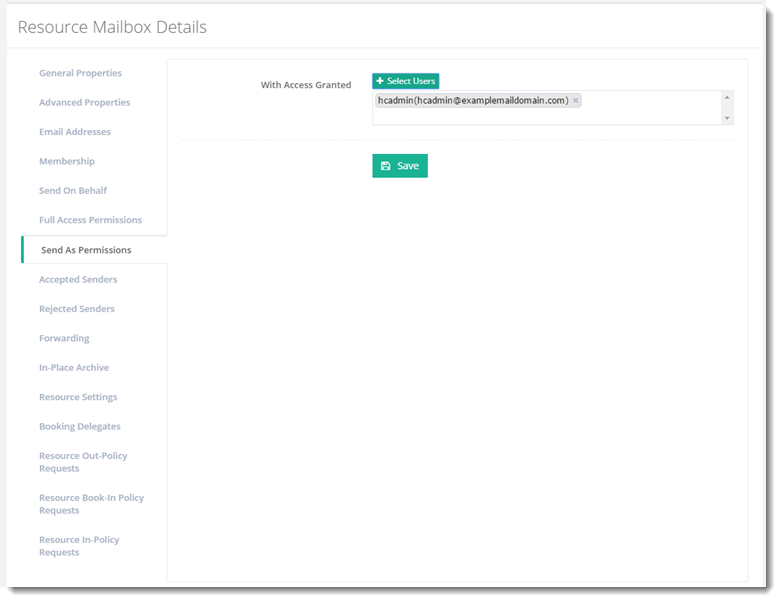
Send As Permissions
To view/modify send permissions, click Send As Permissions.
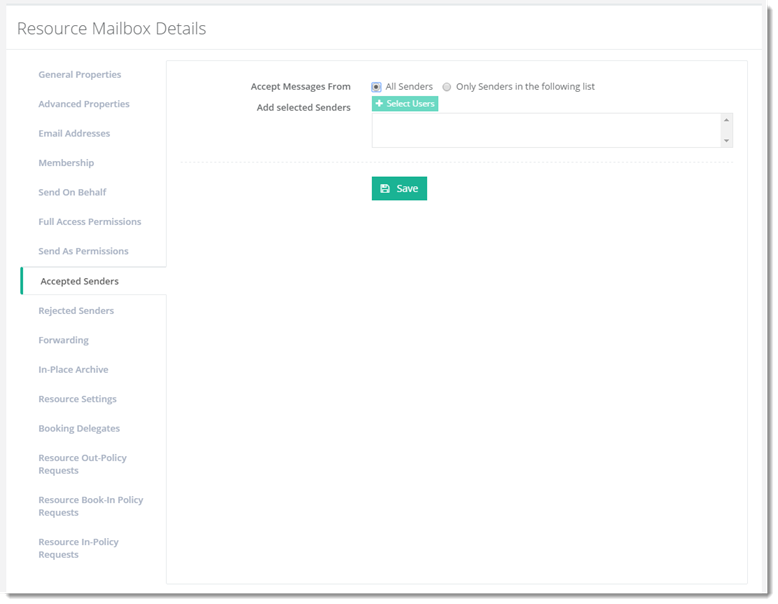
Accepted Senders
To view/modify accepted senders information, click Accepted Senders.
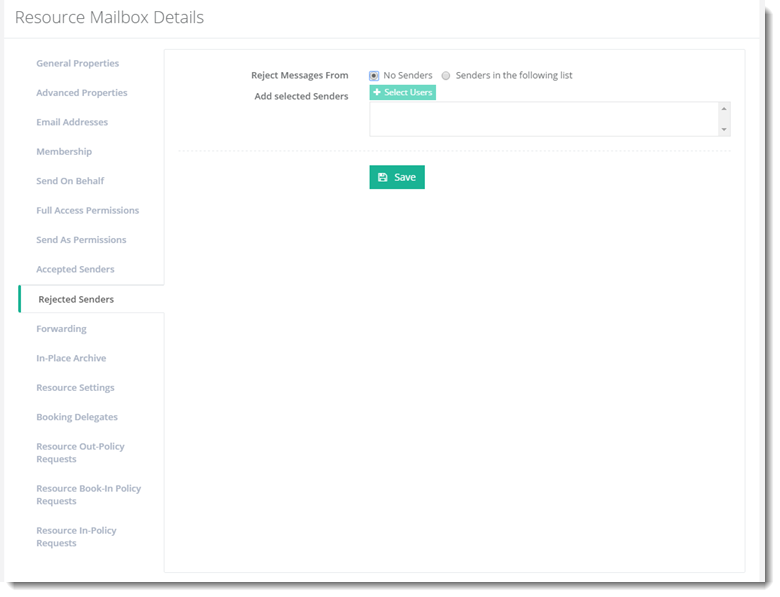
Rejected Senders
To view/modify rejected senders information, click Rejected Senders.
Forwarding
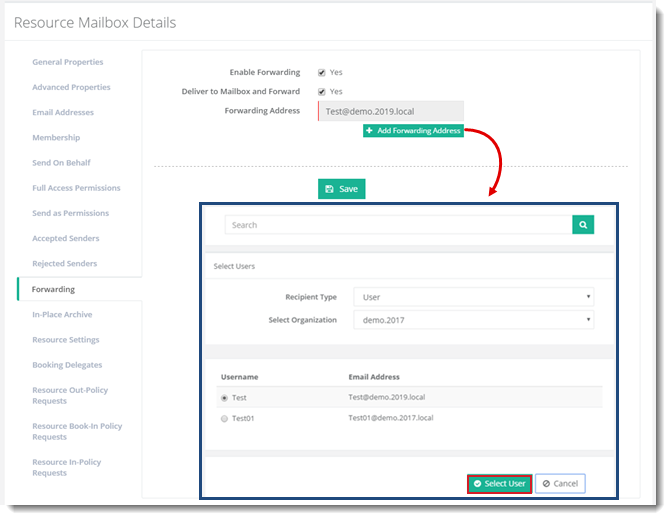
To view/modify forwarding related information, click Forwarding.
In-Place Archive
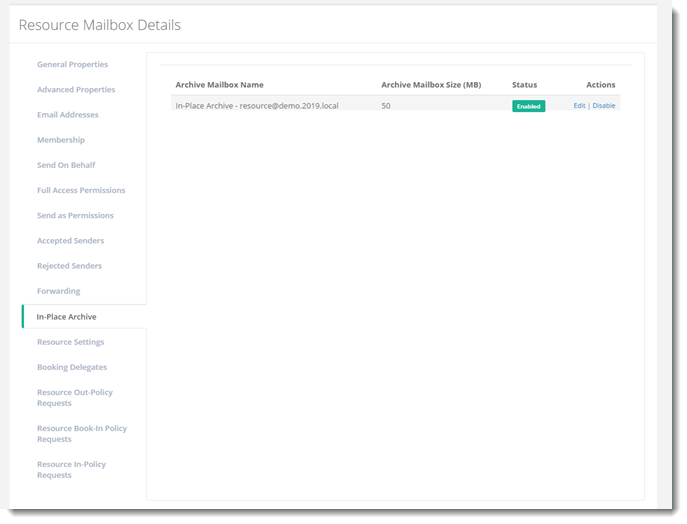
To view/modify archive information, click In-Place Archive.
Resource Settings
To view/modify resource information, click Resource Settings.
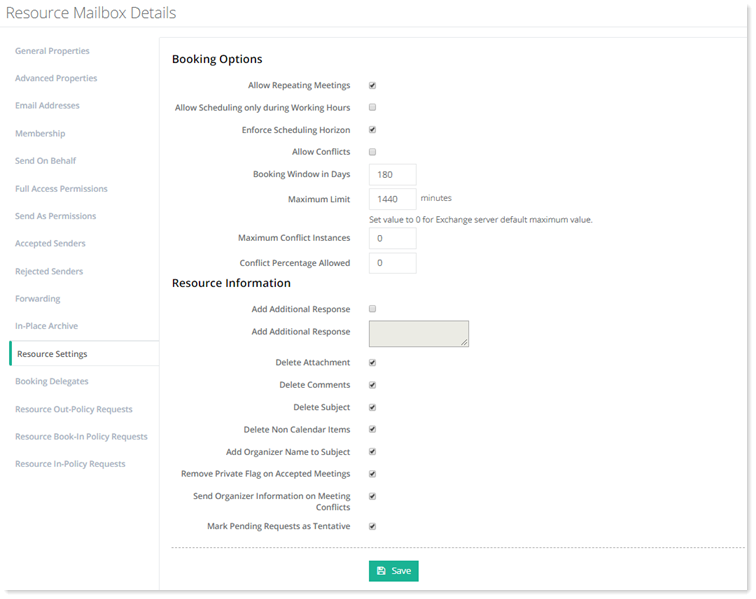
- Booking Options: It allows you to view or change the settings for the booking policy that defines when the room can be scheduled, how long it can be reserved and how far in advance it can be reserved.
- Allow Repeating Meetings: Selecting this option allows repeating meetings for the room. Likewise disabling this option prevents repeating meetings for the room.
- Allow Scheduling only during Working Hours: Enabling this option restricts the room booking only to working hours, which by default are 8:00 A.M. to 5:00 P.M. Monday through Friday. If the check box is enabled, only those meeting requests are entertained which fall within working hours. Likewise if it is disabled, meeting requests falling outside the working hours can also be scheduled.
- Enforce Scheduling Horizon: This option allows to schedule meetings with no end date. If the option is enabled, meetings without an end date cannot be scheduled. However if it is disabled, meetings without an end date can be scheduled. By default the option comes enabled
- ?Allow Conflicts: Enabling this option allows two or more people to book the room for the same time. Vice versa disabling this option restricts two or more people to book the room for the same time.
- Booking Window in Days: This option defines how far in advance people can book the meeting room. The default is 180 days.
- Maximum Limit: This setting limits how long the room can be booked in a single day. The room cannot be booked for longer than the number of minutes specified in the field. A limit of 0 to 1440 minutes can be set. The default is 1440 (24 hours).
- Maximum Conflict Instances: This setting specifies the maximum number of conflicts (double bookings) that are allowed for new repeating meeting requests. Valid values for this setting are 0 through 2147483647. When the value is set to 0, a recurring event will fail to schedule if one or more existing reservations appear. When the value is set to greater than 0, a recurring event is allowed that many conflicts before being declined.
- Conflict Percentage Allowed: This setting specifies the maximum percentage of conflicts (double bookings) allowed for new repeating meeting requests. Valid values for this setting are 0 through 100. When the value is set to 0, a recurring event will fail to schedule if one or more existing reservations appear. When the value is set to greater than 0, a recurring event is allowed that much percentage of conflicts before being declined. The default value is 0.
- Resource Information: The Resource Information section controls the meeting information that is available in the resource mailbox's calendar, such as attachments, comments, subject etc.
- Delete Attachment: This option provides an automated way of removing attachments from meeting requests sent to the resource mailbox. If enabled it removes all attachments from the meeting requests.
- Delete Comments: If enabled, this option removes all comments from meeting requests sent to the resource mailbox.
- Delete Subject: If enabled, this option removes the subject from meeting requests sent to the resource mailbox.
- Delete Non Calendar Items: Resource mailboxes only need to receive calendar items. Usually they don’t need to receive non calendar items such as Email messages. If enabled, this option deletes all Email messages sent to the resource mailbox.
- Add Organizer Name to Subject: If enabled, this option adds the meeting organizer’s display name to the subject of the meeting.
- Remove Private Flag on Accepted Meetings: This option regulates the behavior of accepted meetings that are marked as private. If enabled, this option removes the private flag from a meeting request after it is accepted. This permits the meeting subject, schedule and details to be viewed by anyone. If disabled, it preserves the private flag on the meeting request after it is accepted.
Calendar Settings
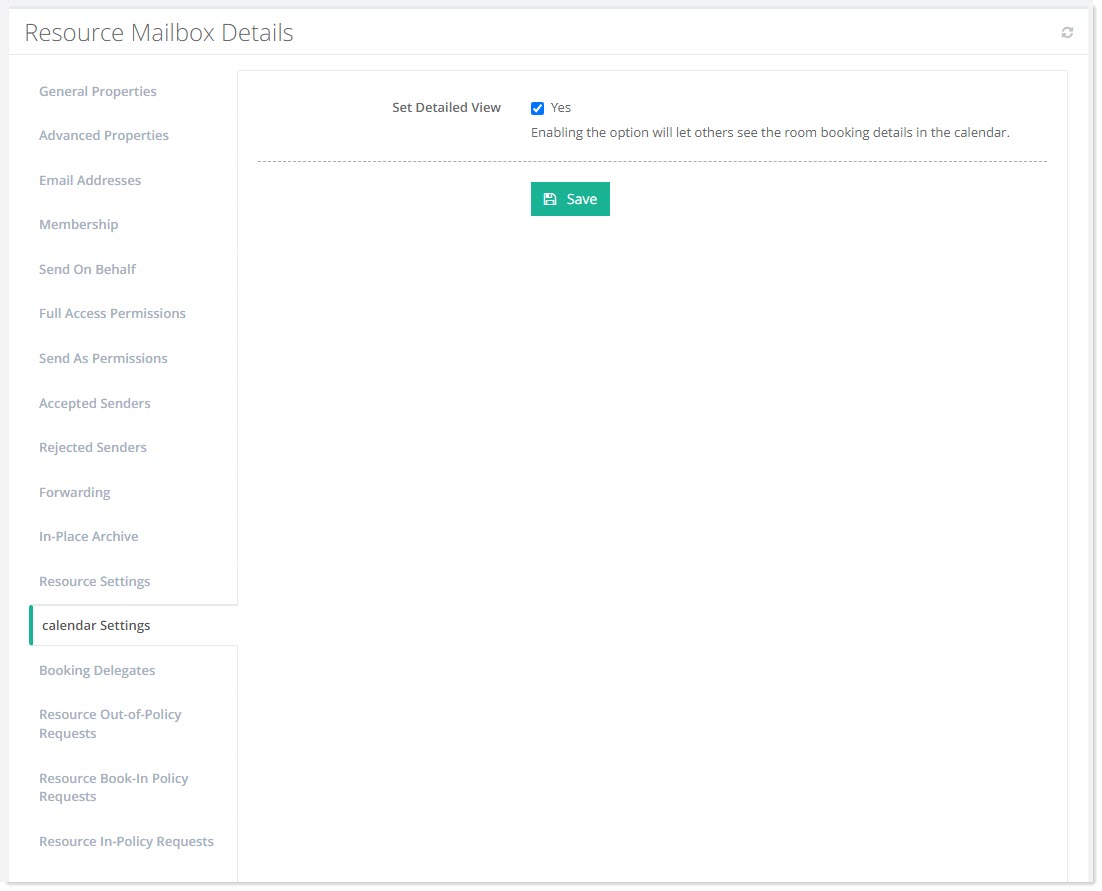
The calendar settings in a resource mailbox include controlling how the mailbox handles events, scheduling, and booking rules for shared resources such as meeting rooms, equipment, or other facilities, and control visibility of booking details.
To enable detailed view, select the Yes checkbox.
-
Set Detailed View: If enabled, this option allows users see detailed event information (free/busy status). It makes room booking details visible to others in the calendar..
Booking Delegates
Incoming scheduling requests (meeting invites) can be forwarded to one or more delegates for approval or denial.
To view/modify booking information, click Booking Delegates.
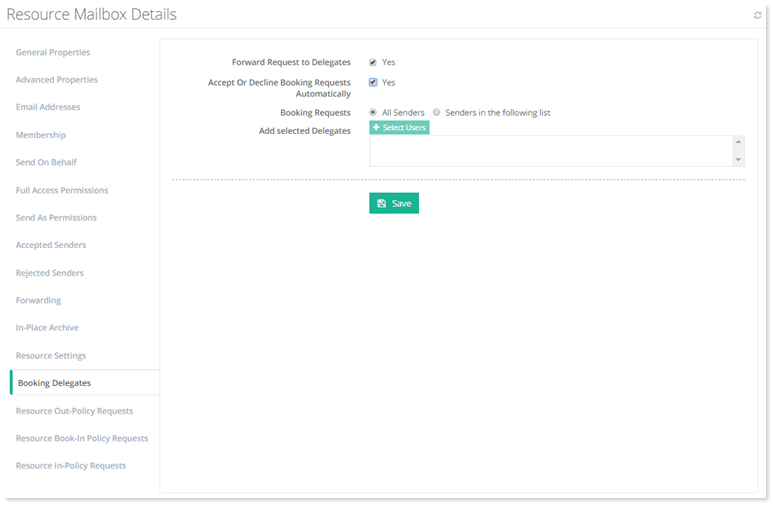
- Forward Request to Delegates: If enabled, this option forwards incoming meeting requests to delegates. If disabled, it does not forward the meeting requests. The option comes enabled by default.
- Accept or Decline Booking Requests Automatically:This option allows the meeting requests to be automatically accepted or declined, without having to seek approval from the delegates. If there's a scheduling conflict with an existing reservation, the request will automatically be declined. Similarly if the booking request violates the scheduling limits of the resource, it will be declined.
Resource Out-of-Policy Requests
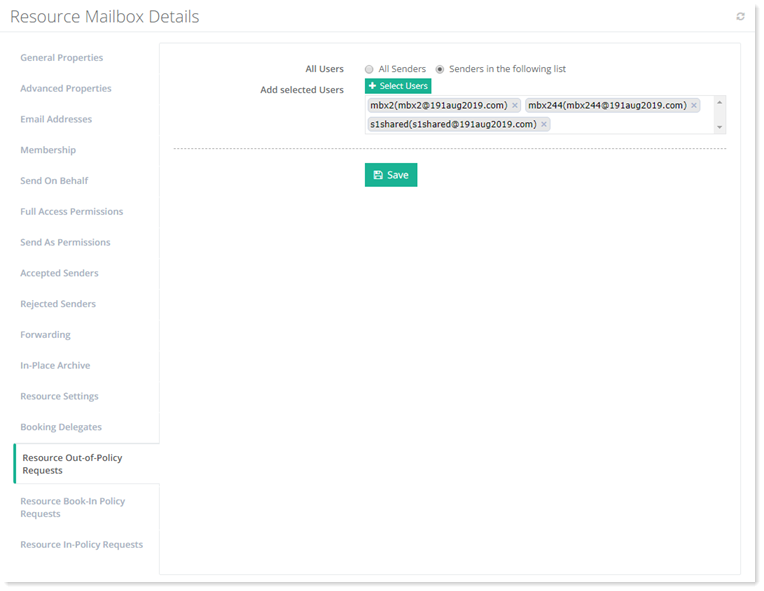
Resource mailboxes include a calendar attendant that can automatically accept or decline meeting requests, without assigning delegates to manage meeting requests. Out-of-policy meeting requests violate one or more of the resource scheduling options therefore are automatically declined.
To view/modify resource out-policy information, click Resource Out-of-Policy Requests.
Resource Book-In Policy Requests
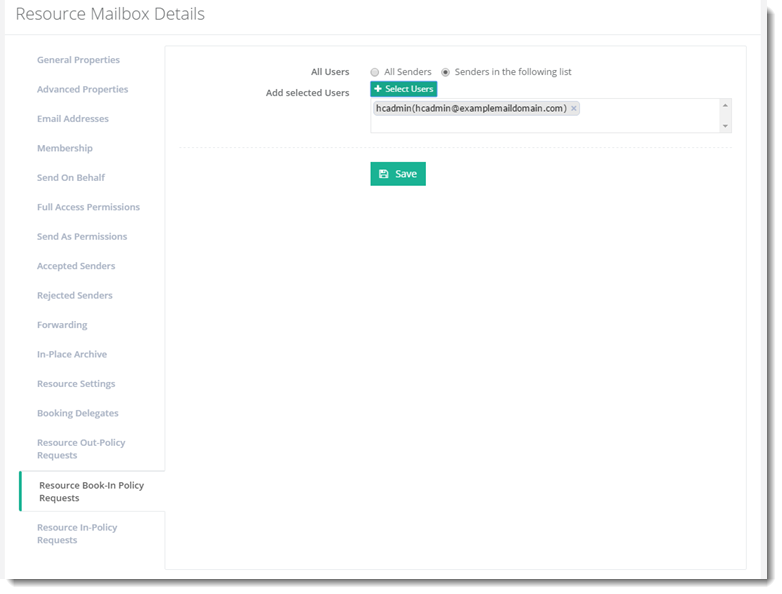
To view/modify resource book in-policy information, click Resource Book In-Policy Requests.
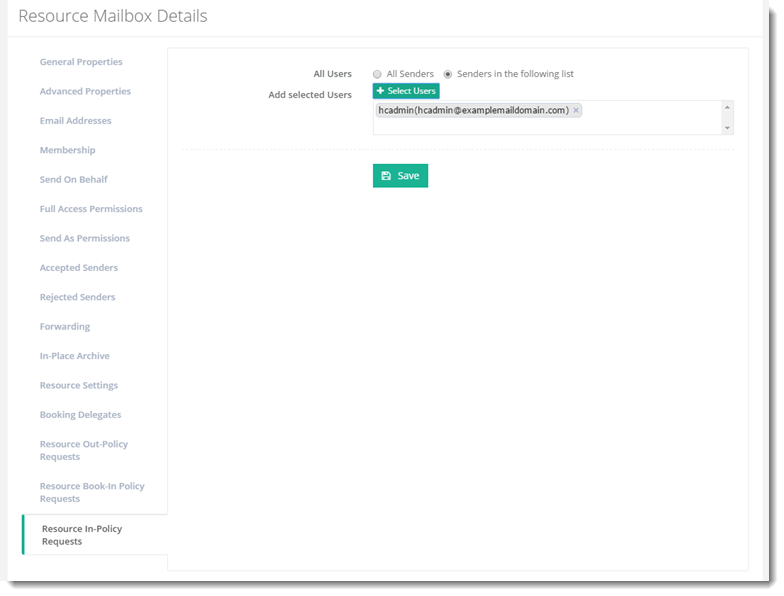
Resource In-Policy Requests
To view/modify resource in-policy information, click Resource In-Policy.