
| Product Documentation
Hybrid Control Panel (v10)
Office 365
The Office 365 integration in Hosting Controller aims at providing 1-Tier and 2-Tier Microsoft Cloud Solution Provider (CSP) partners a fully automated platform for ordering, managing, bundling and billing Office 365 offerings.
Hosting Controller in essence provides a channel ready automation and orchestration solution for reselling Office 365 and providing CSP partners a chance to reap the benefits of the Microsoft CSP program.
This document is intended to provide detailed information regarding configuration and management of Office 365 with Hosting Controller. To offer provisioning services for Office 365 through HC panel, there are some configurations that need to be done first.
Office 365 Pre-Requisites for HC Panel
Microsoft Azure active directory PowerShell utility must be installed on HC Portal/Master machine (The machine from where you access the Panel interface), as it is essential to load the required Azure PowerShell libraries.
Download Link: https://portal.hostingcontroller.com/kb/a277/office-365-pre-requisites-for-hosting-controller.aspx [reboot the machine]
Recommendation Before Starting Using HC CSP services
In evaluation phase we highly recommend to test the HC CSP module using Sandbox account to avoid being charged and once you get familiar then put the live CSP account. You can easily create this account in Microsoft Partner Center > Dashboard > Account Settings > Integration Sandbox
Enable Office 365 Role
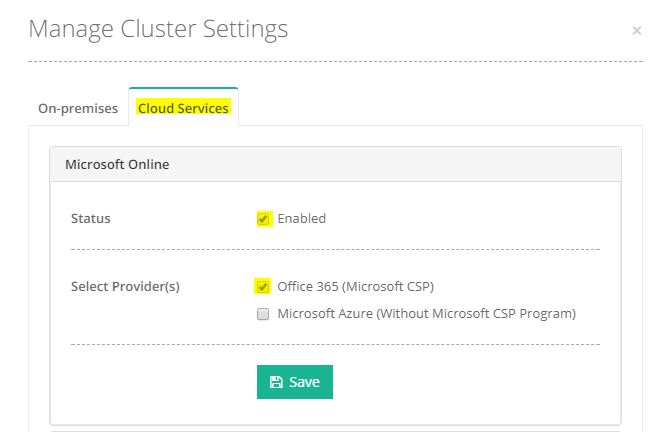
To enable Office 365 services login in HC Panel as Global Admin, At top right corner of the screen click the configurations icon  and click Cluster Settings. Select tab "Cloud Services" > Select Option Office 365 (Microsoft CSP).
Add Office 365 Provisioning Node
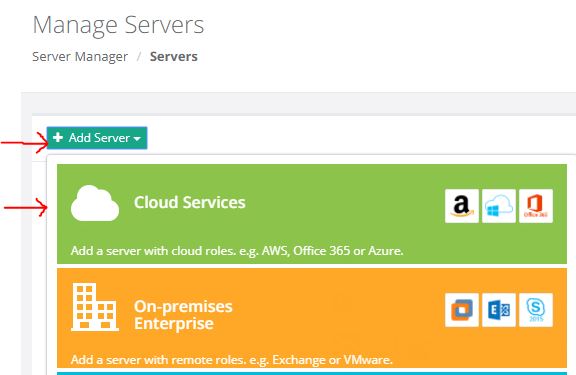
A hypothetical instance will be added in the HC Panel for CSP services provisioning and management. Click on configurations icon > click on Servers > Click Add Server button > Select Cloud Services.
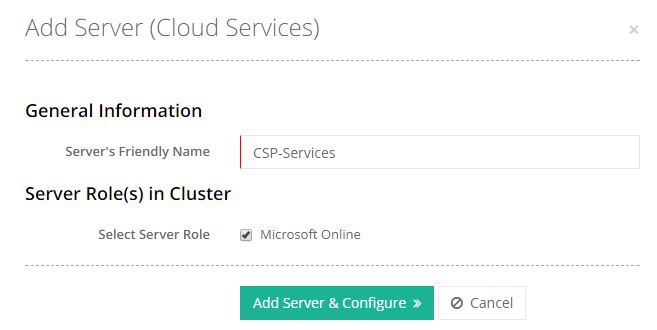
On next screen insert the CSP Node name (Any name you can provide) in " Server's Friendly Name" and select option "Microsoft Online", click Add Server & Configure to proceed further.
Configure CSP Account
Hosting Controller utilizes the CSP API provided by Microsoft, for communication. The API settings are required to be performed by a CSP partner.
Partner Service Settings?
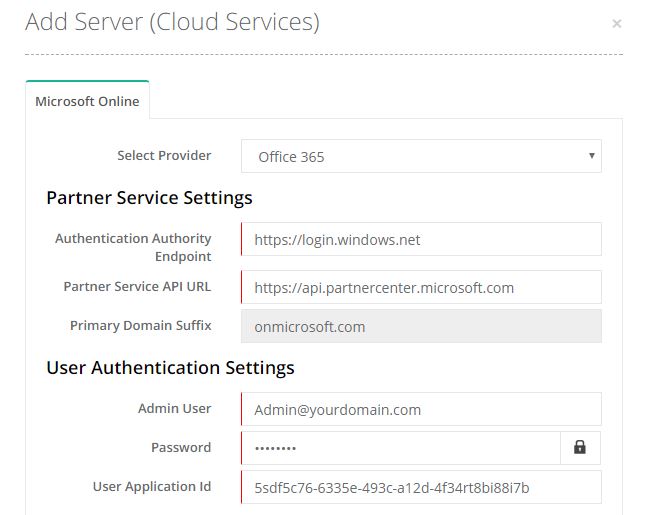
Authentication Authority Endpoint: This URL denotes the CSP credentials for authentication and is the same for every CSP partner
Partner Service API URL: This CREST API URL is used for actual provisioning of Office 365 resources such as users, subscriptions, organizations/customers etc
Primary Domain Suffix: The onmicrosoft.com domain is the initial domain created by Office 365 when you sign up for the service. It’s same for every CSP partner
User Authentication Settings
Admin User: CSP Admin user credentials provided by Microsoft, it must have privileges to provision services in CSP account
Password: CSP Admin account password
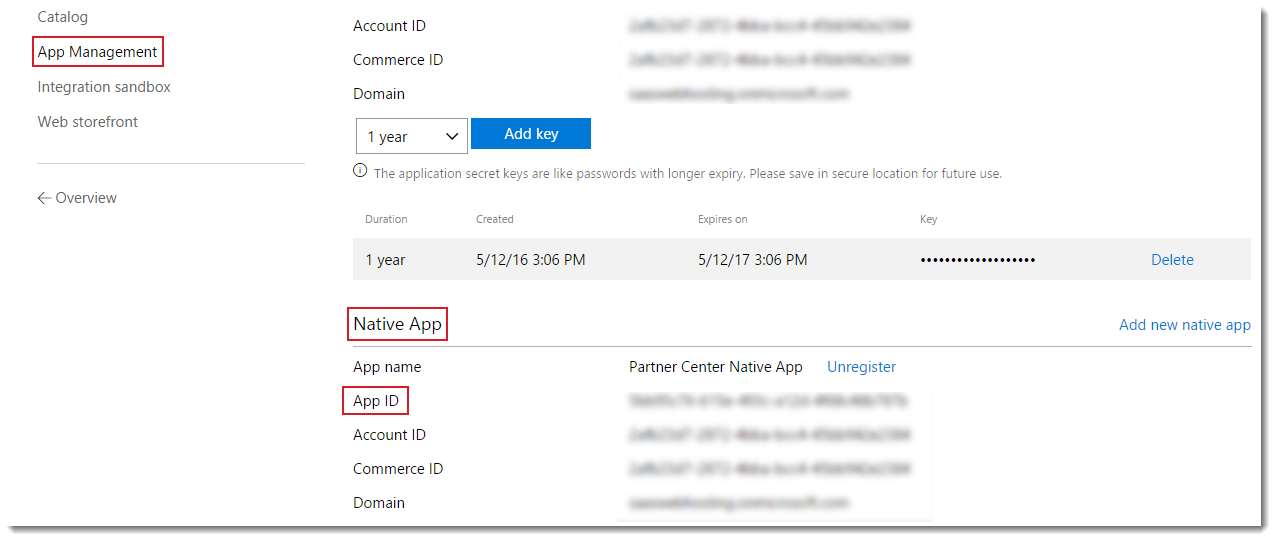
User Application Id: Application ID which is listed under Native App in CSP Partner Center > Account settings > App Management > Native App
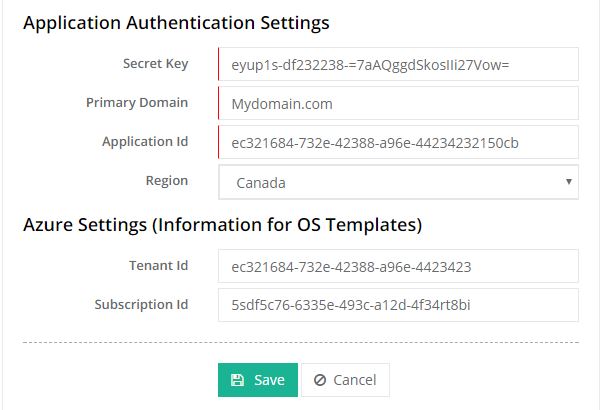
Application Authentication Settings
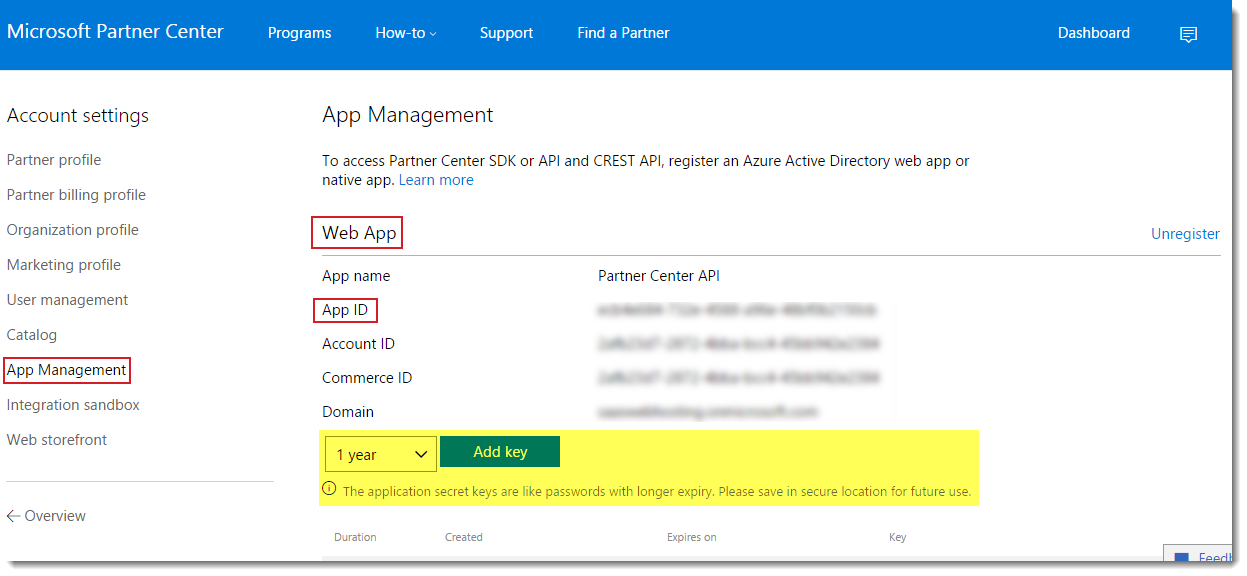
Secret Key: Application secret keys are like passwords with longer expiry. They are provided by Microsoft for application authentication. Always save them in a secure location for future use. You can generate in CSP Partner Center > App Management under Web App
Primary Domain: This is your default domain and can be viewed at this location in the Microsoft Partner Center > Dashboard >> Account settings > Organization profile > Default domain
Application Id: This is the Application Id used for application authentication. It can be viewed at this location in the Microsoft Partner Center > Account settings > App Management > Web App
Region: Select the region which is allowed by Microsoft for your CSP account
Azure Settings (Information for OS Templates):? Leave empty both fields under this section as this section requires only for Azure VM creation. If you want to enable Azure with same CSP account then please check Microsoft Azure help manual link.