
| Product Documentation
Hybrid Control Panel (v10)
Post Installation Steps for Exchange
Once HC10 is successfully installed on your systems, there are certain configurations needed in the panel. The post installation steps for creating Exchange objects are as follows:
Login
Step 1 is login. Specify user credentials (username and password) to login.
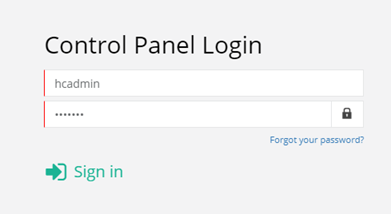
For details, see Login Screen.
Cluster Settings
Step 2 is configuring the cluster. Cluster Settings provide an easy way to enable/disable services globally. Under Server Manager, click Cluster Settings to configure Exchange in the cluster.
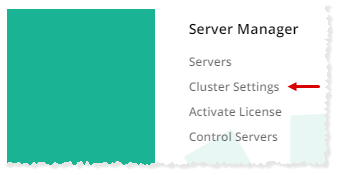
To learn how to enable Exchange in cluster settings, see Managing cluster settings.
Adding an Exchange Server
Step 3 is adding an Exchange server. This is not a physical server and has no physical existence. It is only a hypothetical server and serves as a pointer to the actual Exchange server. Under Server Manager, click Servers to proceed.
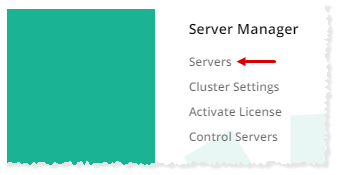
To learn how to add an Exchange server, see Adding a Microsoft Exchange server.
License Activation
Step 4 is activating license. Under Server Manager, click Activate License to activate your panel.
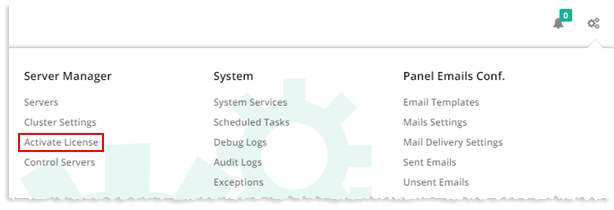
To learn how to activate license, see Activating license.
Creating Exchange Mail Domain
Step 5 is creating a mail domain. Mail domain can be made with a new organization (O.U) or with an existing one. Navigate to Provisioning >> Exchange Organizations >> Mail Domains.
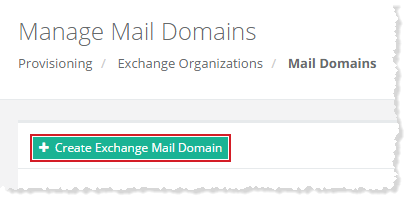
To learn how to create a mail domain, see Creating Exchange Mail Domain.
Creating Exchange Mailbox
Step 6 and the final step is creating a mailbox. Navigate to Provisioning >> Exchange Organizations >> Mailboxes.
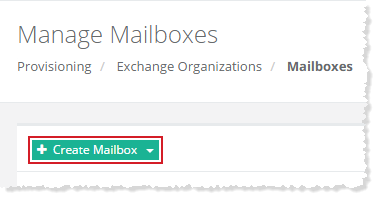
To learn how to create a mailbox, see Creating a mailbox.