
| Product Documentation
Hybrid Control Panel (v10)
Managing my virtual machines
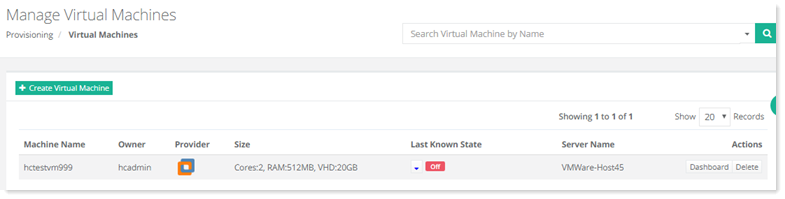
To manage virtual machines go to Provisioning >> Virtual Machines.
|
Manage Virtual Machines page shows all the available virtual machines and additional information as:
|
HC Agent will not be required on the ESXi host. It has a remote role.
Manage Virtual Machines page allow global admins to perform various operations. For further details, refer to the following sections.
Viewing Virtual Machine
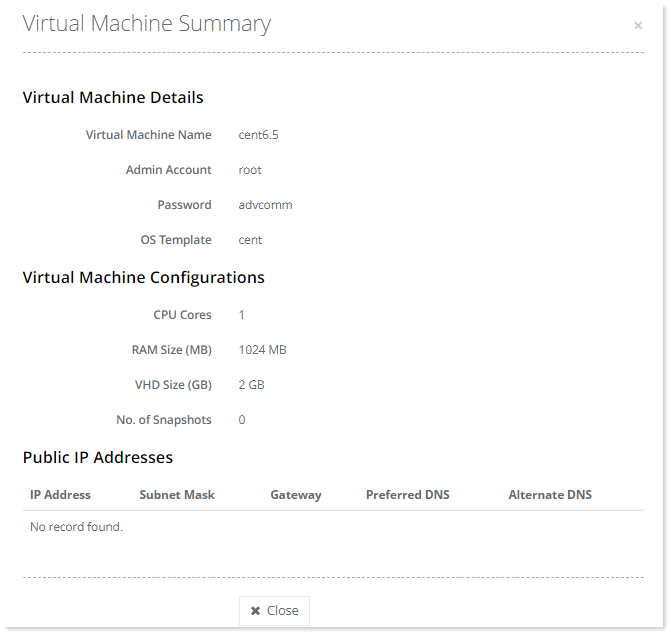
To view summary of the virtual machine, double click the machine name.
Viewing Last Known State
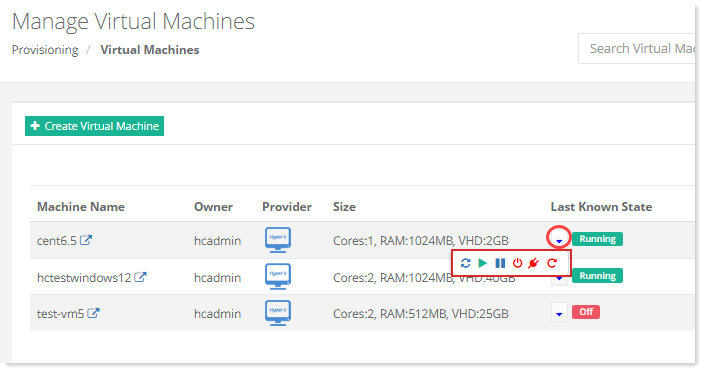
This column shows the last known state of the virtual machine either it is running or off. Also, a machine can be refreshed, started, paused, shut down, powered off or reboot from here.
View Dashboard
To view dashboard of a virtual machine, click Dashboard under Actions column.
Delete Virtual Machine
To delete a virtual machine, click Delete under Actions column.
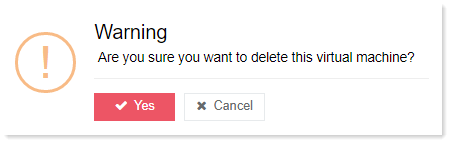
A Hyper-V vhdx file can be sent to a specified archived folder before deletion. To enable the option check “Move file upon VM deletion” checkbox while Adding a Hyper-V Server.
Deleting a VM from Hosting Controller removes it from both the HC panel and the Hyper-V interface; however, the original Hyper-V .vhdx file remains on the physical disk and is not automatically deleted.