
| Product Documentation
Hybrid Control Panel (v10)
SQL Configurations
The following example involves the installation of SQL Server 2014 Express edition with advance features.
To configure SQL follow the steps as stated. For information on an ideal configuration, refer to Configuring SQL for HC10.
- Select “New SQL Server Server Stand-Alone Installation” to proceed.
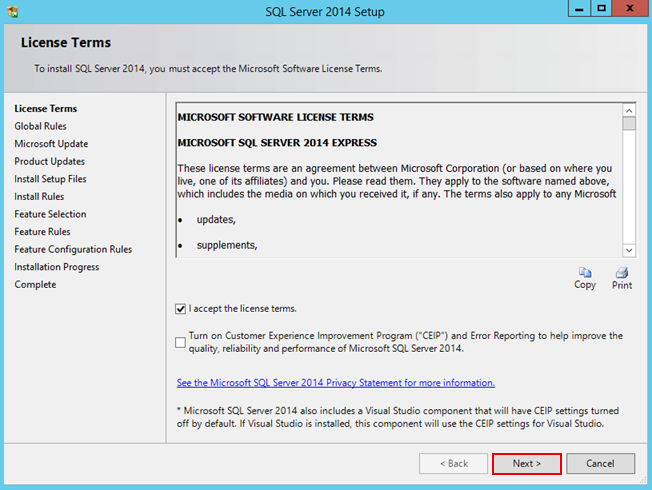
- Read and accept the license agreement.
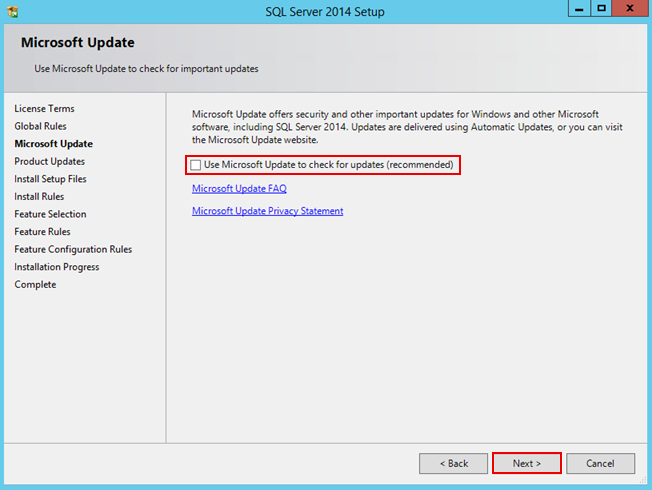
Click “Next” to proceed. - It is recommended to select the Use Microsoft Update to check for updates checkbox.
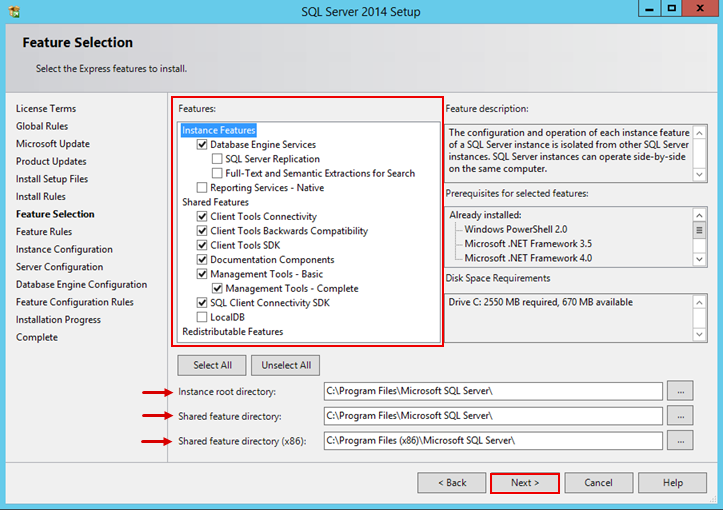
Click “Next” to proceed. - Select features as required and specify SQL installation directory path.
Click “Next” to proceed. - Set a named instance for the SQL. This instance name will be required during the installation of Hosting Controller.
The SQL instance configured here would be used in conjunction with the host name to access the SQL server. For example "hostname\SQLExpress".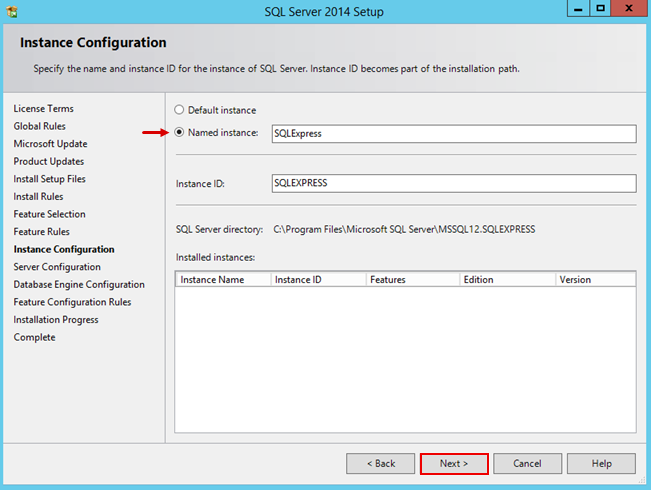
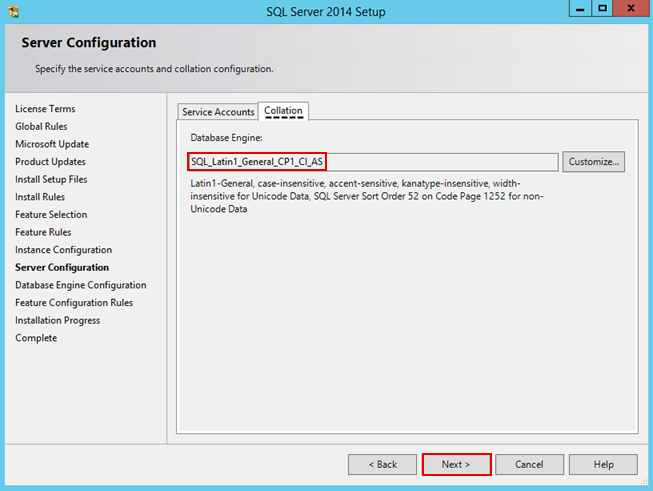
Click “Next” to proceed. - Select Collation tab and customize Database Engine as SQL_Latin1_General_CP1_CI_AS.
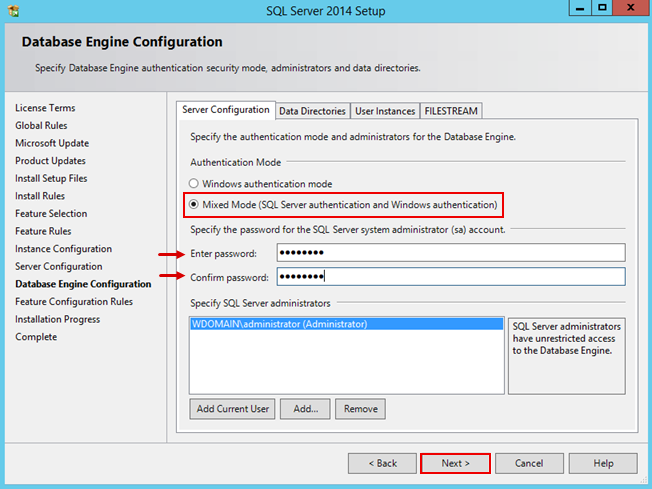
Click “Next” to proceed. - Select Mixed Mode (SQL Server authentication and Windows authentication) and set a password for the SQL server system administrator (SA) account.
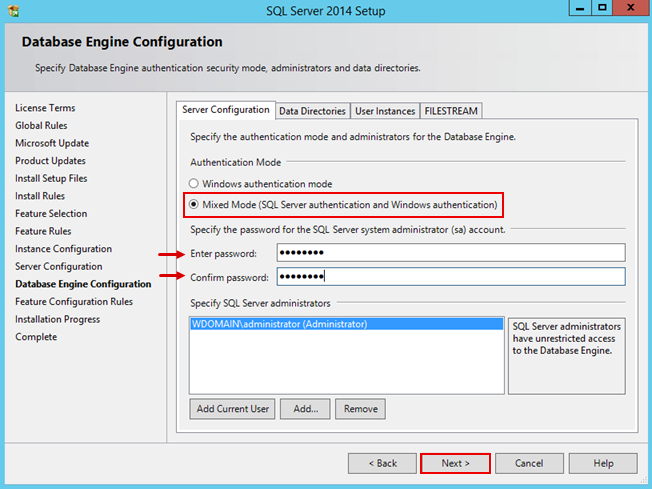
Click “Next” to finish the installation process.This SA password is also used during the installation of Hosting Controller.