
| Product Documentation
Hybrid Control Panel (v10)
Configuring WHMCS for CSP
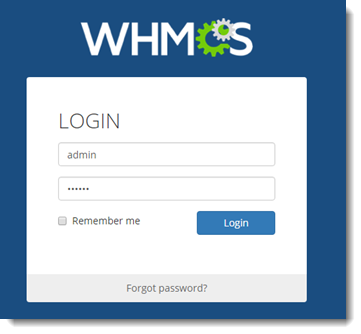
To configure WHMCS with HC10, login into WHMCS admin interface.
1) Adding a Server
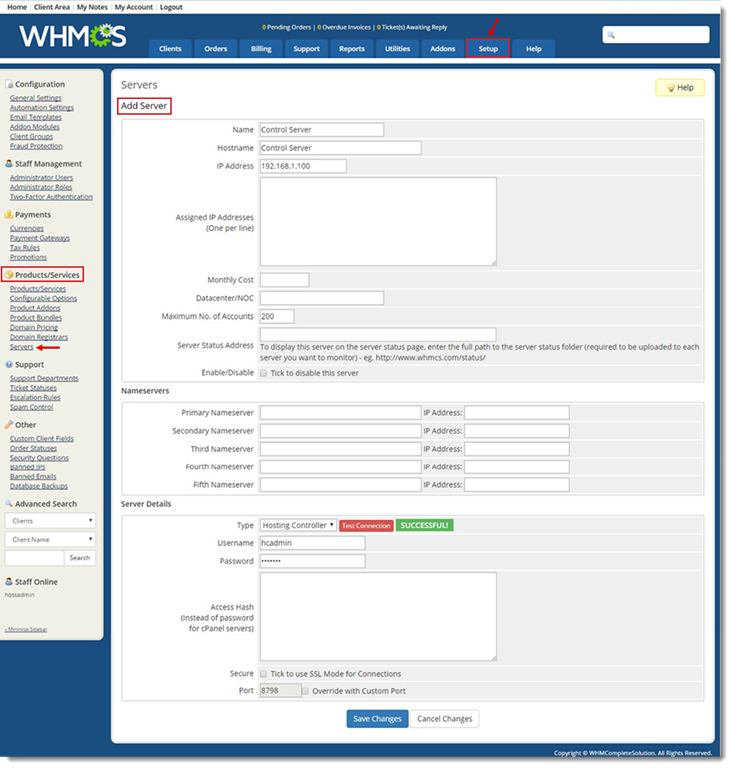
To add a server, go to Setup >> Products / Services >> Servers and then add HC10 Control Server to WMHCS.
2) Adding a Product
To add a product, go to Setup >> Product / Services >> Product / Services. Specify a service plan under Module Settings.
Products are HC10 Service Plans.
A product is added in three steps such as:
- Creating a New Product
Create Product from Products / Services >> Product / Services >> Create a New Product.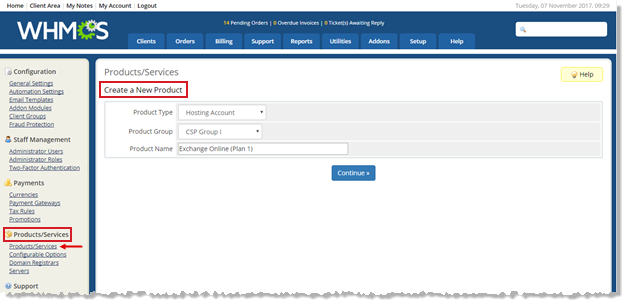
- Specifying Module Settings
In the next step, under Module Settings, specify Module Name by selecting Hosting Controller.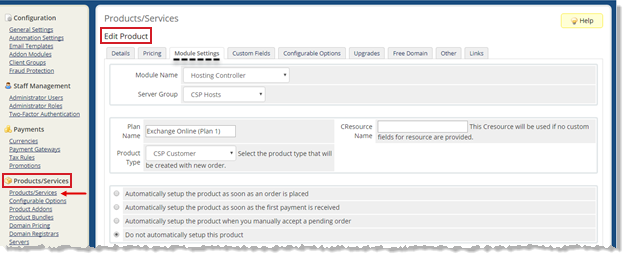
A simple success alert—check it out! - Adding Custom Fields
Adding Custom Fields is the last step in adding a product. Three types of Custom Fields in WHMCS are Client, Product and Support respectively.
For HC10, you only need to associate Product Custom Fields with a product. So, here you will need to add custom fields related to CSP module:
CSP Related Custom Fields: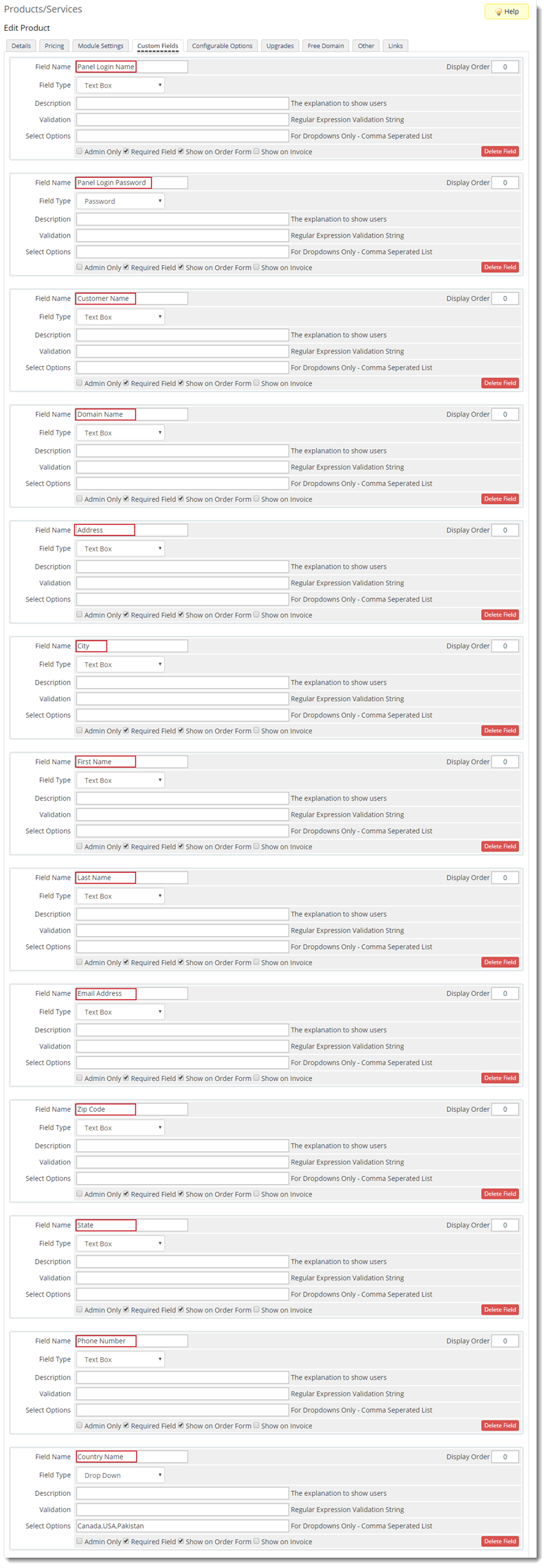
4) Adding a WHMCS Client
To add a WHMCS Client, go to Clients >> Add New Client. 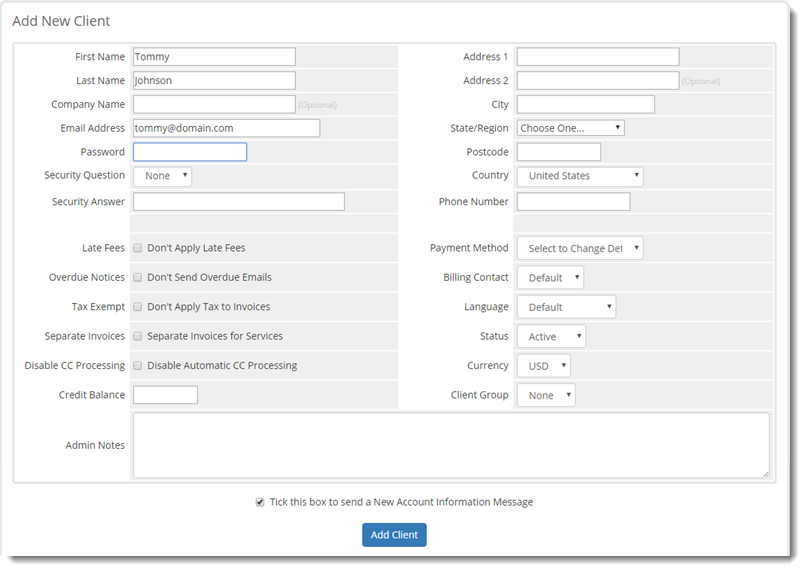
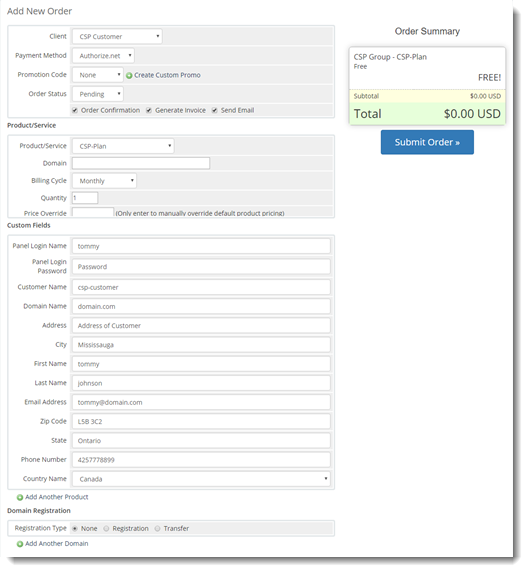
5) Adding a New Order
To add a new order for clients, go to Orders>> Add New Order.
6) Creating a Service
To create a service (Exchange Organization, VM or Website), follow the steps below:
- Go to Orders >> Pending Orders.
- Select the pending order and change its status from Pending to Active.
- Finally, click Create to add clients in HC10 and provision service such as VM, Website and so on in HC10.