| Product Documentation
Hybrid Control Panel (v10)
Managing Cluster Settings
As Hosting Controller emphasizes one instance of the control panel for one organization, cluster management automatically becomes an intrinsic part of its architecture. Hosting Controller allows you to add multiple servers (nodes) to its interface, which work together, enabling the organization to pose as a single virtual entity despite its diverse portfolio.
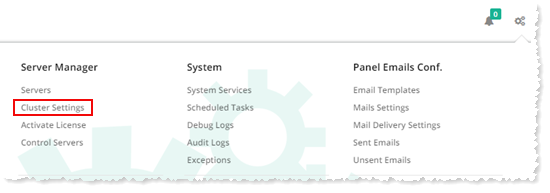
To manage clusters, from top right corner of your screen, click  and then go to Server Manager >> Cluster Settings. These settings are classified into three main categories, On-premises, Cloud Services and Linux. Select respective tabs to configure settings as required.
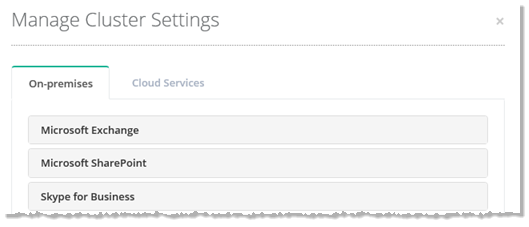
On-Premises
Microsoft Exchange
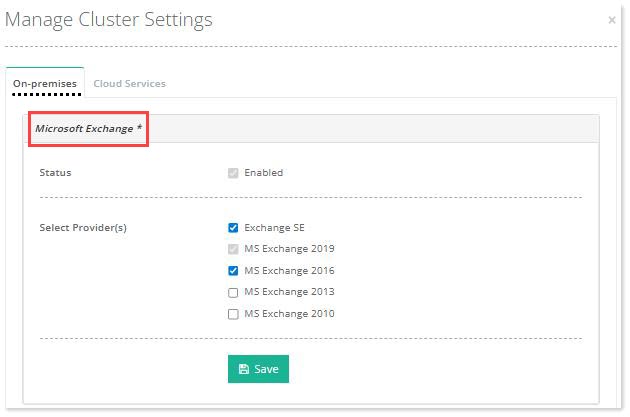
To configure Exchange related settings click On-premises tab and then Microsoft Exchange. Select the Enabled checkbox. Select provider(s) as required and click Save to apply the settings.
Microsoft SharePoint
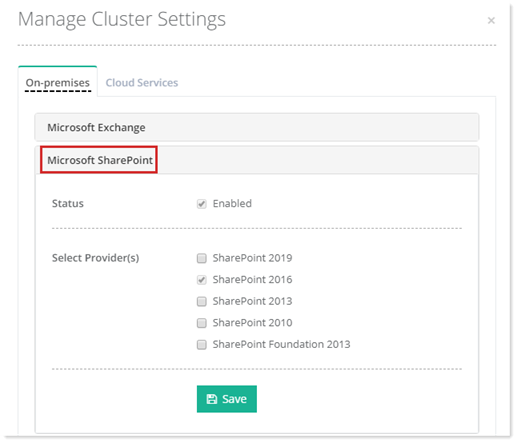
To configure SharePoint related settings click On-premises tab and then Microsoft SharePoint. Select the Enabled checkbox. Select provider(s) as required and click Save to apply the settings.
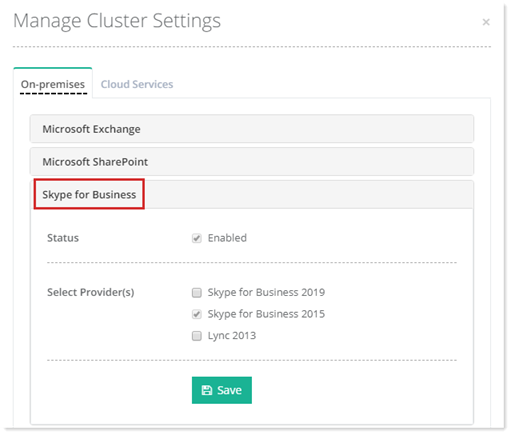
Skype for Business
To configure Skype for Business related settings click On-premises tab and then Skype for Business. Select the Enabled checkbox. Select provider(s) as required and click Save to apply the settings.
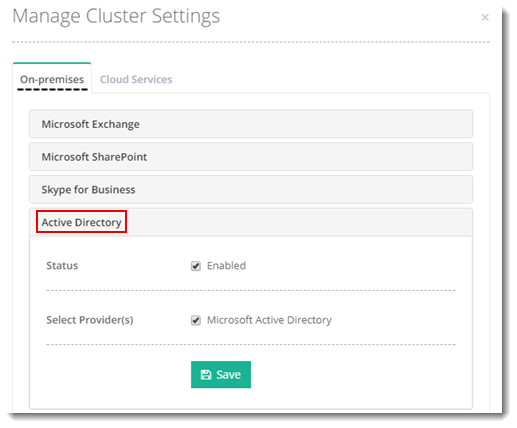
Active Directory
To configure Active Directory related settings click On-premises tab and then Active Directory. Select the Enabled checkbox. Select provider(s) as required and click Save to apply the settings.
IaaS Computing
On-premises IaaS offerings include virtual technologies such as Microsoft Hyper-V and VMware. To configure IaaS related settings click On-premises tab and then IaaS Computing. Select the Enabled checkbox. Select provider(s) and enable other settings as required. Click Save to apply the settings.
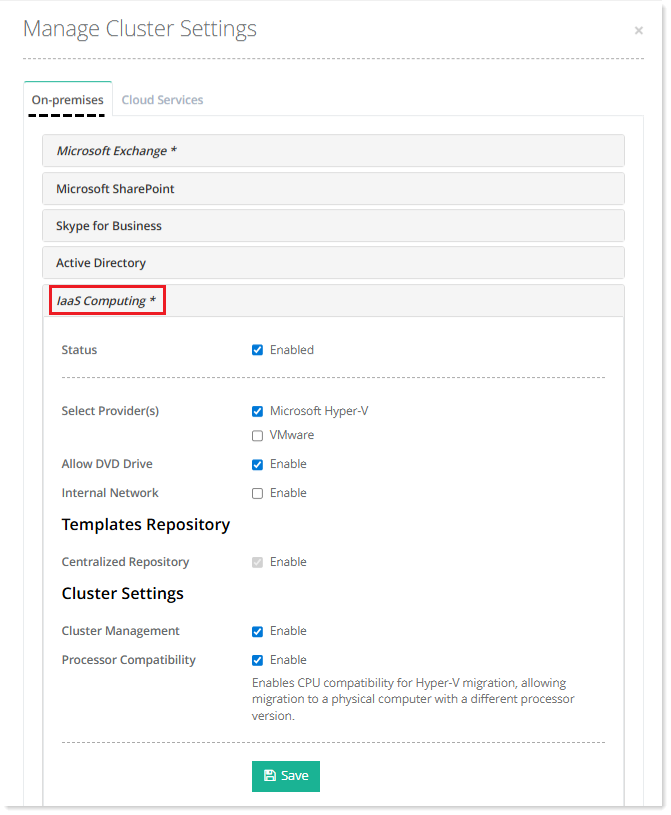
- Allow DVD Drive: Enabling DVD Drive allows you to add DVD or CD drive to your virtual machine.
- Internal Network: Enabling Internal Network allows communication between virtual machines on the same host and additionally with the host itself.
- Centralized Repository: Some admins prefer to have their OS templates pulled from a central location rather than having them on individual hosts. Enabling Centralized Repository allow admins to maintain their OS templates at a central location on a separate Windows server. The OS templates can be copied from this central location to the intended hosts, where the virtual machines are to be created and subsequently used for the creation of the same.
- Cluster Management: Cluster management is required for Hyper-V failover clustering. Enabling cluster management allows admins to create a Hyper-V failover cluster in HC.
- Processor Compatibility: Hyper-V Live Migration allows you to migrate running virtual machines between Hyper-V hosts without downtime. However, migrations can fail due to incompatible processor instructions when the source and destination hosts use different CPU generations. To prevent this, enable Processor Compatibility Mode in the virtual machine’s settings. Hosting Controller provides a convenient interface for configuring this option, ensuring smooth, successful migrations across heterogeneous hosts.
Remote Desktop Services
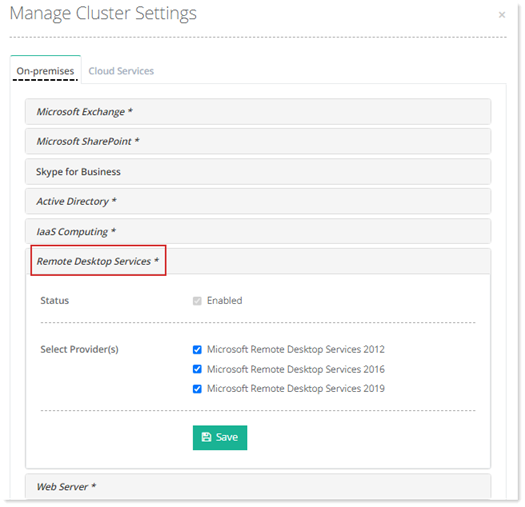
On-premises RDS offers remote desktop services. Select the Enabled checkbox. Select provider(s) and Click Save to apply the settings.
Web Server
To configure web related settings click On-premises tab and then Web Server. Select the Enabled checkbox. Select provider from the drop-down list box and enable other settings as required. Click Save to apply the settings.
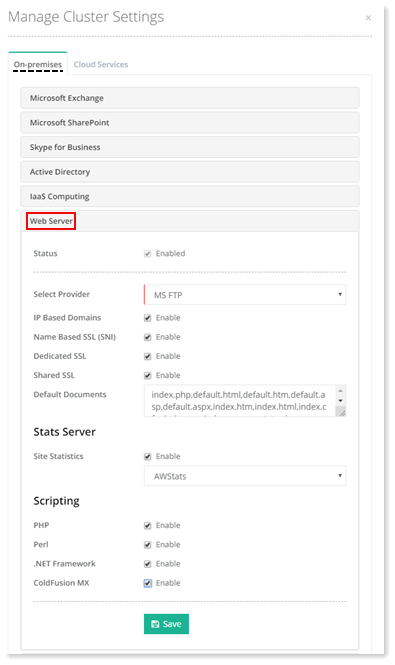
- FTP Servers: HC10 supports Microsoft FTP Server.
- IP Based Domains: IP Based domains are websites having dedicated IP addresses. HC10 allows websites to be hosted against dedicated addresses. In order to have IP Based domains it’s necessary that IPs are available on the Network Interface Card (NIC) of your webserver.
- Name Based SSL (SNI): Server Name Indication (SNI) allows multiple SSL certificates to run on the same IP address. Multiple websites can exist on the same IP address. These are known a name based sites. Without SNI all these name based sites would be required to use the same certificate. SNI enables them to utilize multiple certificates. Hosting Controller allows you to enable SNI through the panel and thus secure multiple websites on a single IP address. HC supports SNI both for Windows and Linux sites.
- Dedicated SSL: Dedicated SSL enables web hosts and Internet Service Providers (ISPs) to offer dedicated SSL (Secure Sockets Layer) certificates with their hosting services and install certificates on their customer's domains through HC. For further information, see Installing Dedicated SSL.
- Shared SSL: A shared SSL certificate enables Internet Service Providers (ISPs) to provide SSL encryption and business authentication to Web business customers, but without the need to issue unique digital certificates to each hosted customer. The service offers ISPs the convenience and streamlined management of a single specially licensed SSL digital certificate to share among multiple hosted websites.
- Site Statistics: HC10 supports AWStats, SmarterStats and Webalizer as statistics servers.
- Scripting: HC10 supports PHP, Perl, .NET Framework and ColdFusion MX as scripting languages. Each must be enabled to be offered through HC10.
DNS Server
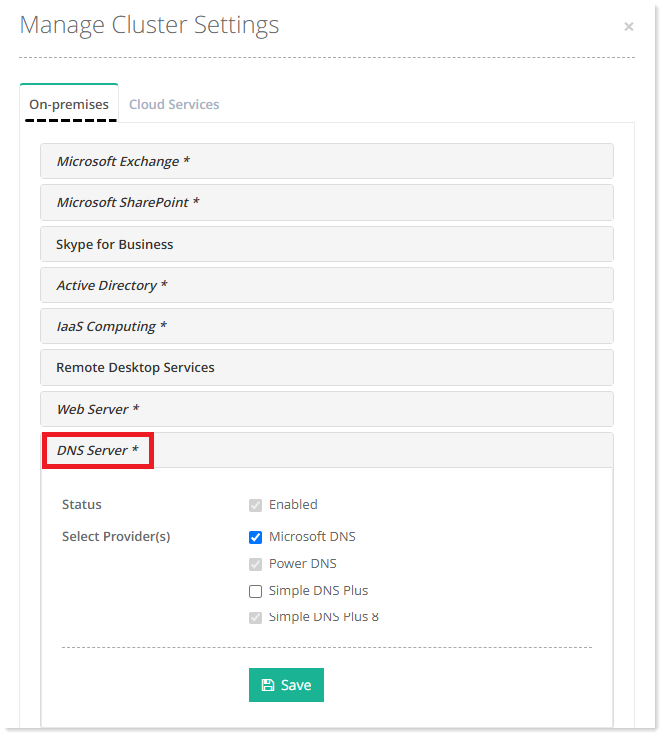
To configure DNS related settings click On-premises tab and then DNS Server. Select the Enabled checkbox. Select provider(s) as required and click Save to apply the settings.
Mail Server
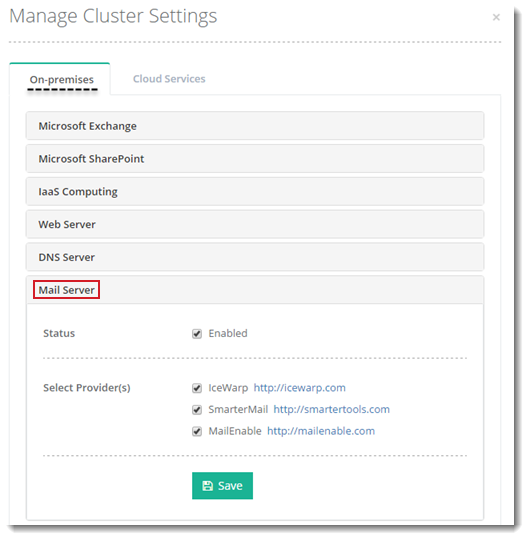
To configure mails related settings click On-premises tab and then Mail Server. Select the Enabled checkbox. Select provider(s) as required and click Save to apply the settings.
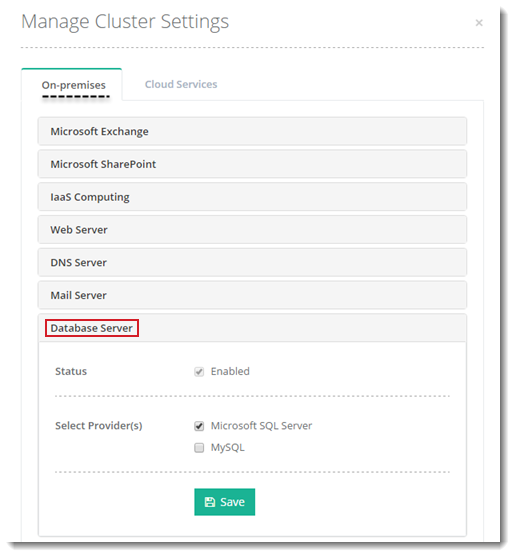
Database Server
To configure database related settings click On-premises tab and then Database Server. Select the Enabled checkbox. Select provider(s) as required and click Save to apply the settings.
Linux
Web Server
To configure Web related settings click On-premises tab. Go to Linux section and then Web Server. Select the Enabled checkbox. Select provider from the drop-down list box and enable other settings as required. Click Save to apply the settings.
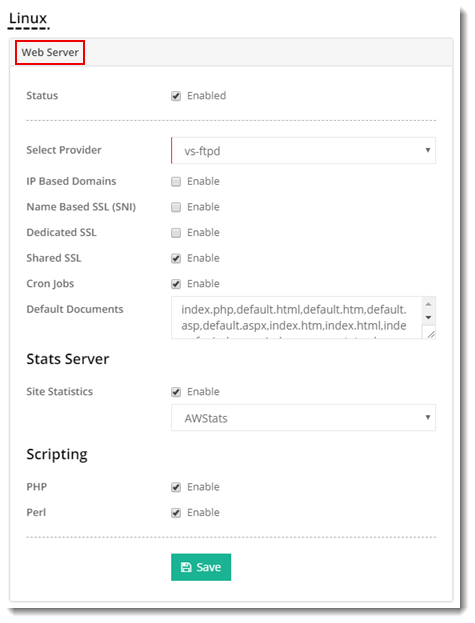
- Name Based SSL (SNI): Server Name Indication (SNI) allows multiple SSL certificates to run on the same IP address. Multiple websites can exist on the same IP address. These are known a name based sites. Without SNI all these name based sites would be required to use the same certificate. SNI enables them to utilize multiple certificates. Hosting Controller allows you to enable SNI through the panel and thus secure multiple websites on a single IP address. For further details, refer to How to install SSL certificate.
- Cron Jobs: Linux Cron utility is an effective way to schedule a routine background job at a specific time and/or day on an on-going basis. Most commonly these are administrative or system maintenance jobs but generally can be anything. HC Linux provides a user friendly interface to manage scheduled jobs from within the panel.
DNS Server
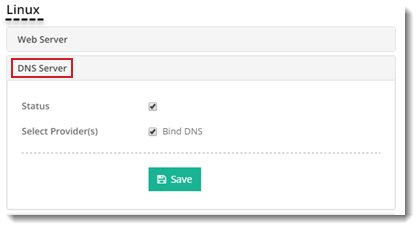
To configure DNS related settings click On-premises tab. Go to Linux section and then DNS Server. Select the Enabled checkbox. Select provider as required. Click Save to apply the settings.
Mail Server
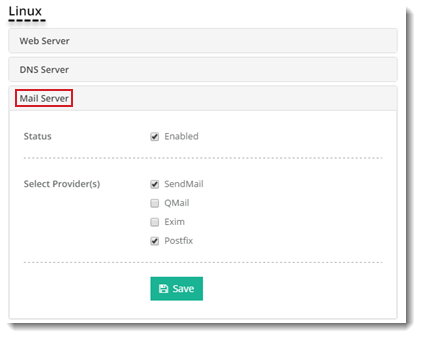
To configure mail related settings click On-premises tab. Go to Linux section and then Mail Server. Select the Enabled checkbox. Select provider as required. Click Save to apply the settings.
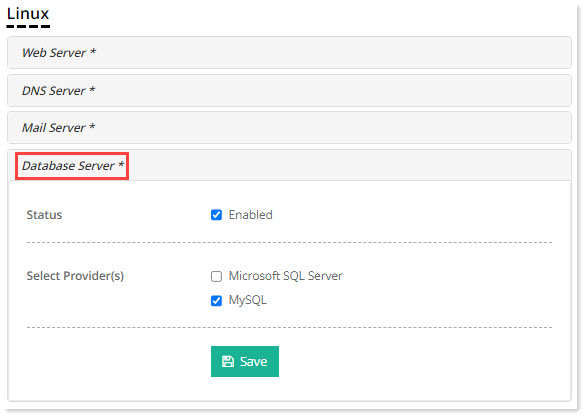
Database Server
To configure database related settings click On-premises tab. Go to Linux section and then Database Server. Select the Enabled checkbox. Select provider as required. Click Save to apply the settings.
Cloud Services
Microsoft Online
Microsoft Online offerings include Office 365 with and without the Microsoft CSP Program and Microsoft Azure. Azure is available both as part of the CSP program through Office 365 and without the CSP program therefore HC considers both the options distinct and handles them separately.
To configure Microsoft Online related settings click Cloud Services tab and then Microsoft Online. Select the Enabled checkbox. Select provider(s) as required and click Save to apply the settings.
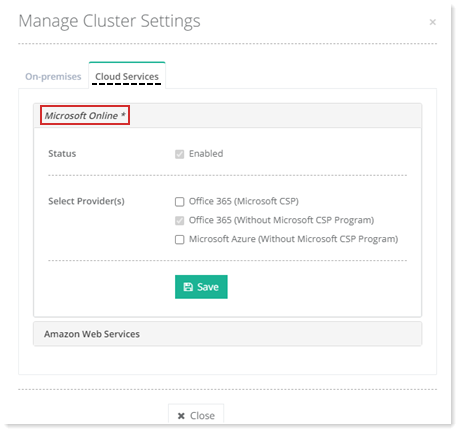
- Office 365 (Without Microsoft CSP Program): HC provides an easy way to handle Office 365 tenants. With this option you don’t need to configure a full 1-Tier or 2-Tier Microsoft Cloud Solution Provider (CSP) partner. You can only provide the credentials for an Office 365 tenant/organization and start managing its users, subscriptions and much more.
See how you can Automate Microsoft 365 Organization.
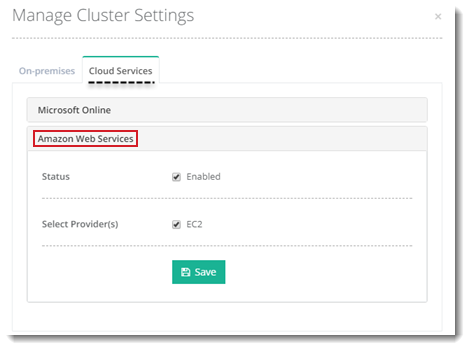
Amazon Web Services
To configure Amazon Web Services related settings click Cloud Services tab and then Amazon Web Services. Select the Enabled checkbox. Select provider(s) as required and click Save to apply the settings.
DNS Server
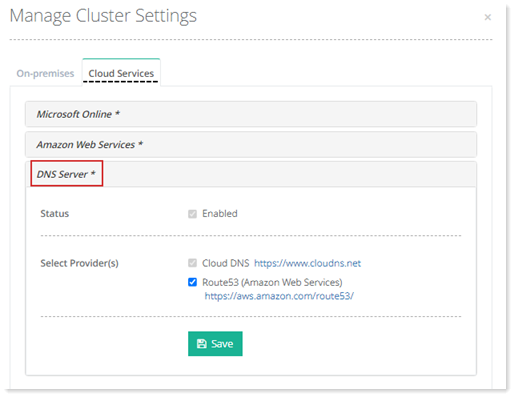
The supported cloud DNS servers in this category are ClouDNS and Amazon Route 53. To configure DNS related settings click Cloud Services tab and then DNS Server. Select the Enabled checkbox. Select provider(s) as required and click Save to apply the settings