| Product Documentation
Hybrid Control Panel (v10)
Managing Servers
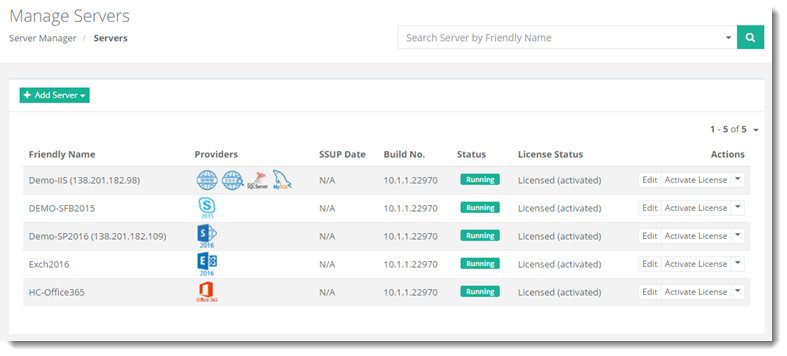
To manage all the existing servers in the panel, from top right corner of your screen click  and then go to Server Manager >> Servers.
|
Manage Servers page shows list of existing servers with additional information as:
|
Editing a Server
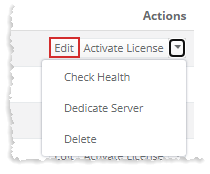
To modify information of any specific server, click Edit under Actions column.
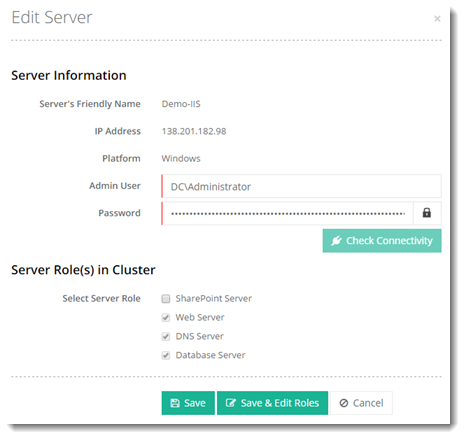
To modify server roles, select role(s) and click Save & Edit Roles to proceed.
Activating License
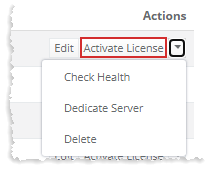
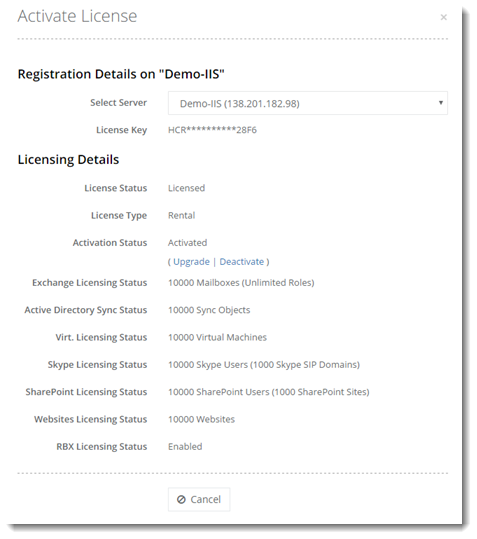
To activate license, click Activate License under Actions column and specify required information to proceed.
Checking Health of a Server
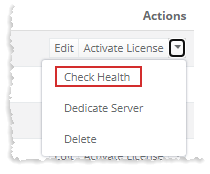
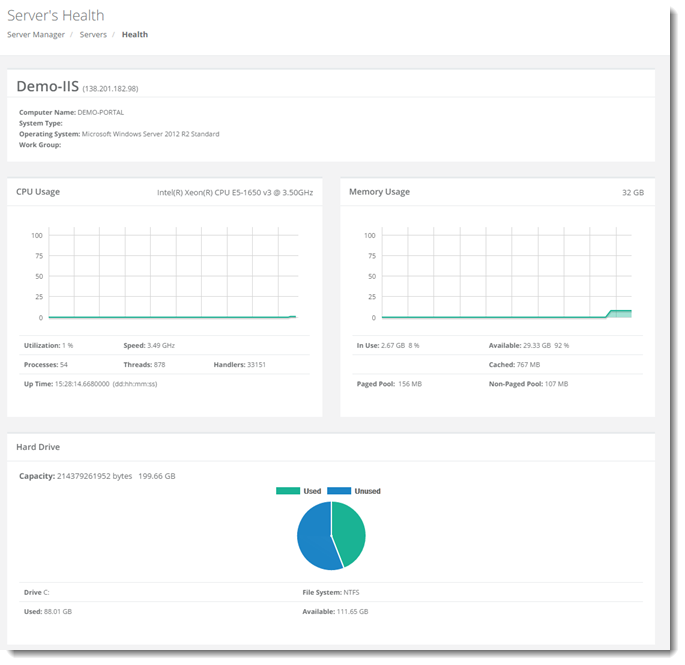
To check health of any server, click Check Health under Actions column.
Dedicating a Server
A server can be dedicated to a specific control panel user. When a server is dedicated to a user, the server and its facilities can only be used by that specific user. No other user can use the server for provisioning. A server can be:
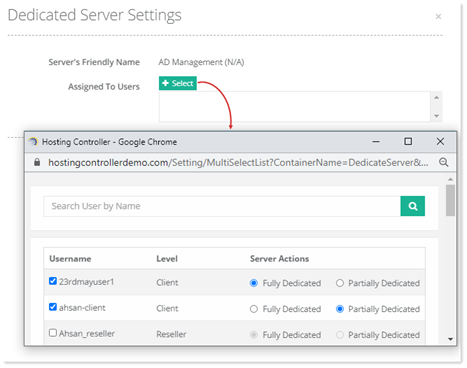
- Fully Dedicated: If the server is fully dedicated to a user, no other user can use the server. A server can also be dedicated to more than one users. This means the server is exclusive to only those users. No other users except the designated users can use the server for provisioning.
- Partially Dedicated: If the server is partially dedicated to a user, the server can be used by that user and also by other users in the panel. Partially dedicating a server reserves the server to the resources of a particular user but at the same time makes it available to other users on the system. All the resources of that particular user would be created on the partially dedicated server but at the same time it will host resources of other users as well. Like a fully dedicated server, a partially dedicated server can also be dedicated to more than one users. This means all the resources of those users will be provisioned on the partially dedicated server but at the same time resources of other users can also be provisioned on the server.
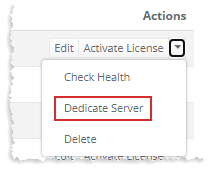
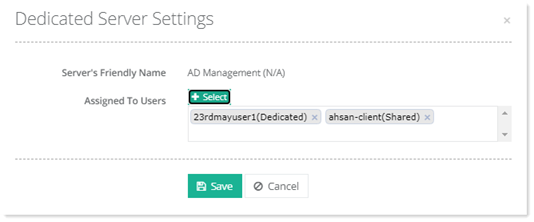
To dedicate a server, click Dedicate Server under Actions column.
Deleting a Server
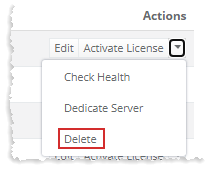
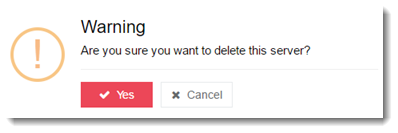
To remove a server, click Delete under Actions column.