| Product Documentation
Hybrid Control Panel (v10)
Managing Custom Fields
Generally user profiles come with standard set of fields such as First Name, Last Name, Email etc. However occasionally need for additional user defined fields may arise. A specific requirement may warrant these additional fields like the requirement of a Gender or Passport No. field. To cater to such additional requirements HC10 forwards the concept of Custom Fields. Extra fields carrying additional information can be added to the General or Billing Profile of an HC10 user.
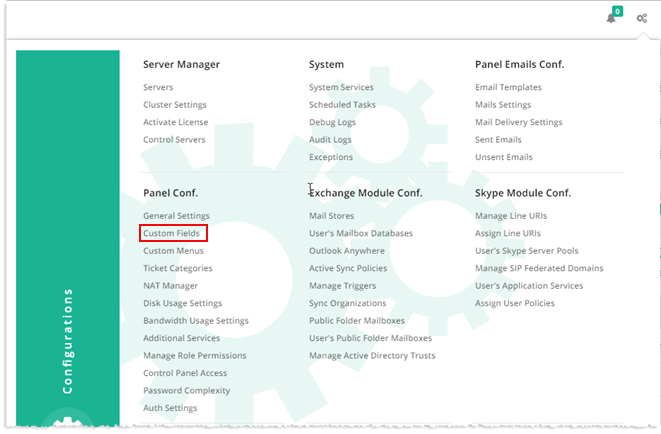
To manage custom fields, from top right corner of your screen, click  and then go to Panel Configuration >> Custom Fields.
Adding a Custom Field
To add a custom field, click +Add Custom Field and specify following information:
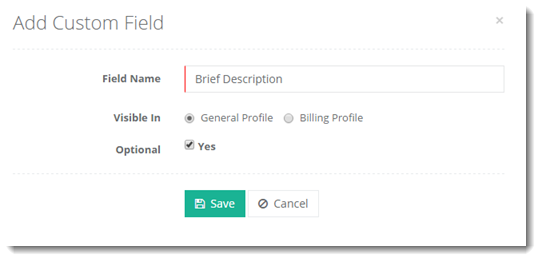
- Field Name: Type name of the custom field.
- Visible In: Select visibility in a specific profile i.e. General/Billing Profile.
- Optional: Select Yes check box if you want to keep the "filling in" requirements of this field optional and not mandatory. Otherwise HC10 will require that you compulsorily “fill in” this field while completing the form.
Editing a Custom Field
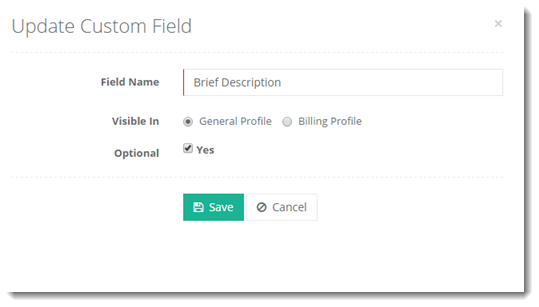
To edit custom field, click Edit and modify as required.
Deleting a Custom Field
To remove the custom field from the list, click Delete.