
| Product Documentation
Hybrid Control Panel (v10)
AWS
Hosting Controller now offers provisioning of virtual machines in Amazon Web Services (AWS) and Microsoft Azure (MS Azure) clouds through its panel. The AWS EC2 is a world renowned web service that allows customers to create as many or as few virtual servers as they need with various configurations of CPU, memory, storage, and networking capacity.
Benefits of using HC with Amazon
Benefit of using Hosting Controller with Amazon is that it allows multi-tenancy layer w.r.t individual Customers and also generate itemized bill w.r.t VMs according to their consumption which can be used to charge your clients according to the generated invoice.
Configurations required for Hosting Controller and Amazon
Following re the configurations required for Amazon Web Services with HC panel:
- Cluster configurations for enabling AWS role
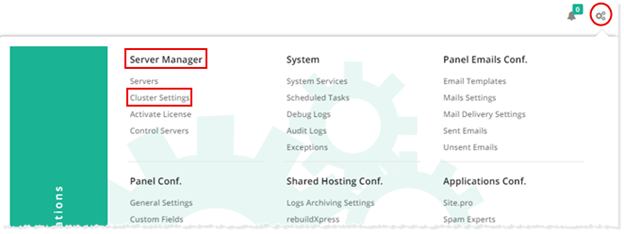
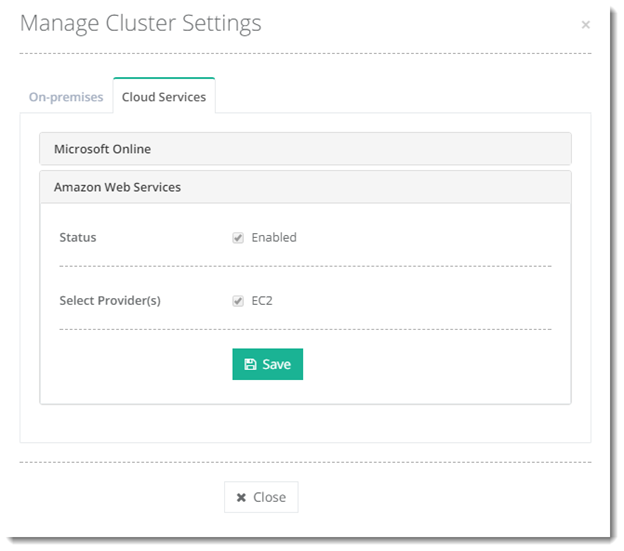
For adding Amazon Role in HC panel, one must enable Amazon Web Services role. To do that, logon to the HC panel as a Global Admin. At top right corner of the screen click (configuration icon). Go to Server Manager >> Cluster Settings and then click on Cloud Services tab >> Amazon Web Services and configure the AWS Services as shown below:
- Adding Amazon server
Adding Amazon Server in HC panel: After enabling Cluster Settings, next step is to add a hypothetical server having Amazon Role configured on it. Prior to adding this AWS Server in HC Panel, one must ensure that IAM User has been added successfully by logging into Amazon Management Console as a root user and assigning the permissions “AmazonEC2FullAccess” to this new IAM User.
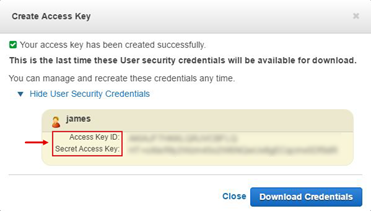
You only need to Access Type as "Programmatic access". AWS Management Console Access Type is not required.Once IAM User is added in AWS Management Console, note the “Access Key ID” and “Secret Access Key” fields as these are used in HC panel while adding the Amazon Hypothetical Server. Given below is a sample IAM User James along with its corresponding “Access Key ID” and “Secret Access Key” respectively.
Now in HC panel at Global Admin level, add the Amazon Server in HC panel by clicking the configurations icon at the top right corner of the screen and then navigate to Cluster Settings >> Server Manager >> Add Server.
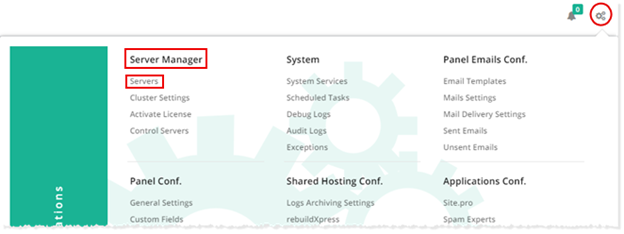
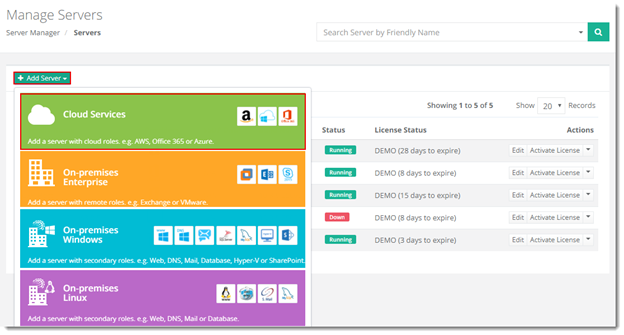
Select Cloud Services and specify required information as shown below: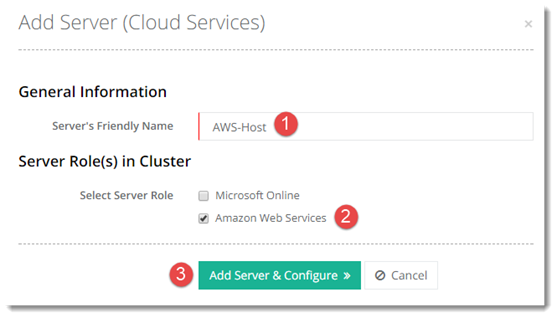
In case Amazon Web Services is selected as a server role, the same “Access Key ID” and “Secret Access Key” are to be specified against “User Access Key Id” and “User Secret Access Key” fields which were saved while adding IAM user in AWS Management Console.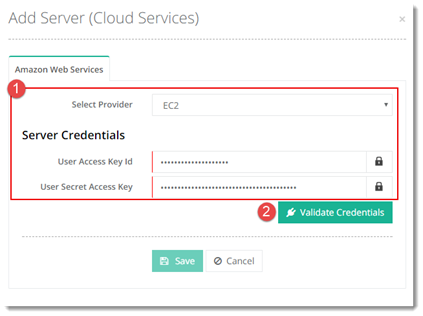
Select EC2 provider and provide server credentials. Click Validate Credentials to proceed. After correct validation of AWS, the details of Amazon Region, Security Group and Subnets are automatically fetched in HC panel.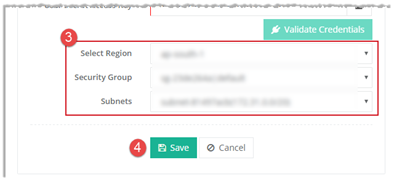
Click Save to add server with the specified information or Cancel otherwise.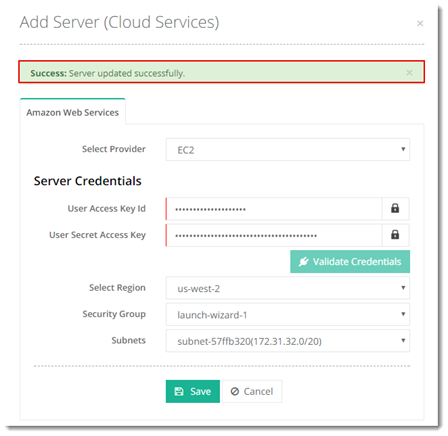
- Adding an OS Template
OSTemplates are the Amazon Machine Images (AMIs) which can be found in AWS Management Console as Public, Private or Custom owned images. You can note the Amazon Machine ID and then specify this same ID in HC panel while adding OSTemplate by specifying the same ID against Online Ref ID.
To add OSTemplate in HC panel, login as Global Admin, add the Amazon Server in HC panel by clicking the configurations icon at the top right corner of the screen and then navigate to AWS Module Conf. >> OSTemplates >> Add OSTemplates.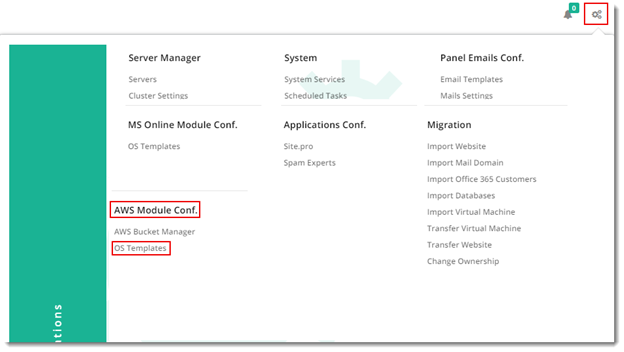
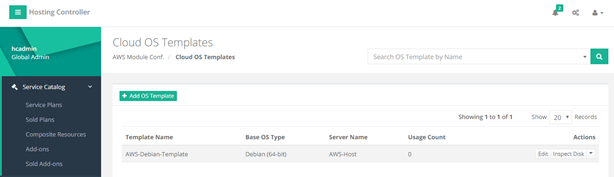
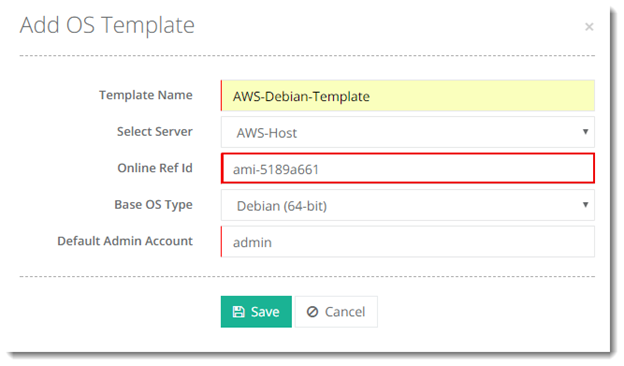
In the Admin Template page, there are several fields which are specified while adding Amazon OSTemplate:- Template Name: User Friendly Template Name.
- Select Server: Allows you to select Amazon Host configured in HC10 panel.
- Online Ref Id: This corresponds to Amazon Machine Image ID.
- Default Admin Account: Default Admin account that corresponds to your Operating System.
- Adding a Composite Resource
Once OS Templates are configured successfully as stated, next step is to add composite resources. In Amazon EC2, clients are provided a wide selection of instance types optimized to fit different use cases. Instance types comprise varying combinations of CPU, memory, storage, and networking capacity and give oneself the flexibility to choose the appropriate mix of resources for one’s applications. Each instance type includes one or more instance sizes, allowing to scale one’s resources to the requirements of target workload. In HC panel these are specified as Composite Resources such as t1.micro, t2.micro, m4.large etc. In order to add a composite resource in HC panel, from the left menu click Service Catalog >> Composite Resources >> Add Composite Resource.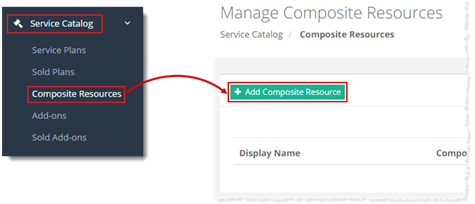
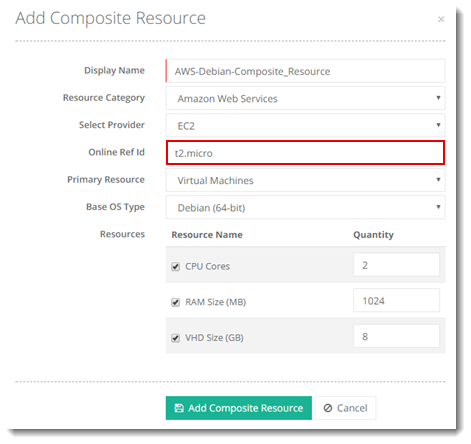
- Display Name: User Friendly display name of the composite resource.
- Resource Category: Select Resource Category corresponding to AWS.
- Select Provider: Select EC2 as provider.
- Online Ref Id: This is the Amazon EC2 Instance Type such as t1.micro, m4.large, m3. medium etc.
- Primary Resource: Select Virtual Machines as primary resource.
- Base OS Type: Select base OS type from the list to specify OS flavor against the VM to be added.
- Resources: Specify the resources corresponding to EC2 instance types. These Resources values are saved in HC Database to generate proper report against each VM.
- Adding a Service Plan
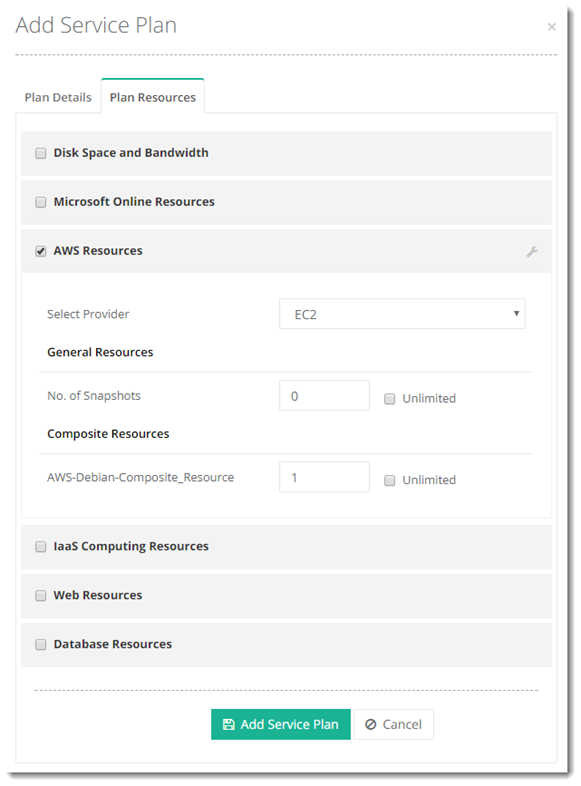
Next step is to add a Service Plan for AWS so that Service Plan could be sold to the client. In order to add a Service Plan in HC panel, from the left menu click Service Catalog >> Service Plan >> Add Service Plan.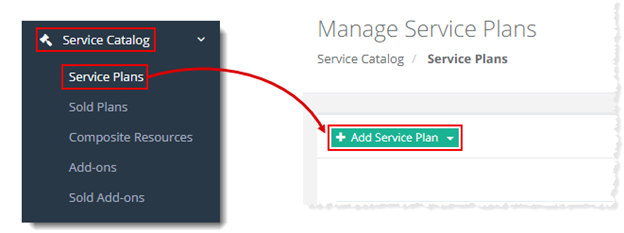
- Adding a Customer
Now add a customer to whom the Amazon Service Plan is to be sold. In order to add a Customer in HC panel, from the left menu click Panel Users >> Customers >> Add Customer.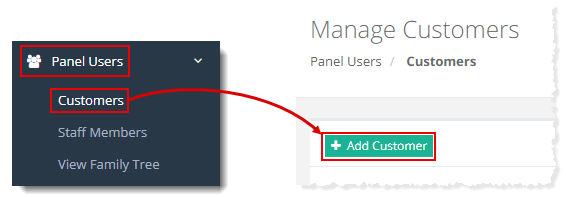
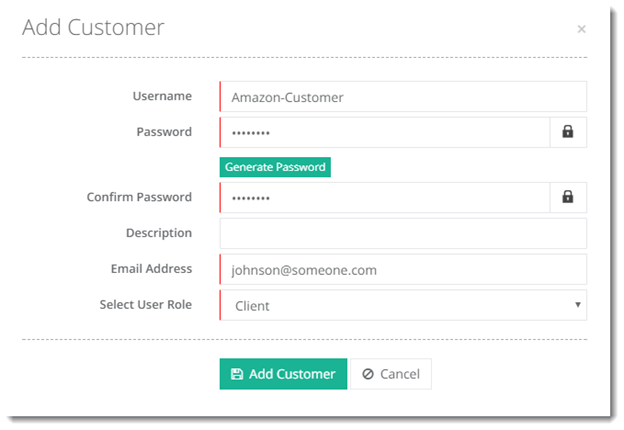
After specifying the customer details, click on Add Customer button for adding it in HC10 panel. - Selling a Service Plan
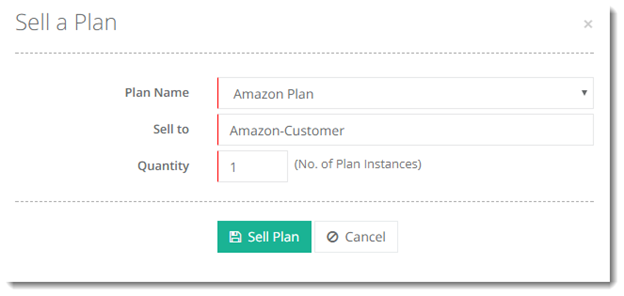
Sell the plan added in step # 5 to the customer added in previous step # 6. In order to sell a Service Plan to the customer in HC panel, from the left menu click Service Catalog >> Service Plan >> Sell Plan.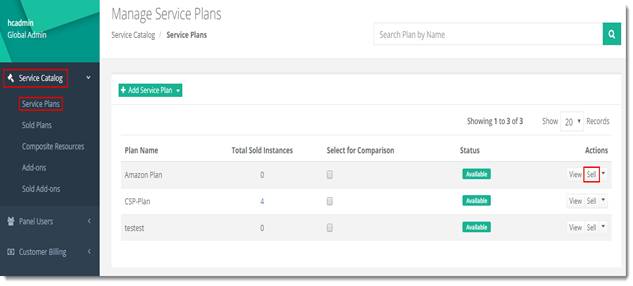
- Adding a Virtual Machine
In order to add Virtual Machine, auto-login as customer added in step # 6. To auto-login as Customer, click Panel Users >> Customers >> Auto login. See below screenshot for clarity: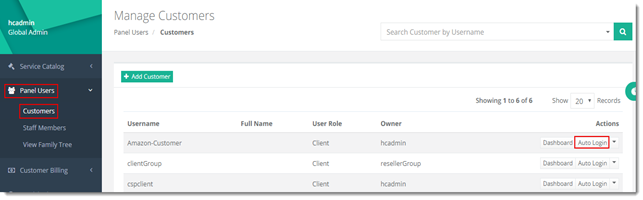
Now after logging into Customer HC Portal, provision an EC2 instance (Virtual Machine) by clicking on Provisioning >> EC2 Virtual Machines >> Create Virtual Machine.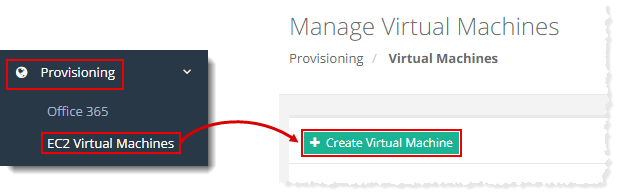
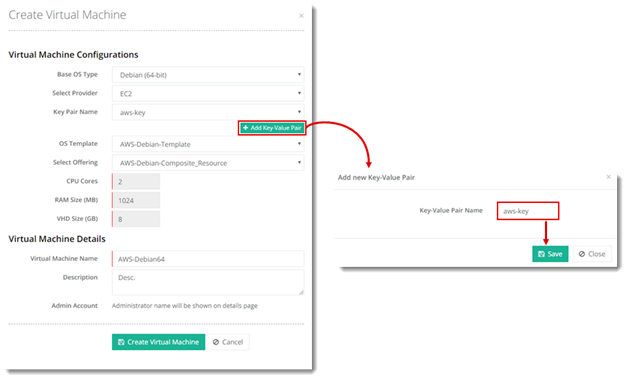
Click Create Virtual Machine to proceed or Cancel otherwise.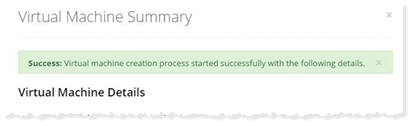
AWS Billing Configuration for HC using Amazon Bucket
HC generates itemized billing invoice for individual customers with respect to their VM as per usage. You will add S3 Bucket first by logging into Amazon Management Console as root user and then navigating to Services >> Storage >> S3 >> Create Bucket. See below screenshot.
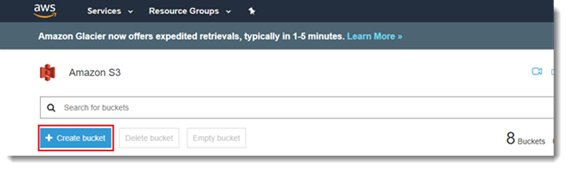
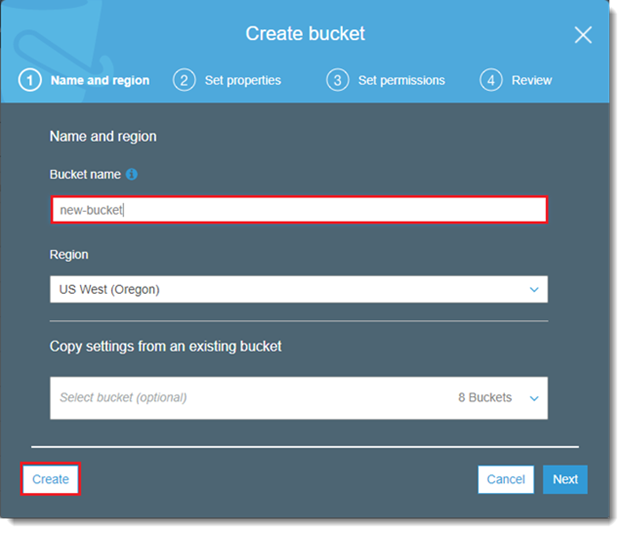
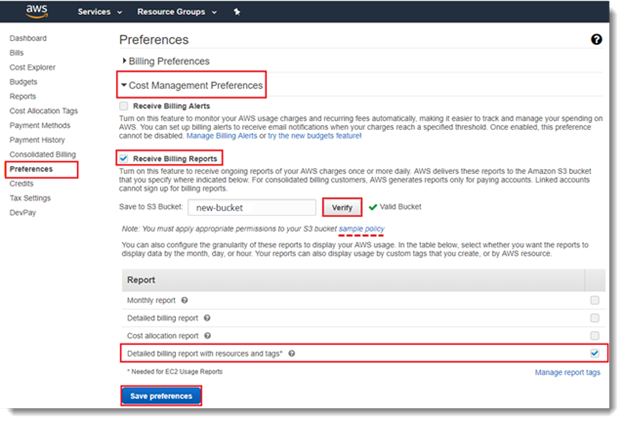
Now navigate to Your root Account Billing Dashboard >> Billing Preferences >> Cost Management Preferences >> Receive Billing Reports. Here specify the Bucket Name which you added in previous step, and click on Verify button. If bucket permissions are correctly set then Valid Bucket will be shown.
 ?
?
Click on “Detailed billing report with resources and tags” and then Save preferences. If Verify Button does not return true i.e. Valid Bucket against your new-bucket does not appear, then click on sample policy just beneath the Verify button as shown in aforementioned screenshot and copy this sample policy.
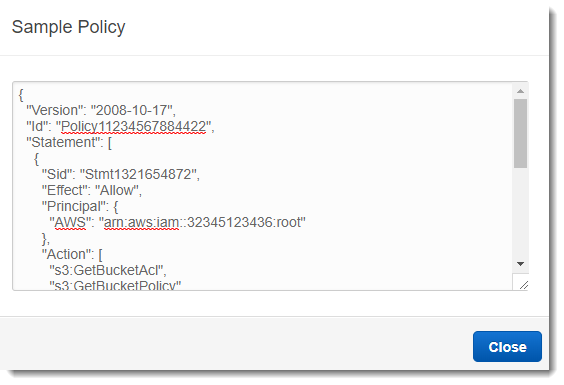
Afterwards, you can paste the same sample policy by editing bucket and specifying the copied sample policy’s text as permissions of this bucket from: to Services >> Storage >> S3 >> Bucket >> Permissions >> Bucket Policy. After specifying the sample policy, you can reverify your bucket from root Account Billing Dashboard >> Billing Preferences >> Cost Management Preferences >> Receive Billing Reports.
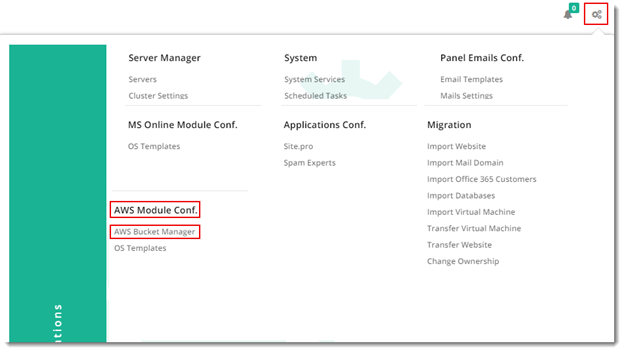
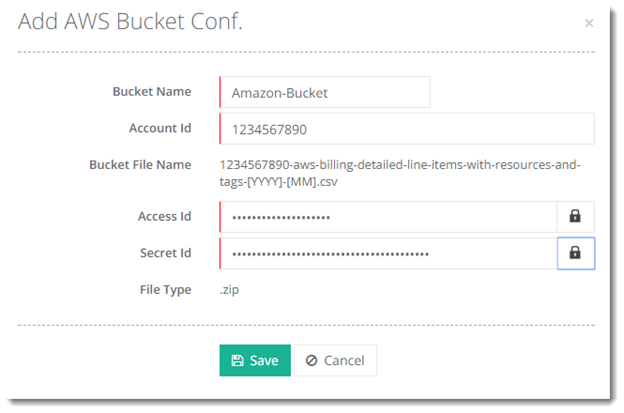
To specify same bucket in HC panel, login as Global Admin, add AWS Bucket in HC panel by clicking the configurations icon at the top right corner of the screen and then navigate to AWS Module Conf. >> AWS Bucket Manager >> Add Bucket Conf.
-
Bucket Name: User Friendly name of Bucket.
-
Account Id: Account ID that corresponds to the Amazon Root account.
-
Bucket File Name: This is automatically created prefixed with the Root Account ID number.
-
Access Id: “Access Key ID” which was created while adding IAM User.
-
Secret Id: “Secret Access Key” which was created while adding IAM User.