| Product Documentation
Hybrid Control Panel (v10)
Managing Triggers
The triggers feature in HC executes specified PowerShell commands at the creation, modification or deletion of certain Exchange objects. You may specify a certain Exchange PowerShell command in HC and in return HC will trigger the command at the given event.
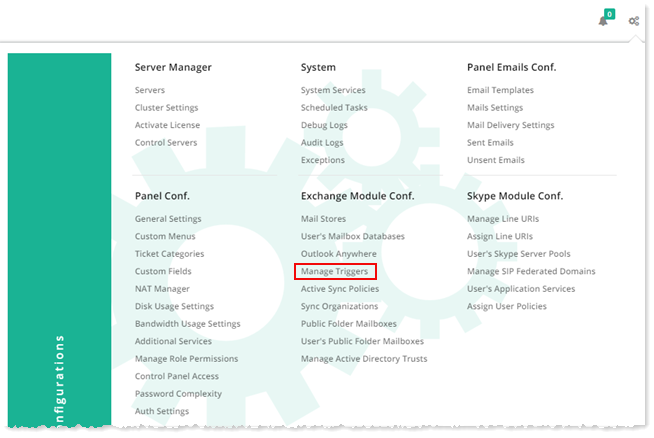
To manage triggers, from top right corner of your screen, click  and then go to Exchange Module Configuration >> Manage Triggers.
|
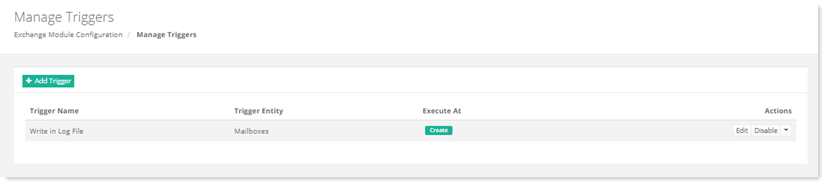
Manage Triggers page shows list of existing triggers with additional information as:
|
Fields marked in red are required fields and cannot be left empty.
The Manage Triggers section allow admins to perform various tasks. For further details, refer to the following sections:
Add a Trigger
Before adding a trigger through HC, place the script file in the HC installation directory at the path X:\Program Files\Hosting Controller\Tools
To add a trigger, click + Add Trigger and specify required information.
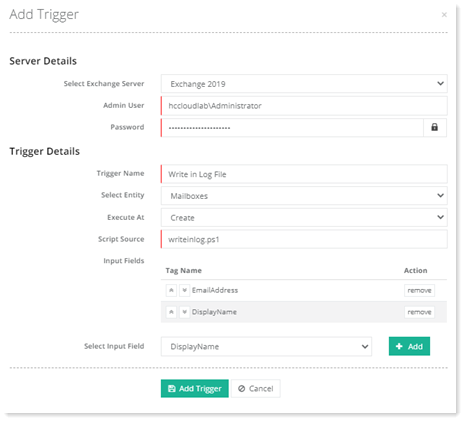
- Select Exchange Server: This is the Exchange server where the PowerShell command is to execute.
- Admin User: This is the domain/administrator of the Exchange server.
- Password: The password for the domain/administrator.
- Trigger Name: This indicates the name of the trigger.
- Select Entity: This specifies the Exchange object for which the trigger is to be executed. The eligible Exchange objects are:
- Mailboxes
- Distribution Lists
- Mail Contacts
- Public Folders
- Execute At: This specifies the particular event that fires the trigger. The trigger can be fired at the following events:
- Create
- Update
- Delete
- Script Source: This is the PowerShell script file to be executed. It is located in the HC installation directory at X:\Program Files\Hosting Controller\Tools.
- Input Fields: These are the Exchange object attributes that will be affected by the trigger.
- Select Input Field: Exchange object attributes can only be selected from a pre-defined list of attributes. This field lists all the attributes that can be selected.
Edit a Trigger
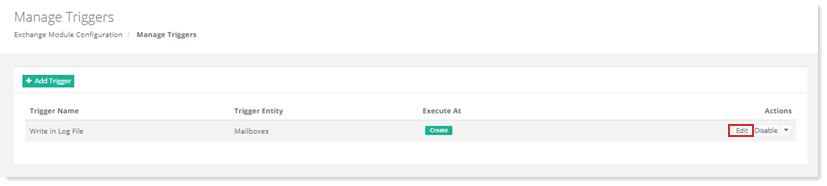
To modify trigger information, click Edit under Actions column.
Disable a Trigger
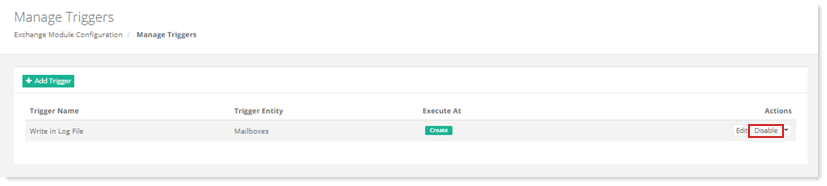
To disable a trigger, click Disable under Actions column.
Delete a Trigger
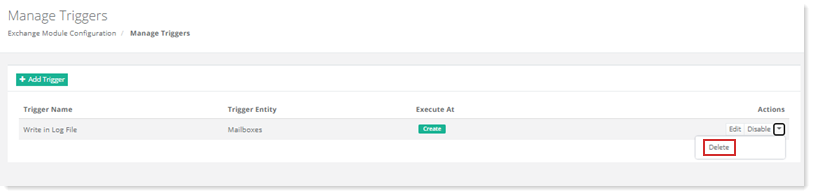
To delete a trigger, click Delete under Actions column.