
| Product Documentation
Hybrid Control Panel (v10)
Viewing distribution lists dashboard
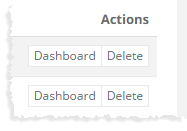
To view distribution list dashboard, click Dashboard under Actions column.
Advanced Properties
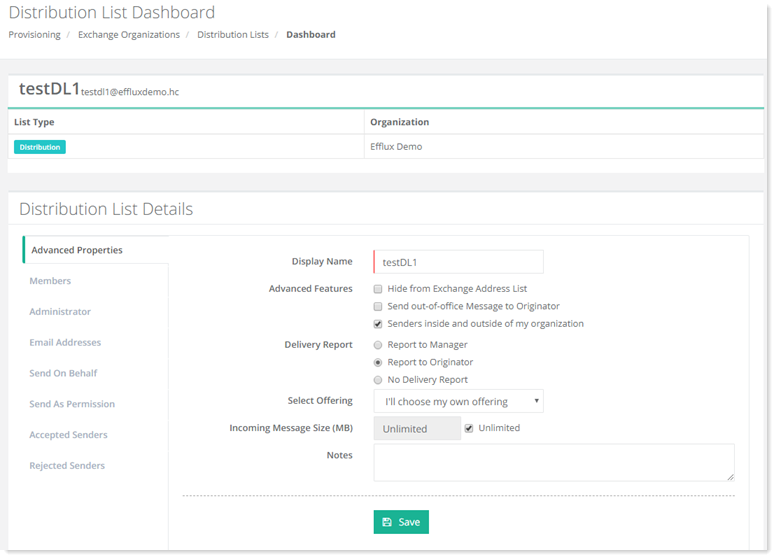
Various properties of a distribution list can be modified through HC.
To view/modify various properties, click Advanced Properties.
- Display Name: Display name of the distribution list can be modified here.
- Advanced Features:
- Hide from Exchange Address List: This option if enabled, hides the distribution list from the organization's address book.
- Send out-of-office Message to Originator: This option if enabled, allows the members of the distribution list to reply with out-of-office messages to the sender of the mail.
- Senders inside and outside of my Organization: This option if enabled, allows senders both inside and outside of the organization to send messages to this distribution list. By default this option is disabled and only senders inside the organization can send messages to this distribution list.
- Delivery Report:
- Report to Manager: This option permits a delivery report to be sent to the list administrator.
- Report to Originator: This option permits a delivery report to be sent to the sender of the messages.
- No Delivery Report: This option ensures that no delivery report is sent out at all.
- Select Offering: Select your offerings from the list.
- Incoming Message Size: Specify incoming message size limit.
- Notes: Specify brief description here.
Members
Members can be added to a distribution list. Members can be user mailboxes, mail contacts and other distribution lists.
To view/modify members related information, click Members.
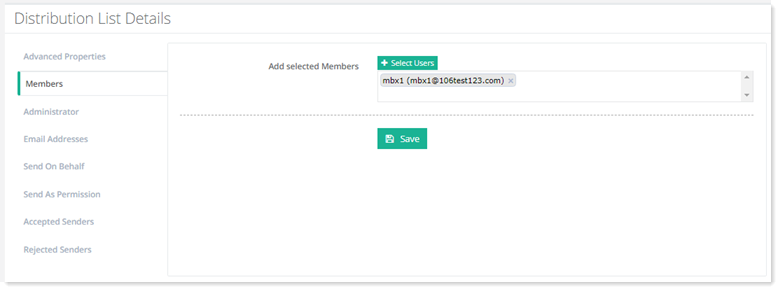
- Select Users: These are all the users that are to be included as list members. Members can be user mailboxes, mail contacts, and other distribution lists. Members can be selected one by one, or they can be selected all at once.
Administrator
Administrators can be added to a distribution list. Administrators can only be user mailboxes.
To select administrator of the list, click Administrator.
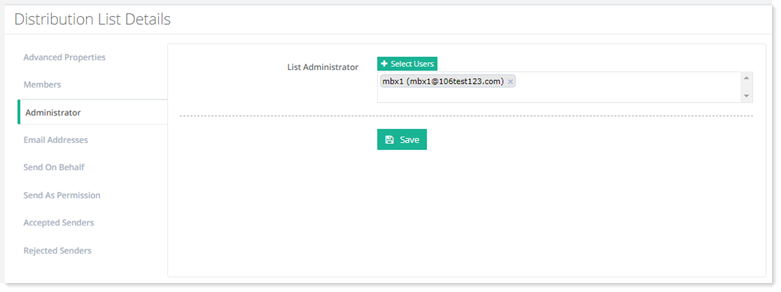
- Select Users: These are all the users that are to be included as list administrators. Administrators can only be user mailboxes.
Email Addresses
Email aliases are additional email addresses for the distribution list.
To view/add email addresses of the list, click Email Addresses.
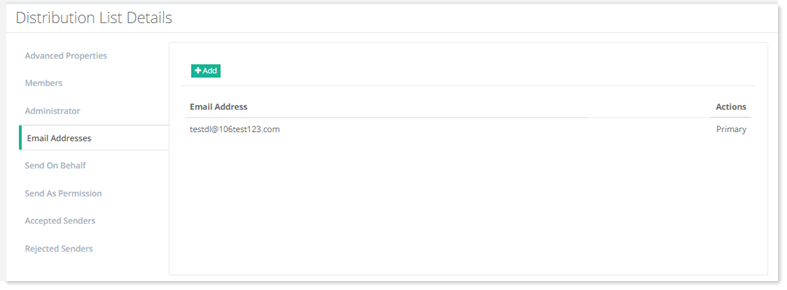
- Email Addresses: These specify aliases for the distribution list. More than one aliases can be added for any distribution list.
Send On Behalf
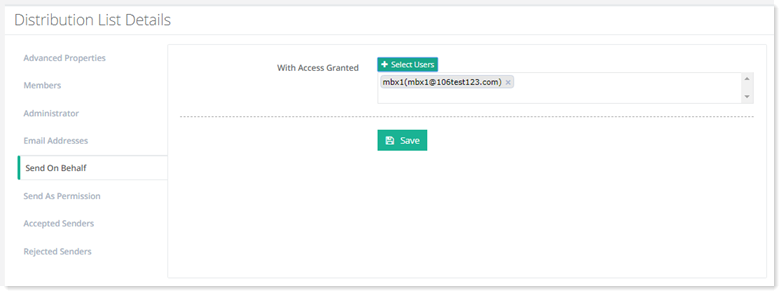
A distribution list can delegate someone else to send mail on its behalf. When the distribution list enables Send on Behalf permissions for another user, the delegate can choose the distribution list’s email address in the From field when composing a message in Outlook. However, message recipients will see both the distribution list’s address and the delegate's address (as the actual author of the message).
To view/modify send on behalf information, click Send On Behalf.
Send As Permission
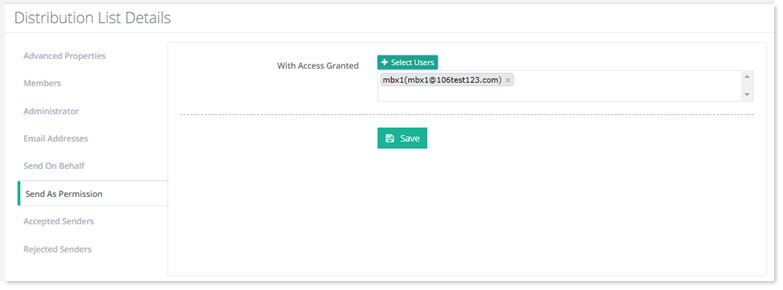
Similarly, a distribution list can delegate someone else to send mail as itself. However, in this case the recipients will have no idea that the message was sent by a delegate rather than the distribution list. The message will appear as if sent by the distribution list itself.
Accepted Senders
Accepted senders are all users and distribution lists, which can send messages to this distribution list.
To view/modify accepted senders information, click Accepted Senders.
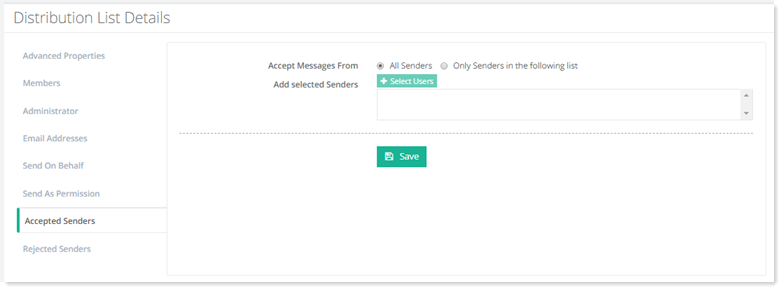
- All Senders: If this option is enabled, everyone will be able to send messages to this distribution list.
- Only Senders in the following list: If this option is enabled, only senders in the list will be able to send messages to the distribution list. Messages from everyone else will be rejected.
Rejected Senders
Rejected senders are all users and distribution lists, which cannot send messages to this distribution list.
To view/modify rejected senders information, click Rejected Senders.
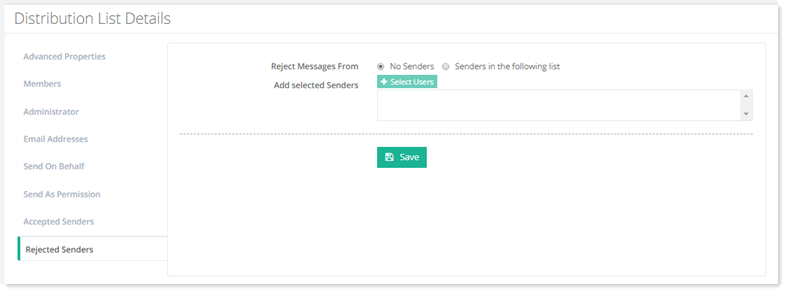
- No Senders: If this option is enabled, everyone will be able to send messages to this distribution list. Messages from none will be rejected.
- Only Senders in the following list: If this option is enabled, senders in the list will not be able to send messages to the distribution list. Messages from everyone else will be accepted.