| Product Documentation
Hybrid Control Panel (v10)
Adding a Mail Server
Pre-reqs:
HC agent must be installed on the Mail server. To learn how to install an HC agent, see HC Agent Installation.
HC agent must be installed on the Mail server. To learn how to install an HC agent, see HC Agent Installation.
Prior to add a Mail server, make sure you have enabled the server roles under Cluster Settings. If you have not configured it yet, please configure it now to proceed further.
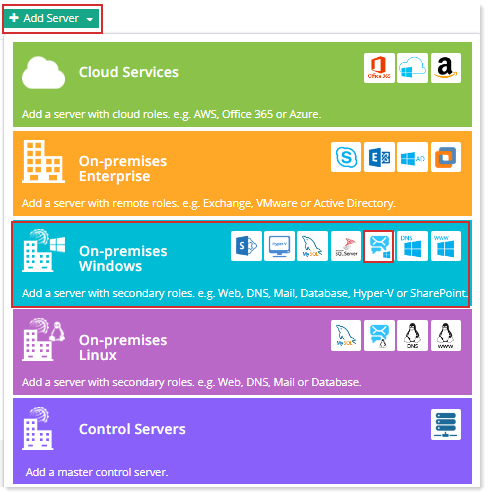
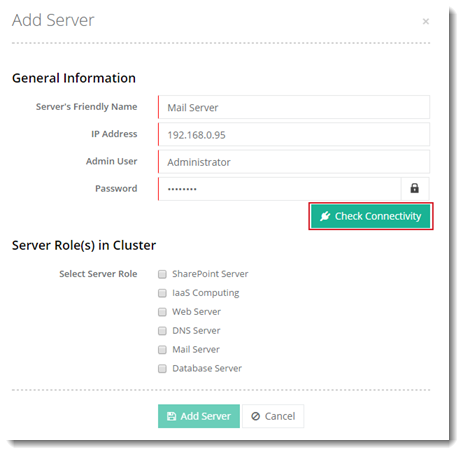
To add a mail server, specify General Information and click Check Connectivity. Once you are connected successfully, only then you can add a Mail server.
Fields marked in red are required fields and cannot be left empty.
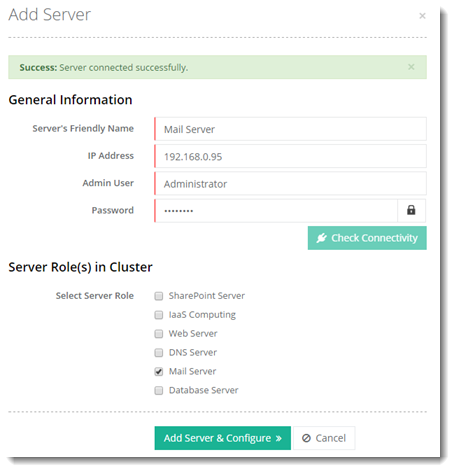
Click Add Server & Configure. Specify required information for Mail Server.
For IceWarp
To configure IceWarp as a mail server, select IceWarp from the drop-down list box and specify required information to proceed.
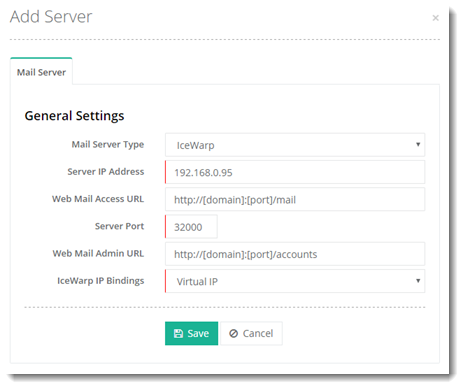
- Mail Server Type: Select IceWarp from the drop down.
- Server IP Address: Provide IP address of the IceWarp server.
- Web Mail Access URL: Provide Web Mail Access URL for IceWarp. Standard format for this is http://[domain]:[port]/mail. However, this URL can be customized.
- Server Port: Provide port of the IceWarp server. Default port is 32000.
- Web Mail Admin URL: Provide Admin URL for IceWarp. Standard format for this is http://[domain]:[port]/accounts. However, this URL can be customized.
- IceWarp IP Bindings: In case IceWarp version is 9 or higher then admin can specify whether the mail domains are allowed to listen on all IP addresses or a particular address.
MailEnable
To configure MailEnable as a mail server, select MailEnable from the drop-down list box and specify required information to proceed.
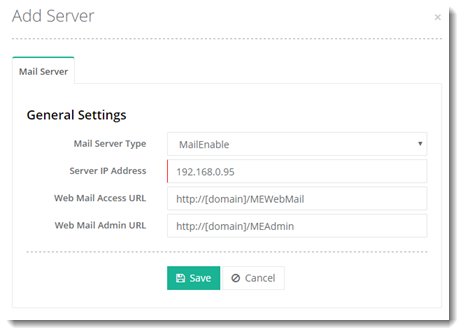
- Mail Server Type: Select MailEnable from the drop down.
- Server IP Address: Provide IP address of the MailEnable server.
- Web Mail Access URL: Provide Web Mail Access URL for MailEnable. Standard format for this is http://[domain]/MEWebMail. However, this URL can be customized.
- Web Mail Admin URL: Provide Admin URL for MailEnable. Standard format for this is http://[domain]/MEAdmin. However, this URL can be customized
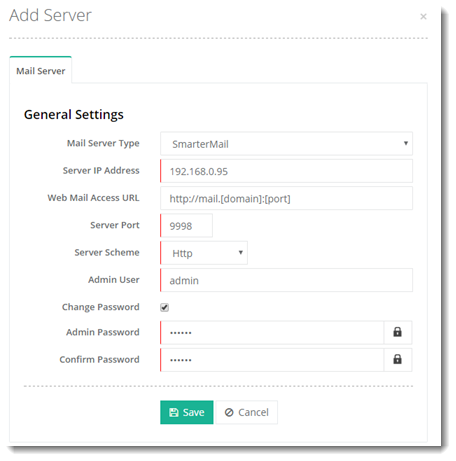
For SmarterMail
To configure SmarterMail as a mail server, select SmarterMail from the drop-down list box and specify required information to proceed.