| Product Documentation
Hybrid Control Panel (v10)
Managing Mail Store Pools
Admins may want to assign mailboxes of certain sizes to certain mailbox databases. HC allows the admins to assign mailboxes falling in a certain size range to certain mailbox databases. For example mailboxes starting from 3 GB – 5 GB may be assigned to a particular mailbox database. Categories based on size ranges are referred to as mail store pools. For instance managers can have their own mail store pool and assistant managers can have their own. Mailboxes starting from 3 GB – 5 GB can be reserved for managers while mailboxes starting from 1 GB – 2.5 GB can be reserved for assistant managers. Whenever a new mailbox is created it will be created under the appropriate mail store pool, depending upon its size. Mailbox databases once assigned to a mail store pool can not be assigned to another mail store pool.
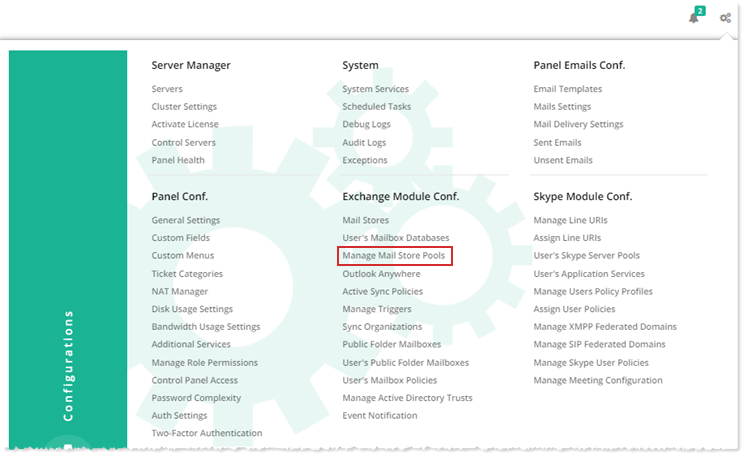
To manage user's mailbox store pools, from top right corner of your screen, click  and then go to Exchange Module Configuration >> Manage Mail Store Pools.
|
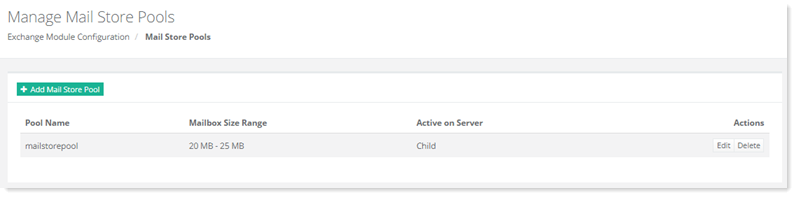
Manage Mail Store Pools page shows list of existing mail store pools with additional information as:
|
Adding a Mail Store Pool
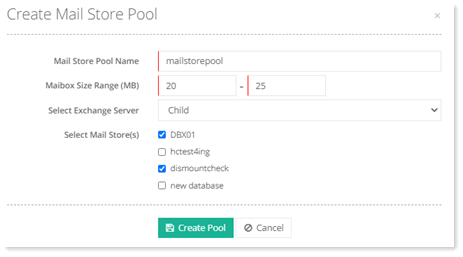
To add a mail store pool, click + Add Mail Store Pool and specify required information.
Editing a Mail Store Pool
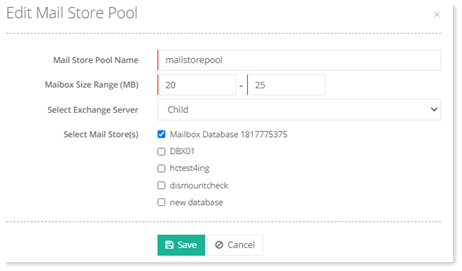
To edit a mail store pool, click Edit under Actions column and modify information as required.
Deleting a Mail Store Pool
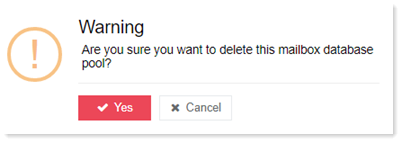
To remove a mail store pool, click Delete under Actions column.